Can a PDF Have a Virus? Risks and Fixes
Can a PDF have a virus? Yes, through scripts, links, QR codes, or reader bugs. See warning signs and how to scan before you open one.
Yes, a PDF can deliver malware or a phishing lure, but the format itself isn't a virus and most PDFs are harmless. In a broad email sample, 0.13% of PDFs were malicious.
That low share doesn't mean every unexpected attachment is safe. PDFs are familiar, common business documents, so attackers can hide a harmful request inside something that looks like an invoice, receipt, shipping notice, or form. The important question isn't just whether the file contains a virus. It's also whether it exploits your reader or persuades you to follow a dangerous link.
Can a PDF Have a Virus
PDFs represented 66.6% of malicious email attachments in a Palo Alto Networks malware report. Attackers clearly favor the format. That does not mean most PDFs are dangerous: the overwhelming majority are ordinary documents, and opening one in updated software does not automatically infect your computer.
The confusion comes from mixing up two different measurements. One asks how many PDFs moving through everyday email are malicious. The answer is a small fraction. The other asks which file types appear most often among attachments already flagged as malicious. There, PDFs lead.
How often a PDF is actually malicious
| Measure | Figure | What it means |
|---|---|---|
| Malicious share of PDFs in everyday email | A small fraction | Most PDFs are harmless, but their sheer volume gives attackers a delivery channel |
| Malicious PDFs built around a lure such as a QR code or link | Many | These attacks try to steal logins rather than install a classic virus |
| PDFs among malicious email attachments | 66.6% | PDFs were the most common malware-delivery attachment in that dataset |
A low infection rate and a top ranking can both be true at once. PDFs are routine in business inboxes, so even a small malicious share produces a large number of dangerous files. When attackers pick a format for email delivery, they pick the one people open without thinking twice.
A clean antivirus scan settles only part of the question. A scan can say a file holds no malicious code. It cannot tell you whether the document is lying to you. A PDF with no virus at all can still steer you toward a fake login page, a QR code, or a prompt to turn off your protection.
Practical rule: An unexpected PDF means verify the sender first. Its arrival alone says nothing about whether it can be trusted.
If an invoice, delivery notice, resume, or tax document surprises you, pause and confirm it through a phone number or email thread you already trust. Don't use contact details or links inside the suspicious message to verify it.
How a PDF Delivers Malware
Think of a PDF as an envelope. Most envelopes hold a plain letter, but an envelope can also carry a form, a link to another place, a smaller attachment, or something that reacts when opened. The filename alone can't tell you which kind of document you're dealing with.
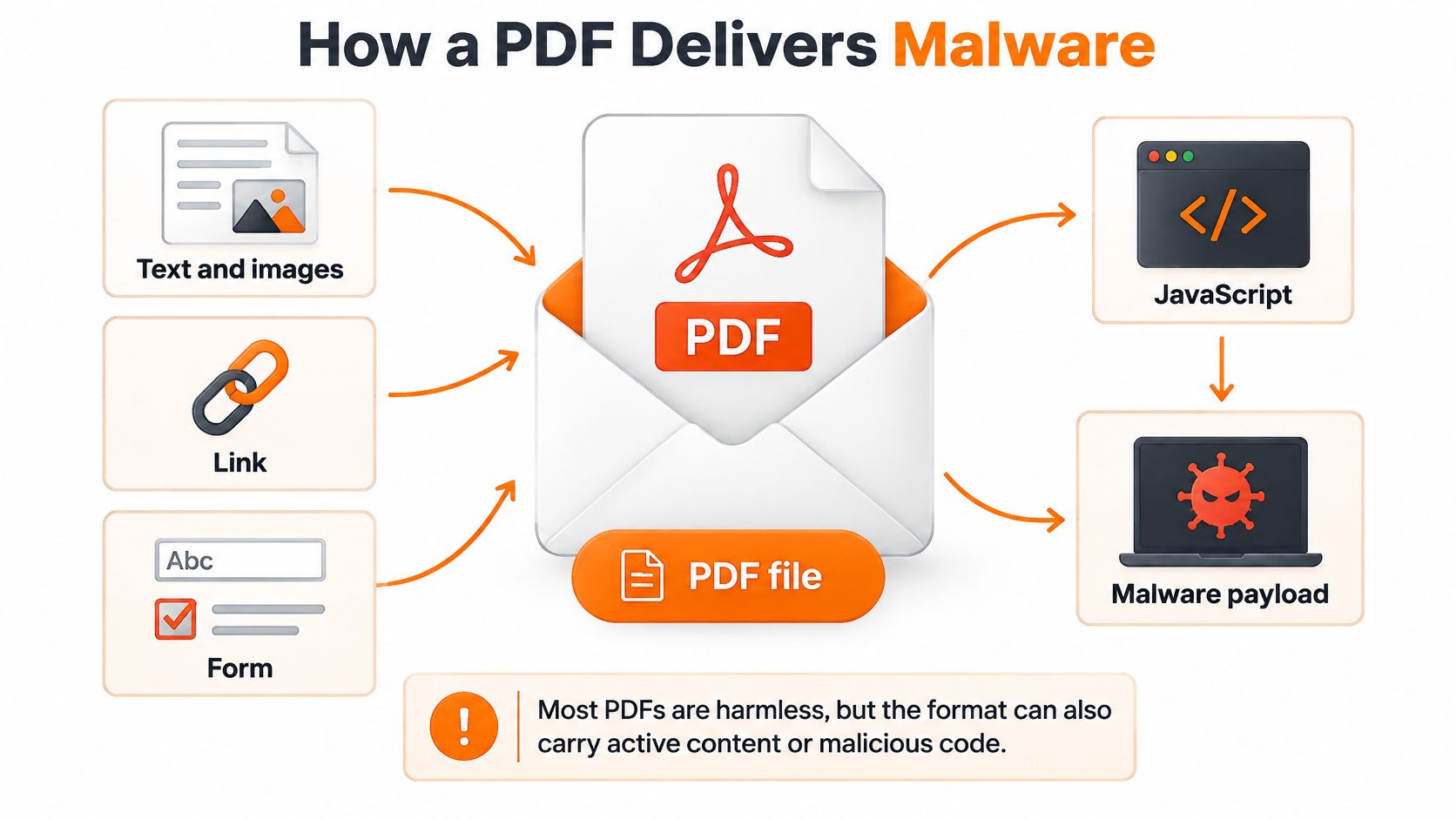
Most PDFs contain text and images. The format can also support JavaScript, actions, clickable links, forms, and file attachments. Those features have legitimate uses, such as interactive forms, but attackers can misuse them to get code run or to direct you toward a harmful page.
Three paths from document to harm
- A flaw in the reader: A crafted PDF can target a vulnerability in the software that processes its contents. The reader might crash, run attacker-controlled code, or download additional malware.
- A link or button: The document can send you to a fake login page, malicious website, or fraudulent security download. It may contain no traditional virus at all.
- An embedded attachment: A second file inside the PDF may be the payload. The document can try to get you to open or run it.
A guide to how PDFs can contain viruses describes the format's active features and reader vulnerabilities. Microsoft also documents the Exploit:Win32/Pdfjsc family as malicious PDFs that used Adobe Reader vulnerabilities to download and run arbitrary files, including through email attachments or compromised webpages.
Consider a courier notice with a button that says “View delivery details.” You click it, land on a page that copies the courier's branding, and enter your email password to continue. In that case, the PDF didn't need to contain a classic virus. It delivered you to the site where your credentials were stolen.
The letters .pdf at the end of a filename aren't the threat. The risk comes from what your reader does with complex content and what you're persuaded to do after the document opens. A fully patched, modern reader is safer than outdated software, but it can't stop you from voluntarily following a convincing link. Close a PDF that asks you to launch an unfamiliar program or grant unusual permissions.
Warning Signs and Real Attack Cases
Palo Alto Networks' Unit 42 observed malicious PDF files rise from 411,800 in 2019 to 5,224,056 in 2020, an increase of roughly 1,169%, according to Check Point's account of the Unit 42 findings. That is more than 5 million malicious PDFs in a single year. Most of them did not infect a computer just by sitting in an inbox. They worked because someone did what the document asked.
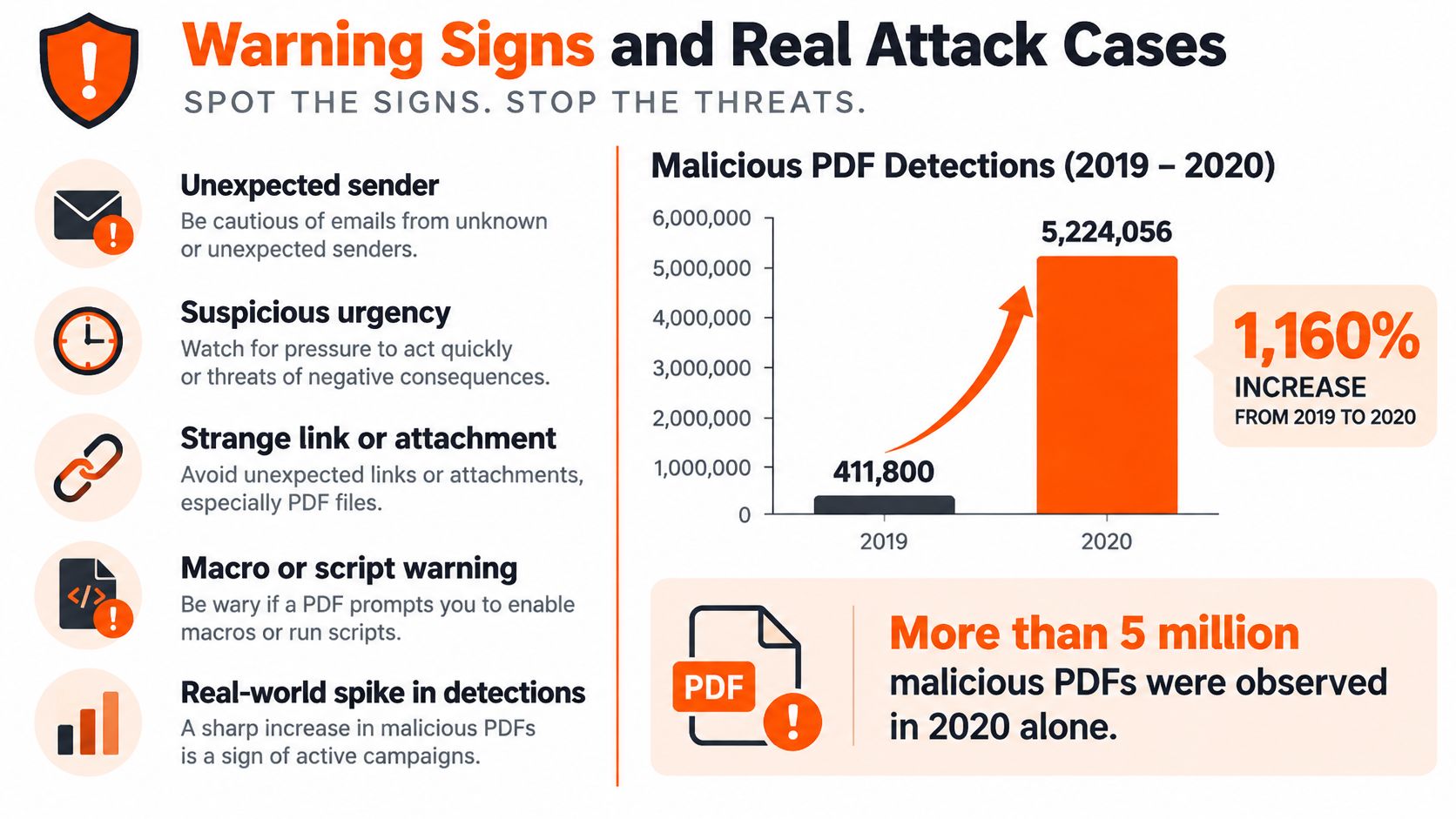
Unit 42 identified lures such as fake CAPTCHA prompts, coupons, play buttons, file-sharing notices, and e-commerce offers. The pattern across all of them is the same. The practical warning sign is rarely how the document looks. It is the action the document asks you to take.
PDF lures and what they ask you to do
| Lure | What you see | Risk if you act |
|---|---|---|
| Fake CAPTCHA | A prove-you're-human button inside the PDF | Redirect to a harmful site or fake extension |
| Coupon or e-commerce offer | A deal from a store you didn't contact | Phishing page or unwanted download |
| Play button | A video-style control in a document | Click leads off the PDF to attacker content |
| File-sharing notice | A prompt to view a shared document | Fake login that steals credentials |
| QR code | A code to scan with a phone | Phone browser opens a phishing or payment page |
| Password-protected invoice | A billing PDF plus a password in the email | Filter evasion, then a link or malware prompt |
Each row works the same way: the PDF holds a picture of something familiar, and the attack lives one click past it. A CAPTCHA inside a document is unusual, because CAPTCHAs belong on websites. A video button in a file is often just an image that sends you elsewhere. A coupon from a store you never contacted deserves a simple question: why did it arrive? Be especially wary if the document creates urgency, asks you to enable content, or prompts you to install a viewer. A password supplied in the same email as a locked attachment can also make it harder for filters to inspect the file.
The video below offers a visual walkthrough of the types of lures that may appear in PDFs.
What still had to happen
A shipping PDF refers to a real order and asks you to scan a QR code to pay a small redelivery fee. The danger is the card form on the phone page, not the QR code by itself. The victim still had to scan it, trust the resulting page, and enter card details.
An invoice tells you to enable content or install a viewer before you can read it. The installation then adds a browser extension or a pop-up security product. The install is the payload. The document was the lure that persuaded the reader to run it.
A crafted attachment opened in an outdated reader can take a different path, exploiting a software flaw to download another program. Even then, someone had to open the file in vulnerable software. A PDF sitting in Downloads has not taken over the PC just by being there.
This is why a clean antivirus result is only one layer of the answer. Many malicious PDFs phish rather than carry a classic virus, so a scanner can clear the file while the QR code, the fake login, or the request to disable security waits inside untouched. Deleting the document afterward won't undo a password already entered on a fake site or a payment already approved. If you weren't expecting that exact document from that sender, confirm it through a number or thread you already know before you click anything inside it.
How to Open and Scan a PDF Safely
Use the same routine whenever an attachment feels unexpected. Each step addresses a different risk, from a fake sender to an outdated reader or an unsafe link.
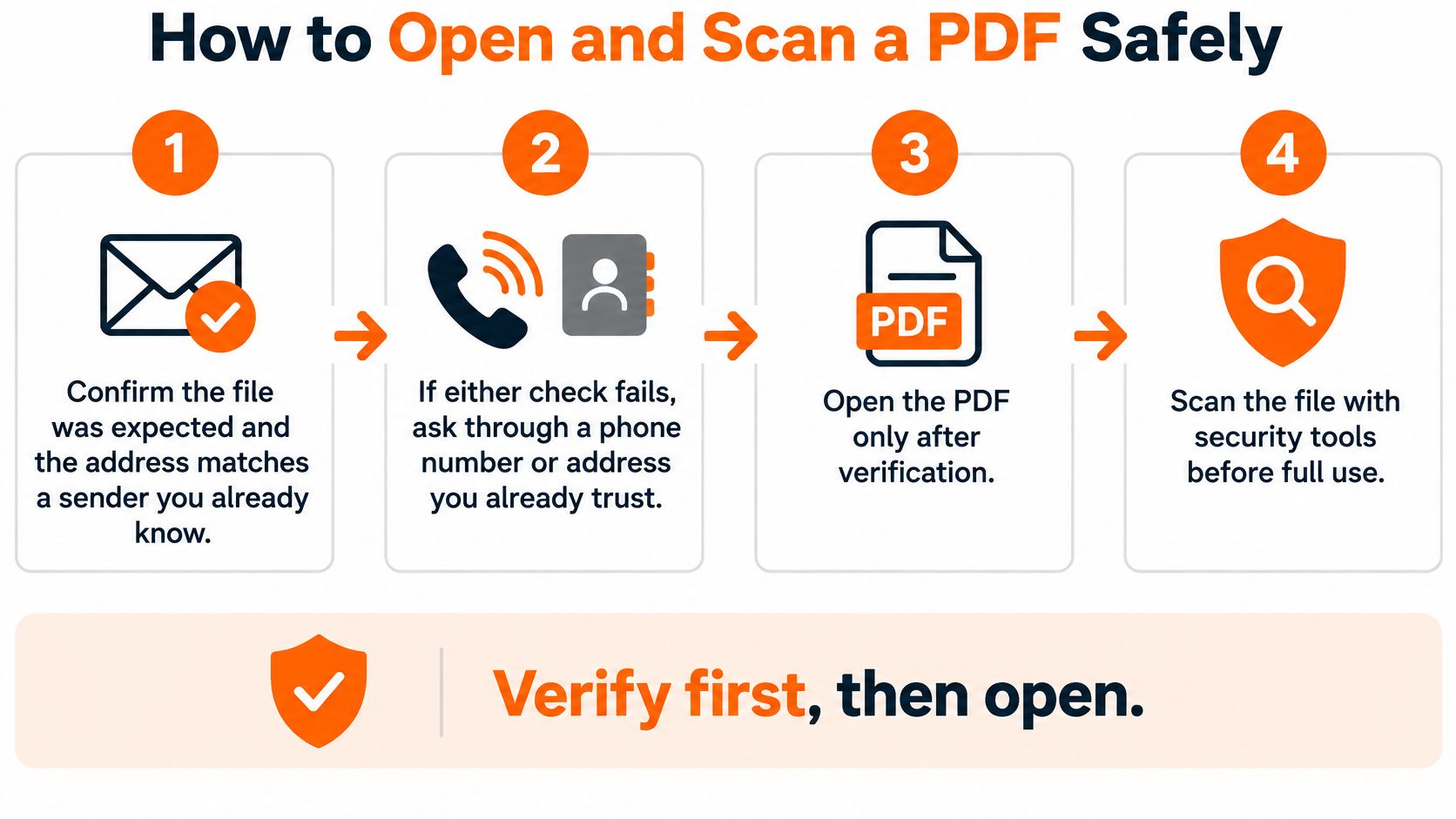
- Confirm you expected the file. Check that the sender address matches a person or organization you know, and that the document makes sense in the context of your conversation. If either check fails, ask through a phone number or separate message thread you already trust.
- Leave the document's links alone. Don't click buttons, follow links, fill out forms, or scan QR codes until you've verified the sender. A link inside the file isn't a safe way to confirm that file's legitimacy.
- Update your system and reader. Install pending updates for your operating system and PDF application, and leave automatic reader updates enabled. Updates fix known flaws that a crafted file may try to exploit.
- Use a protected reader. Open the document in a current reader with sandboxing enabled. Adobe's security advisory material explains that Protected Mode sandboxing is enabled by default in modern Adobe Reader and limits a PDF's ability to read or write the filesystem, delete files, or modify system information. Protected View opens untrusted documents in a restricted, largely read-only state.
- Disable JavaScript if you don't need it. In Adobe Reader, you can open Preferences, choose JavaScript, and clear the option to enable Acrobat JavaScript. Adobe also provides controls to restrict JavaScript APIs and trusted documents. This is a useful precaution when you don't rely on interactive documents, but it doesn't replace updates.
- Scan the attachment before using it. Save the file without opening it and use your antivirus software's file scan, often available from the right-click menu. If you've already saved it, scan the file and the folders where it was downloaded. If you're comparing protection options, our guide to free antivirus versus paid antivirus explains what to consider.
- Stop at requests that go beyond reading. Close the PDF if it asks you to launch another program, install a viewer, enable content, or turn security off. A document shouldn't need control of your computer just to display a page.
Why the order matters
Sandboxing lowers the damage a document can cause, but it isn't an absolute guarantee. An attacker may chain a reader vulnerability with a sandbox escape, or persuade you to approve a link or enable content yourself.
Organizations can also set reader updates and JavaScript policies centrally, block risky child processes and external launches where feasible, and keep real-time endpoint scanning enabled. For a home user, the essential habit is straightforward: verify first, update your reader, scan the attachment, and refuse prompts that ask for more than viewing the document.
Why a Clean Scan Is Not Enough
A clean scan tells you one thing: the scanner found no threat it recognizes. That answer is narrower than it sounds. Antivirus tools can be highly accurate and still miss some malicious files, because detection often works like a guest list. A threat that is not on the list, or that hides itself well enough, can walk straight through. A clean result is one piece of evidence, and it stops well short of clearing the whole message.
The bigger gap is what a scan never checks at all. Many malicious PDFs contain no virus to detect. They carry a lure instead: a link to a fake login page, a QR code that opens a phishing site, or a prompt asking you to disable a security feature. Nothing inside the file triggers an alert, because the attack only begins once you follow its instructions.
What each PDF defense can and cannot prove
| Layer | What it checks | What a pass cannot prove |
|---|---|---|
| Static scan | File contents and known malicious patterns | A novel exploit, obfuscation, or a link-only lure |
| Behavioral detection | What runs after the file opens | A phishing page the user opens later |
| Reader sandbox | Damage the document can do on the PC | A sandbox escape or a click the user approves |
| Reputation check | Sender, domain, and link history | A new lookalike or a compromised account |
| Human verification | Whether you expected this exact file | Anything technical about the file itself |
Each layer answers a different question, so a pass in one row never covers the limits of another. Even the strongest combination leaves the last row to you: whether the request itself makes sense.
A clean scan means the scanner didn't find a threat. It doesn't mean the sender is genuine.
This distinction matters most for everyday attachments like invoices, resumes, shipping notices, and tax documents. The harm is often a stolen password or card details typed into a fake site, rather than a traditional virus inside the file. A scanner can correctly report no malware while the message still tricks you into handing something over.
Treat the result as one input, then confirm the request independently. A clean scan is never a reason to scan an unverified QR code or switch a security feature off.
Online Scanners, Phones, and Previews
A free online multi-engine scanner can give you another opinion on a file, but uploading it sends a copy to a third party. Use a web scanner only when the document isn't confidential. Don't upload a bank statement, tax return, or personal document to an unknown site just to check it. For private files, use local security software and verify the sender instead.
Email preview panes and phone quick-look features may render a PDF before you deliberately open it. If your email client allows it, turn off automatic previews for messages from unknown senders. Open an attachment only after checking who sent it and why.
Use the same caution on a phone
Keep your PDF app updated through the official app store. Don't tap links or scan QR codes inside a document until you've confirmed the sender. A PDF app shouldn't need permission to install software or change your phone's settings just to show you a document.
Password-protected files need the same scrutiny. The password should arrive through a separate channel from the file, such as a message from a contact method you already trust. If the password arrives in the same email as the attachment, verify the sender before entering it. A scanner result can't answer whether the sender is legitimate.
Decide Whether You Need a Scan or Help
Choose your next step based on what you did with the PDF. If you only received it or opened it without interacting with its contents, the response is different from what you should do after entering credentials or allowing an install.
What to do after opening a suspicious PDF
| Situation | Action |
|---|---|
| Didn't click, enable content, or interact, and the scan is clean | Delete the file and empty the trash |
| Followed a link or scanned a QR code | Change passwords from a trusted device and review account sign-ins |
| Typed a password or paid a fee | Change the password, contact the card issuer or bank, and watch statements |
| Allowed a download or install prompt | Run real-time antivirus and a full malware check, or get remote malware assistance |
If you entered a password, change it from a different device you trust, then review the account for unfamiliar sign-ins or devices. If you paid a fee, contact your card issuer or bank and watch for unfamiliar transactions. Deleting the PDF won't reverse either action.
If a program may have downloaded or installed, run real-time antivirus and a full malware check rather than relying on another look at the document. Our guide to removing malware explains the steps to take when you suspect unwanted software is present.
For a computer that may have run something, 247TechTeam's Virus & Malware Assistance identifies and removes unwanted software, pop-ups, and suspicious programs. During a session, technicians never ask for passwords or payment details, and they won't run anything on your computer without your explicit consent.
If a suspicious PDF has led to a download, repeated pop-ups, or a program you don't recognize, 247TechTeam offers antivirus software for Windows and Mac, along with remote Virus & Malware Assistance. Visit 247TechTeam to start the antivirus free trial or get help identifying and removing unwanted software.