Why Does My Printer Say Offline and How to Fix It
Wondering why does my printer say offline? Check power, the same Wi-Fi, a stuck queue, and a changed printer IP before you reinstall anything.
Offline means your computer can't communicate with the printer, not that the printer is powered off. If it happens after a router restart, Windows may still be sending jobs to the printer's old network address.
You've loaded the paper, checked the ink, and pressed Print again. The printer's lights are on, but your document hasn't moved. Before you reinstall anything, separate the problem into three possibilities: a broken connection, an outdated address, or a Windows queue that needs attention.
What Offline Really Means
A printer can be lit, loaded with paper, and perfectly capable of printing its own reports while Windows or a Mac labels it Offline. That status describes the computer's communication with the printer. It isn't a diagnosis of the printer's power supply or mechanical condition.
Think of a USB printer as a telephone connected by a direct cord. A network printer is more like an extension listed in a directory. The telephone can work, but someone using an outdated listing won't reach it.
Microsoft's offline-printer troubleshooting guide identifies the main places that communication can break: the printer's Wi-Fi connection, the network shared with the computer, the recorded printer address, and the USB or Ethernet connection.
Follow the communication path
Check those possibilities in a practical order:
- Printer connection: The printer may have dropped Wi-Fi even though its screen remains on.
- Network identity: The computer and printer may have joined different network names, also called SSIDs.
- Recorded destination: Windows may be trying to contact an address the printer no longer uses.
- Physical connection: A loose USB connector or interrupted Ethernet link can stop communication without affecting power.
The move from direct USB connections to network printing added convenience, but it also added dependencies. A router restart, changed wireless password, renamed network, or lost signal can make a healthy printer unavailable to your computer.
Practical rule: Prove the printer's connection before changing its software.
Start at the printer's control panel. Check its wireless status or run the built-in wireless connectivity test. For an Ethernet printer, inspect its network report for a usable address rather than an all-zero address.
A successful internal report shows that the printer can produce a page independently of your computer. It doesn't prove that Windows is sending documents to the right destination. Use the symptom table to choose the next check instead of treating every Offline message as the same fault.
Match Each Offline Symptom to a Cause
| Symptom | Likely cause | First check |
|---|---|---|
| Printer is on but status says Offline | Computer cannot reach the printer | Run the printer's wireless or network test |
| Computer and printer use different Wi-Fi names | Devices aren't on the same network | Join both to the main SSID, not guest Wi-Fi |
| Network report shows an all-zero address | Printer has no usable address | Reconnect Wi-Fi or Ethernet and reprint the report |
| Offline returns after a router restart | DHCP gave the printer a new address | Read the current network address and update the Windows port |
| Jobs sit in the queue or Use Printer Offline is on | Windows queue or setting, not dead hardware | Cancel documents and clear Use Printer Offline |
| USB printer shows Offline | Cable, USB port, or local link | Reseat both ends or replace the cable |
| Reinstall still leaves the printer Offline | Stale driver or old port | Check the Standard TCP/IP port or reinstall the driver |
Start at the top and choose the first row that matches what you can observe. Treat the cause as a working diagnosis, not a guarantee. A powered printer, for example, could still have either a connection problem or a stuck computer queue.
Don't restart everything between every check. If you change several things together, you won't know which change helped, and you'll have less information when the problem returns.
Choose the right branch
The first three rows belong to the physical and wireless checks. They ask whether the printer has joined the network at all. A report without a usable address means it's too early to edit the destination Windows uses.
The router-restart row belongs to the address repair. Its distinguishing clue is timing: printing worked, the router restarted, and the computer now reports Offline even though the printer says it's connected.
The queue row belongs to the Windows spooler repair. Look for documents that remain listed without progressing, a paused queue, or the Use Printer Offline option.
The USB row takes a different route. A printer connected directly by cable doesn't need a router reservation, so changing wireless settings won't repair that connection.
For a failed reinstall, inspect the configuration rather than immediately repeating the installation. The newly installed queue may still use an unsuitable destination, or the selected driver may not match the printer.
Internet access and local printer access aren't the same test.
A phone loading a website proves that the phone can reach the internet. It doesn't establish that your computer can communicate with the printer. Likewise, a wireless symbol alone doesn't identify which network the printer joined.
If none of these clues stands out, begin with power and connection checks. They provide a useful baseline without removing a working installation.
Check Power Cables and Wi-Fi First
Keep the printer's control panel in view while you work. Its own status is more useful than repeatedly refreshing the computer's Offline message.
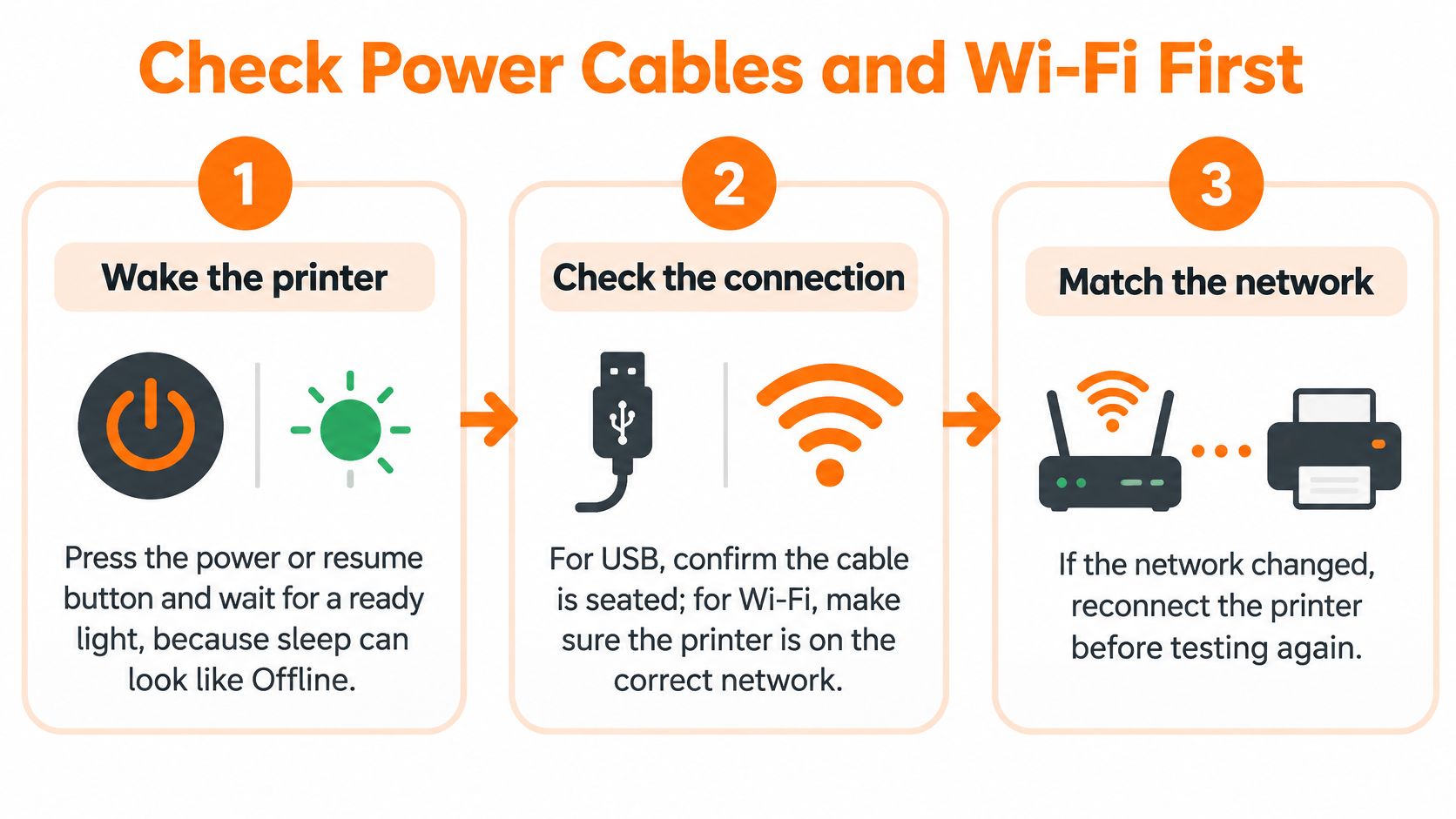
Use this visual checklist to keep the initial checks focused.
Establish a working connection
Wake the printer. Press its power or resume button and wait for a ready indication, because a sleeping printer may not immediately respond to your computer. Read any message on the printer itself before proceeding.
Check USB if that's your connection. Unplug and reseat both ends, then try another computer port because a loose connector or faulty port can interrupt the local link. Replace a visibly damaged or poorly fitting cable, and test directly at the computer rather than through a hub.
Inspect Ethernet if you use a network cable. Make sure the connector clicks into place and check for a link light where available, because a cable that looks connected may not have established a working link. Inspect the router end as well as the printer end.
Run the printer's wireless or network test. Find the report under the printer's Network, Wireless, or Reports menu, because this checks the printer's connection without relying on Windows. Keep the report for the address comparison later.
Match the network names. Compare the printer's reported SSID with the computer's active Wi-Fi connection, because a guest network or separately configured extender can isolate devices. Use the main home network for this test.
Restart only if the connection still hasn't recovered. Restart the printer, then the router, then the computer, allowing the network to become available again because sending a job during reconnection can produce another failed attempt. Stop restarting once the printer reports a working connection.
Read the result before changing anything else
A passing connection test means the printer reports that it's connected and has a usable network address. Keep that result separate from the computer's printer status: you've established the link, not yet verified the computer's destination.
If the printer won't join Wi-Fi, enter the current wireless password on the printer. Editing a Windows port can't connect a printer that hasn't joined the network.
The accompanying video provides another way to follow the troubleshooting process.
Once the link passes, send a simple test page. If Windows still shows Offline, compare the printer's current address with its configured port. If the queue contains stalled documents, clear those through the Windows queue controls rather than repeating the cable checks.
Repair a Printer IP That Keeps Changing
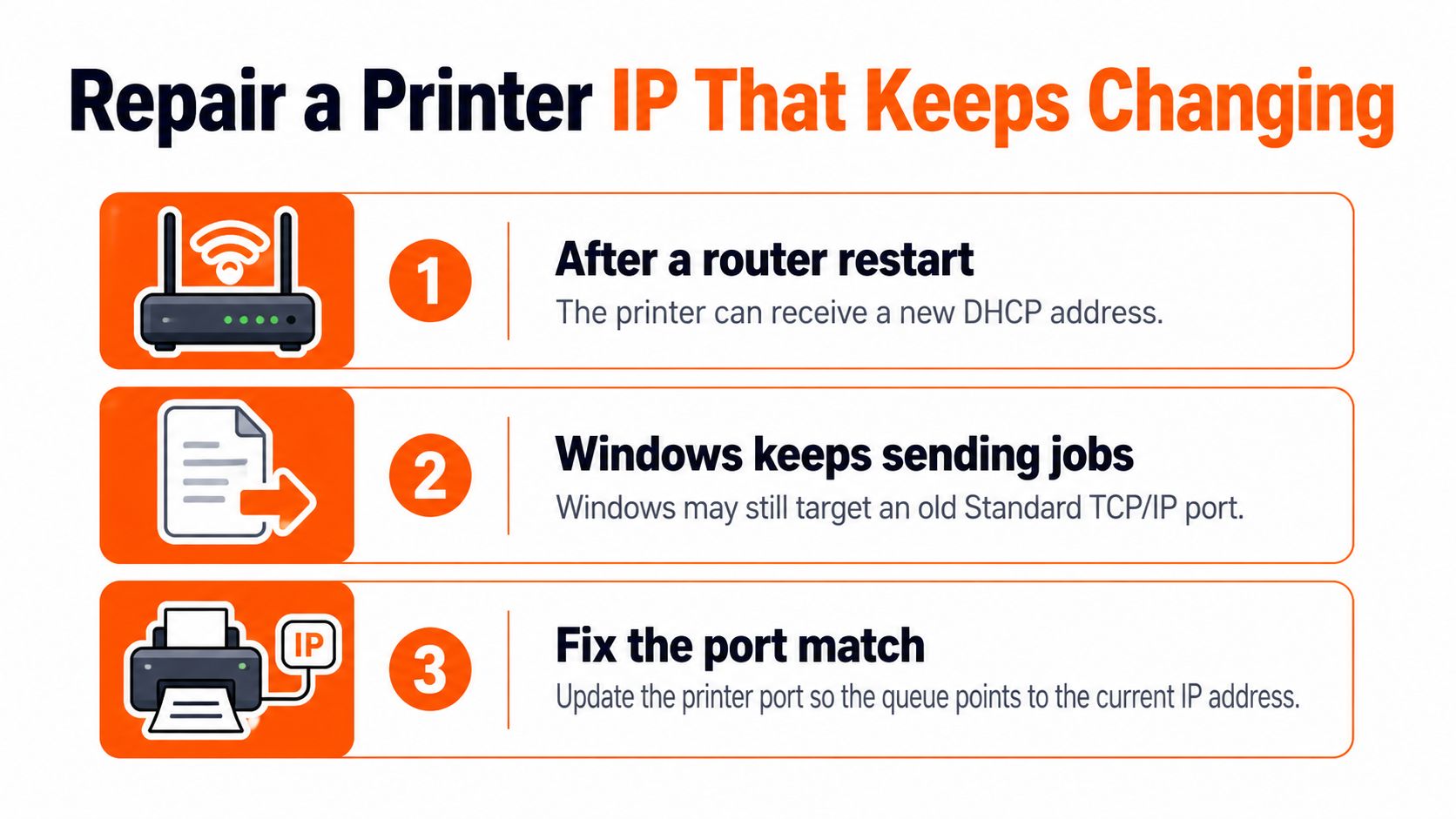
A recurring failure after a router restart deserves a closer look at DHCP, the router's automatic address-assignment system. Your printer requests an address, and the router supplies one. That address can change while Windows continues using the previous destination.
The result is confusing but logical: the printer has reconnected, yet the computer is trying to reach it somewhere else. Another restart might temporarily help discovery, but it doesn't necessarily correct the saved port.
Microsoft's network-printer guidance describes checking the printer's current network address and using a Standard TCP/IP port when the recorded destination is no longer correct.
The illustration shows the mismatch to look for.
Match Windows to the printer
Keep the printer's fresh network report beside you. Use its current address, not an address from an old installation sheet or a previous screenshot.
- Open the printer's properties. In Windows Settings, choose Printers & scanners, select the affected printer, and open Printer properties. Don't confuse this with the document's printing preferences.
- Inspect Ports. Open the Ports tab and identify the selected port. For an existing Standard TCP/IP port, use Configure Port to inspect its destination.
- Correct the destination. Select a suitable existing Standard TCP/IP port, or choose Add Port, then Standard TCP/IP Port, and follow the wizard using the address on the fresh report.
- Apply the selection. Confirm that the intended port is selected before closing the properties window.
This directs jobs to a known local destination instead of depending on an outdated discovery entry. It won't bypass an isolated guest network, a disconnected printer, or a computer that isn't allowed to reach local devices.
Make the address stable
A matching port repairs today's mismatch. A DHCP reservation helps prevent the router from creating the same mismatch later.
Open your router's administration interface and find its connected-device list or DHCP reservation settings. Select the printer by its MAC address, the hardware identifier shown on its network report, and reserve an available address for it. Router menus may call this an address reservation or static lease.
Use the identifier for the connection you use. A printer's wireless and Ethernet interfaces can have different hardware identifiers, so reserving the wrong entry won't stabilize the active connection.
Durable fix: The router reservation and the Windows port must identify the same printer destination.
Keep automatic addressing enabled on the printer when using a router reservation. Don't independently assign an arbitrary manual address that might conflict with another device.
After applying the reservation, let the printer reconnect and obtain a fresh report. Confirm the resulting address matches the selected Windows port; update the port again if the reservation changed it. Only recreate the printer queue if the existing queue still won't retain the correct configuration.
Finish by printing a test page from the computer that previously showed Offline. A report printed from the printer's panel doesn't test the repaired Windows path.
Clear a Stuck Queue and Bad Driver
If the printer has a working network connection and Windows targets the right destination, focus on the computer. Windows passes documents through the Print Spooler, a background service that manages print jobs.
A stalled document can remain there after the printer reconnects. That's why restarting the hardware alone may leave the problem untouched: Windows still holds the failed job or an offline setting.
Microsoft's queue and configuration troubleshooting instructions recommend canceling pending documents, checking Use Printer Offline, and restarting the Print Spooler before moving deeper into drivers and ports.
Repair the queue first
Cancel pending documents. Open the affected printer's queue and cancel the listed jobs. Save the original documents first if you'll need to submit them again.
Clear offline and paused states. If the queue exposes a Printer menu, make sure Use Printer Offline isn't selected. Resume the queue if it's paused; the exact controls vary with the Windows queue interface.
Restart Print Spooler. Search the Start menu for Services, open it, locate Print Spooler, and choose Restart. This affects Windows printing, so avoid doing it while another printer is handling an important job.
Check the selected printer. Confirm the application is sending the document to this printer, and set it as the default if appropriate. An old office printer or duplicate queue can make a successful connection look like a failure.
Send a fresh test. Use a simple document instead of resubmitting the file that originally stalled. Watch whether it leaves the queue and reaches the printer.
Replace the driver only when needed
A paused job, stopped spooler, wrong default, incompatible driver, and duplicate queue are separate Windows problems. They can produce similar symptoms, but they don't all require a reinstall.
If the fresh test fails, confirm the port still matches the printer's current address. Then obtain a driver compatible with your exact printer model and Windows installation from the manufacturer's official support site.
Use the manufacturer's recommended package rather than choosing an unrelated generic driver. Don't remove every printer entry indiscriminately, since another entry may serve a different connection or device.
Once the intended queue works, remove obsolete duplicates so you won't accidentally select them. Success means the test prints, the queue clears, and Windows shows the printer as available or Ready.
Fix Offline on a Mac
A Mac can show Offline or Paused while the printer's lights remain on. The distinction matters: Offline suggests a communication problem, while Paused can mean the queue is deliberately holding documents.
The connection and address principles still apply, but the repair happens in Printers & Scanners, not Windows Services. Don't look for Print Spooler controls on macOS.
Use the Mac's printer controls
Wake the printer and allow it to reconnect. Wait until its network status settles before adding it again, so the Mac isn't searching during startup.
Confirm the active network. Check the Mac's Wi-Fi selection against the printer's network report. Avoid an isolated guest connection.
Open System Settings, then Printers & Scanners. Select the affected printer and inspect its status. Open the queue to see whether it's paused or contains failed documents.
Cancel stalled jobs and resume printing. If the printer is paused, use Resume and submit a fresh test. A paused queue doesn't automatically justify removing the printer.
Re-add a persistently offline printer. Note its model and current settings, remove the affected entry, and choose Add Printer. Select its discovered AirPrint entry if available, or use the IP tab with the current address from its network report and a protocol supported by the manufacturer.
Check updates if the fault continues. Look for printer firmware and macOS updates. Keep the printer powered during a firmware installation and follow the manufacturer's instructions.
Judge the result from the same Mac
Print a test from the Mac that originally reported the problem. Printing from a phone is useful comparison evidence, but it doesn't confirm that this Mac's queue is repaired.
If adding the current address restores printing, retain that working entry and remove obsolete duplicates. If the printer becomes unavailable again after network equipment restarts, stabilize its address through the router reservation.
If it stays Offline immediately after re-adding, don't assume a reservation alone will fix it. Check whether the Mac can reach local devices and whether router isolation or a work VPN is interfering. Avoid resetting the entire printing system as an initial step, since that removes other configured printers too.
Recognize Offline Cases That Look Healthy
Normal internet access can hide a local printing problem. HP's printer troubleshooting guidance highlights network checks and stable addressing as useful parts of resolving recurring connectivity faults.
These setups can look healthy until you send a document.
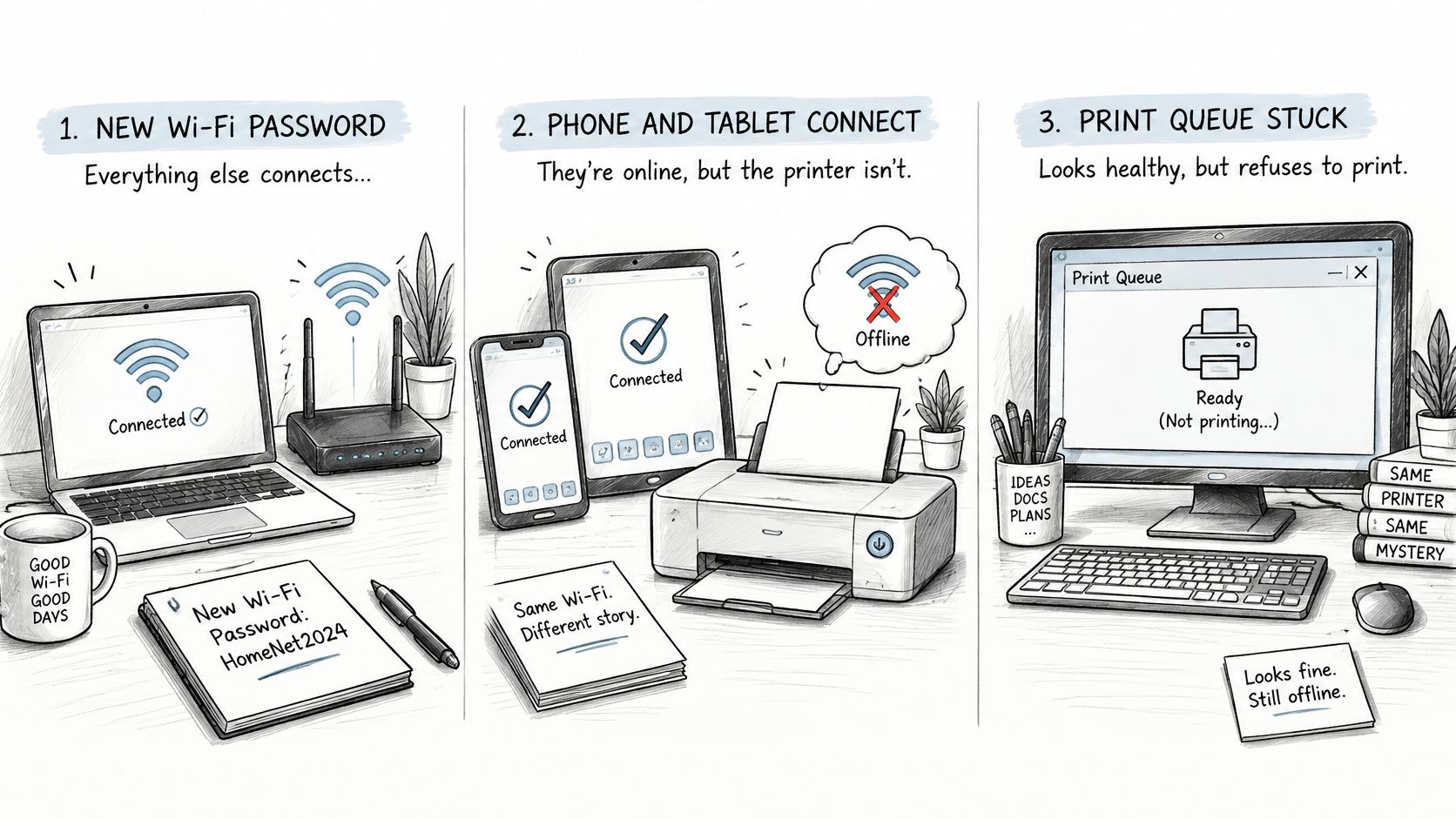
Notice what changed
- A replacement router: Your laptop and phone joined the new Wi-Fi, but the printer remembers the old credentials. The clue is a printer report naming the old network. Choose the different-Wi-Fi row in the symptom table.
- Guest Wi-Fi or a mesh setup: Your computer browses normally, but local devices can't communicate. Different radio bands alone don't necessarily cause isolation; guest access, extender configuration, or client-isolation settings deserve inspection. Start with the network-name row.
- A work VPN: The printer is reachable from a home phone but disappears from the work laptop when its VPN connects. If workplace policy permits, test with the VPN disconnected; otherwise, ask workplace IT about permitted local printing. Don't replace the driver based on this clue alone.
- A shared printer with an isolated failure: Other computers print, but yours holds documents in a paused queue. Choose the queue row rather than changing the router for everyone.
Change the setting that matches the clue, not every setting that mentions printing.
The useful question isn't just “Why does my printer say offline?” It's also “What changed, and which devices can still print?” Those observations narrow the fault without dismantling a working setup.
Get Remote Help When the Checks Stall
Continue locally if you haven't yet confirmed power, the connection, the network identity, a usable address, an empty queue, and a matching printer port. An unchecked item is a more useful next step than another full reinstall.
Get help when those checks pass but printing still fails, the address mismatch repeatedly returns, or you're uncomfortable changing drivers and Windows services. Keep the printer's network report and a note of which devices can print.
Know what remote help can resolve
At 247TechTeam, we provide US remote support for Windows and Mac printer setup and connectivity. Our Quick Fix Session costs $49.00 and includes one remote session of up to 60 minutes for one computer, Windows or Mac, with a session summary emailed afterward.
If a remote session is useful, our technician provides a one-time support code. You review the consent notice and approve the connection before the technician connects, then watch while the technician guides the fix and confirms the result with you.
Remote assistance can't replace a dead power supply, repair physical damage, or clear a mechanical fault that needs hands-on service. If the issue is outside the session's scope, we explain that and point you toward the appropriate next step.
Print a final test page after your last check. Book help only if that page still won't print.
247TechTeam offers remote Windows and Mac support for printer setup, stalled queues, and connection problems. If your test page still won't print after these checks, visit 247TechTeam to book help and have your network report ready for the technician.
Published via Outrank