How to Remove Malware: Safe Steps for Windows and Mac
Learn how to remove malware safely: isolate the PC, run an offline scan, clear hidden persistence, reset passwords from a clean device, and prevent reinfection.
Your browser keeps opening a search page you didn't choose. A security warning won't go away, or files suddenly have unfamiliar names. You want the computer back, but you don't want to make the damage worse by clicking the wrong thing.
Learning how to remove malware starts with deciding what's safe to do next, not downloading another cleaner. Work through containment, scanning, persistence checks, account recovery, and restoration in that order. If you find ransomware or signs of sensitive-account access, stop treating this as an ordinary computer cleanup.
Contain the Infected Computer First
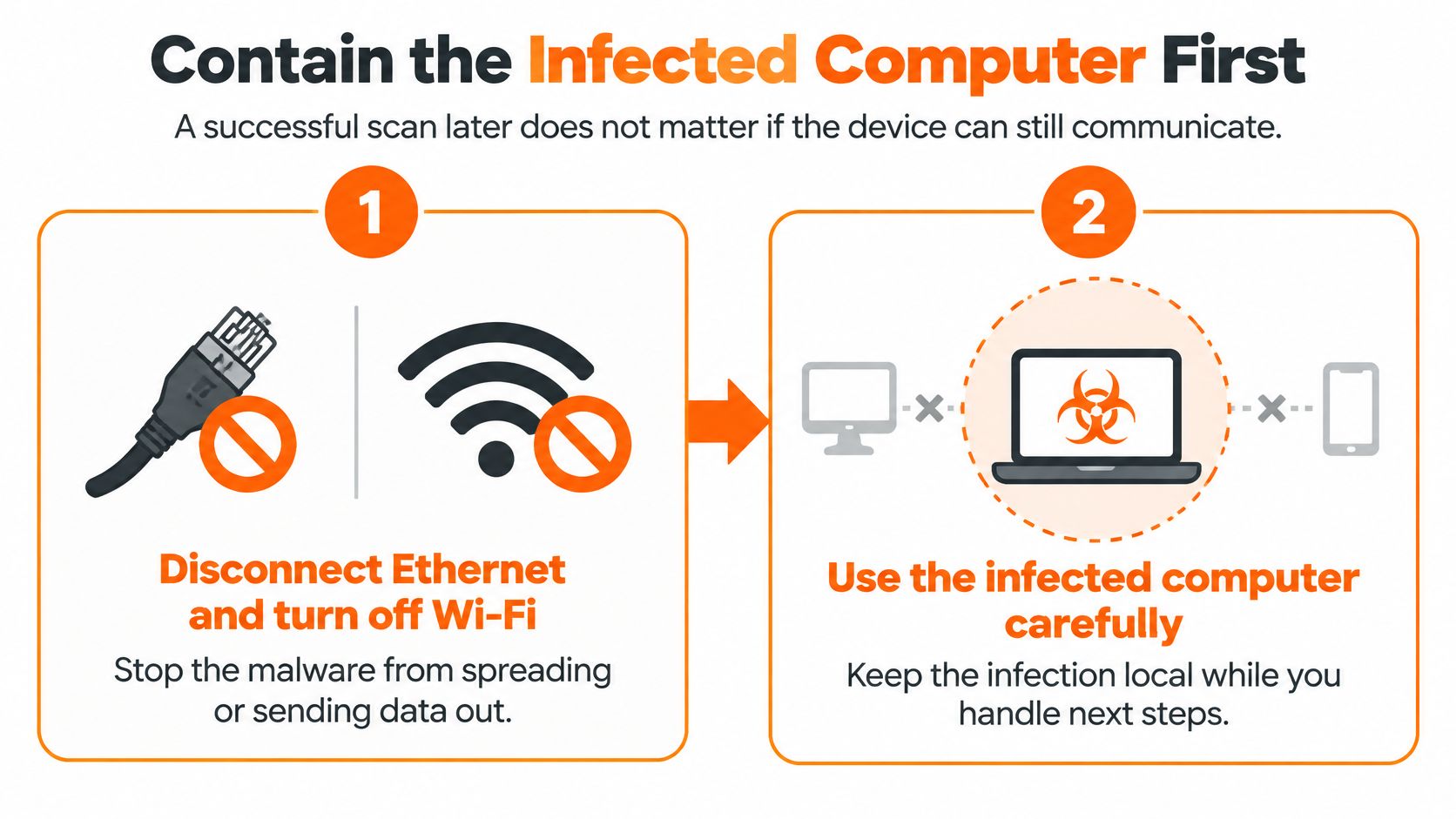
Disconnect before you delete anything. The CISA ransomware guide prioritizes isolating affected systems and preserving evidence where appropriate before eradication and recovery.
Unplug Ethernet and turn off Wi-Fi. Use the Windows taskbar or Mac menu bar to disable wireless connectivity. Pulling the network cable alone won't isolate a computer that can switch to Wi-Fi.
Protect shared storage and other devices. Check whether the computer has mapped network drives, shared folders, or attached backup disks. If files elsewhere are changing, isolate the affected devices or network segment too. Don't connect a healthy backup drive to investigate.
Avoid an automatic shutdown. The common mistake is assuming that turning the computer off is always the safest first move. Shutdown destroys volatile memory evidence. However, if ransomware is actively encrypting files and you can't disconnect the computer, powering down is the fallback.
Record what you can see. Photograph the ransom note or warning with your phone. Write down when symptoms began, what changed, and any recent downloads, email attachments, or installations. Don't open suspicious files to find out what they do.
Prepare a separate trusted device. Use another computer or your phone for research, support contact, and sensitive account changes. Keep the affected machine offline while you assess the removal path.
Use this containment reminder before touching cleanup tools:
Preserve evidence when the stakes are higher
If this involves business records, possible data theft, or a legal dispute, get help preserving a system image and memory capture before deleting files. A photograph records symptoms, but it doesn't replace forensic evidence.
For example, a designer who notices renamed project files should disconnect the laptop before opening the shared project drive to inspect it. Browsing the share from the infected computer risks extending the incident.
Containment check: the device is offline, the symptom timeline is written down, and a trusted device is available.
Decide Whether Cleaning Is Enough
Say your laptop started redirecting searches after a free download. That could be an unwanted browser extension, but the same symptom returning after removal suggests something is reinstalling it.
Match what you're seeing to the removal path below. These are triage decisions, not diagnoses based on appearance alone.
| Situation | What It Usually Means | Path to Follow |
|---|---|---|
| Pop-ups, toolbars, or redirects after installing software | Potentially lower-risk unwanted software, unless other compromise signs appear | Scan with updated security software, remove unknown extensions, and reset browser settings |
| Antivirus removes a threat with no symptoms afterward | Disinfection may be sufficient if damage was limited | Run an offline scan, install updates, and reset potentially exposed passwords |
| Threat returns after reboot or security tools are switched off | Persistence or possible system-level compromise | Scan offline, inspect persistence locations, and prepare for a rebuild |
| Files are renamed, locked, or encrypted, or a ransom note appears | Suspected ransomware | Isolate, preserve evidence, and rebuild or restore from verified clean backups |
| Unfamiliar bank, email, or work-account activity | Possible credential theft beyond the device | Keep the computer isolated and secure accounts from a separate trusted device while remediation proceeds |
NIST Special Publication 800-83 distinguishes limited infections that can be disinfected from damaging Trojan, rootkit, or backdoor compromises that warrant rebuilding from scratch or a known-good backup.
Removing the visible symptom isn't the same as establishing system integrity. For example, a scan might remove a browser extension while leaving a scheduled task that reinstalls it. The returning extension is evidence of persistence, not a reason to keep repeating the same cleanup.
Rebuilding costs time: applications need reinstalling, settings need recreating, and backups need checking. Continuing to use an untrustworthy system carries a different cost, especially if it handles customer information or banking.
Decision rule: If you can't confidently establish that the damage was limited, plan for a rebuild and document why you chose that path.
How to Run an Offline Scan on Windows
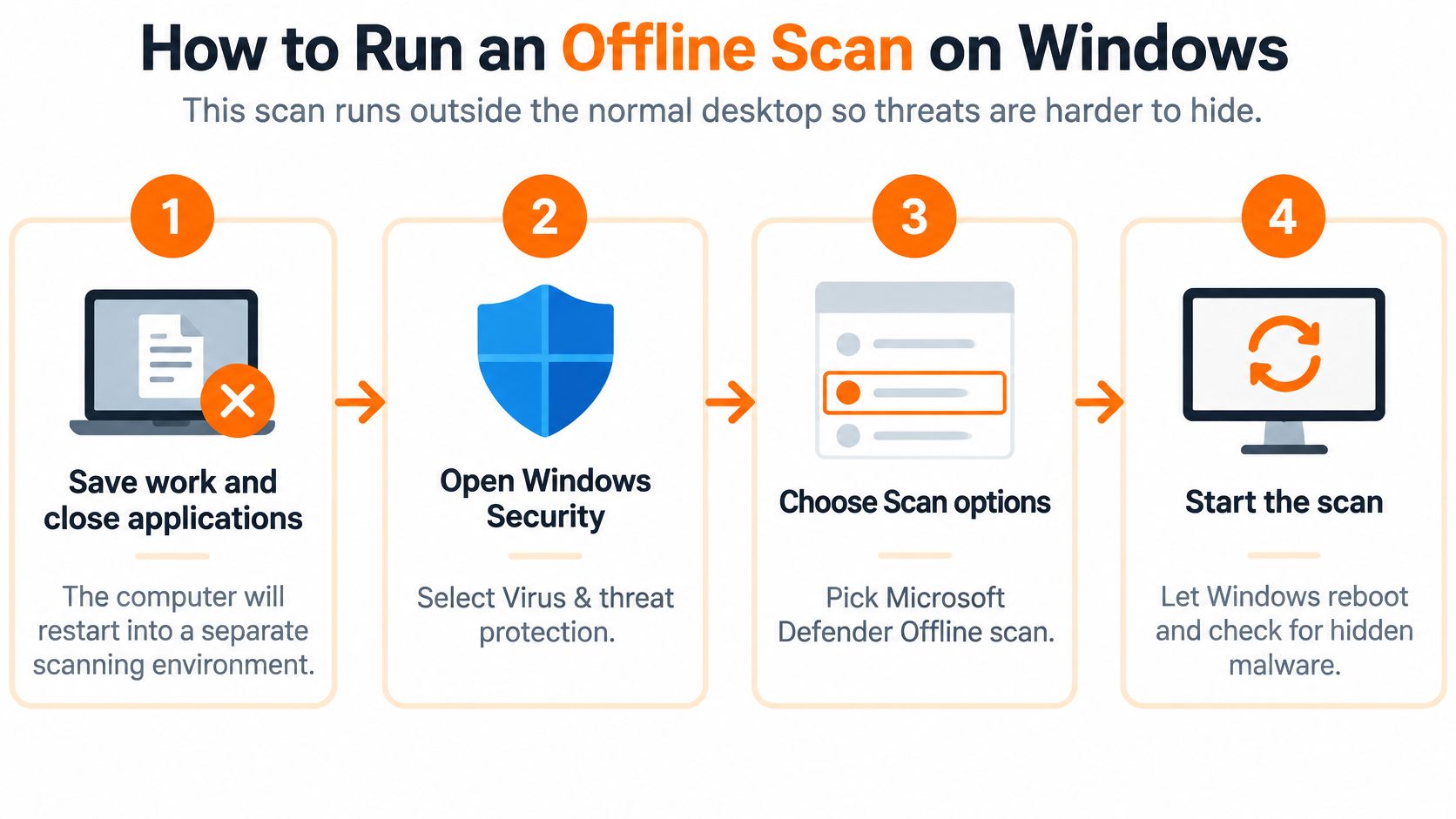
Microsoft Defender Offline restarts Windows into a separate scanning environment, making it harder for active malware to hide. Follow Microsoft's malware troubleshooting guidance, rather than downloading a cleaner advertised by a pop-up.
- Save your work and close applications. The scan requires a restart, so unsaved changes could be lost.
- Open Windows Security, then select Virus & threat protection.
- Choose Scan options, select Microsoft Defender Offline scan, and click Scan now. Approve the prompt if requested.
- Connect the laptop to power and let it restart. Don't interrupt the scanning environment.
- When Windows returns, open Protection history. Read whether each detection was quarantined, removed, or still needs action.
- Address pending Windows and application updates. Use trusted installation sources and arrange controlled update access only when appropriate for the incident. Don't reconnect a suspected serious compromise just to fetch updates.
- Use a separate trusted device for password changes. If detections or symptoms continue, use a reputable on-demand scanner from another vendor, not competing real-time antivirus engines.
The scan sequence is summarized below:
Scan checkpoint: Windows restarts normally, affected applications behave normally, and no new detections appear. That's a checkpoint, not proof that every compromise is gone.
Clear Persistence and Leftover Threats
Persistence is the mechanism that starts malware again after its visible process or file disappears. Inspect the launch mechanism as well as the detected payload.
Start with ordinary startup entries and browser extensions before touching system services. The locations below are common checks, not an exhaustive forensic examination.
| Location | Windows Check | Mac Check |
|---|---|---|
| Startup items | Task Manager, Startup apps | System Settings, Login Items, sometimes under General |
| Scheduled tasks or background agents | Task Scheduler, Task Scheduler Library | User and system LaunchAgents and LaunchDaemons folders |
| Browser extensions | Extensions page in every installed browser | Extensions page in every installed browser |
| Services or daemons | services.msc, inspect service properties and executable paths | Activity Monitor for unfamiliar processes, then investigate the associated launch configuration |
| Installed programs | Settings, Apps, installed applications list | Applications folder and configuration profiles in System Settings |
Inspect the command, not just the name
For each suspicious entry, record its name, publisher, file path, and launch command. On Windows, open a scheduled task's Actions tab to see what it executes. An innocent-looking task name doesn't make an unfamiliar script safe.
On a Mac, use Finder's Go to Folder to inspect ~/Library/LaunchAgents, /Library/LaunchAgents, and /Library/LaunchDaemons. Don't delete an entire folder. Background components from legitimate backup, security, and business software live there too.
Consider a hypothetical fake support warning that returns whenever Windows starts. A scheduled task with a random-looking name might launch the browser with a scam page. Closing the warning won't fix the task, but random letters alone aren't enough to classify an entry as malicious.
Remove identified causes carefully
- Review extensions individually. Remove those you didn't intentionally install, then check the browser's startup page and default search engine. Preserve bookmarks before resetting browser settings.
- Compare installation timing. Examine applications added around the symptom onset. Use their normal uninstall process when appropriate rather than deleting arbitrary program folders.
- Inspect reachable storage. Record mapped shares and affected folders, but don't reconnect them for testing while the endpoint remains untrusted.
- Keep a change log. Write down what you disabled or quarantined and where it was located. Prefer reversible actions when investigating.
An unfamiliar item is a reason to investigate, not permission to delete a system file.
After repeated normal restarts, confirm that removed items stay gone and no unexplained startup entries or extensions appear. If you can't identify what's returning, escalate or rebuild.
Scan and Verify on macOS
Keep the Mac isolated during the initial assessment. There isn't a direct macOS equivalent of the Microsoft Defender Offline workflow, so use a reputable Mac-compatible on-demand scanner and inspect system settings carefully.
Work through the Mac checks
- Prepare trusted updates. Check System Settings > General > Software Update and update installed applications through their legitimate sources. If updates require reconnecting a seriously compromised Mac, get help arranging a safe recovery environment instead.
- Restart and note the baseline. Record which warnings, applications, or background processes return before scanning.
- Run a full malware scan. Read each detection, note its file path, and quarantine identified threats according to the tool's instructions.
- Review Login Items and background agents. Remove only components you can identify as unwanted, including their associated launch entries.
- Inspect configuration profiles. Search System Settings for Profiles or Device Management. An unfamiliar profile deserves investigation, but don't remove workplace management without your administrator's approval.
- Restart again and inspect Activity Monitor. Check returning processes and unexplained CPU or network use. High resource consumption alone doesn't establish malware.
Know when to stop cleaning
A recurring process, an unexplained management profile, or continued unauthorized settings changes makes a fresh installation safer than repeated deletion attempts. Preserve necessary personal data selectively and verify its safety before restoring it.
Pass check: no returning unwanted processes, no unexplained profiles, and no unexplained network activity when controlled connectivity resumes. Sensitive-account exposure still requires its own response.
Reset Accounts From a Clean Device
A successful scan doesn't prove that previously exposed passwords are safe. Secure your email first because attackers can use it to reset other accounts. CISA's malware tip card recommends stronger authentication for sensitive accounts, including email and banking.
Use this account-security checklist on a trusted device:
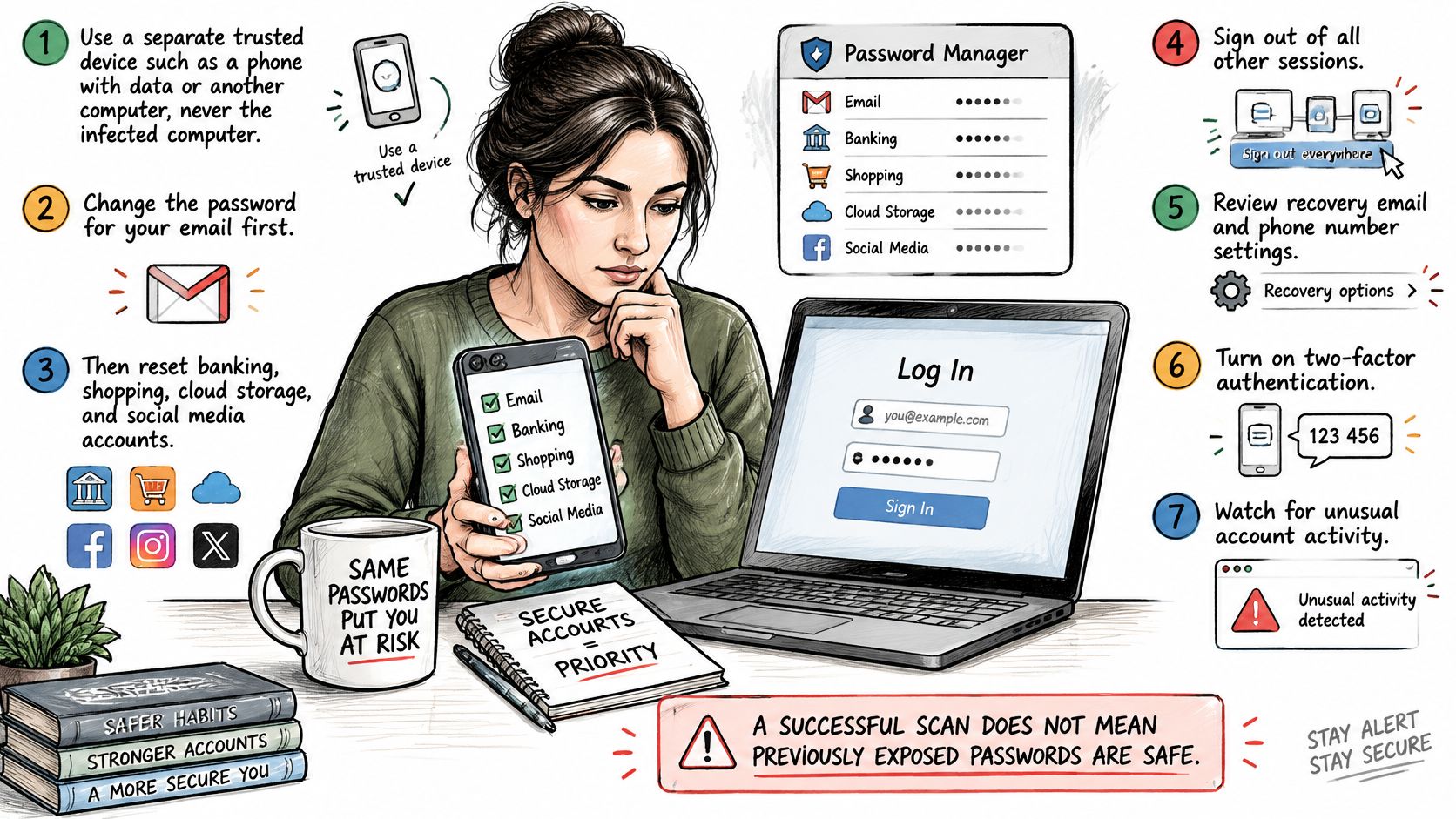
- Choose a separate trusted device. A phone using mobile data or another known-clean computer is preferable to typing new secrets into the affected machine.
- Change your primary email password. Use a unique password. If an attacker controls your email, they may intercept recovery messages for other services.
- Enable multifactor authentication. Prioritize email, banking, cloud storage, and work accounts. Store recovery codes somewhere safe.
- Revoke existing access. In account security settings, sign out other sessions and revoke unfamiliar connected apps or tokens. Changing a password doesn't necessarily terminate every form of access.
- Inspect recovery and forwarding settings. Remove unknown recovery addresses, phone numbers, mailbox delegates, forwarding rules, and filters that hide security alerts.
- Review financial activity. Contact the bank or card provider through its official app or a known number if anything is unfamiliar. Don't use contact information from a warning message.
- Replace potentially exposed saved passwords. Prioritize banking, work, and cloud accounts, then review the remaining browser or password-manager inventory. Notify your workplace IT contact about possible organizational exposure.
For example, a business owner might discover an email rule forwarding invoices to an unknown address. Cleaning the laptop wouldn't remove that server-side rule.
Build an account recovery list
List accounts accessed during the suspected infection period, including accounts that remained signed in. If you don't know when the infection began, start with recent activity and widen the review as needed.
Keep the device-removal and account-recovery tasks separate when reviewing your progress:
Don't delay urgent account protection until a lengthy rebuild finishes. Perform those changes from the trusted device while the affected computer stays isolated.
Restore Files and Prevent Reinfection
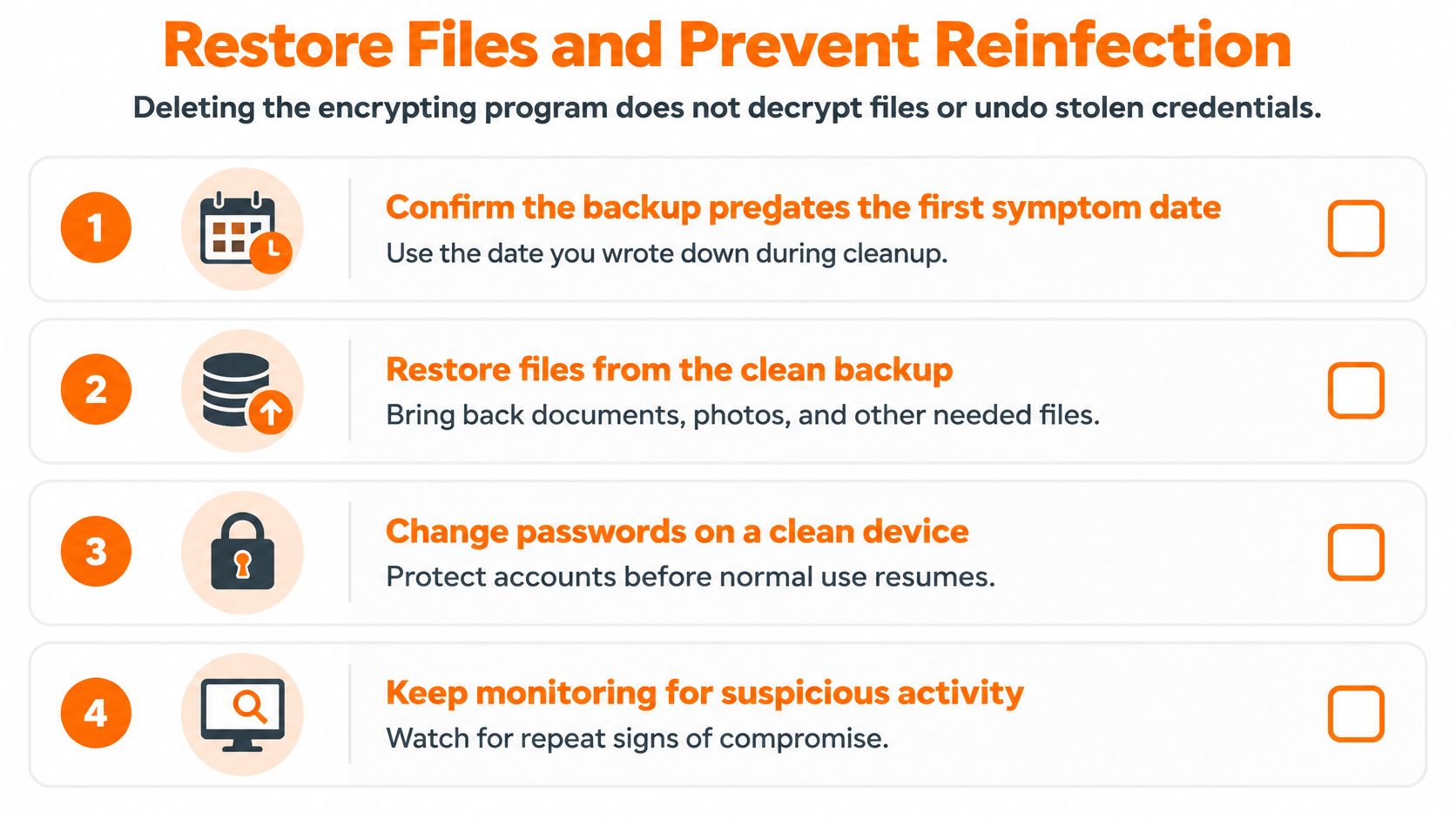
Deleting ransomware doesn't decrypt files. Before restoring anything, verify the backup and the destination computer.
- Check the backup date. Choose a version from before the earliest suspected compromise, not merely before the ransom note appeared.
- Scan recovery copies. Examine them with updated security software before opening files. A clean scan supports the assessment but doesn't establish backup integrity by itself.
- Restore personal data selectively. Favor documents and photos over installers, scripts, and old application folders. Use complete system images only when verified clean.
- Confirm the backup was protected. Offline or otherwise inaccessible copies are preferable. Encryption alone doesn't stop malware from deleting or encrypting a connected backup.
- Test a small restore. Recover a sample folder to the clean destination before committing to the full recovery.
Keep this restoration checklist beside your backup inventory:
Make recovery repeatable
Enable automatic operating-system and application updates, use a reputable real-time security program, and avoid cracked software and unexpected attachments. Our free antivirus versus paid antivirus comparison can help you assess protection needs without installing overlapping tools.
Schedule a recurring sample-folder restore test and keep a backup copy disconnected from the computer.
The FBI's 2025 IC3 report recorded more than 3,600 ransomware complaints and reported losses exceeding $32 million, covering reported incidents and excluding many indirect costs.
When to Call a Technician for Removal
Stop working alone when the incident involves encrypted files, suspected financial or workplace access, recurring malware, disabled security tools, possible data theft, or affected devices across a shared network. These signs require decisions about evidence, account exposure, and recovery, not just another scan.
CISA's guidance on malicious code includes reinstalling the operating system when security software can't remove an infection. Remember that reinstalling can erase applications and files, so agree on the recovery plan before anyone starts.
Keep remote support under your control
At 247TechTeam, you review the authorized remote-support provider's consent notice and approve the connection before the technician connects. With your permission, you can watch the technician work on your screen.
Our technicians never ask for passwords or payment details during a session, and they never run anything without your explicit consent. Ask for an explanation before approving an action you don't understand.
If the issue falls outside remote support, such as hardware failure or physical damage, the technician says so and guides you toward the appropriate next step. Don't reconnect an isolated, seriously compromised computer to start a session without first discussing safe access.
Write down the symptoms and their timing, identify which backups may be clean, and contact support if any escalation sign applies.
247TechTeam offers virus and malware removal assistance, browser cleanup, and antivirus protection for Windows and Mac. Visit 247TechTeam to discuss your symptoms and get help choosing between targeted cleanup and a safer recovery plan.
Prepared with Outrank