Why Does WiFi Keep Disconnecting? Causes and Fixes
Why does WiFi keep disconnecting? Match your drop pattern to the router, device, signal or provider cause, then run the test that confirms it.
If your internet plan is fast enough, why does Wi-Fi keep disconnecting only in the bedroom, when your laptop goes idle, or when you walk downstairs? Those patterns matter more than the advertised speed, because they tell you which part of the connection to test.
Don't replace the router or change several settings at once. Start by identifying which devices drop, where they drop, and what happens immediately beforehand. Then run a test that separates the likely causes.
Match Your Disconnection Pattern to a Cause
| Pattern you see | Most likely cause | First test |
|---|---|---|
| Every device drops at the same time | Modem, router or provider outage | Check modem lights and a wired laptop |
| Only one device drops | Driver, power setting or stale saved network | Forget and rejoin the network on that device |
| Drops during idle, sleep or on battery | Wireless adapter power saving | Disable adapter power saving and retest on AC power |
| Drops only in one room or far from the router | Distance, walls or weak coverage | Compare signal beside the router and in the room |
| Drops while walking between rooms | Roaming or band steering | Give the wireless bands separate network names |
| Drops near microwaves, Bluetooth or in dense buildings | Interference on the crowded wireless band | Check channel use and select a less congested, non-overlapping channel |
| Smart plugs, cameras or printers fall offline | IoT compatibility or IP address conflict | Confirm the supported wireless band and reserve the device address |
Choose the row that matches what you observe, not the explanation you suspect. If several rows fit, start with whether every device disconnects together. A working phone beside a disconnected laptop is useful evidence, provided the phone is using Wi-Fi rather than falling back to mobile data.
A speed test won't settle this question. It measures performance while the connection is working, so an impressive result between interruptions doesn't explain why the connection failed.
Record the failure before changing anything
When the next drop happens, check these details:
- Affected devices: Does another device on the same network still load a page?
- Connection status: Has the device lost its Wi-Fi connection, or does it remain connected without internet access?
- Location and activity: Were you moving, waking the laptop, using an appliance, or sitting in the usual trouble spot?
- Recovery: Does service return by itself, after reconnecting the device, or only after restarting network equipment?
Use a simple note on your phone. Include the time, device, room, and visible symptom rather than writing only that the internet went down.
Practical rule: Change a setting only when you can explain which suspected cause the change is testing.
The table gives you a starting hypothesis, not a verdict. For example, a single-device failure can still involve compatibility with the router, while an apparent whole-home outage might affect only the wireless devices you checked.
A clear pattern usually narrows the search enough to avoid speculative purchases. It also gives a technician something more useful than a report that the connection is sometimes bad.
Why a Wi-Fi Link Drops While Internet Still Works
Think of Wi-Fi as a walkie-talkie conversation with a base station, and the internet connection as the phone line attached to that station. If the walkie-talkie signal fades, your conversation stops even though the phone line still works.
The distinction looks like this:
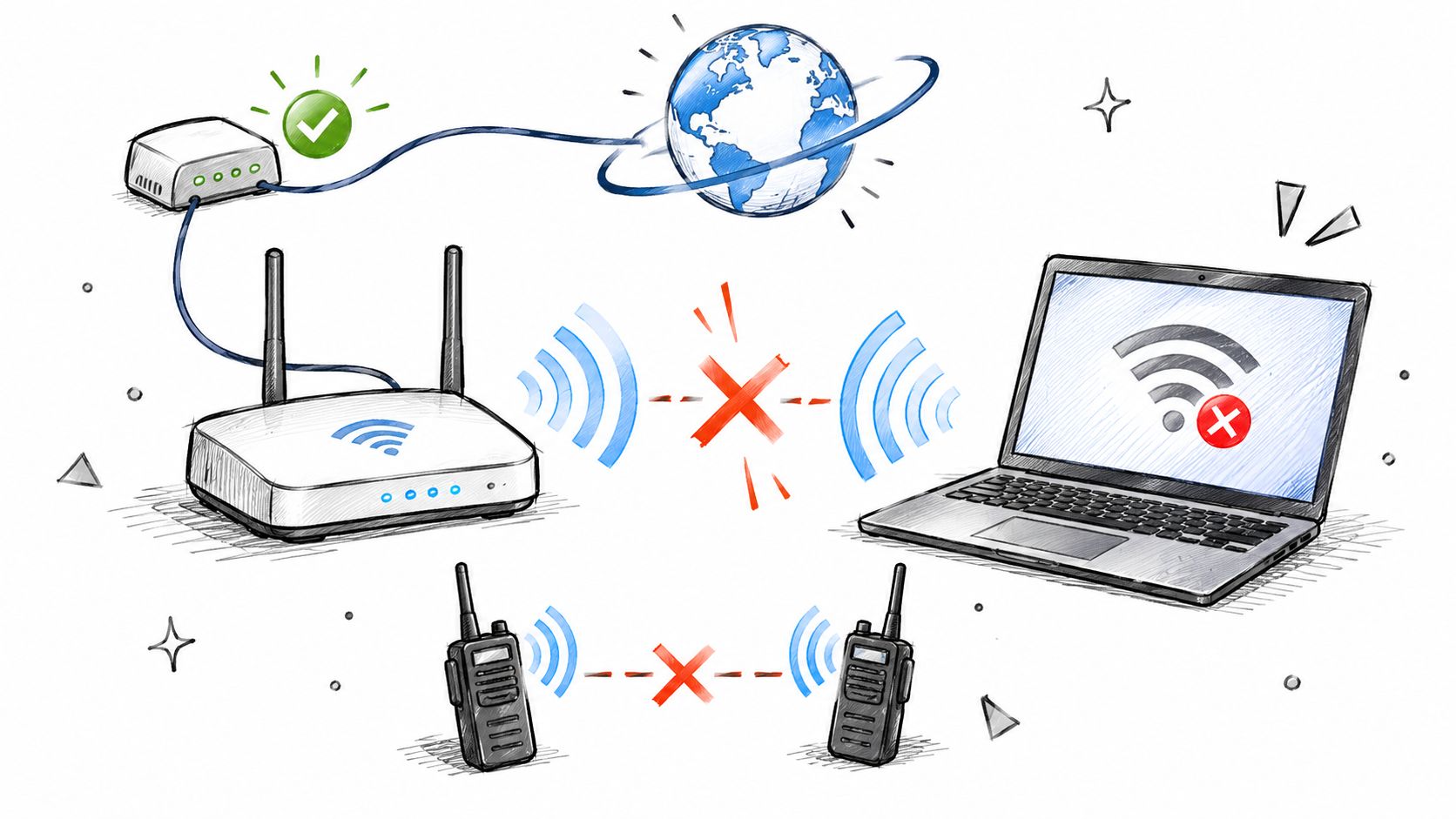
Your device first needs a reliable radio link to the router. Wireless data travels in small units called frames; interference or a weak signal can corrupt them, prompting retransmissions. If communication fails for long enough, the device or router can time out and reconnect, a mechanism described in the Wi-Fi technical overview.
Say a laptop loses its connection in a distant bedroom while a television beside the router keeps streaming. That's consistent with a local wireless failure, not proof that the provider's connection stopped.
Connected doesn't always mean online
After establishing Wi-Fi, the device still needs a usable network address, a route to the internet, and working DNS, the service that translates website names into destinations. A failure in that chain can leave the Wi-Fi symbol visible while pages refuse to load.
For example, if the provider connection fails, your laptop may remain associated with the router. Conversely, if only a particular website fails, the website itself could be the problem.
These interruptions aren't unusual: in 2025, 18% of surveyed U.S. households experienced Wi-Fi disruptions daily and another 20% weekly, according to TechSee's Home Connectivity Survey, reported by Total Telecom.
This video provides another troubleshooting reference:
Use the Wi-Fi icon as an initial clue, not a complete diagnosis. If it stays connected but nothing loads, investigate addressing, DNS, the router, and the provider connection. If the device loses its wireless connection, investigate the radio link and client settings first.
How to Rule Out Your Provider and Router
When devices fail together, isolate the shared equipment before adjusting individual computers. Keep the router in an open, ventilated position during testing; equipment overheating inside a cabinet can produce interruptions that resemble provider faults.
Follow the connection path
Check the modem and router lights. Compare their behavior with the manufacturer's guide, especially while the fault is happening. A normal online indicator suggests that the modem has established its connection, but it doesn't guarantee that every internet service is reachable.
Connect a laptop to the router with Ethernet. Turn off that laptop's Wi-Fi so you know which connection it's using, then browse through the conditions that normally trigger a drop. If Ethernet also fails, the problem isn't limited to wireless coverage.
Restart the equipment in order. Power down the separate modem and router, start the modem, and wait until its connection indicators settle before starting the router. Use a normal restart, not the factory-reset button, which can erase your configuration.
Check the provider's outage information. Use mobile data if your home connection isn't working, and record the exact interruption time. A matching outage helps explain the failure; an empty outage page doesn't rule out a fault affecting your individual line.
Try the same site over mobile data. If it works there but fails through your home connection, the home connection path deserves investigation. This doesn't distinguish the router from the provider, and a single failing site isn't enough to diagnose a network outage.
Keep a drop log through normal use. Record whether Ethernet and Wi-Fi failed together and what the modem lights showed. Compare those observations with router logs and any provider investigation.
Replace equipment only after isolating it. Install the router manufacturer's current firmware and retest before buying a replacement. Persistent wired failures still require separating a router fault from a modem or provider fault, potentially with a provider-guided direct-modem test.
The visual guide summarizes the isolation process:
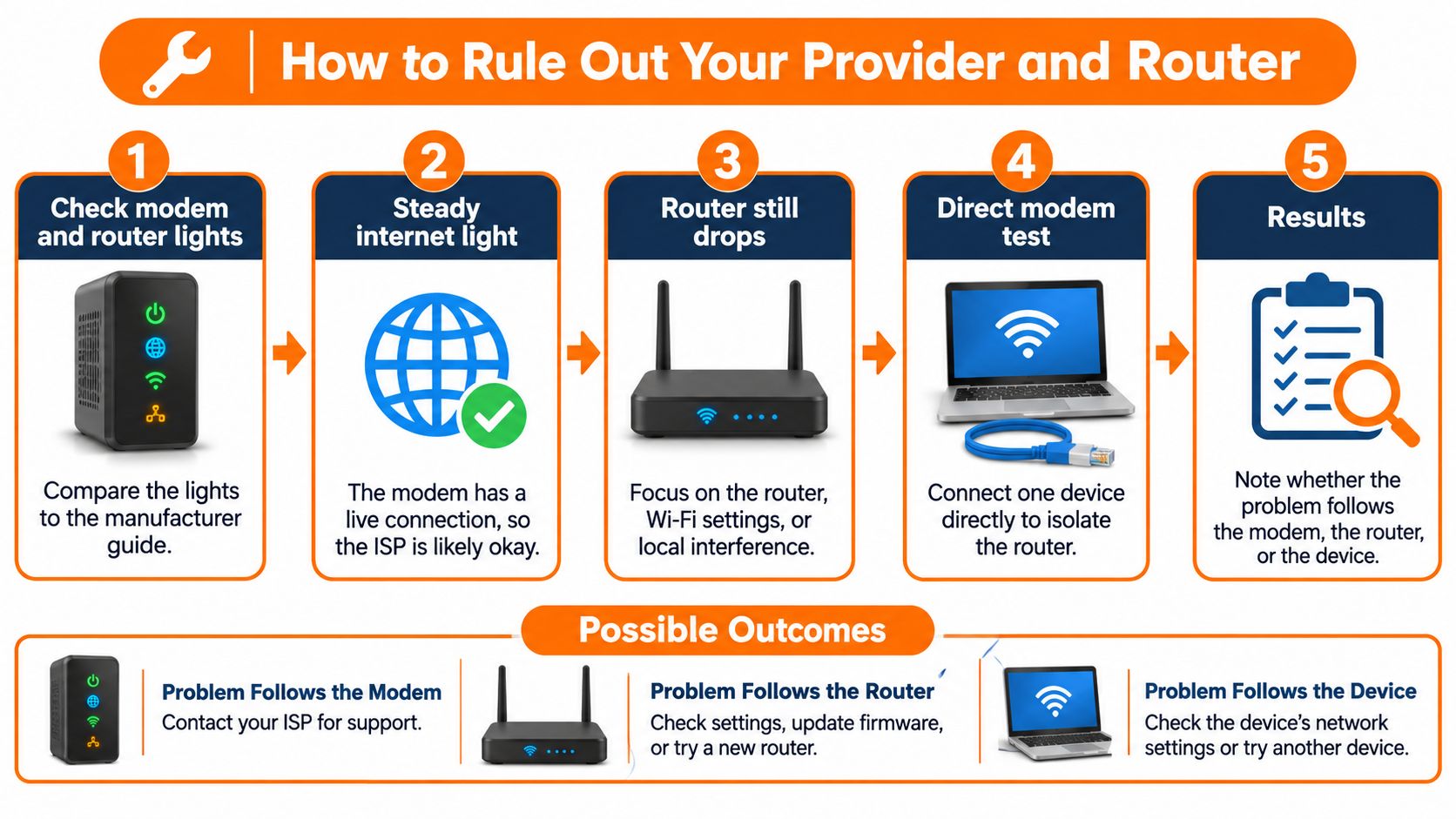
A successful restart proves recovery, not the cause. If the fault returns, retain the log rather than treating repeated reboots as a permanent fix.
Power Saving That Cuts Your Connection
A laptop can show strong signal bars yet disconnect when its wireless adapter changes power states. Wireless power management lets equipment conserve energy, but poorly handled transitions can delay responses and contribute to reconnect cycles; Cisco's wireless power-management documentation describes the access-point power-management context.
Look for drops after the screen turns off, after closing the lid, during inactivity, or only on battery. Losing connectivity while the computer is deliberately asleep may be expected; failing to reconnect properly after waking is the more useful troubleshooting symptom.
Test the device before changing the network
If only that computer fails, first forget the saved Wi-Fi network in Windows Settings, then rejoin using the current password. Have the password ready before removing the saved connection.
If the problem continues, work through these changes separately:
Install the laptop maker's current Wi-Fi driver. Use the support page for the exact computer model rather than an unsolicited driver-updater application.
Update router firmware. Follow the manufacturer's instructions and don't interrupt the update.
Inspect Device Manager. Open Network adapters, select the wireless adapter, and open Properties. If a Power Management tab exists, clear Allow the computer to turn off this device to save power.
Check the active power plan. If Windows exposes Wireless Adapter Settings, test Maximum Performance under its power-saving options. Some computers manage this differently and won't show those controls.
Compare plugged-in and battery operation. Repeat the same idle-and-wake behavior on AC power, then on battery. A change tied to power mode supports this branch of the diagnosis.
Strong signal bars describe received signal strength, not whether the adapter handles sleep and wake correctly.
Less aggressive power saving can reduce battery life. Keep it only if the stability improvement justifies that trade-off, and don't disable unrelated power controls in search of a fix.
Dead Zones, Distance and Walls in Your Home
A connection that fails in a particular room deserves a coverage test, not an automatic broadband upgrade. Walls, floors, metal surfaces, distance, and competing radio signals can impair delivery even when the provider connection is healthy, as explained in NIST's discussion of wireless reliability.
Room-specific trouble is common. A 2025 U.S. survey of nearly 4,000 households found that 68% experienced Wi-Fi problems during the previous year, and 76% of affected users reported weak or unreliable service in particular rooms, with bedrooms and home offices among the common problem areas, according to the State of Home Connectivity survey summary.
Compare locations under the same conditions
Use the same device and activity throughout this test:
- Start beside the router. Keep a stream or call running long enough to encounter the usual interruption.
- Repeat in the problem room. Don't change the application or device at the same time.
- Walk between the locations. Note whether the failure happens while moving or after settling in the room.
- Compare the available wireless bands. Where the router permits separate selection, test each independently.
- Try another device in the trouble spot. This helps distinguish a room-level problem from a particular adapter's limitations.
A stable result beside the router followed by repeated failures in the distant room points toward coverage or local interference. Trouble across bands strengthens that suspicion but doesn't prove distance alone is responsible. If another device works reliably in the same spot, investigate the original device before buying network equipment.
Improve placement before adding equipment
Move the router toward a central, high, open position, away from large metal objects and enclosed cabinets. If its location is constrained by the incoming service, an Ethernet cable may allow a separate router or access point to sit somewhere more useful.
An extender or mesh node needs a reliable connection back to the existing network. Putting it inside the dead zone can relay an already unreliable connection.
Additional nodes also introduce more overlapping coverage and roaming decisions. Add hardware to solve a mapped coverage gap, not because adding more radios sounds better.
Interference From Crowded 2.4 GHz Channels
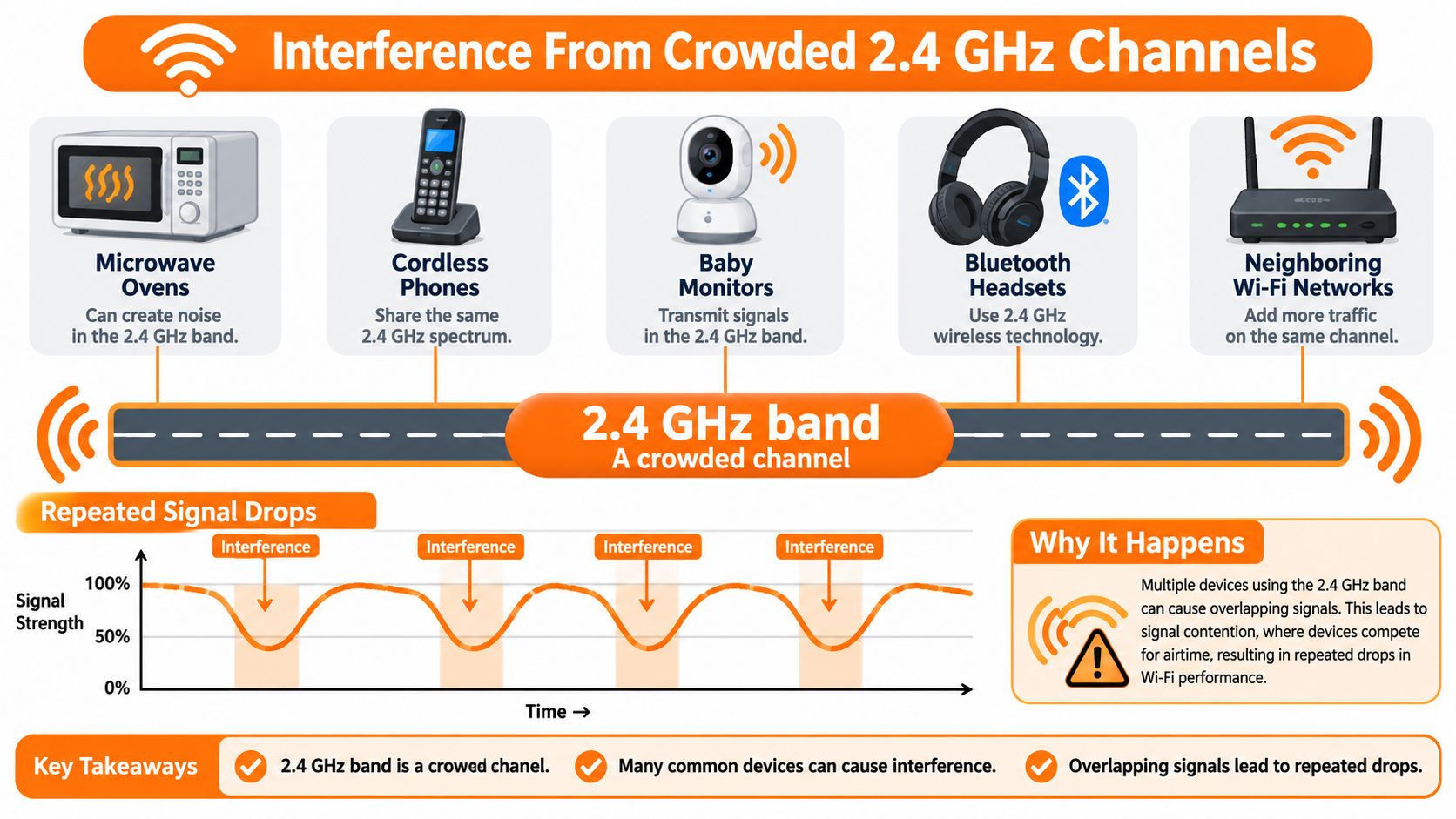
On common U.S. channel plans, channels 1, 6, and 11 are the usual non-overlapping choices for 2.4 GHz Wi-Fi; standard channels occupy 20 or 22 MHz within approximately 80 MHz of available spectrum, according to the IEEE's overview of Wi-Fi technology and standards. The practical consequence is that a long channel menu doesn't represent equally independent lanes.
The band also carries energy from microwave ovens, cordless phones, baby monitors, and Bluetooth equipment. Neighboring routers add wireless traffic, especially in apartments where your device can detect networks through several walls.
| Nearby source | What it can cause | Useful check |
|---|---|---|
| Neighbor on the same channel | Competition for transmission time | Check channel utilization during the trouble period |
| Neighbor on an overlapping channel | Interference with wireless transmissions | Select a suitable non-overlapping channel |
| Microwave oven | Interference associated with appliance use | Compare behavior while it's operating and stopped |
| Bluetooth hub or headset | Additional nearby radio activity | Increase separation and retest |
| Baby monitor or cordless-phone base | Persistent or intermittent interference | Move equipment apart and compare |
The shared-band problem is illustrated below:
Choose a channel using conditions, not guesses
Open the router's app or administration page and record the existing channel and automatic-selection setting. Use its wireless scan or a Wi-Fi analyzer, such as WiFi Analyzer on Windows, to inspect nearby networks.
Choose the least congested suitable non-overlapping channel, then repeat the activity that normally fails. Don't judge only by how many network names appear: a strong, busy neighboring network can matter more than several faint ones.
A basic Wi-Fi analyzer detects Wi-Fi networks, not every source of radio interference. An apparently empty channel therefore isn't proof that a microwave or other transmitter isn't causing trouble.
Move fixed wireless devices away from appliance clusters and Bluetooth hubs. Where coverage and compatibility allow, move demanding devices onto the higher-frequency band rather than forcing everything onto the crowded one.
For a hypothetical example, evening drops could coincide with both a neighbor's overlapping network becoming busy and microwave use. That timing makes interference worth testing, but only a controlled comparison can separate the contributors.
Channel-setting advice: Save the original setting, change only the channel, and test during the period when failures normally occur.
Roaming, Band Steering and Stubborn Devices
A faster broadband plan won't repair a failed handoff between wireless access points. Roaming means switching between access points, while band steering means encouraging a device onto a particular wireless band; the client ultimately controls its roaming decisions, and aggressive steering or minimum-signal settings can cause instability, as described in ConfigureHow's roaming and band-steering guide.
Start with these questions:
- Who disconnects? Every device, or only a particular laptop, printer, or camera?
- What triggers it? Movement between rooms, or a stationary device becoming unavailable?
- How does it recover? Automatically after a pause, after reconnecting, or only after a device restart?
Those answers separate mobility problems from devices that merely appear offline.
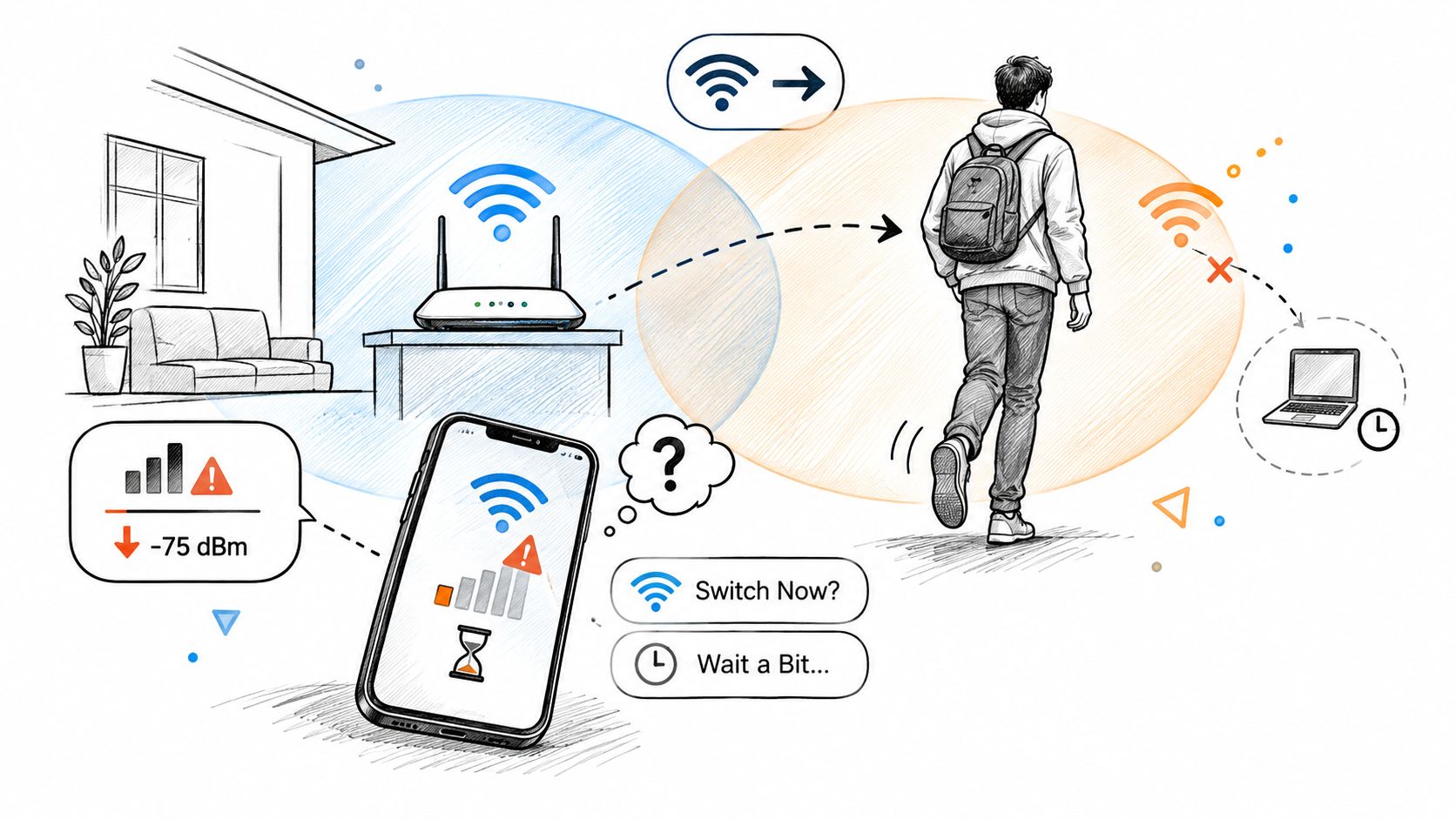
Run a controlled compatibility test
Temporarily give the 2.4 GHz and 5 GHz bands separate network names, then connect the affected device explicitly to a supported band. Disable Band Steering or Smart Connect if the router offers it, but record the original settings first.
Some mesh systems don't allow permanent band separation. Use the manufacturer's supported compatibility or device-setup mode instead of trying undocumented workarounds.
Next, inspect DHCP, the router service that assigns local addresses. Check for address conflicts and use the router's address-reservation feature for fixed equipment where appropriate; don't assign an arbitrary manual address that could duplicate another device.
Review device restart records as well. A camera that reboots because of unstable power won't become reliable merely because you reserve its address.
Offline isn't always disconnected
Older printers and smart-home devices may have limited band or security compatibility. Check their specifications rather than weakening the entire network's security to accommodate a device.
A printer can also remain connected while its computer reports it unavailable. If that's your symptom, use the more targeted guide to why a printer says offline before changing household Wi-Fi settings.
Similarly, a camera's cloud service can fail while its local wireless connection remains intact. Check whether the router still lists the device as connected and whether its local controls remain available.
If band separation fixes the symptom, you've identified a compatibility or steering issue worth investigating. You haven't proved that separate names are universally better: they also remove some automatic band-selection convenience.
Confirm the Cause and Decide Your Next Step
Keep your drop log through a normal week of use, noting the device, location, activity, and whether Ethernet remained available. Match the observed pattern to the diagnostic table before making a purchase, and run the matching test first.
Let the result determine the action
- If Ethernet fails too, investigate the router, modem, and provider path rather than buying an extender.
- If only a particular device fails, focus on its saved connection, driver, power behavior, and compatibility.
- If a room consistently fails, improve placement and assess the connection back to any mesh node.
- If appliance use matches the drops, test separation and channel selection.
- If movement triggers the interruption, test steering and roaming behavior.
Retest under the original failure conditions after each change. A quiet afternoon isn't convincing evidence that you've fixed a fault that normally appears during evening use.
If the tests don't isolate the problem, our Wi-Fi & Network Troubleshooting service at 247TechTeam addresses dropped Wi-Fi, slow internet, and router connectivity through remote assistance. Keep your observations available so the session starts with the behavior you've already established.
Before the technician connects, you review the authorized remote-support provider's consent notice and approve access. If the issue involves hardware failure, physical damage, or something else outside remote support's scope, the technician explains that limitation and points you toward the appropriate next step.
Write down the pattern, run its matching test, and escalate with the result. Replace equipment only when the evidence supports doing so.
247TechTeam offers remote troubleshooting for recurring Wi-Fi drops, slow internet, and router connectivity problems. Bring your drop log and test results, and visit 247TechTeam to arrange help identifying the next appropriate fix.