Do Mac Computers Need Antivirus? What Macs Still Face
Do Mac computers need antivirus? See what macOS already blocks, which threats still get through, and when extra protection is worth it.
Most Mac users don't need paid antivirus to block known malware, but 22 new macOS malware families were identified in 2024, so extra protection can make sense for people who regularly download unfamiliar software or handle sensitive data. The better question isn't whether every Mac needs the same security setup, but whether your habits leave gaps that Apple's built-in tools don't cover.
A Mac can block many known threats automatically. It can't make every installer trustworthy, stop you from overriding a warning, or guarantee that a phishing page won't fool you. Match your protection to what you do: where you get software, who shares the computer, and what would happen if files or account details were exposed.
The Short Answer for Most Mac Users
If you keep macOS updated and install apps from the App Store or verified developers, Apple's built-in defenses are usually enough to block known malware. Paid antivirus isn't essential for every Mac, but it can add protection when your downloads, file sharing, or data make mistakes more costly.
Use this table to find the closest match to your day-to-day use:
| Mac user situation | Extra antivirus worth it? | Main reason |
|---|---|---|
| Only App Store apps, macOS kept updated | Usually not essential | Built-in layers cover known threats and check apps |
| Frequent downloads from websites | Worth considering | More unfamiliar installers mean more exposure to fake software |
| Shares files with Windows PCs | Worth considering | A Mac can pass along Windows malware even though it can't run it |
| Handles sensitive client or financial data | Worth considering | Extra scanning and web protection add another layer |
| Uses pirated or cracked software | Strongly consider | It bypasses Gatekeeper checks and can carry hidden malware |
| Shared household Mac used by children or several people | Consider | More users and unknown installs raise the chance of a mistake |
The table is a practical verdict, not a guarantee. A careful person who downloads from websites may have less exposure than someone who installs every unfamiliar file they receive, while a shared Mac gives more people the chance to make a risky choice. The useful distinction is between threats macOS checks for automatically and risks that depend on what someone clicks, installs, or approves.
What Built-In macOS Protection Covers
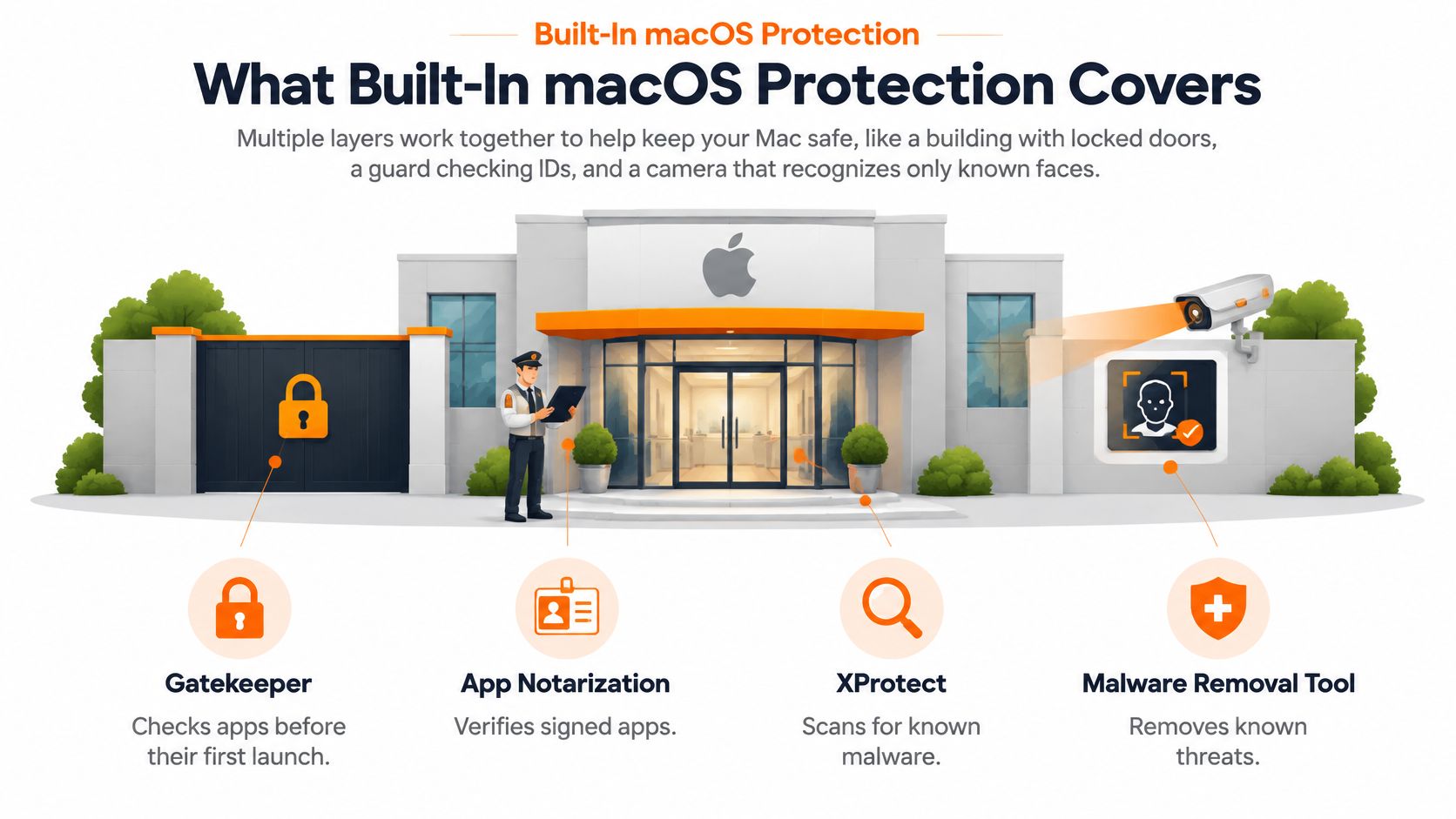
Think of macOS security as a building. Gatekeeper is the guard checking IDs at the door, notarization is a review of an app before it arrives, and XProtect is a camera that recognizes known faces. The layers reduce risk, but none can identify every harmful action or prevent a user from letting a threat in.
Apple says Macs include built-in protections that check software and help prevent known malware from running. On macOS 10.15 and later, XProtect checks applications when they're first launched, modified on disk, or when malware signatures change. Its YARA rules can be updated separately from full macOS releases, but the system still relies on recognized malicious indicators. (Apple's macOS malware protection guide)
| Layer | What it does | Limitation |
|---|---|---|
| Gatekeeper | Checks apps before their first launch and blocks untrusted software | Users can override warnings and bypass the check |
| Notarization | Apple reviews developer-signed software for known malicious content | It doesn't guarantee that an app will behave safely over time |
| XProtect | Detects and removes known malware using signatures updated separately from macOS | New threats may slip through before their signatures are recognized |
| App Sandbox | Restricts what an app can access on the system | Its protection depends on app design and the permissions granted |
| Privacy permissions | Asks before apps use the camera, microphone, or files | Users can approve requests they should refuse |
The distinction matters: these tools give macOS a baseline; they don't make every other security measure redundant. A paid suite is most useful when you want extra behavioral detection, web or phishing protection, or more visibility into scans and blocked files. For a plain-language explanation of the role antivirus software plays, see what antivirus software does.
Keep macOS and apps current, leave Gatekeeper enabled, and avoid pirated software and unsolicited installers. Those steps let the built-in layers work as intended, instead of asking them to compensate for a risky download or a disabled warning.
Check Your Mac's Current Protection
Do these checks in one sitting. They won't guarantee that every threat is blocked, but they help ensure Apple's protections aren't being undermined by outdated software or permissions you no longer need.
- Install macOS updates. Open System Settings, select General, then Software Update. Install any pending update so your Mac has Apple's current fixes.
- Confirm Gatekeeper is active. In System Settings, open Privacy & Security and review the settings that control which apps can be opened. Don't change them to allow unidentified apps unless you have a specific, trusted reason.
- Review privacy access. In Privacy & Security, check which apps can access the camera, microphone, and files. Remove permissions from apps you don't recognize or no longer use.
- Update your browser and everyday apps. An old browser or outdated app can leave a gap even when macOS itself is current.
- Inspect downloads. Remove pirated or unsigned software you don't trust, and delete installers in Downloads that you can't identify.
- Check your backup. Confirm that your Mac has a current backup. Antivirus can help detect malware, but a backup is what gives you a way to restore files after data loss.
When these checks are done, you have a stronger baseline for deciding whether another layer is worth the cost. The decision comes down to your exposure and the value of what you want to protect.
Threats That Get Past Built-In Defenses and Myths
In April 2012, the Flashback Trojan infected more than 600,000 Macs worldwide. It exploited Java vulnerabilities and spread partly through deceptive installation, including fake Adobe Flash Player installers. About 57% of infected computers were in the United States and 20% in Canada. Symantec estimated that infections fell from roughly 600,000 to about 140,000 within two weeks after Apple released security updates and removal tools. (Macworld's history of the Flashback Trojan)
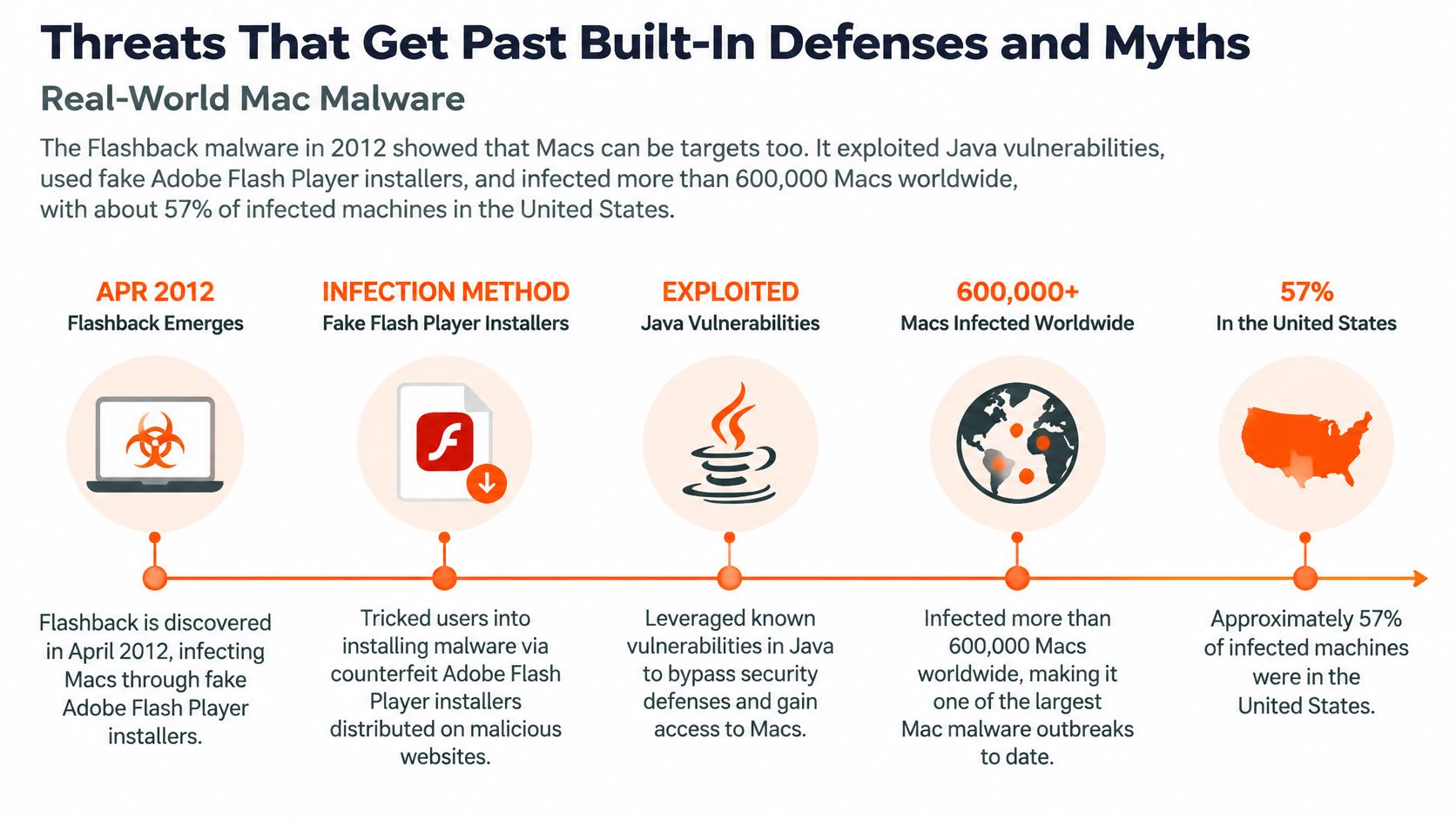
The lesson is that macOS defenses reduce risk, while installation choices still matter. Updates can close known vulnerabilities, but they cannot make a deceptive installer safe. Fake update alerts, lookalike app installers, and downloads that ask you to bypass a warning all rely on a user approving the next step.
Common gaps and familiar myths
- Fake updates and pop-ups try to push you into installing software from an untrusted link instead of the developer's official site.
- Pirated apps can evade trust checks and may contain unwanted or malicious code.
- Phishing pages copy legitimate sign-in screens to steal account details. Antivirus may block known malicious pages, but it cannot guarantee that every convincing fake will be recognized.
- Information stealers target passwords and browser data. A Trojan can pose as a legitimate app, as this Trojan horse example illustrates.
Myth: Macs can't get viruses. Flashback is a clear counterexample. Built-in security lowers the risk, but macOS is not immune to malware.
Myth: Built-in protection makes every other precaution unnecessary. XProtect can check for known malware, but it cannot update an outdated app for you or prevent you from approving a malicious installer.
Myth: Antivirus is either required or pointless. The decision depends on your habits and exposure. MacPaw's Moonlock Mac Security Survey found that only 15% of surveyed Mac users believed macOS was free from malware. That measures users' beliefs, not infection rates. (MacTech's report on the survey)
Recent Mac Malware Trends and Numbers
Independent security reporting cited by The Mac Observer identified 22 new macOS malware families in 2024, nearly twice the number reported for 2022. The families included ransomware, spyware, and information stealers, but those serious categories represented approximately 11% of Mac detections in Malwarebytes data. Adware and potentially unwanted programs made up the larger share. (The Mac Observer's Mac security overview)
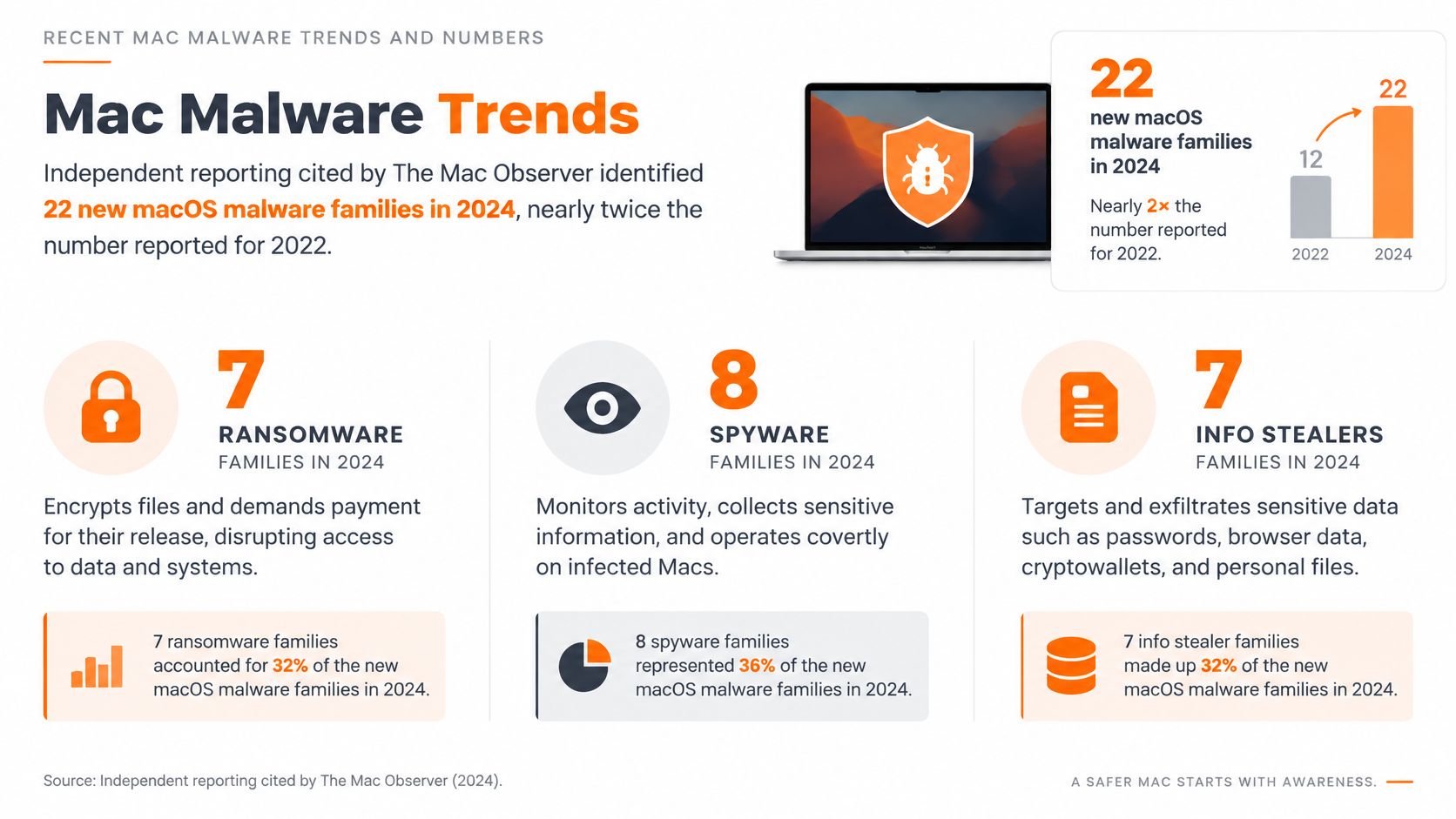
Those figures describe families and detections, not the share of Macs infected. A separate measure illustrates why threat types matter: Jamf's analysis of anonymized data from 1.4 million Macs across 90 countries found that infostealers accounted for 28.36% of Mac malware detected in 2025. That's a proportion of detected malware, not a proportion of all Mac users. (Jamf's analysis of Mac infostealers)
User reports tell a different story. In MacPaw's Moonlock Mac Security Survey 2025, 66% of surveyed Mac users said they had experienced at least one cyber threat during the previous year. These are self-reported experiences, not a confirmed infection rate. (9to5Mac's summary of the survey)
The practical point isn't that every Mac is infected or that every user needs to buy software. It's that new threats appear, and signature-based defenses depend on recognized indicators and current updates. Another scanner can provide a useful layer for someone who often encounters unfamiliar files, while updates and safe browsing still do essential work.
Features Worth Comparing in Mac Antivirus
Compare what a product does, not just its brand name. The features below are most useful when they address a real gap in your habits.
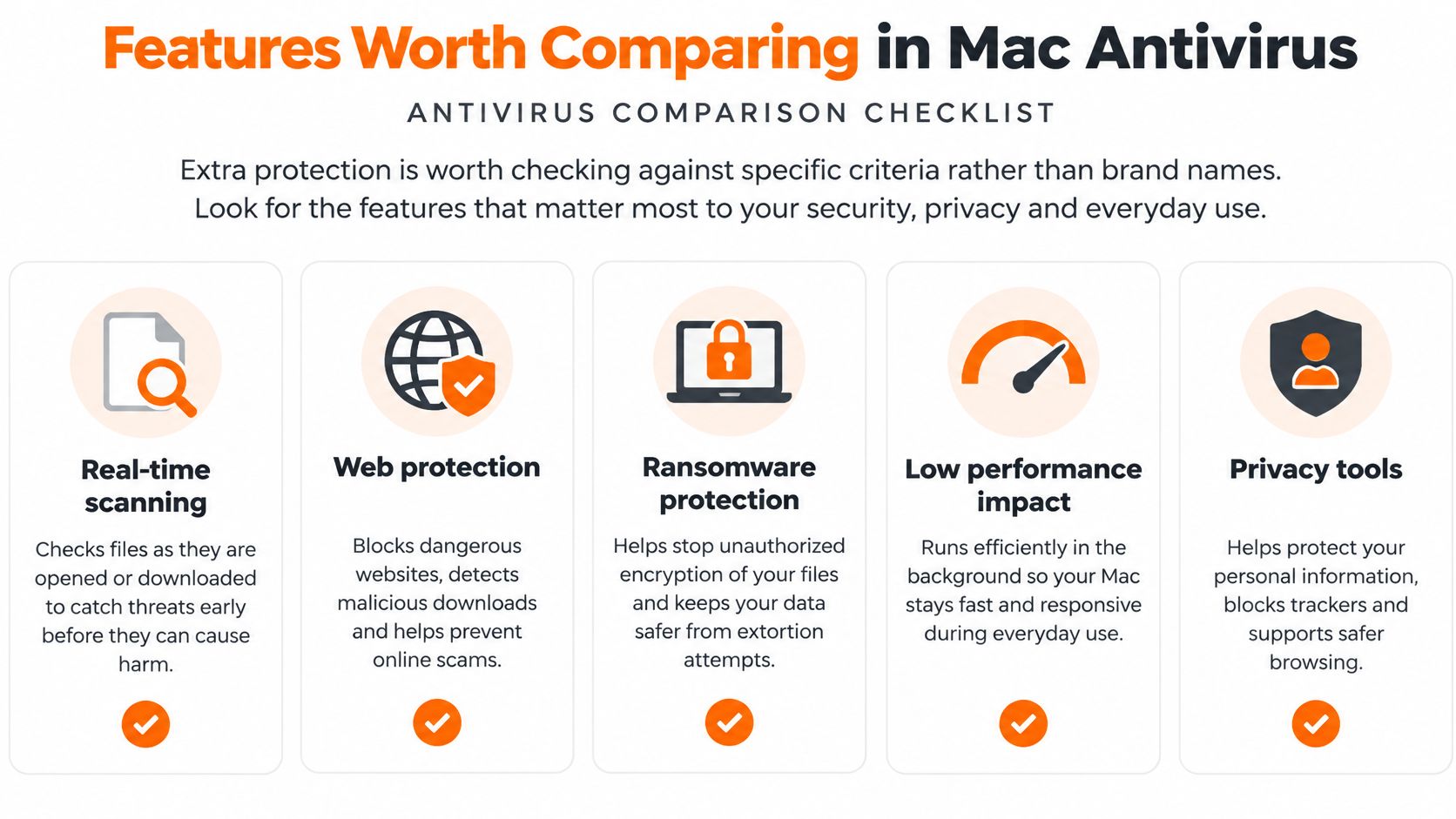
| Feature | What it adds | Worth it when |
|---|---|---|
| Real-time scanning | Checks files as they're opened or downloaded | You download often from websites or file-sharing sites |
| Web and phishing protection | Blocks known malicious and fake login pages | You handle banking, email, or shared accounts online |
| Ransomware and behavioral detection | Flags programs that act suspiciously, not only known signatures | You store important or client files that can't be lost |
| Scan history and quarantine | Shows what was blocked and isolates suspicious items | You want to review threats and act on them |
| Automatic updates | Keeps threat signatures current | You want protection without manual checks |
Real-time scanning earns its place when unfamiliar downloads are routine. For banking, email, and other account use, web protection can help block known malicious pages, though it can't prevent every phishing attempt. Behavioral detection is useful when a program acts suspiciously before a matching signature is available.
Scan history and quarantine give you something to review after an alert, rather than leaving you to guess what happened. Automatic updates matter if you don't want to remember to refresh detection information manually. These are practical criteria for comparing free antivirus with paid antivirus, especially if you're deciding whether the extra features justify a subscription.
Check that the software is designed for Mac, supports your macOS version, and doesn't interfere with your usual work. A security suite doesn't replace system updates, a reliable backup, or cautious installation habits.
Deciding Whether Your Mac Needs More Protection
Use this decision path after checking your Mac's current settings. The point is to choose based on exposure, not to buy software just because malware exists.
- Add a layer if your regular use raises exposure. Frequent downloads, sensitive work, or file sharing with Windows PCs are good reasons to consider extra scanning and web protection.
- Remove cracked software first. It bypasses Gatekeeper checks. If you keep using it, strongly consider additional protection, but don't treat antivirus as a safe way to keep installing untrusted apps.
- Account for other users. On a household Mac shared by children or several people, web protection and scan history can make it easier to review what was blocked.
- Compare features against your actual needs. Look at the criteria above before choosing. 247TechTeam offers antivirus for Windows and Mac, and its setup runs from downloading the seven-day free trial to installation and activation, with no credit card required for the trial.
- Keep a backup either way. Antivirus can't restore files lost to ransomware or hardware failure; a current backup gives you a recovery path.
The default is straightforward: a Mac with current updates, Gatekeeper enabled, and apps from the App Store or verified developers usually doesn't need paid antivirus. Extra protection is justified by your habits and the cost of a mistake, not by fear.
247TechTeam offers antivirus software for Mac and Windows, with real-time scanning and defenses against spyware, hacking, and ransomware. If you want to compare an additional security layer for your Mac, visit 247TechTeam and review the protection and trial options.