Trojan Horse Virus Example and How Users Get Tricked
Explore a Trojan Horse Virus Example with real cases, how it disguises itself, gains access and causes harm, and the steps that prevent infection.
You're about to open a download that looks completely ordinary. Maybe it's a free PDF tool, a browser update, or an app a caller told you to install so they could "help" you. The icon looks right, the name sounds right, and nothing screams danger. That's exactly how a Trojan works. It doesn't break in. It waits for you to let it in because you trusted what it claimed to be. Understanding that moment of trust is more useful than memorizing malware names.
Trojan Horse Virus Examples at a Glance
A Trojan horse is malware that hides inside something you choose to open. Each Trojan horse virus example below looks different on the surface, but they all depend on the same step, a person running a file or app they believed was safe.
| Example | Disguise | How It Gets Run | What It Does |
|---|---|---|---|
| Fake PDF utility (hypothetical illustration) | Free PDF converter or editor | User downloads and runs the installer | Steals saved logins and sessions after install |
| AIDS Trojan (1989) | Health-information diskette | Copies mailed to recipients who ran the program | Hid directory names and encrypted file names after 90 boots, demanded US$189 |
| Catchamas | Apparently legitimate Windows executable | User runs the file | Captures keystrokes, clipboard, screenshots and window titles; persists through a service |
| Android banking Trojan | Fake banking, shopping or utility app | Installed from outside the official app store | Targets login screens and authentication data |
| Remote-tool abuse | Genuine remote-monitoring software | Installed on instruction from a phone or phishing scam | Attacker gains remote control to move money |
How to Read This Table
Read across, not down. The disguise and delivery columns tell you more than the malware name does, because every row starts with trust. A useful looking installer, a health diskette, a familiar app, even real support software can become the vehicle if the wrong person controls why you installed it.
Notice what changes and what doesn't. What it does varies widely, from hiding files to recording keystrokes to watching a banking session. How it gets run barely changes at all. Someone opened, installed, or approved it.
Focus question: Which row looks most like the files you actually download or receive each week? That row is your highest risk pattern.
If you install free utilities, watch the first row. If you sideload phone apps or follow instructions from callers claiming to be support, watch the last two. You don't need to fear every file. You need to recognize the setup that asks for your trust before it asks for anything else.
Trojan Versus Worm and Common Misconceptions
The comparison below shows the core split between malware that waits for you and malware that moves on its own.
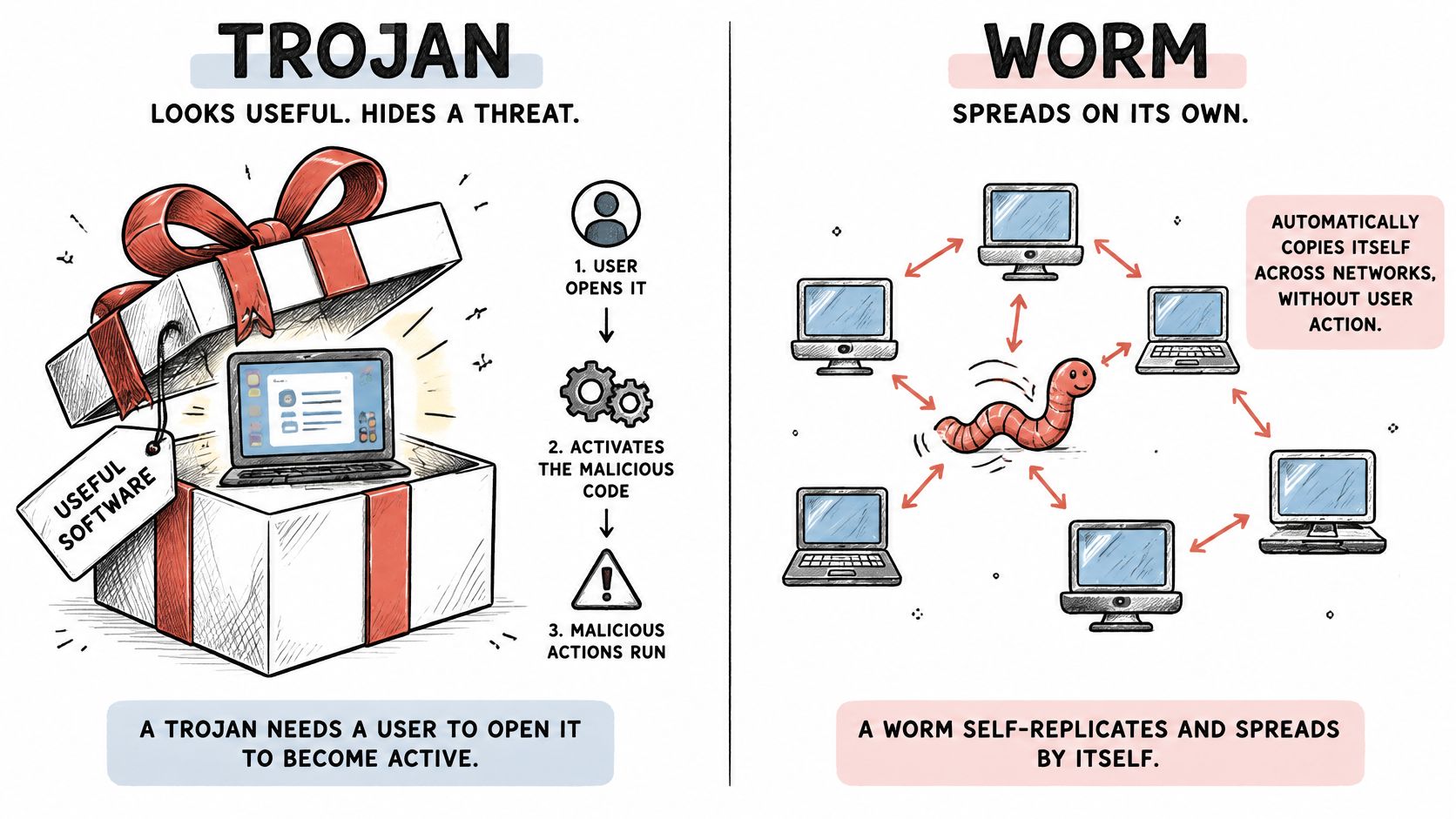
A Trojan waits to be run because it pretends to be something useful, while a worm spreads on its own through network vulnerabilities.
Think of a package you choose to open versus a fire spreading through a building. You stop the first by checking what's at the door. You stop the second with fire doors and repairs to the building itself.
The Morris program is the classic contrast. The account of the Morris worm incident describes a program released on 2 November 1988 that spread across vulnerable VAX and Sun-3 systems running Berkeley UNIX and affected about 6,000 machines when the internet consisted of only roughly 60,000 connected computers. It didn't need anyone to click a disguised file. It moved through weaknesses in network services, which is why it's a worm, not a Trojan.
The short video below reinforces that distinction in visual terms.
Three Myths That Cause Confusion
- Every virus is a Trojan: It isn't. People say "Trojan horse virus" in everyday speech, but a Trojan is defined by deception, not by copying itself into other files.
- Trojans spread on their own: They don't. If nobody runs the disguised file, the Trojan sits there doing nothing.
- A Trojan is always ransomware: It isn't. Ransomware is one possible payload. Others steal passwords, record screens, or open remote access.
That distinction changes your defense. You stop a Trojan mainly by controlling what runs. You stop a worm mainly by patching vulnerabilities and using network controls.
How a Trojan Hides in Plain Sight
The original Trojan horse story works because the gift looked valuable and the danger sat hidden inside it. A digital Trojan follows the same logic. The outside promises a document, a tool, or an update. The inside carries code the attacker wants you to execute.
The process flow below maps that deception from first impression to payload.
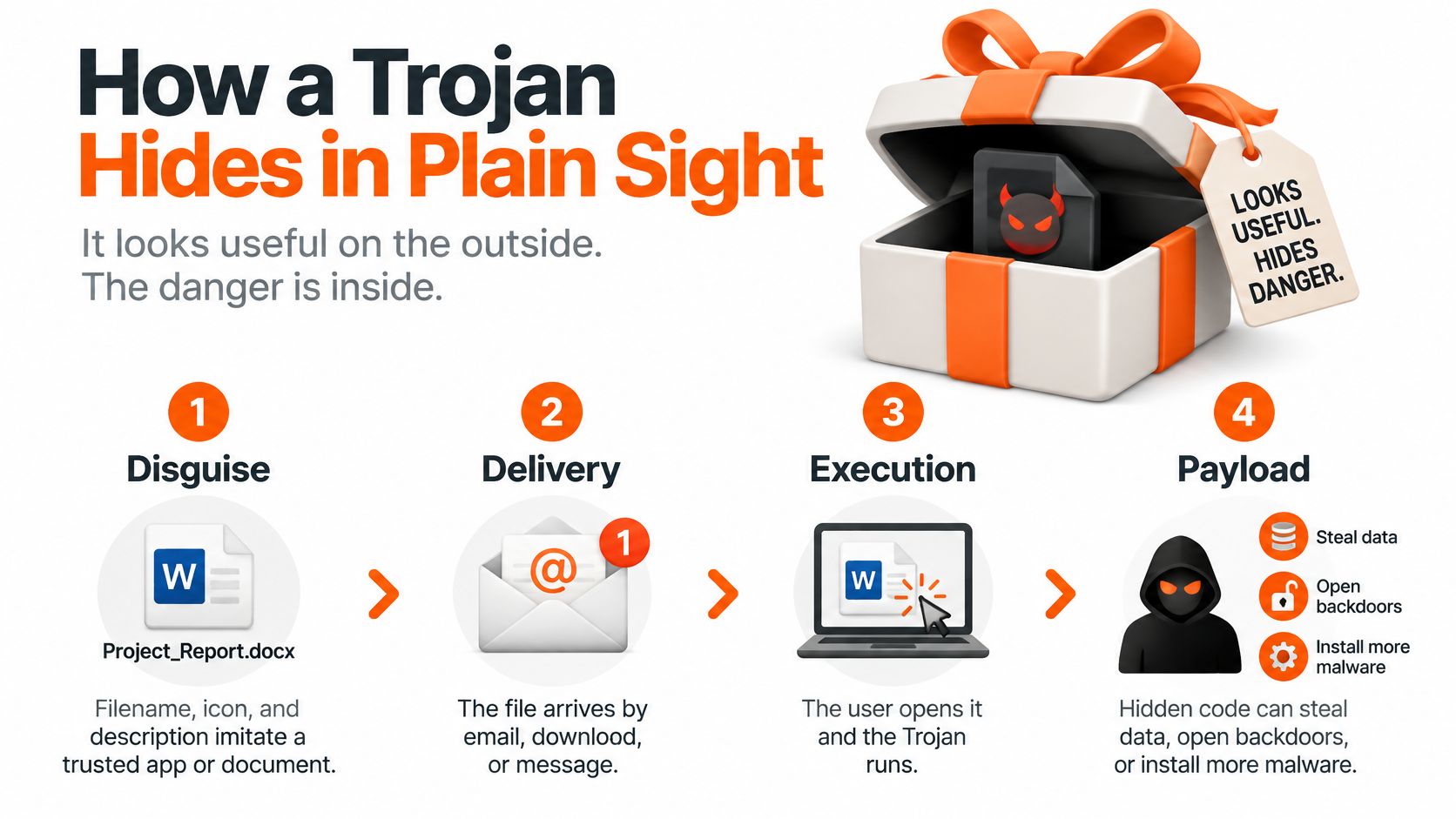
The Chain From Disguise to Payload
- Disguise: The filename, icon, and description imitate software, a document, or an update you already recognize. Familiarity lowers your guard before you've made any real decision.
- Delivery: It arrives as an email attachment, a fake download page, cracked software, or a fake update prompt. The MITRE ATT&CK page on malicious file execution documents user-execution vectors including .exe, .scr, .lnk, .iso, Office documents, and password-protected archives, and notes that attackers use familiar filenames and instructions that persuade users to bypass warnings.
- Execution: You open it, so the code runs with your permissions. That's the cause and effect attackers count on. Social engineering produces execution, and execution gives the code a foothold.
- Foothold: The malware creates persistence through services, startup entries, or registry keys so it survives a restart. Without this step, rebooting might end the problem.
- Payload: Now it can steal credentials, log keystrokes, allow remote control, or stage data for later theft. The visible program may even work as promised, which delays suspicion.
A password on an archive deserves special attention. It can make scanning harder before you open the file, and attackers often include the password in the same message to make the file feel private and legitimate. Everyday documents can carry this risk, and this guide on whether a PDF can have a virus covers that specific worry.
A Quick Self-Check for Your Inbox
Before you open an attachment, look for three signs it's asking for execution, not just reading.
- Urgency: The message pressures you to act now, before you can verify it.
- A request to enable macros or content: A normal document shouldn't need you to switch off protections.
- An unexpected update: Real updates come through the app or system settings, not through a random attachment or pop-up.
If one sign appears, pause. If two appear together, don't run it until you've verified the sender another way.
The AIDS Trojan and Early Deceptive Delivery
Long before most homes had internet access, a Trojan could still travel internationally. It just needed the postal system and a convincing label.
In 1989, diskettes carrying a program called the AIDS Trojan, also known as PC Cyborg or the Aids Info Diskette, were mailed to recipients in several countries. It presented itself as a health-information program about AIDS, which gave the people who received it a clear and reasonable motive to run it. Nothing about the package looked threatening. That gap between appearance and intent is the whole trick. The diskette was the delivery vehicle, and trust in its stated purpose did the work a software exploit would do today.
What Happened After People Ran It
Once executed, the code modified the AUTOEXEC.BAT file so it could count how many times the computer booted. Nothing dramatic happened at first, which is part of why the deception held. The user could run the program, read the information, and assume everything was fine.
After the 90th boot, the payload activated. It concealed directory names and encrypted file names on the C: drive, making the system appear unusable. Victims were then instructed to send US$189 to a post-office box in Panama in exchange for restoration instructions. The files themselves largely survived. Access to them was blocked until the victim paid or found another fix.
Notice the limit of removal here. Deleting the Trojan program at that point would not have helped, because the altered AUTOEXEC.BAT and the encrypted file names would still be sitting on the machine. Removing the delivery vehicle does not reverse what the payload already did. Cleaning out the program and restoring the system are two separate jobs.
Contemporary reporting classified it as a Trojan horse because it came embedded in an apparently legitimate application and did not replicate into other software. Its spread depended entirely on physically mailed copies and the trust they carried. It had no self-copying mechanism at all, which is exactly what separates a Trojan from a worm.
Why This Case Still Matters
It's widely regarded as the first documented ransomware case. The technical payload interfered with access to data, and the payment demand introduced the extortion model modern ransomware still uses. The delivery method looks dated, floppy diskettes instead of downloads, but the psychology is current.
The compromise relied entirely on trust in the stated purpose of the program. Nobody hacked through a firewall. Someone made a diskette sound worth running, and recipients did the rest.
Before you run any unexpected program, ask what it claims to do and whether it asks for payment, access, or permissions that don't match that claim.
Catchamas and Behavior Once a Trojan Runs
Some Trojans announce themselves. Catchamas shows the quieter pattern, where damage is steady collection after the first click. It's a Windows information-stealing Trojan, and its value as a Trojan horse virus example is how clearly its behavior can be observed once it's active.
The MITRE ATT&CK profile for Catchamas records that it captures keystrokes, clipboard contents, screenshots, network configuration, and application-window titles. Read that list as a story about intent. Keystrokes and clipboard data reveal what you type and copy, including passwords you paste. Screenshots tied to window titles show which app or site you were using when you typed it. Network configuration helps an attacker understand the machine's environment.
How It Stays and Where It Puts What It Collects
Catchamas establishes persistence by creating a Windows service named NetAdapter and modifying Registry keys. A service is powerful because it can restart with the system, so the Trojan doesn't need you to run it again. The name also matters. NetAdapter sounds like ordinary networking software, which helps it blend into a list you'd normally skim past.
It then stages collected data in database and bitmap files across multiple local locations. Staging means the data is gathered and stored on your machine first, before anything leaves it. Screenshots saved as image files and logs saved as database files can sit unnoticed until they're sent out.
Turn Each Behavior Into a Check
- New service from an unknown executable: That suggests persistence. Check services created around the time you installed something new.
- Registry changes tied to that service: That confirms the program arranged to restart itself.
- Keylogging and clipboard access: That points to input capture, especially if the program has no reason to monitor typing.
- Screenshots matched to window titles: That indicates targeted collection, not random activity.
- Unexpected database or image files: That can signal staging before exfiltration.
Don't rely on a single signature to catch this. MITRE also notes that obfuscation can help malware evade signature-based detection, so a file can change its appearance while keeping the same behavior. Correlating several behaviors gives you a stronger signal than one match alone.
For a home user, the practical step is simple. Review recently installed services and startup entries after any suspicious install. If you find one you can't explain, treat it as an incident, not a curiosity.
Modern Trojans in Banking Apps, Infostealers and Remote Tools
If you picture a Trojan only as a fake Windows installer, you'll miss most of what now puts accounts at risk. Kaspersky reported 1,338,357 banking-Trojan attacks globally from November 2024 through October 2025 in its financial threat report for 2025, and also reported that PC infostealer detections rose 59% from 2024 to 2025. The pattern has spread across devices and techniques.
Three Patterns to Recognize
Mobile banking Trojans arrive in apps sideloaded from outside official stores. They pretend to be utilities, games, shopping helpers, or banking tools. Once installed with broad permissions, they can watch login screens, capture authentication data, or manipulate transaction flows while you think you're using a normal app.
Infostealers focus on what's already saved. They take browser-stored credentials, session cookies, and autofill data. That's why the damage can continue after the malware is gone. A stolen cookie can represent a live logged-in session, and a saved password works until you change it.
Remote-access abuse uses real software for a criminal purpose. Attackers persuade a victim, often by phone or phishing message, to install a genuine remote-monitoring or support tool. The software itself isn't fake. The reason for installing it is. Once connected, the attacker can watch the screen, guide the victim through banking steps, or move money directly.
What to Judge Instead of Appearances
The question shifts from what the file looks like to how it was delivered and what it can reach. Can it access your banking app? Your saved passwords? A live session where you're already logged in? A harmless looking app with access to all three is more dangerous than an odd looking file with access to none.
Check your devices for three observable signs.
- Unfamiliar apps with broad permissions: Especially apps that can read notifications, use accessibility features, or draw over other apps.
- Remote-access tools you didn't request: If you can't name who uses it and why, remove it.
- Account activity you didn't start: New payees, changed contact details, or logins you don't recognize need immediate attention.
Prevention Controls Mapped to Each Stage
Prevention works best when each control interrupts a specific stage, rather than hoping one tool catches everything. Use the table as a setup checklist.
| Control | Stage It Interrupts | Practical Setup |
|---|---|---|
| Inspect files before execution | Disguised installers and attachments | Scan downloads and attachments before opening them |
| Block macros and scripts by default | Office documents and script droppers | Keep macros disabled unless a trusted file needs them |
| Restrict installs to approved sources | Fake utilities and cracked software | Install only from official app stores or vendor sites |
| Audit remote-access software | Abused remote-monitoring tools | Review installed remote tools monthly and remove unrequested ones |
| Verify unexpected files and updates | Urgent messages and fake update prompts | Confirm the sender through a known phone number or account before running anything |
Setting Each Control Up
Inspect before you open. Let your antivirus scan downloads and email attachments first, and don't override a warning just because a message told you to. Real-Time Protection scans every file and process the moment it touches the PC, which covers the moment of execution, but it's still one layer. If you want the broader picture of that layer, read what antivirus software does.
Keep macros off. In Office, leave macros disabled by default and enable them only for a specific trusted file you expected. Most documents you receive for reading never need them.
Control your sources. Install software only from official app stores or the vendor's own site, typed in by you. Search ads and lookalike download buttons are common delivery routes for fake utilities.
List your remote tools. Once a month, open your installed programs and look for remote-access or support software. Remove anything you didn't request or no longer use. Legitimate help should never depend on a tool staying installed without your knowledge.
Verify through a second channel. If a message urges you to run a file or update, contact the sender through a known number or account, not the contact details in the suspicious message. Two minutes of checking breaks the urgency attackers rely on.
If you only set up two controls today: restrict installs to approved sources and verify unexpected files through a second channel. Those two stop the widest range of Trojan deliveries before execution.
Confirm Your Accounts Are Safe After Removal
Say you installed a fake PDF utility, your antivirus flagged it, and the scan now reports success. The alert is gone and the file is gone. The catch is that credential theft can happen in the brief window before detection, so the attacker may already hold your saved email or banking logins.
That gap is the difference between file removed and device and accounts fully remediated. Quarantine works like confiscating a copied house key: it isolates the suspicious item so it cannot harm the system, yet it does nothing about copies already in circulation. Passwords, cookies, and sessions stolen before the scan stay valid until you revoke them yourself.
The checklist below turns that recovery work into a visible order.
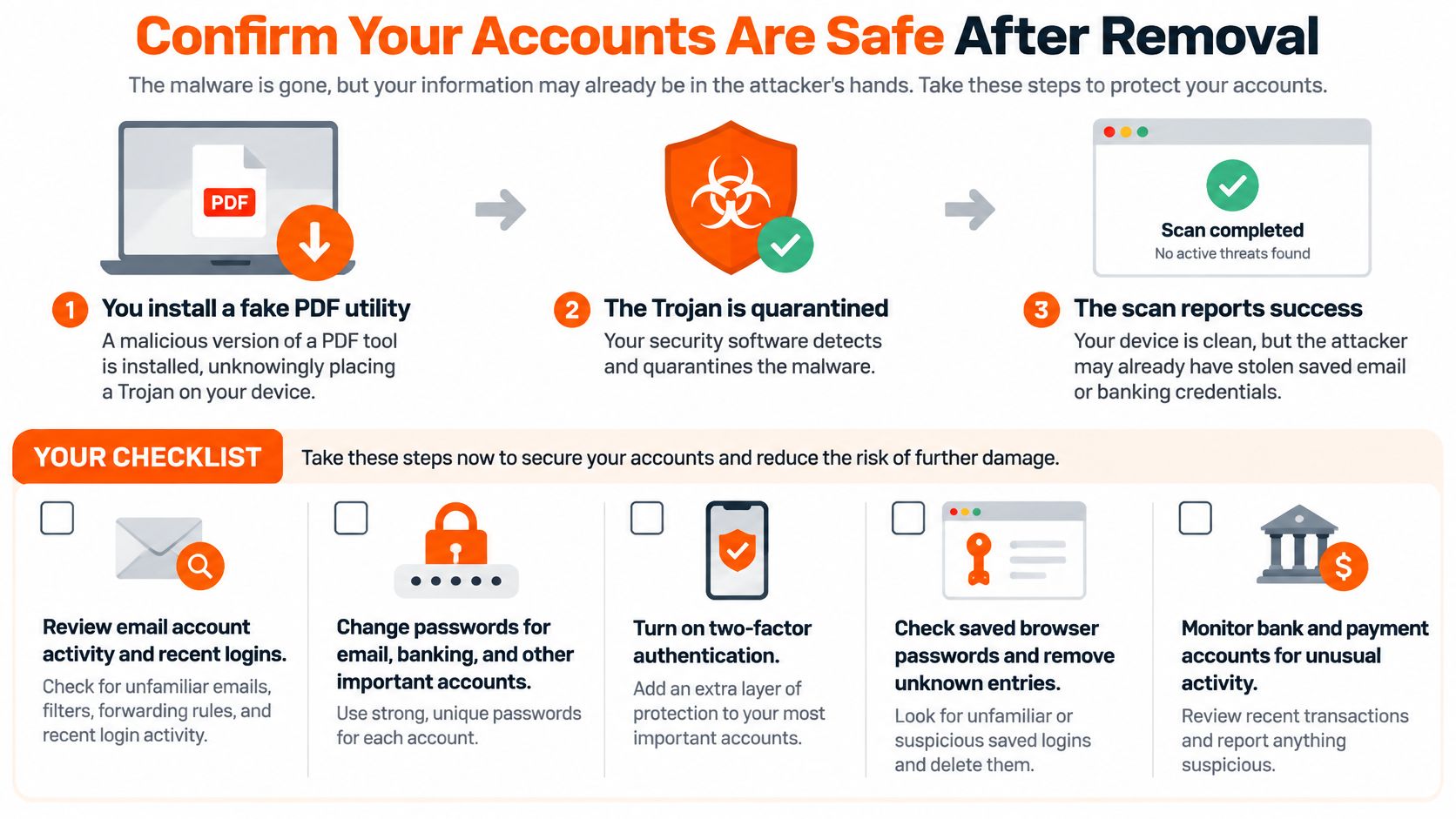
Six Steps After a Quarantine
- Disconnect the device from the network if active compromise is suspected. The CISA phishing guidance document recommends isolating a workstation after a phishing-related malware detection to prevent further spread, and advises re-provisioning compromised accounts so attackers cannot retain access.
- Use a clean device to change passwords for email, banking, and other critical accounts. Changing them on the infected machine could hand the new passwords to a keylogger still sitting in memory.
- Sign out all active sessions and revoke connected devices and tokens. This closes the sessions that stolen cookies may still be holding open.
- Enable phishing-resistant multi-factor authentication where the service offers it, so a stolen password alone stops being enough to get in.
- Review account activity and recent transfers for anything you didn't start. Begin with email, because whoever controls your inbox can reset access to almost everything else.
- Seek professional incident response if unexpected processes, redirected browsing, or new startup entries persist after cleanup. For the removal work itself, follow a structured guide on how to remove malware rather than deleting files at random.
Our Virus & Malware Assistance identifies and removes unwanted software, pop-ups and suspicious programs when you need hands-on help. During any session, technicians never ask for passwords or payment details, and never run anything on your computer without explicit consent. A helper who breaks those rules is a warning sign, no matter how urgent they sound.
A successful scan marks the beginning of recovery. You're done when the device is clean and your accounts can no longer be reached with whatever the Trojan may have taken.
If a suspicious download has left you unsure whether your device and accounts are clean, 247TechTeam offers antivirus protection with real-time scanning for Windows and Mac alongside remote malware removal support. Visit us to start the 7 days free trial (no credit card required), book a malware cleanup session, and get help checking what the infection touched on your device.