How Do I Delete Pop Up Ads: Fix Browser and Adware Causes
How do I delete pop up ads? Check browser pop-up settings, notification permissions and extensions, and spot scam alerts before you call any number.
You're trying to read a page, check your email, or finish a form, and another window jumps in front of everything. You close it. It comes back. Sometimes it's an ad for something you don't want, sometimes it's a loud warning claiming your computer is infected, and sometimes it keeps appearing in the corner of your screen even after you've shut the browser.
That's why asking how do I delete pop up ads can lead to confusing advice. Closing the window removes what you see, but it doesn't always remove the reason it appeared. The fix depends on what's triggering it, so sort the pop-up first, then act. You don't need to install a random cleaner, and you don't need to call anyone whose number appeared on your screen.
Sort Your Pop-Up Before You Act
Find your symptom in this table before you change any settings. It'll point you to the most likely cause and the safest first move.
| Symptom | Likely cause | First action |
|---|---|---|
| Appears only on one website | Ordinary site pop-up or allowed exception | Enable pop-up blocking and remove the site from the allow-list |
| Alerts appear after the browser closes | Website notification permission | Block notifications for that site |
| Urgent virus warning with a phone number | Tech-support scam | Do not call; close the tab and do not grant remote access |
| Pop-ups on every site or a new toolbar | Unwanted extension or adware | Remove suspicious extensions and programs, then scan |
| Pop-ups continue after all fixes | Compromised browser or system | Reset the browser, update, scan, and change passwords if credentials were entered |
Two Different Problems With the Same Look
Pop-up windows open inside or over your browser. Your browser's pop-ups and redirects setting can stop most of them. Persistent alerts are different. They usually come from a notification permission you allowed, an extension you didn't choose, or software installed recently. Blocking pop-up windows alone won't turn those off.
Pop-ups became common because they paid better than banners. A Stanford Computer Science project notes banners typically generated only 2 to 5 clicks per thousand impressions, while pop-ups produced about 30 clicks per thousand impressions. That commercial incentive is useful context, but it doesn't tell you what's on your screen now. Your symptom does.
Do a quick check before you click anything inside the pop-up:
- Which site triggers it: Note the website name if you can see it safely in the address bar or notification.
- Does it fire with the browser closed: If yes, treat it as a notification permission first.
- Is there pressure to act: A phone number, payment demand, download prompt, or countdown means you should stop and close it without interacting.
Before you troubleshoot: Close the tab, don't call any displayed number, and don't download a suggested cleaner.
If the tab won't close normally, close the browser window. If that fails, force-quit the browser through your computer's task controls. You can reopen it afterward without restoring the problem tab.
Scam Pop-Ups That Ask You to Call or Pay
A browser warning never needs you to make a phone call. If a message says your computer is infected and tells you to call immediately, assume it's scareware until you've verified it independently.
This kind of deceptive alert often looks like a system window, but it's just page content designed to frighten you.
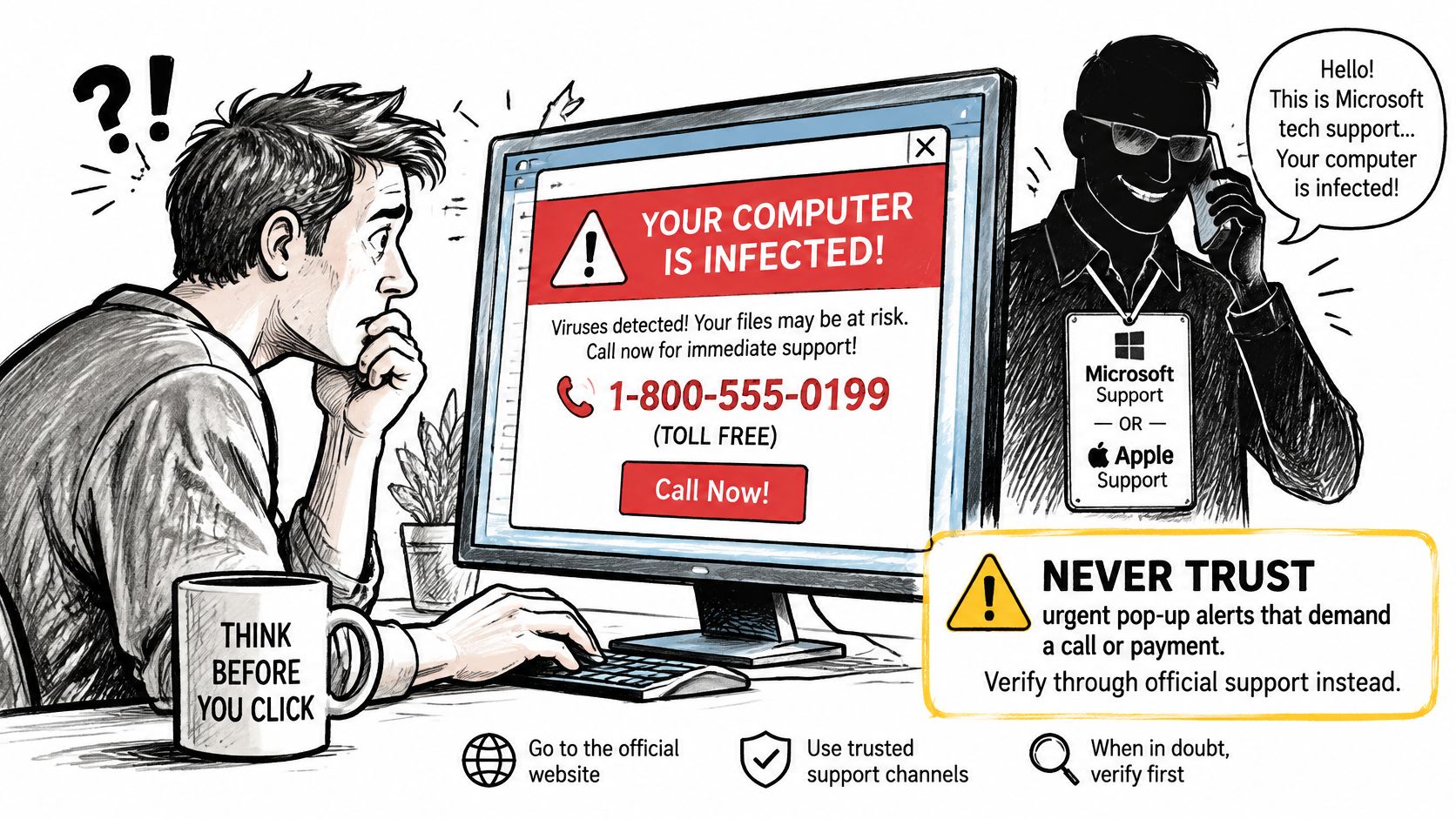
An August 2019 Federal Trade Commission enforcement announcement said a tech-support operation used deceptive pop-ups that falsely claimed computers were infected and urged people to call a toll-free number immediately. Callers allegedly posed as affiliates of Microsoft or Apple, requested remote access, and misrepresented harmless computer directories as evidence of serious problems. The settlement distributed more than $802,000 to 12,140 consumers, with an average refund of $66.
The Safe Sequence
- Don't call the number shown in the alert.
- Don't grant remote access because a browser message asked for it.
- Don't download a cleaner or pay anything from links inside the warning.
- Close the tab, or force-quit the browser if the page resists closing.
- Run a trusted scan afterward, such as Windows Security, if the messages continue.
A legitimate warning doesn't require immediate payment or unsolicited remote help. Real remote support starts differently. With us, the customer reviews the consent notice from the authorized remote-support provider and approves the connection before the technician connects. Our technicians never ask for passwords or payment details during a session, and never run anything on the customer's computer without explicit consent.
The short video below shows how easily a fake alert can imitate a real one, which is why the source matters more than the design.
If you already called, don't panic, but act promptly. Change passwords for accounts you accessed, watch bank and card statements, and report the call to the FTC. It's also worth learning whether a PDF can have a virus, since scammers often move victims from a pop-up to a download.
Revoke Notification Permissions for Unknown Sites
Say a message reading your PC is at risk slides into the Windows notification corner after you've closed every browser window. That's probably not a pop-up window at all. It's likely a website notification, sent because a site got permission to notify you, often after a quick click on Allow.
Web notifications are permission-based messages, so your pop-up blocker can be working perfectly while these alerts keep arriving. Microsoft's guide to managing website notifications in Edge explains that you revoke them per site, and alarming virus detected language in the operating system notification area is a sign to check that permission.
Remove the Permission in Edge
- Open Settings, then Privacy, search, and services.
- Select Site permissions, then All sites.
- Choose the unfamiliar domain sending the alerts.
- Set Notifications to Block.
- Repeat for every domain you don't recognize or no longer use.
There's a faster route when you're already on the site. Select the site-information icon beside the address bar, open Permissions for this site, and change Notifications to Block. Don't stop at one site if several unfamiliar names appear in the list. Scam networks often use multiple lookalike domains, and leaving one allowed can make it seem as if the fix failed.
Mac users should check both Notification Center and the matching website notification permission inside their browser. Turning off the display without revoking the site's permission can hide the symptom while leaving the door open.
A site that demands notification permission the moment it loads hasn't earned it. Decline by default, especially if you reached it from an ad or a redirect.
Legitimate news, email, and calendar sites can use notifications well. The red flag is urgency from a site you don't know. After you've blocked the unfamiliar domains, close the browser and wait about ten minutes. If no alert appears, you've probably found it. If one still does, an extension or installed program is the next suspect.
Block Pop-Ups and Remove Extensions and Adware
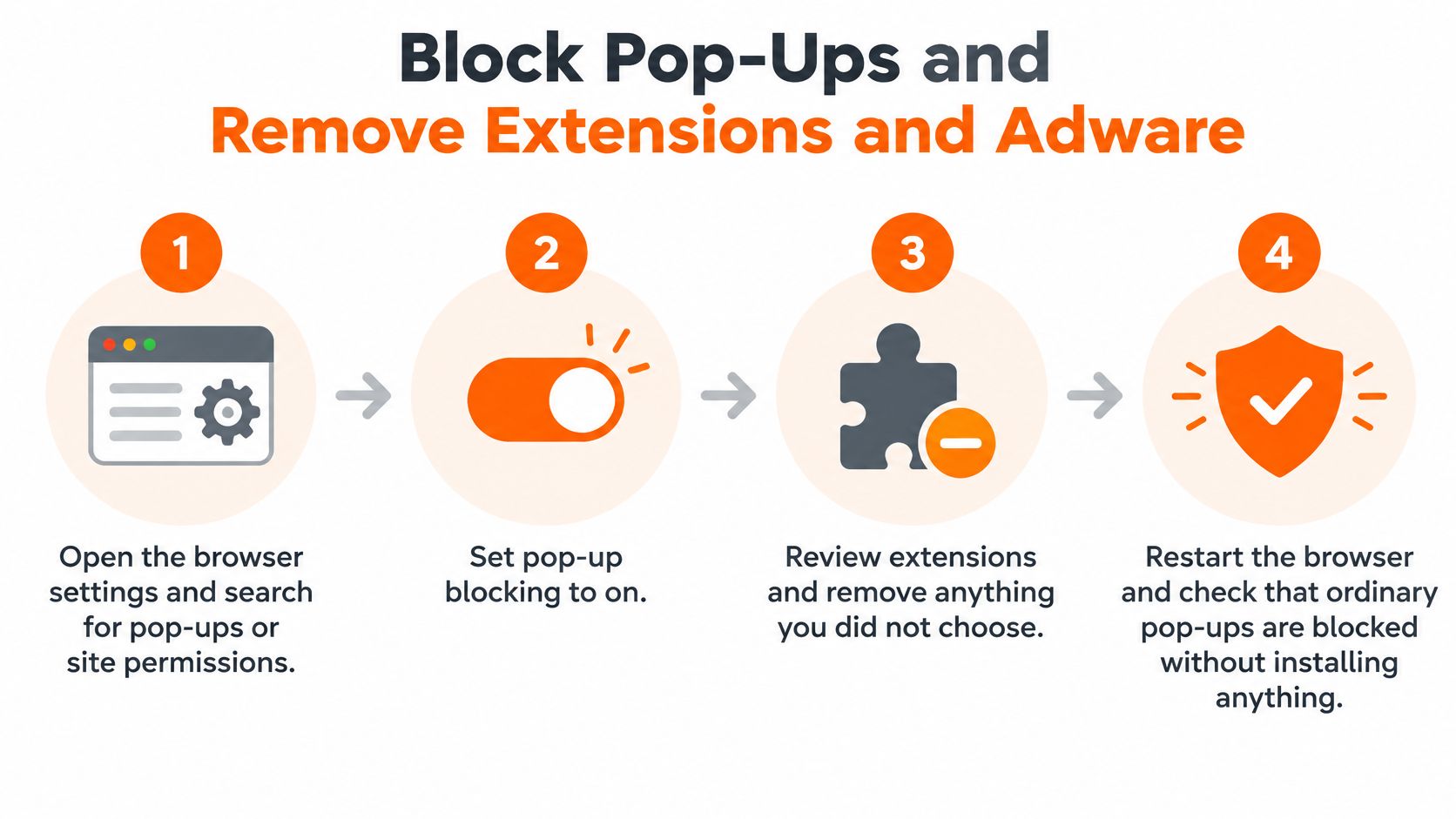
Start with controls already in your browser. They stop ordinary pop-ups without installing anything, and they help you isolate what remains. Microsoft's Edge pop-up guidance recommends enabling Blocked (recommended), clearing unfamiliar allow-list entries, testing extensions one by one, and scanning with Windows Security if problems continue.
The Layered Cleanup
- Open browser settings and search for pop-ups or site permissions. Use the table below for the exact path.
- Set blocking to Blocked. In Edge, choose Settings and more, Settings, Privacy, search, and services, Site permissions, then Pop-ups and redirects.
- Clean the allow-list. Remove unfamiliar domains, because one accidental Allow click creates an exception that keeps working.
- Close and reopen the browser, then revisit the site that triggered the pop-up. If it's gone there, you had an ordinary site pop-up.
- Disable every extension if pop-ups continue. In Edge, open Extensions, then Manage extensions. Test normal browsing with all of them off.
- Re-enable one extension at a time. When pop-ups return, you've found the trigger. Remove it rather than merely disabling it if you didn't knowingly install it.
| Browser | Pop-up setting | Notification setting |
|---|---|---|
| Microsoft Edge | Settings > Privacy, search, and services > Site permissions > Pop-ups and redirects | Settings > Privacy, search, and services > Site permissions > All sites |
| Google Chrome | Settings > Privacy and security > Site settings > Pop-ups and redirects | Settings > Privacy and security > Site settings > Notifications |
| Mozilla Firefox | Settings > Privacy & Security > Permissions > Block pop-up windows | Settings > Privacy & Security > Permissions > Notifications |
| Safari on Mac | Safari > Settings > Websites > Pop-up Windows | Safari > Settings > Websites > Notifications |
If no extension is responsible, check installed programs. On Windows, open Settings, Apps, then Installed apps. On a Mac, look through the Applications folder. Uninstall unfamiliar software added in the last few weeks, especially free downloaders, coupon tools, PDF converters, and system optimizers you don't remember choosing.
Also confirm your homepage and default search engine. If either changed without permission, reset it to your choice. Then run a full scan with Windows Security, or a trusted anti-malware tool on Mac. Extension removal is immediate, while a full scan can take much longer, so run it when you don't need the computer urgently.
Removal isn't complete until the source program is gone. Say a free video downloader bundled an extension and a search changer. Deleting only the extension lets the parent program re-add it later. If the scan finds threats you can't remove cleanly, follow the fuller steps for how to remove malware before you sign back into sensitive accounts.
Pop-Ups on Phones and Tablets
On a phone, the same causes hide in different menus. A browser tab can show an ordinary pop-up, a site can hold notification permission, or a recently installed app can push its own alerts. Work out which one you're seeing before you start deleting things.
iPhone and iPad
Open Settings, then Safari, and turn on Block Pop-ups. For alerts that arrive outside Safari, open Settings, then Notifications, choose the app or listed site, and turn its notifications off. If a page has taken over the tab, close the tab instead of tapping buttons drawn inside the page. Fake close buttons are common on small screens because they're easy to mis-tap.
Android in Chrome
Open the three-dot menu, then Settings, Site settings, and Pop-ups and redirects, and set it to blocked. For recurring alerts, open Site settings, then Notifications, find unfamiliar sites, and remove or block them. Clear the allow-list while you're there, since a stored exception will keep producing the same interruption.
If a warning urges you to call a number or install an app, close the tab and don't act on it. A phone alert isn't more trustworthy because it uses your carrier's fonts or mentions your device model. Pages can read basic device details from the browser.
Restart the phone afterward and revisit the site. If the pop-up stays away through a normal day of browsing, you've cleared it. If alerts began right after you installed an app, uninstall that app and restart again.
Confirm the Fix and Keep Pop-Ups From Returning
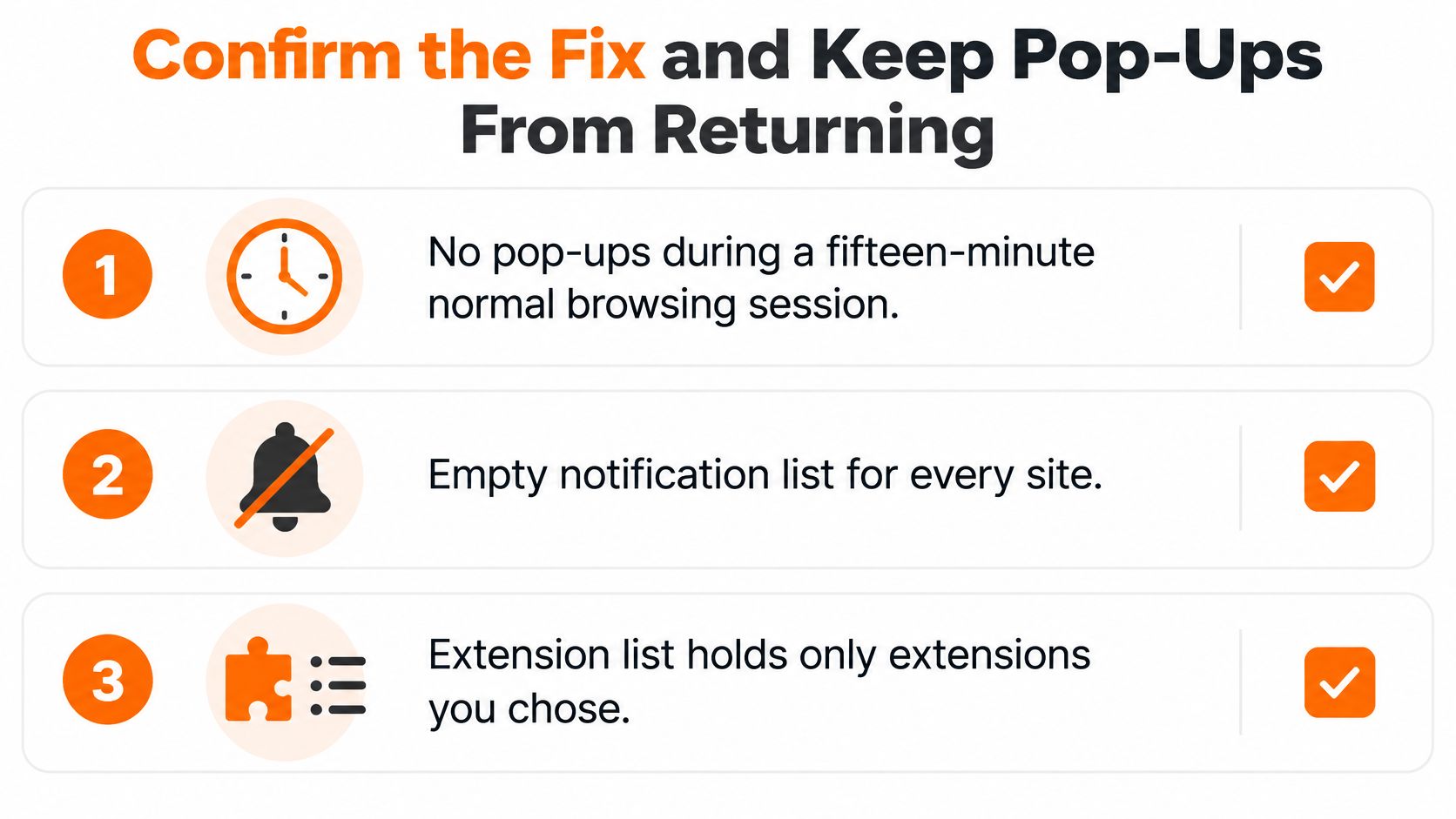
Don't judge the fix by one quiet minute. Run a three-part test so you know whether you removed the trigger or only closed its latest window.
Your Three-Part Confirmation
- Fifteen quiet minutes: Browse normally for fifteen minutes without a pop-up.
- Clean notification list: Confirm no unfamiliar site is still allowed to notify you.
- Chosen extensions only: Confirm every remaining extension is one you intentionally installed and still use.
If the test fails, work through causes in order of likelihood. Revoke notification permissions again, remove questionable extensions, uninstall recently added suspicious applications, and update the operating system and browser. Reset the browser to its defaults if symptoms persist, and change passwords if you entered credentials on a suspicious page.
An ad blocker can reduce exposure, but it isn't a complete fix. It doesn't revoke a notification permission, remove a malicious extension, or uninstall adware. If you're unsure what protection software does behind the scenes, this explanation of what antivirus software does helps you separate blocking from removal.
Check synced devices too. If your browser profile syncs extensions, a bad extension installed on one computer can reappear on another. Remove it everywhere, then restart each device before you decide the account is clean.
Use a simple watch window afterward. If pop-ups stay away after a restart and a full day of normal browsing, the cause is probably cleared. Note which step worked, because the same clue will save time if it happens again. If they return in the same corner or format, go straight back to notification permissions rather than repeating every step.
Deleting the visible pop-up is cleanup. Removing the permission, extension, or program behind it is the repair.
Every step here works without paying anyone. If the problem still survives a browser reset and full scan, it may sit deeper than the browser, and hands-on help becomes reasonable. Our Virus & Malware Assistance identifies and removes unwanted software, pop-ups and suspicious programs, and Browser Cleaner clears browser cache, cookies and tracking data in one click. Treat that as a fallback, not your first move, and avoid any cleaner that a pop-up itself recommended.
If pop-ups keep returning after you've blocked notifications, cleaned your extensions, and run a full scan, 247TechTeam offers antivirus protection for Windows and Mac alongside remote virus and malware assistance for stubborn infections. Start with the free checks above, and bring in support only when you need a technician to trace what's reinstalling the problem.