What Does Antivirus Software Do? How It Works
Wondering what does antivirus software do? See how it detects, blocks and removes malware, and where it falls short.
Antivirus software inspects files and behavior to detect malware, blocks it before it runs, and removes or quarantines whatever gets through. Its three core jobs are detection, prevention, and removal or containment.
AV-TEST registers more than 450,000 new malicious programs and potentially unwanted applications every day. That scale helps explain why protection needs ongoing updates and monitoring, not just a scan when your computer starts acting strangely. But checking software for danger isn't the same as knowing whether the person asking you to pay an invoice is genuine.
What Antivirus Software Does
Say an email arrives with what looks like a delivery invoice. Your antivirus can inspect the attachment when you save it, check the program that opens it, and watch for suspicious actions afterward. If it identifies a threat, it can block access or isolate the file.
Modern antivirus covers much more than traditional viruses. Malware is the broader category, including worms, Trojan horses, spyware, and ransomware. Products may also flag potentially unwanted applications, such as software that introduces intrusive advertising or changes settings you didn't intend to change.
Think of antivirus as a building security desk that checks visitors, packages, and badges, rather than a single lock on one door. Different checks catch different problems.
A file's familiar name isn't proof that its contents are safe.
The practical answer to “what does antivirus software do?” therefore involves both inspection and action. A scanner that identifies suspicious content needs a way to stop or contain it. Equally, a computer that reports no malware can still display a fraudulent payment request, because the request itself may contain no malicious software.
The Three Jobs Antivirus Software Performs
The National Institute of Standards and Technology, or NIST, defines antivirus software as a program that monitors a computer or network to identify major types of malware and prevent or contain malware incidents. For home users, that translates into detecting threats, preventing infection, and removing or containing malware.
A fire-safety analogy helps separate those responsibilities. Detection resembles a smoke alarm sensing danger. Prevention resembles a closed fire door that keeps danger from entering another room. Cleanup and containment resemble an extinguisher used after a fire has started, although removing malware doesn't necessarily repair everything it damaged.
The diagram shows how monitoring and identification support prevention and containment.
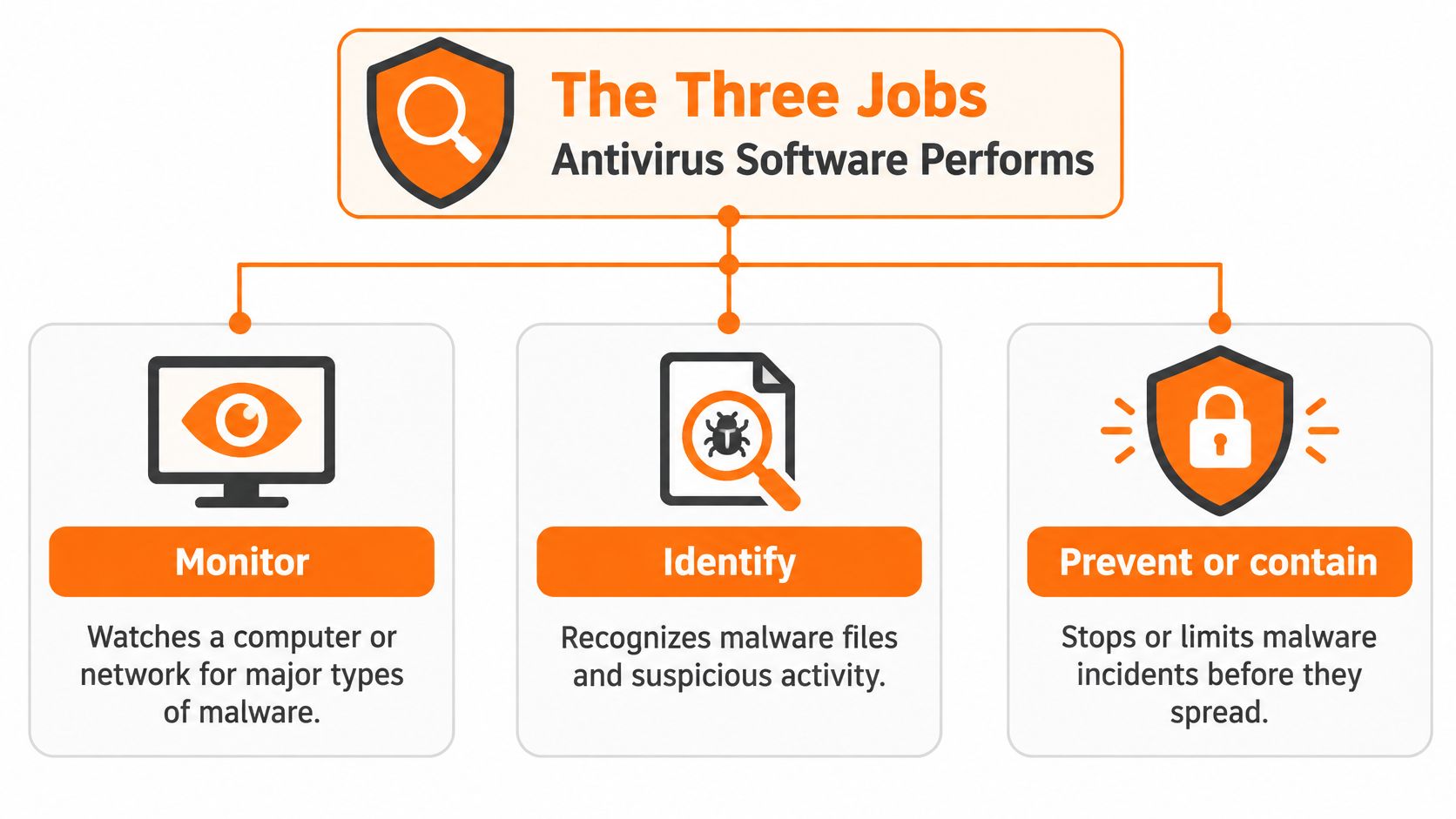
The three jobs of antivirus software
These examples describe possible outcomes, not guarantees for every threat.
| Job | What it inspects | Example outcome |
|---|---|---|
| Detect | Files, programs, email attachments, websites and running activity | Flags a Trojan disguised as an invoice PDF |
| Prevent | Files as they download, open or execute | Blocks a ransomware payload before it encrypts files |
| Remove or contain | Infected files and running processes | Quarantines spyware, then deletes it |
Prevention and cleanup aren't interchangeable. Stopping a malicious program before it runs avoids giving it an opportunity to act. Finding it afterward means the product must address an infection that may already have changed settings, accessed information, or installed additional components.
Quarantine also isn't the same as ordinary deletion. It places suspicious material under the security product's control so it can't operate normally. That gives you a chance to review the finding without leaving the item available to run.
Core protection versus extra features
When comparing free antivirus versus paid antivirus, start with these core jobs rather than the length of the feature list. Check whether the product provides active protection, understandable alerts, and manageable cleanup controls.
Our antivirus includes Virus Protection, Malware Protection, Ransomware Defense, Web Protection, Privacy Protection, and Automatic Updates. Those feature names describe areas of coverage, not a promise that every harmful interaction will be recognized.
NIST's description also recognizes that anti-malware tools can sometimes cleanse infected computers. That qualification matters: successful removal doesn't automatically mean stolen information is private again or damaged files have been restored.
How Antivirus Software Recognizes Threats
Recognition is a sorting problem. The antivirus has to decide whether a file, script, or running process resembles known malware, shows suspicious traits, or behaves in a way that justifies blocking it.
Signature matching works like comparing a fingerprint with a record of known offenders. The antivirus checks a file against recognizable malware patterns. It is fast and precise when the threat has already been identified, while a changed or unfamiliar sample may not match until a pattern exists.
Heuristic analysis asks a broader question: does this code have characteristics associated with malware? Instead of requiring an exact match, it looks for suspicious traits. That wider judgment can catch unfamiliar threats, and it can also flag legitimate software that happens to share those traits.
Detection methods compared
| Method | How it decides | Strength | Weakness |
|---|---|---|---|
| Signature matching | Compares files to known malware patterns | Fast and precise for known threats | May miss new or altered malware until a signature is added |
| Heuristic analysis | Looks for code traits that resemble malware | Catches some unseen threats | Can flag legitimate software with similar traits |
| Behavioral monitoring | Watches actions such as mass file changes or unauthorized access | Exposes threats that look harmless on disk | Needs activity to observe and can flag unusual but safe behavior |
| Cloud analysis | Sends suspicious files or information to remote analysis services | Applies intelligence beyond one computer | Remote checks need connectivity and may involve sharing file contents |
Behavioral monitoring examines actions rather than appearance. A program might look ordinary when saved, then become suspicious when it rapidly rewrites personal files or launches unexpected scripts. The antivirus can use those actions to decide whether intervention is necessary.
Cloud analysis adds access to broader intelligence and remote testing. Microsoft's documentation of its antivirus architecture describes a combination of local signatures, heuristics, cloud analysis, machine-learning models, memory scanning, command-line inspection, and behavior monitoring. These checks complement one another.
Why inspecting files alone isn't enough
Some fileless attacks rely heavily on scripts, memory, and existing system tools, leaving little obvious malicious content on disk. Examining which process launched another process, what commands it issued, and what happened in memory helps expose activity a simple file scan could miss.
Documents deserve attention too, so do not treat a file extension as a safety certificate; see whether a PDF can have a virus for one common example. The contents, links, and software used to open a document all matter.
Review before restoring: Recognizing a filename doesn't establish that the quarantined copy is safe.
A false positive occurs when legitimate content is classified as malicious. A blocked working program may be innocent, and an alert still should not be dismissed just because you wanted to use the item. Review the detection name, original location, and download source before deciding what to do.
These recognition methods are built to identify hostile code and harmful behavior. Their edge appears when the problem is persuasion rather than malware: a convincing invoice, urgent message, or lookalike sign-in page can be dangerous even when no malicious file is present.
What Real-Time Protection Does Moment by Moment
You download an attachment from an email. With on-access inspection configured, the antivirus checks the file as it arrives rather than waiting for your next scheduled scan. When you open it, further checks can occur before its contents execute or while related activity begins.
NIST's malware prevention guidance recommends inspecting files when they're downloaded, opened, or executed. It also identifies browsers, email clients, and messaging applications as important monitoring targets because they're common infection and propagation paths.
The process below follows an attachment from arrival to the decision to allow or block it.
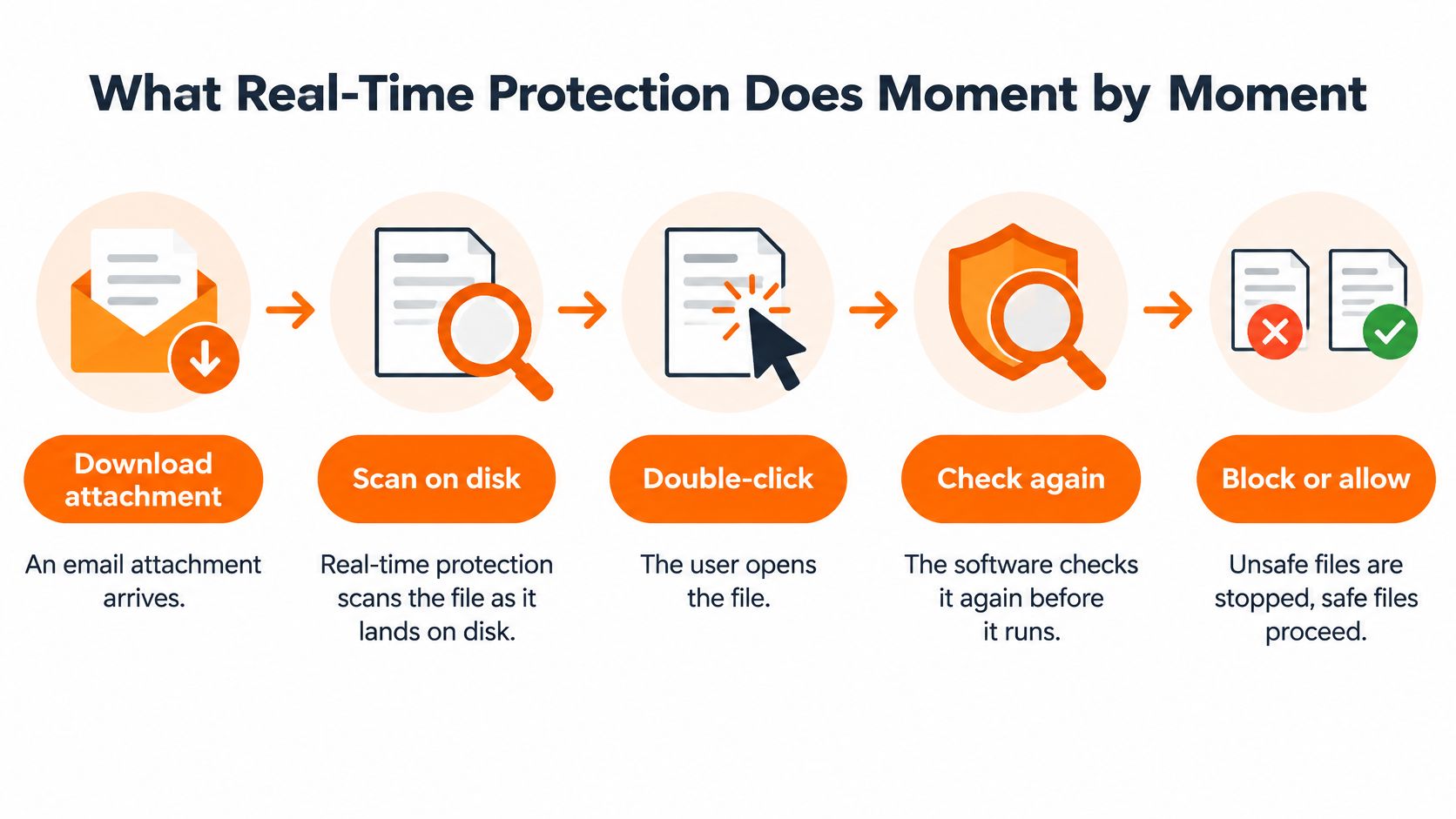
A downloaded attachment's path
- The file arrives. Downloading or opening the attachment triggers inspection.
- The engine evaluates it. Signatures and heuristics examine its contents, while behavioral monitoring assesses relevant activity.
- An apparently clean file proceeds. The product allows access, although monitoring can continue.
- A suspicious file is blocked. The product interrupts access or execution when its checks identify a threat.
- The item is quarantined. Isolation prevents the suspicious material from operating normally.
- The event is recorded. You can review the alert and the action taken.
These aren't necessarily visible stages or an identical sequence in every product. Some decisions happen locally, some involve cloud services, and some require observing a running process.
Why the timing matters
Inspection before execution can prevent malware from establishing persistence, meaning a way to keep running or return after a restart. It can also interrupt a ransomware payload before it begins encrypting personal files. Behavioral checks provide another opportunity when the initial inspection doesn't identify the threat.
Our Real-Time Protection scans every file and process the moment it touches the PC, and our Quarantine isolates suspicious items so they cannot harm the system.
Keep on-access protection enabled, with scheduled full scans as a supplement rather than a replacement. Avoid excluding your Downloads folder or email-related directories unless a security administrator has a documented reason. An exclusion can remove inspection from precisely the place unfamiliar files arrive.
What Antivirus Cannot Stop on Its Own
Installed antivirus doesn't mean complete protection from scams. A phishing page, fake support call, or convincing payment message may never run malicious code on your computer. The attacker may ask you to hand over a password, approve access, or send money.
This distinction is the boundary between protecting software and evaluating a person's request.
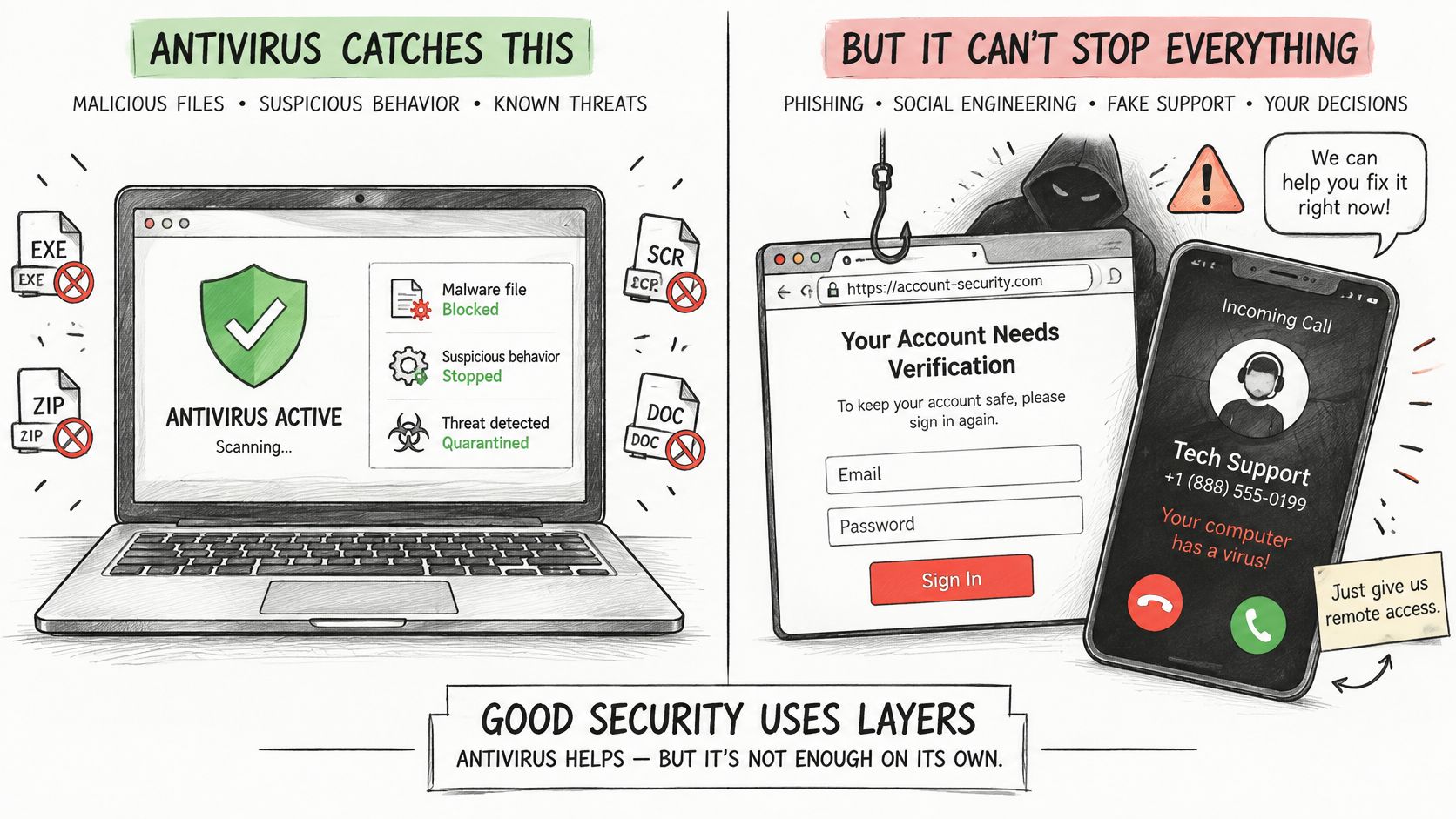
The FBI's 2025 Internet Crime Report recorded more than $77 million in reported losses from phishing and spoofing. That is a reported-loss measure, not a measure of antivirus failures, but it illustrates why malware protection alone doesn't cover every route to financial harm.
Antivirus role against common threats
| Threat | Antivirus role | Control that helps |
|---|---|---|
| Malicious file download | Strong: scans and blocks detected threats on access | Keep real-time protection on and updates active |
| Ransomware on the device | Often detects and blocks before encryption | Offline or versioned cloud backups for recovery |
| Phishing login page | Limited, since no malicious file may run | Password manager, multifactor authentication, browser warnings |
| Fake technical-support call | Little, since no file is involved | Never grant remote access to unsolicited callers |
| Payment or invoice fraud | No direct role in judging the payment request | Verify through a known phone number and watch bank alerts |
An antivirus suite's web protection may warn about a known phishing site. That doesn't mean it can reliably judge every newly created page or recognize a dishonest request on an otherwise legitimate service.
Think of antivirus as one lock on the house, not the whole security system. Account safeguards protect access, backups support recovery, and independent verification helps protect decisions. Keep your operating system and applications updated as well, rather than expecting malware scanning to compensate for unpatched software.
For another explanation of the malware-versus-scam distinction, watch the video below.
If you suspect an infection, follow a deliberate malware removal process instead of calling a number displayed in a warning pop-up. If you've already shared credentials or sent money, address the affected account or payment immediately. Removing malware won't reverse those actions.
Does Antivirus Slow Down a Mac or Windows PC
Antivirus uses computing resources, so some slowdown during a full scan is normal. Scanning many files can compete with applications for processor time and storage access. A computer that remains sluggish during ordinary browsing or document editing deserves closer inspection, though.
Windows and Mac protection shouldn't be treated as interchangeable. Operating-system permissions, supported versions, default settings, cloud access, and the activity being monitored can all affect coverage and performance.
Judge the platform you're using
AV-TEST's macOS evaluations assess protection, performance, and usability, including false detections. Mac owners shouldn't assume security software is unnecessary because they aren't using Windows. Equally, a strong Windows result doesn't establish how the Mac edition performs.
When comparing products, separate the questions:
- Detection: Does independent testing assess relevant malware protection on your operating system?
- False alarms: Does the product interrupt legitimate software?
- Performance: Does monitoring noticeably affect application launches, downloads, or everyday work?
- Permissions: Have you granted the access the product needs to provide its advertised protection?
Normal scan activity versus persistent trouble
Schedule full scans for idle hours if they interfere with work. If ordinary activity remains slow, check whether overlapping real-time scanners are inspecting the same files, and review protection settings for configuration problems.
Don't create broad exclusions just to make a slowdown disappear. Check compatibility before combining security products, and use published performance results rather than an unsupported claim that a product is lightweight.
More installed scanners don't automatically mean more protection. Choose a compatible setup rather than stacking real-time products.
Confirm Your Antivirus Is Working Today
Open your security application directly from your computer, not through a browser pop-up or an unexpected email. The dashboard should let you inspect protection status and recent activity without guessing from whether the computer feels fast.
A practical protection check
- Confirm real-time protection is on. Resolve a disabled-protection warning rather than merely dismissing the notification.
- Check cloud protection and automatic updates. Where available, enable cloud-assisted checking and confirm that security intelligence updates are completing successfully.
- Inspect quarantine alerts. Read the original location, detection name, and action taken. Don't restore a file solely because an application stopped working.
- Check for overlapping scanners. Review installed security applications and identify which provides active antivirus protection. Verify compatibility before adding another real-time product.
- Run a manual full scan. Confirm that it starts and completes, then check that scheduled scans are configured for a suitable time. Completion confirms the scanner operated, not that every possible threat is absent.
- Review your operating system's security status. On Windows, open Windows Security and review Virus & threat protection. On a Mac, review Privacy & Security in System Settings and resolve any required permissions shown by your security application.
Make the result useful
If something needs attention, record the exact warning before changing settings. Our Security Dashboard brings protection status, scans, and alerts together, while Scan History lets you review past scans and what the antivirus has blocked.
Finish by checking a protection measure outside the antivirus: confirm that you can access a backup, enable multifactor authentication on an important account, or establish how you'll verify payment requests. Antivirus detects, blocks, and cleans malware. Those separate controls address risks that a file scanner can't reliably judge.
247TechTeam offers antivirus for Windows and Mac alongside remote technical support for setup, troubleshooting, and malware assistance. Visit 247TechTeam to try the antivirus with a 7-day free trial, with no credit card required, and review its protection on your own computer.