How to Fix Frozen Computer Without Losing Work
See how to fix frozen computer on Windows or Mac: wait, force-quit the stuck app, restart once, then check Safe Mode, updates, heat and drives.
You're halfway through a document when the pointer stops tracking. The fan is still running, the keyboard backlight is still on, and the screen looks exactly the way it did two seconds ago. Nothing you click does anything.
The instinct is to hold the power button until the machine goes dark. That instinct is the reason people lose work they didn't have to lose. A freeze is a symptom, not a verdict. Sometimes one program has stopped answering while everything else on the computer is fine. Sometimes the display has died while the system underneath is still running. Sometimes a loose USB hub or a driver that arrived with last week's update is holding everything up. Each of those needs a different first move, and only one of them requires cutting power.
Learning how to fix frozen computer problems starts with sorting the symptom before you touch anything. That sorting takes about ten seconds and it's the whole skill.
What to Try First When the Screen Stops
Look at what the machine is still doing: the pointer, the fan, the drive light, any sound from the speakers. Those four signals narrow the freeze to one of six situations, and a moving pointer, a dead screen and a freeze that keeps coming back are three separate problems. Treating them alike is how a minor stall turns into lost work.
Freezes are common enough that a small plan beats panic, and the order of your moves matters more than how fast you make them. Holding the power button is always available, so every calmer option deserves its chance first. It might let you keep what you were working on.
| What you see | Still responding? | Do this first |
|---|---|---|
| One window says Not Responding and the pointer moves | Yes, the system is up | Wait 30-60 seconds, then close only that app |
| Pointer moves but no window accepts a click | Partially | Ctrl+Alt+Delete on Windows or Option-Command-Esc on a Mac |
| Pointer frozen, but audio or a drive light continues | Unclear | Wait one full minute, then try the interrupt keys once |
| Black or stuck display after sleep or a monitor change | Display or app | Wake with a key, reseat the video cable, then interrupt once |
| No fans, no lights, no sound | Power or hardware | Check cable and outlet, then one forced start |
| Freeze returns within minutes of every restart | Recurrent | Stop power-cycling and test Safe Mode, heat, memory and disk |
Find your row and do only that one thing. A single Not Responding window with a live pointer is the gentlest case: the rest of the system is healthy, and you are closing one application rather than the whole machine. Give it up to a minute first, because a large file save or a print job can hold a window in that state while it finishes.
A moving pointer where no window accepts a click sits one step deeper. The desktop is still drawn, so the graphics layer is alive, but your input is not reaching the apps. That is the moment for the system interrupt: Ctrl+Alt+Delete on Windows, Option-Command-Esc on a Mac.
The middle rows share one idea. When the pointer is dead but sound still plays or the drive light still blinks, the machine may be working on something in the background. Waiting one full minute costs nothing. Forcing a shutdown could cost whatever it was writing.
The rule that saves the most work: if anything on the machine still moves or makes noise, it may still be writing to disk, and a power cut is the only move that guarantees data loss.
The last row is the one people get wrong. A freeze that returns within minutes of every restart is a pattern, and rebooting again only resets the clock on the same fault. Stop power-cycling and check the software and hardware causes instead.
Unfreeze a Windows PC Without Cutting Power
A frozen Windows PC should be diagnosed, not executed. Microsoft's Windows freeze troubleshooting guide starts by testing whether the system still answers through other routes before anything is powered down, including the security screen, a remote desktop connection, administrative shares and a simple network ping. If you have a second machine on the same network, that ping answers a question the screen can't.
Watch the machine for a minute first
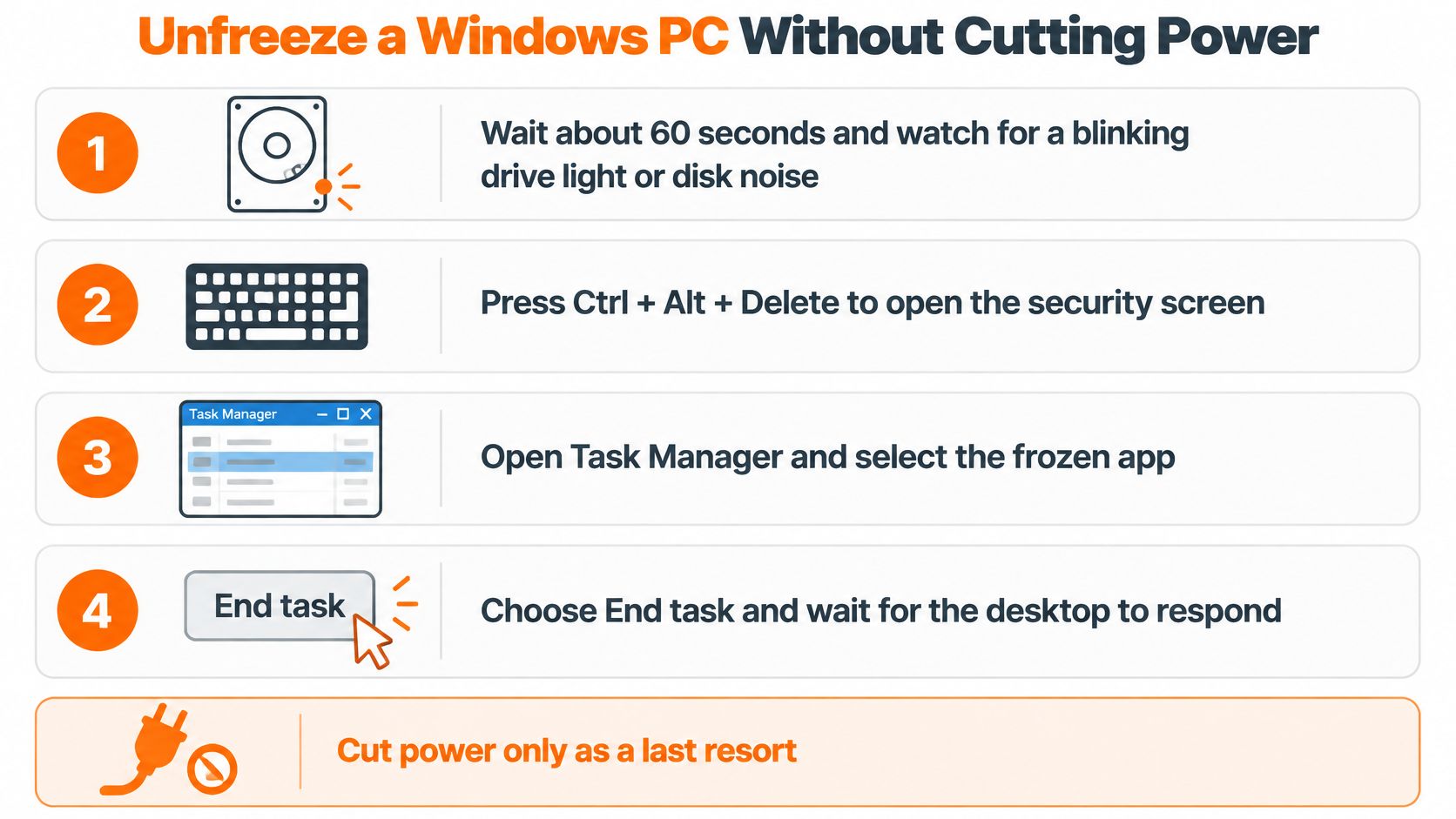
A blinking drive light or the soft chatter of a hard disk means Windows is still moving data. Interrupting that is how documents get corrupted, so give it 60 seconds before you do anything else. A solid light with no disk noise is a different story: the system is probably waiting on something that won't arrive.
The steps in order
- Wait about 60 seconds. Watch the drive light and listen. You're giving an in-progress save or a stalled network call time to finish.
- Press Ctrl+Alt+Delete once. Not five times. This asks Windows to hand control to the security layer, which runs separately from your applications. If the security screen appears, the operating system is alive.
- Open Task Manager and end the stuck app. Select the entry marked Not Responding and choose End task. Only that program closes, so your other windows and unsaved work survive.
- If Task Manager never appears, sign out. Choose Sign out from the security screen. It closes your apps more gracefully than a power cut and usually gets you back to a working desktop faster.
- Unplug the extras. External drives, hubs, printers, dongles and card readers can hold up a system during device detection. Leave the keyboard and mouse attached.
- Then, and only then, force the restart. Hold the power button for about 10 seconds until the machine goes fully dark, wait 30 seconds, and press power once. The pause lets the components discharge so the next start is clean.
- When Windows returns, save a new copy immediately. Reopen the app and use Save As to write a fresh file rather than overwriting the old one. If the original was half-written, you still have the previous version.
Practical rule: the order is wait, interrupt, end the one task, sign out, unplug, restart. Each step preserves more of your work than the step after it.
Repeated hard power-offs before you've tried the interrupt keys throw away the easiest clue you'll ever get. A machine that responds to Ctrl+Alt+Delete has a software problem. A machine that ignores it doesn't, and that difference is worth knowing before the next freeze.
Force Quit a Frozen Mac the Safe Way
Apple's documented recovery order is simpler than Windows and follows the same principle. Apple's guidance for unresponsive apps puts Force Quit first and a restart second, with a forced shutdown as a last resort because it can interrupt file-system writes and lose unsaved work.
If the beachball is spinning but you can hear the drive working, wait. A large export, a Photos library update or a Time Machine backup can hold an app for a minute or more without anything being wrong.

Force Quit closes one app, not the Mac
Press Option-Command-Esc, select the application that stopped responding, and choose Force Quit. The rest of your desktop keeps running, so nothing in other apps is at risk. What you will lose is any unsaved change inside that one application, which is why mashing keys or slapping the lid shut is the wrong first response.
If Force Quit does nothing, use the Apple menu and choose Restart. The menu still works when an app has hung, because it belongs to the Finder rather than the frozen program. Only when the menu won't open and the keyboard is dead should you hold the power button, and even then a restart attempt first costs you nothing.
Once the Mac is back:
- Disconnect the extras. External drives, hubs and docks get unplugged, leaving the charger and nothing else.
- Reproduce it once. Open the same app, document or workflow and see whether the beachball returns at the same moment.
- Note the pattern. A single app that hangs is an application problem. A whole desktop that locks up is a system problem, and the two deserve different follow-up.
Your browser is often the heaviest thing running when a Mac stalls. If the freeze keeps arriving with a dozen tabs open, it's worth learning how to clear up memory on Mac before you blame the app you happened to be using.
If you'd rather watch the sequence than read it, this walkthrough covers the same order of moves.
Success is unglamorous: the same document opens without an instant beachball, and you can save it.
Check Software and Drivers After It Restarts
The machine is running again. Now find out why it stopped, because a freeze you never diagnosed tends to come back at the worst possible moment. Microsoft's freeze troubleshooting guidance is blunt about the common mistake: repeatedly hard-power-cycling before collecting any logs throws away the evidence that would have named the culprit.
What the logs tell you that a restart can't
Open Event Viewer (right-click Start, then Event Viewer) and look at Windows Logs > System for the minutes around the freeze. You're looking for red error entries and anything from the Service Control Manager. A driver that failed to load, a disk timeout, or a service that crashed on a schedule will usually leave a trace there.
Then run a performance report. Type perfmon /report in the Start menu, run it, and wait for it to finish collecting. The report flags disk warnings, driver problems and services in a bad state. Between the two, you can usually separate a hung application from a storage or driver fault.
Change one thing, then use the machine normally for a session. If you install a driver, update Windows and remove a startup item in the same sitting, you learn nothing when the freeze stops.
Booting into Safe Mode on Windows
Safe Mode loads a minimal set of drivers and no third-party startup programs. If the freeze disappears there, the cause is software, a driver or a startup service, not failing hardware.
- Open Settings > System > Recovery.
- Next to Advanced startup, choose Restart now. On Windows 10, hold Shift while clicking Restart from the Start menu instead.
- Choose Troubleshoot > Advanced options > Startup Settings > Restart.
- When the options list appears, press 4 for Safe Mode or 5 for Safe Mode with Networking.
- Use the machine for a while and note whether it hangs.
If Safe Mode is stable, come back to normal mode and remove the most recent install, driver or startup entry, one at a time, testing between each. Install Windows updates and firmware from Microsoft and your computer manufacturer only, and skip generic third-party driver updaters, which are a frequent source of mismatched drivers.
A frozen picture isn't proof the whole operating system died, either. If sound kept playing or a remote session stayed connected, the system was running and your earlier interrupt was the right call. Keep a small log: the time, the app in front, and whether a USB device was attached. Two or three entries usually expose the pattern. If you suspect the drive is also filling up, a quick disk cleanup removes the low-space noise from your diagnosis.
Test Heat Memory and Disk When Freezes Return
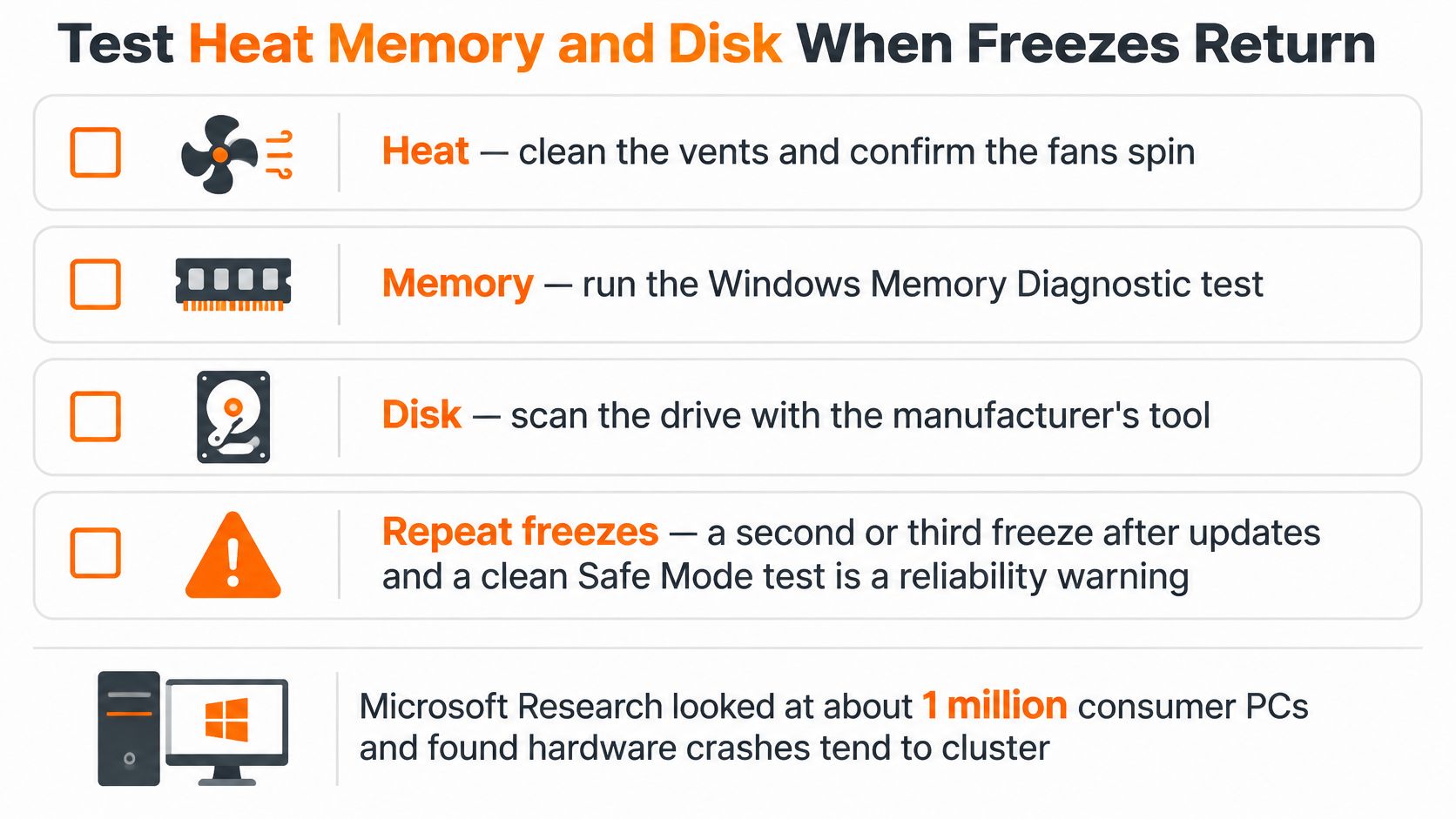
A second or third freeze after updates and a clean Safe Mode test is a reliability signal. Microsoft Research examined failure data from approximately 1 million consumer PCs and found that hardware crashes cluster rather than arriving at random, as reported in the study on hardware failures across consumer PCs. In one measured group, machines that accumulated at least 30 days of CPU operating time over eight months had a 1-in-190 probability of a CPU-subsystem crash. A machine that had already crashed from a hardware fault carried roughly a 1-in-3.3 probability of crashing again.
That gap is the reason a restart is not a fix. Restarting clears the symptom and leaves the pattern exactly where it was.
Match the pattern to the test
| Pattern | Likely cause | Next test |
|---|---|---|
| Only one app or one document hangs | That app or its file | Update or reinstall the app and open a new file |
| Stable in Safe Mode, freezes in normal mode | Startup software or driver | Remove the newest install and startup item |
| Freezes during games, video or many tabs | Heat, GPU or memory pressure | Clear vents, then run a memory diagnostic |
| Stalls at the logo or mid-update | Firmware or disk | Let one update finish, then check disk and manufacturer firmware |
| Random freezes after software checks pass | Hardware reliability | Memory diagnostic, disk error check, power and cooling |
The three tests that answer the hardware question
Heat. Put a hand near the exhaust vent. A fan roaring at full speed within a minute of starting work, a chassis too warm to rest a hand on, or a tower pushed into a closed cabinet all point the same way. Clean the vents with compressed air, confirm every fan spins, and give the machine room to breathe.
Memory. On Windows, search for Windows Memory Diagnostic and choose Restart now to run it at boot. It takes a few minutes and reports failures on the next start. On a Mac, restart while holding D (Intel) or holding the power button (Apple silicon) to reach Apple Diagnostics and note the reference code it returns.
Disk. Run the built-in disk error check on Windows, and for an SSD use the manufacturer's own tool, such as Samsung Magician, WD Dashboard or the storage executive, to read the drive's health attributes. A drive reporting caution or bad sectors is a replacement, not a repair.
If those tests fail, stop swapping software. You're now looking at a part. A machine that pins its processor flat out while you work can also be adding heat to an already marginal cooling setup, which is worth understanding if you're checking why your CPU sits at 100 during ordinary tasks.
Decide Whether Remote Help Is the Next Move
Pick the next step from what the tests showed, not from how frustrated you are.
- One app failed, and a restart plus an update stopped it. Keep working, and save more often than you did before.
- Safe Mode is stable with a clear software suspect. Remove that item, use the machine normally for a day, and see whether the freeze stays away.
- Memory, disk or heat tests failed. This is past a settings tweak. Back up your files now, before anything else.
- The same freeze returns with no software suspect. You've isolated the problem as far as a home test can.
That last case is where a technician earns a session rather than a guess.
What a remote session can and can't do
A 247TechTeam Quick Fix Session costs $49.00 and covers one remote session of up to 60 minutes on one computer, Windows or Mac, with a summary sent by email afterward. The technician works while you watch, and we never ask for passwords or payment details during a session and never run anything without your explicit consent.
Set the limits on both sides. Hardware repair, data recovery and on-site visits aren't included in these sessions. If the fault turns out to be a failing drive or physical damage, you'll be told so and pointed toward the right next step, not sold another session.
Book help when the freeze is back after the checks. Bring the notes you kept: when it happens, which app was in front, and what was plugged in. That log is worth more than an hour of guessing.
If frozen screens are becoming a habit on your machine, 247TechTeam pairs antivirus protection for Windows and Mac with remote technicians who work through the diagnosis with you on screen while you watch every step. Pick the Quick Fix Session or the larger Complete Tune-Up if you'd rather have the startup, storage, memory and security checks done in one sitting. Visit 247TechTeam to see the support options and start a session.