How to Clear Up Memory on Mac: Fixes That Work
Learn how to clear up memory on Mac by reading memory pressure, closing heavy apps, trimming startup items and freeing disk space safely.
Your video call freezes mid-sentence. The fan spins up, the cursor turns into a spinning pinwheel, and you start closing windows to make it stop. When that doesn't work you open Finder and delete a folder of old installers, because a slow Mac is supposed to mean a full disk. The call still stutters, and the file you needed is now sitting in the Trash.
I would stop that sequence at the first frozen word. One built-in screen tells you whether your Mac is short of RAM, short of disk space, or just working hard. Two minutes on that screen saves an hour of deleting the wrong things.
Check Memory Pressure Before You Clear Anything
Memory on a Mac means two different things, and blending them together is why so much cleanup advice misses. RAM holds the work in progress: the open documents, the browser tabs, the video frames, the background helpers. Storage holds the files that survive a shutdown. Apple's own documentation draws the line plainly, noting that clearing one does not necessarily clear the other, so deleting documents does nothing for a RAM shortage (Apple's Activity Monitor memory guide).
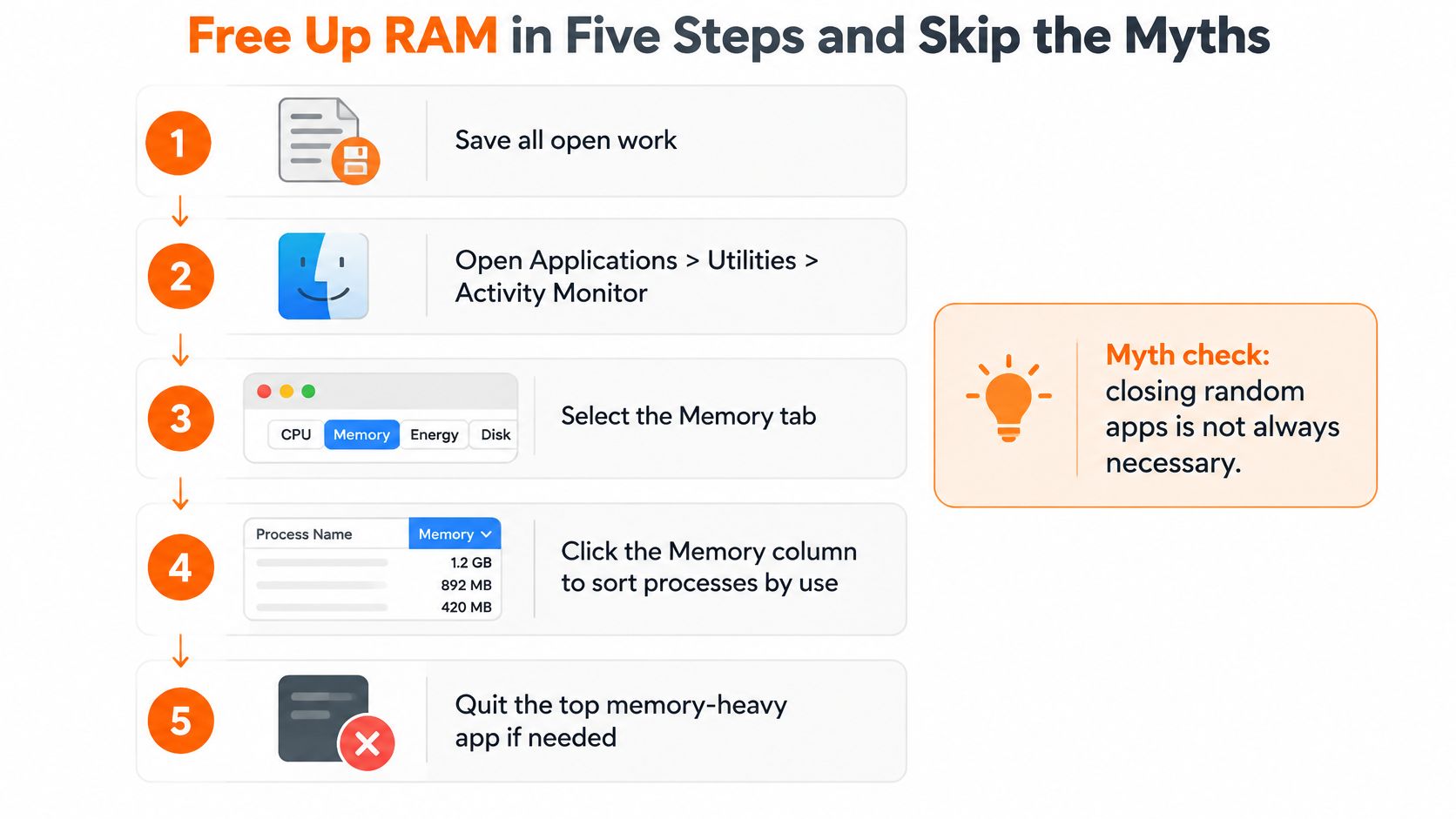
Open Finder, choose Applications, then Utilities, then Activity Monitor. Select the Memory tab. Apple measures RAM efficiency through memory pressure, which folds together free memory, swap rate, wired memory and file-cached memory instead of leaning on the amount of unused RAM. That matters because a small free-memory figure is normal. macOS deliberately fills spare memory with file caches and compressed data, and Apple points out that unused memory does not automatically improve performance.
| Pressure colour | What it means | First action |
|---|---|---|
| Green | macOS is using RAM efficiently | No RAM action needed; check storage only if the disk is nearly full |
| Yellow | The Mac may need more RAM soon | Close the top memory app and watch whether pressure returns |
| Red | The Mac needs more RAM now | Quit or restart the heavy app, reduce concurrent work, then review upgrade options |
Swap is the second signal worth reading. It shows how often macOS moves data between RAM and the startup disk, and steady swap growth means your applications want more memory than the installed RAM can comfortably give. That traffic runs at disk speed, which is why a Mac with plenty of free disk space can still feel sluggish.
Read the graph while the problem is happening. A pressure reading taken on an idle Mac tells you almost nothing.
The test that settles it: open the suspect app, reproduce the slowdown exactly as it happens in real use, and watch whether pressure spikes, sits yellow, or holds red. Note which app was in front at that moment. Closing an unusually demanding app may drop the pressure immediately; deleting files will not move the graph at all.
If pressure stays green while the Mac crawls, memory isn't your bottleneck. A process pinned at 100 percent CPU produces the same fan noise and the same beachball, and the guide to what a CPU stuck at 100 percent is telling you covers that case instead.
Free Up RAM in Five Steps and Skip the Myths
Once the graph points at RAM, the fix is a short sequence of ordinary actions. Work through them in order, then measure again, because the measurement is what separates a real fix from a placebo.
The five steps in order
- Save every open document, then open the Memory tab. Applications, Utilities, Activity Monitor, Memory tab. Click the Memory column header so the list sorts by usage. The top entry is your answer, and it's usually a browser, a video conferencing app, a chat client or a virtual machine.
- Quit the top process if you don't need it right now. Use the app's own Quit command. Force Quit (Option, Command, Escape) is for an app that has stopped responding, and only after saving, because unsaved changes disappear with it.
- Reduce browser load. Every open tab can hold a full page in memory, and every extension runs inside those pages. Bookmark what you want to keep, close the rest, and disable the extensions you installed for a single task months ago.
- Quit virtual machines, containers and heavy editors. Parallels, VMware, Docker and full development environments reserve large memory blocks the moment they launch, even when they're sitting idle in the background. Quitting them returns that memory to macOS.
- Restart, then reproduce the same workload. A restart clears memory leaked by long-running apps and does very little for a healthy one. After the reboot, open the same apps, do the same work, and read the pressure graph again under real conditions rather than on an empty desktop.
The sequence above is the whole procedure, and it's short enough to run in a few minutes.
Fixes that do not add memory
Terminal purge commands and third-party RAM cleaners are the two most common detours. Neither increases physical memory. Apple notes that purge commands and system file deletion can temporarily discard caches that macOS must rebuild, which sometimes makes responsiveness worse rather than better (Apple's guide to viewing memory usage).
Manual cache clearing sits in the same category. macOS already removes safe-to-delete caches and logs when space is needed, including temporary databases, interrupted downloads, staged updates and Safari website data, so hand-deleting Library caches is rarely the fix you think it is. Safe Mode frees space only briefly, since the caches it clears are recreated as needed (Apple's guidance on what macOS clears automatically). None of this adds usable RAM, and on Apple silicon machines those older Intel-era routines are even harder to justify.
| Common move | What goes wrong | Better move |
|---|---|---|
| Terminal purge command | Does not add physical RAM and discards caches macOS must rebuild | Quit or restart the app driving pressure |
| RAM cleaner utilities | Show a brief change but no lasting gain in pressure | Read the pressure graph and find the heavy process |
| Deleting Library caches or logs by hand | Can break apps and settings and triggers re-downloads | Use Storage settings to review large items |
| Clearing caches to speed up RAM | Relief is short-lived and affects storage, not memory | Update or replace a leaking app |
| Restarting every day as routine | Hides a leaking app rather than fixing it | Restart only after a leak and recheck pressure |
A fix you can't see on the pressure graph isn't a fix. It's a coincidence with good timing.
What a healthy result looks like
Green pressure during the same routine work, with swap used flat or falling instead of climbing through the afternoon, is the outcome you want. Compressed memory staying roughly steady counts too.
If one particular app pushes pressure up over a few hours, treat it as a leak rather than a habit. Update it first, since memory bugs get patched. If the update doesn't help, replace it with a lighter alternative or stop using it. Watch swap and pressure across several days before deciding, and don't rebuild your whole routine around a single bad afternoon.
Trim Startup Items That Load Memory at Login
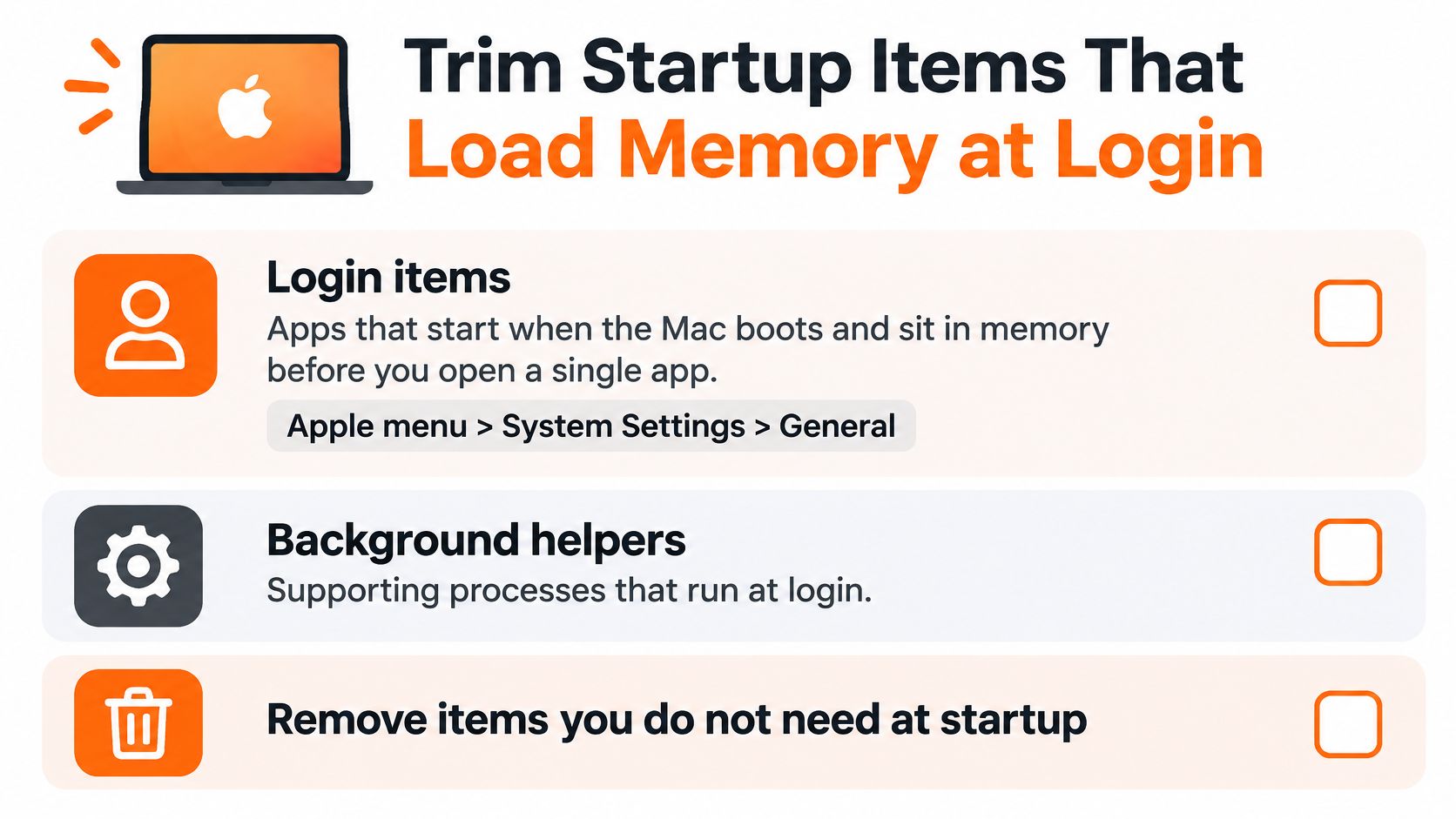
Every login item is a bet that you'll want that app running before you've asked for it. Some bets pay off, like the cloud sync client you depend on. Plenty don't: updaters, old utilities and helpers for apps you installed for one task last spring, each holding memory from the moment the desktop appears. Trimming that list is a small, reversible change that often does more than an hour of cache deletion.
On recent versions of macOS the path is Apple menu, System Settings, General, then Login Items & Extensions. You'll see two groups with different behaviour, and they need different decisions.
What to remove and what to leave alone
- Search a name you don't recognise before touching it. Background helpers often belong to updaters, sync tools or hardware utilities, and disabling the wrong one breaks something you rely on.
- Remove the one-time installs. If an app existed for a single project, a single conversion or a single installer, it doesn't need to launch at login.
- Trim updater helpers for apps you rarely open. A background checker running daily for an app you open monthly costs more than it returns.
- Leave Apple and system services alone. Names starting with Apple or com.apple are part of macOS. Switching them off disables features you'll notice later, usually at the worst moment.
Change one item at a time. Removing six helpers at once leaves you unable to tell which change helped and which one broke your printer.
Then verify the change instead of assuming it worked. Restart, give the desktop two minutes to settle, open Activity Monitor, and sort by the Memory column. Note whether the same helper processes are back. Compare the pressure colour under a normal workload before and after the trim, and keep the change only if the graph improved.
If the login list is now clean and pressure still sits in red during ordinary work, the load is coming from the apps you're actively running, not from anything starting at boot.
Recover Disk Space Without Deleting the Wrong Files
A full disk isn't the same fault as tired RAM, but it makes everything else worse. macOS leans on free space as a swap area when memory runs short, so a drive with almost nothing left gives the system nowhere to park data it has pushed out of memory. Updates need room to stage before they install, and a save can fail on a drive with no headroom.
If you want to see the categories before you touch a single file, the Storage view is where to look.
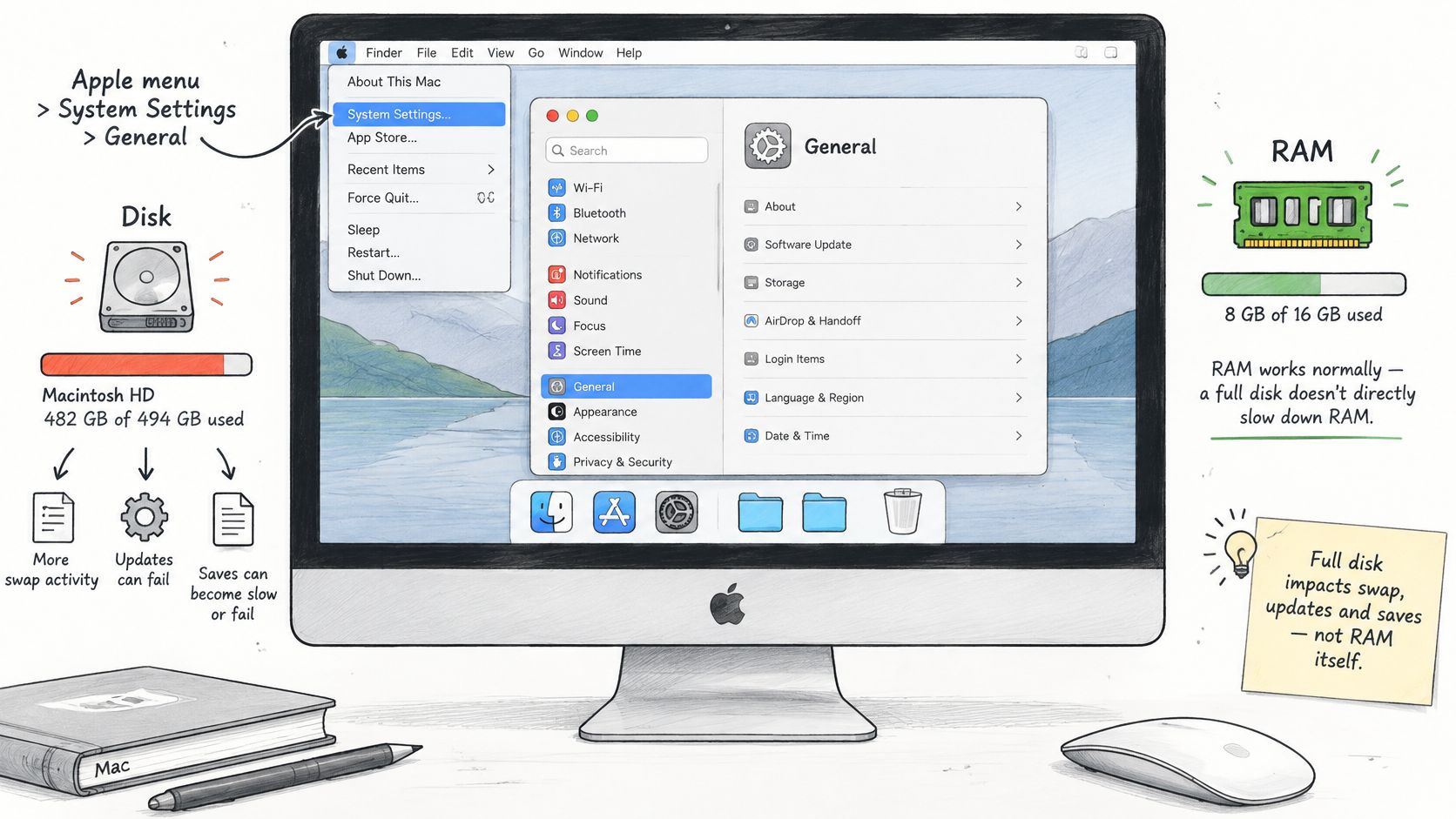
The path is Apple menu, System Settings, General, then Storage on macOS Ventura 13 or later. Older versions use Apple menu, About This Mac, then Storage. Work down the category breakdown rather than deleting Library folders at random (Apple's storage management guide).
| Storage category | Safe action | Check before deleting |
|---|---|---|
| Applications | Remove apps you no longer open | Confirm you do not need the license or saved data |
| Downloads | Delete old installers, archives and disk images | Keep any file you still need to reuse |
| Documents and Desktop | Move to iCloud Drive | Confirm iCloud Drive is turned on and files have synced |
| Mail attachments | Keep only recent attachments locally | Make sure important attachments are saved elsewhere |
| Trash | Empty it, or let macOS empty it automatically | Check that nothing needed is inside |
| iPhone and iPad backups | Delete backups of devices you no longer use | Confirm the current device has a recent backup |
Apple's own recommendations cover most of that list without any third-party tool: store Desktop and Documents in iCloud Drive, use iCloud Photos, optimize Apple TV downloads, keep only recent Mail attachments locally, and let the system empty the Trash automatically after items have sat there for more than 30 days (Apple's storage recommendations). That last rule is the one people forget. Moving a file to the Trash doesn't free a byte until the Trash is emptied.
Two safety checks come before any deletion. Confirm the actual path of the file, and know whether you're looking at a local original or an iCloud placeholder that occupies no space on the drive. Deleting a placeholder gains you nothing, and deleting the original loses the file. Keep a backup of anything you can't re-download.
After each step, glance back at the free space figure. Stop as soon as you have enough room for updates and normal work. There's no prize for an empty drive.
Decide Whether to Change Apps, Workload or Hardware
Pressure that stays green through a normal week after those changes means you had a temporary problem, and it's solved. Keep the habits. Stop cleaning.
Pressure that returns to yellow or red with the same app open moves the suspicion onto the app. Watch the graph climb across a few hours in Activity Monitor's Memory tab, update the app, and check again. If the climb continues, replace it with a lighter alternative or remove it. A leaking app won't be repaired by purge commands, cache deletion or a nightly restart; those moves can clear disk or feel tidy, but they do not add usable RAM.
If the numbers look odd alongside the slowdown, address that before blaming hardware. Pop-ups, browser redirects, an unfamiliar helper holding memory, a fan that never settles: scanning the Mac for malware rules out bundled or malicious software that hides inside the process list and is easy to overlook when you're reading it by eye.
The order that works. Pressure first, then the app, then the workload, and only then the hardware.
Red pressure during ordinary work with no outlier process means the workload exceeds the RAM you own. Close the apps you keep open out of habit, quit the virtual machine you're not using, and accept the ceiling. Keep the diagnosis separate from storage: a nearly full drive is a disk-space problem, while red pressure with healthy free space points at memory. Before anyone recommends a hardware change, check the exact model in About This Mac and its memory specifications, because many modern Macs have memory built into the package and cannot be upgraded at all.
One action to finish with: log the pressure colour and swap figure once in the morning and once in the afternoon for two normal working days. That record decides whether you need a new app habit, a lighter workload or a different machine.
If red persists after those checks, hand it over. 247TechTeam's Mac support covers macOS updates, slow performance, apps and settings on MacBook, iMac and Mac mini, and Complete Tune-Up includes performance optimization, a security software review, startup and storage cleanup, with a 7-day follow-up on the same issue. Book through the remote support entry point on 247TechTeam's site and a technician can read the pressure graph with you; sessions proceed only with your consent, and no one should ask for passwords or payment details during the session.