DNS Flush Command: How to Run It on Windows, Mac and Linux
Learn the DNS flush command for Windows, macOS and Linux, with exact steps, version differences, and the cases where a flush will not fix the problem.
On Windows, open a Command Prompt as administrator and run ipconfig /flushdns. On a Mac running OS X 10.10.4 or later, run sudo dscacheutil -flushcache followed by sudo killall -HUP mDNSResponder in Terminal, then type your administrator password.
Now the situation you're probably in. You changed a record an hour ago. A colleague two desks over loads the site from the new server, while your laptop keeps landing on the old one. You open a prompt, type the command, get a cheerful confirmation, reload the page, and the old address comes back. The trouble is that the DNS flush command gets taught as a repair when it's really a test. It clears exactly one cache and answers one question: was this machine the layer holding the stale answer? Run it with that framing and the output either fixes the lookup or tells you to go looking somewhere else. That second outcome is the useful one, and most guides skip it entirely.
Flush Commands for Windows, macOS and Linux
A flush command depends on which operating system is holding the cached answer. Choose the row that matches the machine and its resolver. A successful message only confirms that the command ran; it does not prove the next lookup returns the expected address.
Microsoft's current ipconfig reference still lists /flushdns for Windows. The command clears the DNS client resolver cache, including dynamically learned and negative entries. Use ipconfig /displaydns to inspect the cache before flushing.
| Operating system | Command | Where to run it | Notes |
|---|---|---|---|
| Windows | ipconfig /flushdns or Clear-DnsClientCache | Elevated Command Prompt or elevated PowerShell | Reloads entries from the hosts file |
| macOS 10.6 through 10.6.8 | sudo dscacheutil -flushcache | Terminal | Asks for your administrator password |
| macOS 10.10 through 10.10.3 | sudo discoveryutil mdnsflushcache | Terminal | Older mDNS command |
| macOS 10.10.4 and later | sudo dscacheutil -flushcache; sudo killall -HUP mDNSResponder | Terminal | Asks for your administrator password |
| Linux with systemd-resolved | sudo resolvectl flush-caches | Terminal | Check the service is active first |
| Linux with older systemd | sudo systemd-resolve --flush-caches | Terminal | Used before resolvectl existed |
| Linux without systemd-resolved | sudo systemctl restart dnsmasq or sudo nscd -i hosts | Terminal | Identify the local caching service first |
The Windows note matters when a hosts-file entry overrides DNS. Flushing clears cached answers, but a mapping in the hosts file can supply the same address again. The command needs a Command Prompt or PowerShell run as administrator; macOS and Linux commands that use sudo need an administrator password.
Check the macOS version in About This Mac before choosing a command. On Linux, systemctl status systemd-resolved shows whether that service is running and helps distinguish its cache commands from restarting dnsmasq. These commands affect the local machine's cache, not cached answers held by a router, browser, corporate forwarder, or public resolver.
How to Flush DNS on Windows Step by Step
A successful flush message confirms that Windows cleared its local DNS resolver cache. It does not prove that Windows, your browser, or the DNS server now has the address you expect. Check the answer before and after the command to see whether the client cache held the stale record.
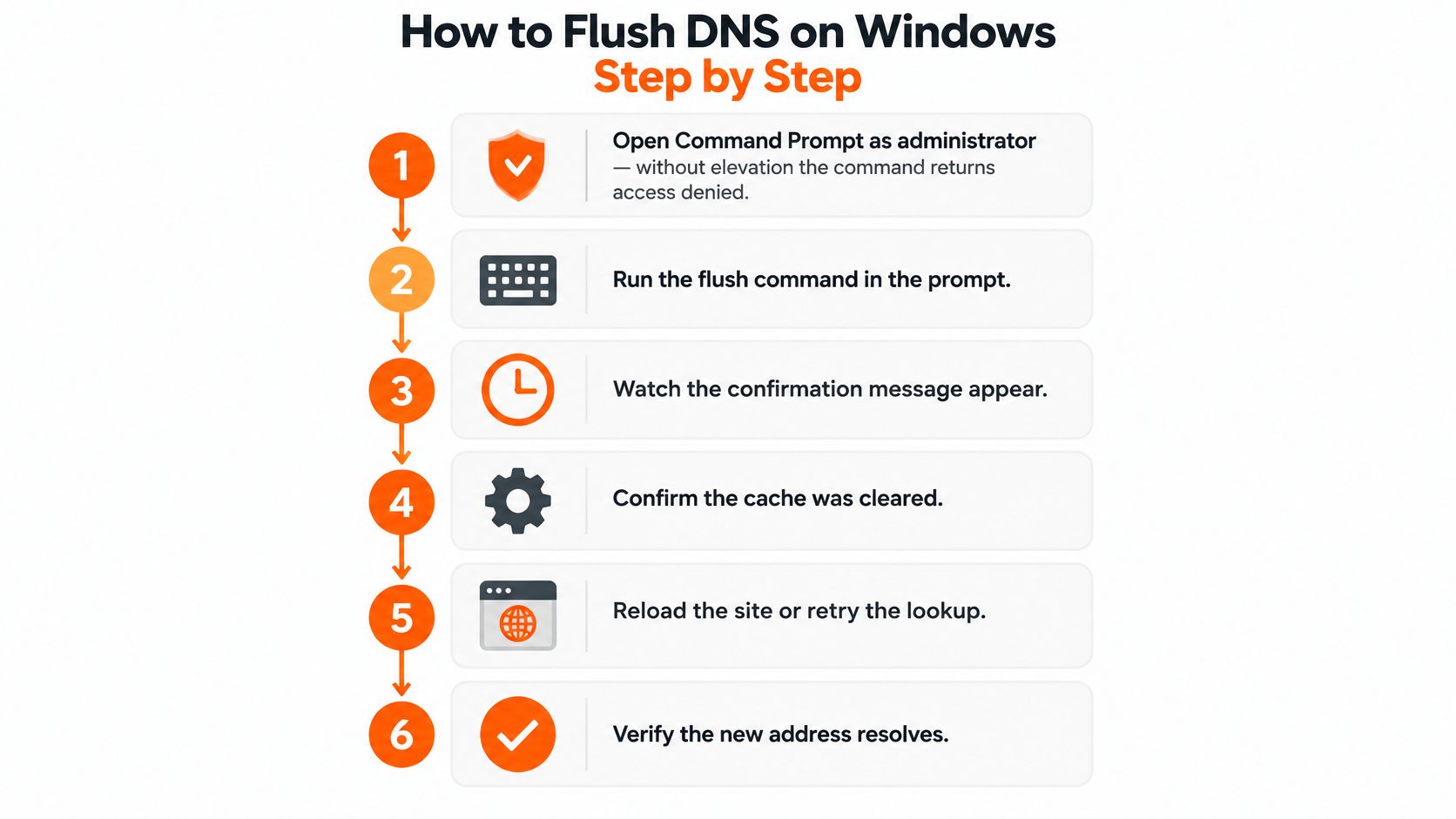
- Open Command Prompt as administrator. Search for
cmd, right-click it, and select Run as administrator. Without elevation, the flush can return an access-denied message. - Check the active adapter and DNS servers. Run
ipconfig /alland note the active adapter and its DNS servers. This identifies the configured resolver, though it does not show where every cached answer originated. - Save a before snapshot. Run
ipconfig /displaydnsand look for the hostname that fails. If it is absent, the Windows client cache is less likely to be holding the old answer. - Flush the client cache. Run
ipconfig /flushdns. The confirmation means the Windows DNS Resolver Cache was cleared. It does not confirm that the next lookup will return a different address. - Make a fresh request. Close and reopen the affected application or browser, then test the hostname again. An existing connection can continue using an address it resolved earlier.
- Compare the DNS answer. Run
nslookup hostname, replacinghostnamewith the name you are checking. Compare the returned address with the expected record and, if needed, with the answer from another resolver.
The flush tests whether Windows' local resolver cache was the stale layer. Windows can cache the next response immediately, including the same answer from an upstream resolver. If the old address returns, compare the resolver shown by nslookup with the configured DNS servers, then test against another resolver to see whether the answer differs.
The PowerShell equivalent, for scripted checks
Run Clear-DnsClientCache in an administrator PowerShell window to clear the Windows DNS client cache. It is convenient in a script or repeated diagnostic check; ipconfig /flushdns is straightforward for a one-time command-line test.
What success looks like: the post-flush lookup returns the expected address and the application connects. If the flush reports success but the lookup still returns the old address, the command worked on the local cache, but that cache was not the only possible source of the answer.
A flush cannot correct an incorrect hosts-file entry, an unreachable DNS server, a malformed record, or a propagation delay. If the hostname was not in the client cache, flushing it was a test, not a fix.
How to Flush DNS on macOS and Linux
If a site still resolves to an old address, treat a flush as a test: first identify the resolver service, then clear its cache and check whether the answer changes. On macOS, use Terminal and an administrator password. The command depends on the release.
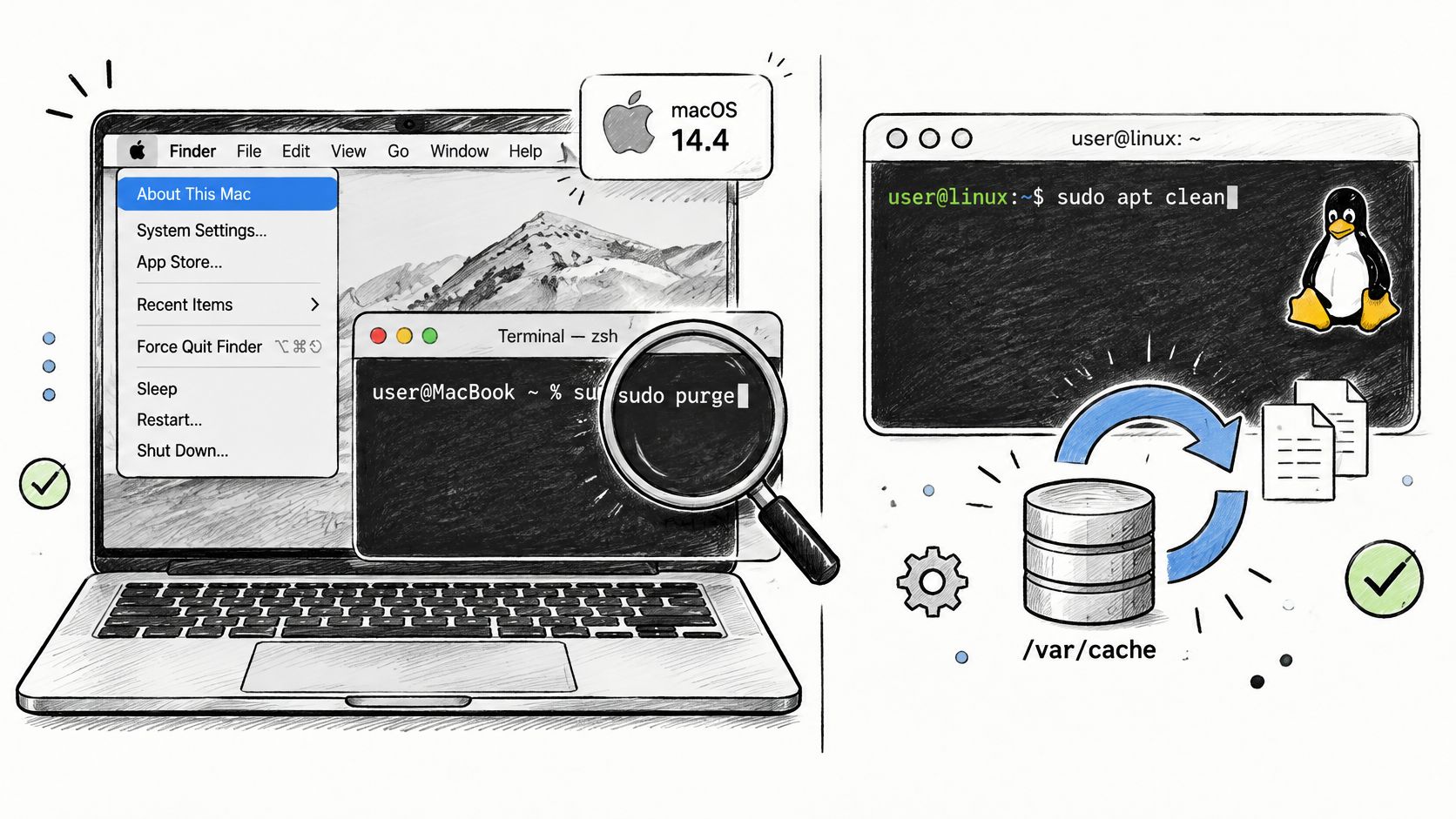
- Open Terminal from Applications, then Utilities.
- Check your macOS version and run the matching command below.
- Enter your administrator password if prompted. The characters do not appear as you type.
- Query the hostname again to see whether its address changed.
Apple's DNS cache procedures distinguish these releases: OS X 10.6 through 10.6.8 uses sudo dscacheutil -flushcache; OS X 10.10 through 10.10.3 uses sudo discoveryutil mdnsflushcache; OS X 10.10.4 and later use sudo dscacheutil -flushcache followed by sudo killall -HUP mDNSResponder.
Why the macOS version changes the command
The 10.10.4 boundary matters because Apple changed the procedure. A command intended for another release may not clear the cache used by your system. Check the version before running it, especially on a machine that has not been updated recently.
Linux has no single flush command. First check which resolver service is active with systemctl status systemd-resolved. If systemd-resolved is managing DNS, run sudo resolvectl flush-caches. Older releases may use sudo systemd-resolve --flush-caches.
Then run resolvectl statistics and check the current cache size. A value of 0 indicates the systemd-resolved cache is empty immediately after the flush. If the old answer returns on a fresh lookup, it may have been fetched again or held by another resolver. Distributions using dnsmasq or nscd need their corresponding service reloaded or restarted; resolvectl does not clear those caches.
Which Cache Actually Holds the Old Answer
A DNS flush can succeed and the old address can still appear. The command clears a particular cache, not every place that may hold a DNS answer.
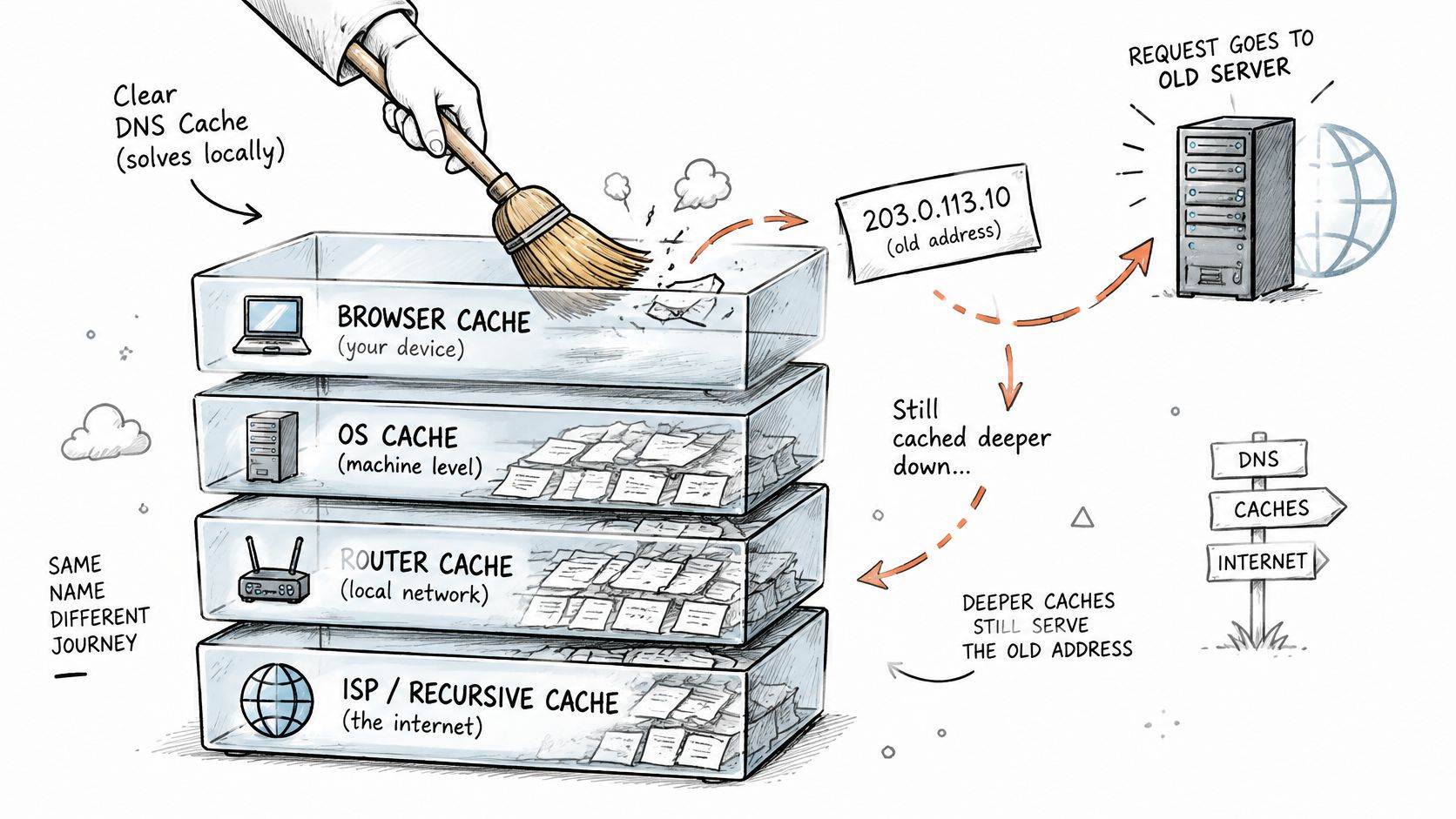
On Windows, flushing clears the local DNS client resolver cache and reloads entries from the hosts file. It does not clear the browser's DNS or HTTP cache, a home router's cache, an enterprise DNS forwarder, or records held by an internet service provider. Winsock resets, TCP/IP resets, and releasing and renewing an IP address are separate troubleshooting steps, not part of the DNS flush.
| Cache layer | Cleared by the flush command? | How to clear it |
|---|---|---|
| Windows or macOS resolver cache | Yes | ipconfig /flushdns on Windows or the macOS command for your version |
| Hosts file entries | No, reloaded from the file | Edit the hosts file, save it, then flush |
| Chrome DNS cache | No | Open chrome://net-internals/#dns and choose Clear host cache |
| Browser HTTP cache | No | Clear cached images and files in browsing data settings |
| Built-in DNS over HTTPS | No | Turn it off or check which resolver it uses |
| Home router cache | No | Restart the router |
| ISP or corporate resolver | No | Wait for the record TTL to expire or switch DNS servers |
| Authoritative DNS server | No | Check the published records with the domain host |
The two rows that surprise people
The hosts file can keep returning an old address after a flush. The flush reloads its entries rather than removing them. Edit the file to remove a stale override; if you did not add the entry, run a malware scan.
The router may return a cached answer to every device on your home network. Compare the result on another device using the same Wi-Fi. If both devices show the old address, the router or an upstream resolver may still have it. For broader connection problems, see this guide to why Wi-Fi keeps disconnecting.
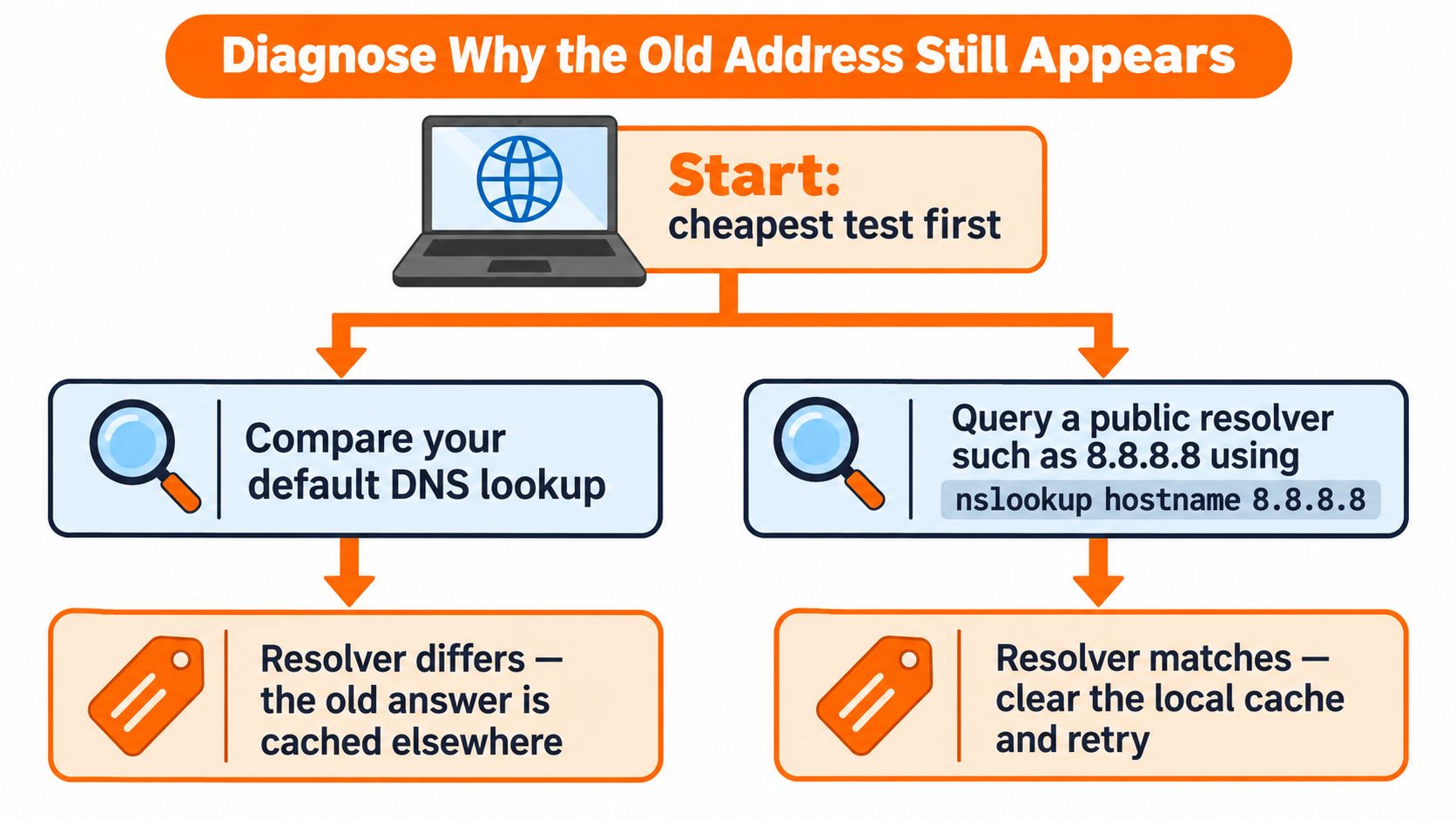
Diagnose Why the Old Address Still Appears
A flush can empty one cache and leave the stale answer elsewhere. Compare the hostname against a public resolver, then against your default DNS server:
nslookup the-hostname 8.8.8.8
nslookup the-hostname
The first query tests Google Public DNS; the second uses the machine's configured resolver. Read the results this way:
- Public resolver returns the new address, default DNS returns the old one. The difference points to your configured resolver or a cache between your device and that resolver. Retest after checking which DNS server the device is using.
- Both return the old address. The change may not have reached the resolvers, or the domain's published record may still contain the old address. Check the authoritative record before flushing again.
- Neither returns an address. The name is not resolving. Check for a missing or incorrect record; another flush will not create one.
Match the symptom to the layer
| Symptom | Likely cause | Next check |
|---|---|---|
| Old address still loads after a flush | Browser or resolver reused the stale answer | Compare a public resolver with your default DNS |
| Wrong address on one PC only | Hosts file entry or malware | Inspect the hosts file and run a malware scan |
| Works on phone, fails on PC | Local resolver cache or VPN client | Disconnect the VPN, flush, and retest |
| Works on mobile data, fails on Wi-Fi | Router or ISP resolver cache | Restart the router or test another DNS server |
| Name doesn't resolve anywhere | Missing record or propagation delay | Check the authoritative records and wait for the TTL |
| Fails only after a recent DNS change | Resolver may still have the previous answer | Wait for the TTL; flushing cannot shorten it |
A successful flush message confirms that the command ran, not that the browser or every resolver on the network discarded its answer. If a fresh lookup still returns the old address, compare the results again and check whether the hostname is being overridden by a hosts file entry or handled by a VPN.
Flushing a device does not change authoritative DNS or clear caches on recursive resolvers elsewhere. If the machine loses connectivity altogether rather than resolving to the wrong address, work through these checks for internet connection problems.
Stop rule: If the device cache is empty but a fresh lookup still returns the old address, check the resolver, published record, and network path instead of repeating the flush.
Decide Whether to Flush Again or Get Help
Flush after a change that could affect name resolution, such as switching DNS servers, moving a domain, or installing a VPN client. Then check whether a fresh lookup returns a different answer. A successful command confirms that the system accepted it; it does not prove the stale answer was in that cache.
Slow browsing and video buffering alone are poor reasons to flush. If the connection drops while names still resolve, investigate the network path, including a default gateway error.
Set a stopping point. If clearing the cache and restarting the browser do not change the lookup result, compare the answer on another network and check the hosts file. An unexpected hosts-file entry or failures across several devices calls for further investigation, not another flush. A remote support session can help trace the cause: a technician guides the fix while you watch, confirms the result with you, and sends a short summary when the session ends.
A flush proves only that the local cache was cleared. Check whether a fresh lookup changes the answer.
Before running the command, write down the answer you expect to change. Compare it with the result afterward. If the address is unchanged, the test points you toward another layer rather than another flush.
For help with the troubleshooting, maintenance, or setup, 247TechTeam provides remote technical support for Windows and Mac. Its antivirus software includes real-time scanning and defenses against spyware, hacking, and ransomware. Learn about 247TechTeam antivirus.