Default Gateway Is Not Available: Fix It on Windows
Default gateway is not available on Windows? Check your adapter, router and DHCP settings step by step, and learn when to call for help.
Your browser tab spins, dies, and shows the same error page it showed ten minutes ago. The Wi-Fi icon in the taskbar reads full bars. The printer down the hall still answers, the file share on the office NAS still opens, and yet nothing on the internet loads. Windows has decided your machine can't find its way off the local network, and it says so in one flat line: default gateway is not available.
That message feels like a verdict on your laptop. It usually isn't. It's a location marker, and it points somewhere different depending on when the error appears, which band you're on, and whether the second device in the house fails at the same moment.
Match Your Symptom to the Likely Cause
Windows raises this message when it can't reach the device that carries traffic beyond your own subnet, normally the router or modem sitting in the next room. Microsoft's guidance on recurring gateway errors describes the gateway as the device connecting a local computer or network to the internet, and it names router, modem and wireless-adapter conditions as the things that make the problem come back.
The giveaway is what still works. A printer, a NAS folder, or a second laptop on the same subnet can respond normally while every external site times out, because local traffic never needs the gateway at all. That's why the error is a layer marker, not a diagnosis of a failed component.
The message names a missing route. It says nothing about which part of the path is broken.
You're in crowded company, too. In 2025, 68% of U.S. households reported experiencing Wi-Fi problems during the previous 12 months, according to TechSee's nationwide Home Connectivity Survey of nearly 4,000 consumers.
Find your row first
| Symptom | Likely cause | First fix |
|---|---|---|
| Error right after waking from sleep | Adapter power saving or stale DHCP lease | Disable power saving and renew the IP address |
| Error on Wi-Fi only, Ethernet works | Wi-Fi adapter, band or mesh node issue | Forget the network, reconnect, test on 2.4 GHz |
| Error on every device | Router or modem fault | Power-cycle the modem and router |
| Error after typing a static IP | Gateway outside the router's subnet | Match the gateway to the router's subnet |
| Local devices reachable, internet down | Gateway down or ISP outage | Check router lights and the ISP status page |
| Error after a router firmware update | Firmware incompatibility or stale lease | Renew the IP address, then update the adapter driver |
Follow the row that matches your failure and nothing else. The sleep row and the static-IP row lead to the configuration checks in the next section; the every-device row belongs to the escalation logic at the end. If your machine drops its connection and recovers by itself rather than parking on this error, the pattern is closer to why Wi-Fi keeps disconnecting, and you should treat it as a roaming problem instead.
Run the Checks That Show Where It Fails
You already matched one symptom row. Run that first fix once, then compare the adapter, the gateway, and the band against a snapshot taken before the change. Another reset, with no timestamps to compare, only repeats the same guess.
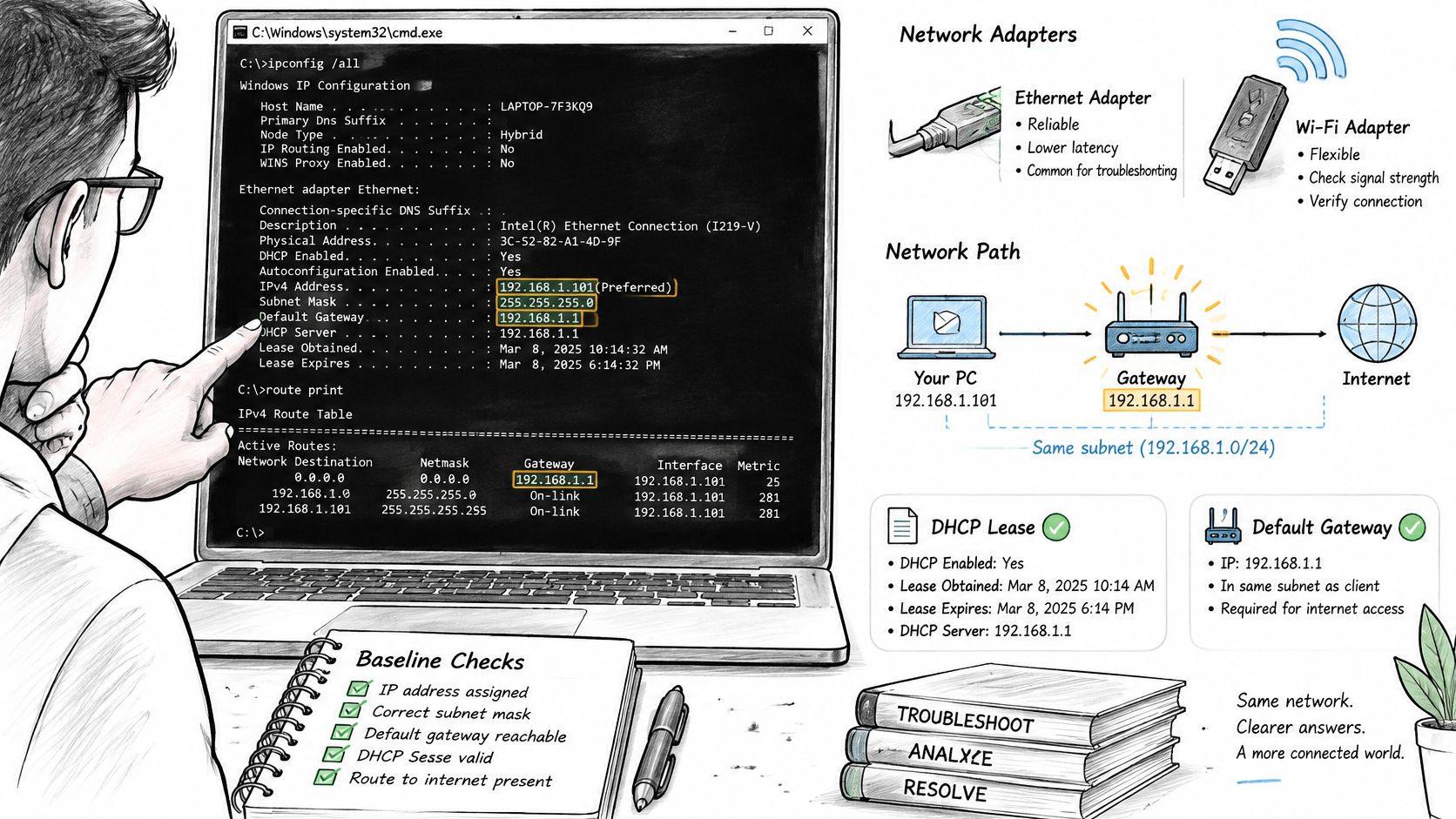
Open Command Prompt with administrator privileges before you touch another setting. Run ipconfig /all and route print. Write down four things for the failing adapter: its IPv4 address, the subnet mask, the DHCP lease obtained and expires times, and the gateway it was handed. Confirm the gateway sits inside the same logical network as your own address. When someone has typed a static IP by hand, a gateway outside that subnet is one common reason this error appears.
The fields you need are all on one screen, in the adapter's IPv4 block.
Run the tests in order
- Ping your own IPv4 address. This exercises the adapter and the TCP/IP stack without touching the network.
- Ping the gateway IP. This tests the next hop and the local link between you and the router.
- Ping a remote public address such as 8.8.8.8. This proves a routed path exists beyond the gateway.
- Run
arp -aand find the gateway entry. This shows the MAC address Windows resolved for the next hop.
| Command | What it shows | Healthy result |
|---|---|---|
ipconfig /all | IPv4 address, subnet mask, DHCP lease and gateway | Gateway shares the subnet of your IPv4 address |
route print | Routing table with the default route 0.0.0.0 | Default route points to the gateway IP |
ping your own IPv4 address | Adapter and TCP/IP stack | Replies received |
ping the gateway IP | Reachability of the next hop | Replies received; timeouts can also mean ICMP is filtered |
ping 8.8.8.8 | Routed path to a remote network | Replies received |
arp -a | MAC address stored for the gateway | Gateway MAC matches the label on the router or access point |
Run ipconfig /all again and line the new lease times up with the ones you wrote down. If Obtained and Expires did not move, and the gateway string is identical, addressing never changed. On Wi-Fi, note the band in the same pass. A 5 GHz link that fails while 2.4 GHz stays up points at the radio, not at a subnet typo you already ruled out.
A failed gateway ping can be a false negative. Plenty of routers and access points drop ICMP on purpose, so confirm with the ARP table entry or a real application connection before you conclude the router is unreachable. I treat a lone timeout as a question until one of those agrees. The same layered order works for a printer that keeps showing as offline: the failing test tells you which hop to look at.
Practical rule: a ping that fails is a question, not an answer. Corroborate it with ARP or a live connection before you touch a driver.
Two mistakes undo this work. Changing DNS first cannot explain a gateway that will not answer by IP, and skipping the same-subnet check sends you into driver reinstalls for a problem created by a typo. If addressing or the stack looks corrupted, renew the lease and run netsh int ip reset c:\resetlog.txt before restarting. That command writes a diagnostic log you can read afterwards. Keep every command output, including the lease times from before the fix.
Read the Results and Pinpoint the Failing Layer
The gateway ping times out at 09:14 and arp -a has no entry for it. That pair already names the layer. Match it to one row, take only that next action, then prove the change with timestamps instead of repeating the same reset.
| Test result | Likely layer | Next action |
|---|---|---|
| Own IP ping fails | Adapter or TCP/IP stack | Reinstall the adapter driver or reset TCP/IP |
| Gateway ping fails, no ARP entry | Layer 2 link, cabling or wireless loss | Reconnect, check the cable, move closer to the access point |
| Repeated ARP requests, no reply | VLAN mismatch, wireless isolation or router failure | Restart the router and check access point and VLAN settings |
| Gateway ping works, remote ping fails | Routing, DHCP scope or upstream fault | Check the router status page and the ISP status |
| ARP resolves, ICMP blocked | Gateway or host firewall filtering | Test a real application connection instead of ping |
One row, one first fix. If two rows look close, the earlier failure wins. A host that cannot ping its own address has an adapter or stack problem no router change will touch. A host that pings itself but never stores a gateway MAC is on the link: cable, radio, VLAN, or a dead port. A host that reaches the gateway and then fails 8.8.8.8 is past the LAN, in routing, the DHCP scope, or the upstream path.
The MAC is the clue I use when the ping is ambiguous. Compare the address Windows stored with the label on the router or access point. If they disagree, something answered for that IP that should not have, or the client kept a mapping after the router was swapped. A missing entry is the same class of problem. Stale or absent cache entries force Windows to request a fresh mapping. That request will not repair a wrong subnet, a bad DHCP scope, or an access point that has already dropped the client.
Do not run the reset again and call it confirmation. Note the clock, apply the single action from the matching row, and compare three results from before and after.
Adapter: is the interface still up, and does ipconfig show the same address and gateway you had when the error started?
Gateway: did arp -a gain a MAC that matches the label, and did that line appear in the same minute the gateway ping began to reply?
Band: on Wi-Fi, did the client stay on 2.4 GHz or move to 5 GHz when you stepped closer to the access point, and did ARP replies start only after that move?
Write the time next to each line. Unanswered ARP at 09:14, with the adapter still associated, is wireless, isolation, or the access point. ARP that resolves at 09:14 while 8.8.8.8 dies at 09:15 is upstream. A router set to ignore pings can look dead and still forward traffic, so a page that loads while ICMP stays quiet belongs on the filtering row.
I count a fix as real only when the test that failed now passes on a new timestamp. A second identical restart, without that before-and-after, hides which layer changed.
Restore the Failing Layer and Catch Repeats
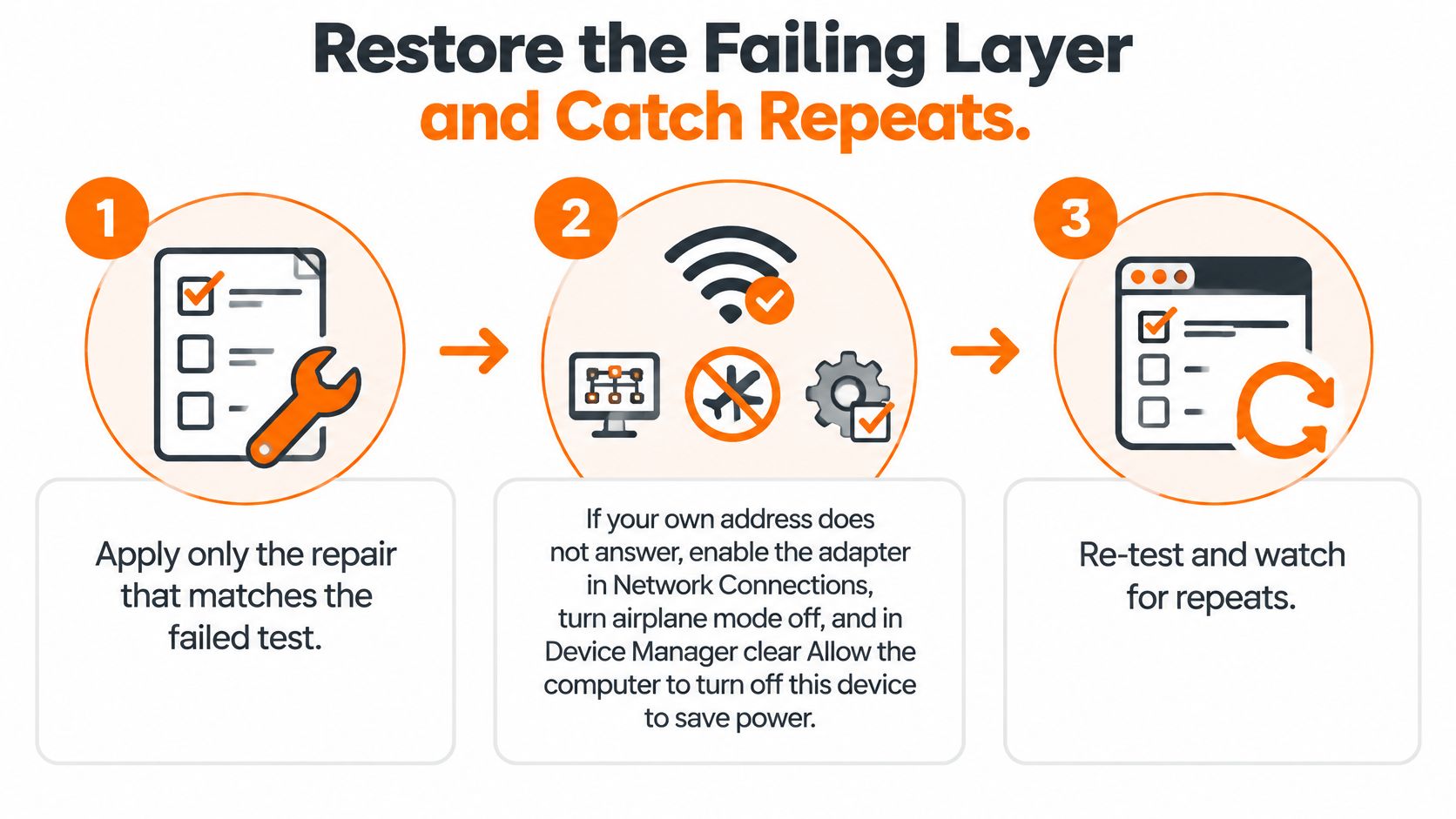
Apply one repair: the one that matches the test that failed. Anything else is guessing with extra steps.
- Your own address doesn't answer. Check Network Connections that the adapter is enabled, turn airplane mode off, then open Device Manager, find the adapter, and clear "Allow the computer to turn off this device to save power" on the Power Management tab.
- The gateway or lease is missing. In an administrator Command Prompt, run
ipconfig /releasethenipconfig /renewso DHCP can hand over a current gateway. - The ARP entry shows the wrong MAC. Run
arp -d *and reconnect Ethernet or Wi-Fi so Windows rebuilds the mapping from scratch. - You typed the address by hand. Keep the gateway in the same subnet as the host: host 192.168.1.20, mask 255.255.255.0, gateway 192.168.1.1.
- Every device is down. Power-cycle the modem and router and give them two minutes before testing.
- The stack still looks corrupted. Run
netsh int ip reset c:\resetlog.txtand restart Windows, because the reset only takes effect after a reboot.
Success is concrete: the gateway line reappears in ipconfig /all, the gateway pings, and a page loads. If you changed DNS first and skipped the restart, you've likely fixed nothing and left stale state behind.
When the error keeps coming back
A returning error is a different problem from a broken one, and the timing carries the diagnosis. Note whether it follows sleep, mesh roaming, only 5 or 6 GHz, or a router firmware update. Then compare like with like: 2.4 GHz against 5 or 6 GHz, Ethernet against Wi-Fi, one mesh node against another, and a fixed channel against auto.
Mixed hardware is the norm now. Wi-Fi Alliance's value of Wi-Fi research projected 583.2 million Wi-Fi 7 devices and 626.9 million Wi-Fi 6E devices shipping globally, which means older clients and newer access points share the same air. That's where firmware interoperability, band steering and weak mesh backhaul turn into recurring gateway errors.
Log the exact times, check Windows event logs for lease renewals around those times, and test a second device on the same band. A reboot that hides the fault for a day often just reset a lease that was failing to renew.
Decide Whether to Keep Troubleshooting or Escalate
Stop and escalate when the same failure survives a new Ethernet cable and a second computer on the same port. At that point the fault follows the router or modem hardware, not the Windows adapter, and no amount of driver work will change it. Stop immediately for physical damage, a burning smell, a dead port or a drive that won't spin up.
Keep going yourself when only Wi-Fi fails, when a second device stays online, or when a lease renewal brings the gateway back. Those are software-side problems with software-side fixes.
Before you call, write down the gateway address from ipconfig /all, the first test that failed, the ARP result, and the times the error returned after sleep or roaming. That list puts a technician at the failed layer in the first minute instead of repeating resets you've already done. If an issue is outside what a remote session can reach, such as a hardware failure or physical damage, our technicians say so and point you to the right next step, since hardware repair, data recovery and on-site visits aren't part of our support sessions. Remote help does cover the routers, printers, browsers and security tools most homes and small offices depend on, including Wi-Fi and network troubleshooting for dropped connections and slow internet.
When the gateway error keeps returning after a reboot and you've run out of clean comparisons, 247TechTeam can take the next step with you. Our remote sessions cover Wi-Fi and network troubleshooting, router and adapter settings, and the printers and browsers that hang off the same connection, using LogMeIn Rescue with your consent before anything starts. Visit 247TechTeam to book a session and get the failing layer diagnosed instead of resetting the same adapter again.