Email Stuck in Outbox? How to Fix It Without Duplicates
Email stuck in outbox? Find out why it happens, clear it safely in Outlook and phone mail apps, and know when to call for help.

You've sent an invoice or an important document, but the message is still sitting in your Outbox. You've checked the connection, opened the message again, and started wondering whether pressing Send another time will help.
Don't resend it yet. An email stuck in Outbox might be waiting on your computer, queued by a mail server, or already submitted while your app shows an outdated status. The safest fix starts with finding out which state you're dealing with.
Why Your Email Is Waiting Instead of Lost
A message that hasn't moved isn't necessarily lost. Email delivery includes queues and retries, so a temporary interruption can leave a message waiting without making it permanently undeliverable.
The SMTP delivery standard, RFC 5321, generally recommends retry intervals of at least 30 minutes after a failed delivery attempt and a typical give-up period of at least 4–5 days. Those are server-level guidelines, not a promise that your desktop application will keep sending while it's closed.
The distinction matters: your app must first submit the message to the sending service. Only then can that service manage delivery attempts independently of your device.
Temporary delay or permanent rejection
A temporary failure tells the sending system to retain the message and try again. The recipient's server might be unavailable, overloaded, temporarily refusing mail, or unreachable through the network.
A permanent failure normally produces a bounce or non-delivery report instead. That report needs attention, not another unchanged copy of the same message.
Before changing anything, collect these clues:
- Connection status: Check whether other applications can connect reliably. If they can't, follow our internet connection troubleshooting guide.
- Attachment details: Note the file size and whether the problem affects only messages with files.
- Account access: Look for a sign-in prompt, expired session, or password warning.
- Recipient and error text: Verify the address and save the exact displayed error.
These checks separate a local submission problem from a remote delivery delay. A working browser doesn't prove your email account is authenticated, and a frozen Outbox doesn't prove the recipient's service is down.
Practical rule: Don't delete or resend a message merely because it's waiting. Establish whether the original is still queued before creating another copy.
Repeated sending doesn't shorten a server's retry schedule. It can leave several copies waiting for the same connection to recover.
Confirm Whether the Message Actually Left
Webmail Sent is stronger evidence of submission than your app's Outbox display. Your local folder describes what that application currently believes; it isn't a complete view of the provider's delivery system.
A Microsoft-hosted support discussion about Outlook for Mac documents messages appearing in Outbox even though another mail app shows them in Sent. Checking another client or webmail before removing or resending the local item avoids treating a synchronization problem as a failed send.
Check the server before changing the message
Open your provider's webmail in a browser and select Sent for the account that sent the message. Confirm the sender account carefully if you manage personal, work, and shared mailboxes.
Compare the recipient, subject, message content, and timestamp. If your client exposes Message-ID in the message details or headers, record it for support; matching identifiers can help distinguish a particular submission from a similar-looking copy.
Next, ask the recipient whether the message arrived, or inspect any bounce notification. A Sent item supports successful submission, but it doesn't establish that someone received the message in their inbox or read it.
If your devices disagree, avoid sending from a second device to compensate. With multiple clients or IMAP synchronization, a lagging folder can make an already-submitted invoice or contract look unsent. If the connection itself keeps dropping, investigate recurring Wi-Fi disconnections rather than creating a replacement message.
Outbox states and how to confirm each one
Use the combined evidence below. Absence from Sent alone isn't conclusive, particularly when the application is still synchronizing.
| State | What It Means | How to Confirm |
|---|---|---|
| Queued locally | Your app holds the message; the server hasn't received it | Still in Outbox, absent from webmail Sent, and the client reports incomplete submission |
| Accepted by server, not synced | The provider has the message; your desktop or phone hasn't updated | The matching message is visible in webmail Sent |
| Temporary deferral | The recipient's server is temporarily refusing mail and retries continue | Provider queue status or a delay notice shows pending delivery rather than permanent failure |
| Rejected after submission | A permanent failure prevented delivery | A bounce or non-delivery report identifies the message and error |
| Delivered | The recipient's server accepted the message | The recipient confirms receipt of the matching message |
Only after identifying the state should you remove a stale local entry or prepare a corrected message. For a time-sensitive contract, recipient confirmation is more useful than making the Outbox look tidy.
Attachment Tests That Pinpoint the Fault
Start with the attachment's actual file size, not an estimate based on how many pages it contains. Save the original file somewhere accessible before modifying the queued message.
A large file is a useful diagnostic starting point, but it isn't proof of the cause.
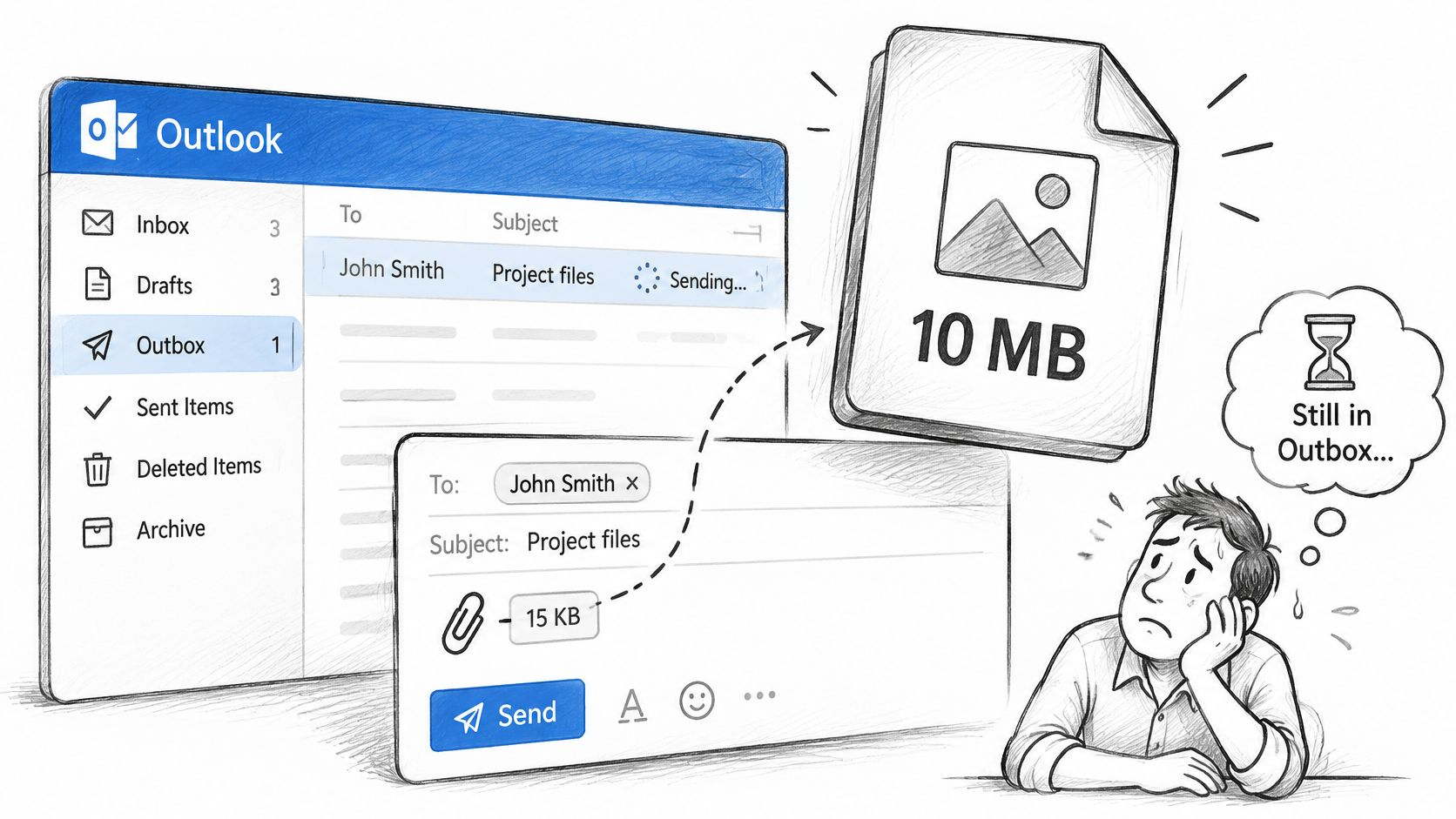
Microsoft's Outlook troubleshooting guidance supports removing problematic attachments as part of diagnosis. Treat attachment size and mailbox storage as things to test, rather than assuming every provider uses the same sending limit.
Run a controlled message test
Work on the oldest queued item first. A malformed or oversized message can prevent later messages from progressing, making an entire account appear unable to send.
- Preserve the original: Pause sending, move the item to Drafts, and keep its text and attachment available.
- Send a distinct text-only test: Use a recognizable subject and send it to an address you can check. Don't use the original invoice or contract as the test.
- Reduce the file: Compress it, split it into sensible parts, or replace it with a cloud-sharing link.
- Verify the result: Check webmail and recipient receipt before attempting the corrected original.
Compression won't meaningfully shrink every file. A cloud link avoids carrying the file inside the email, but introduces a different check: the recipient must have permission to open it.
The accompanying walkthrough provides another way to follow the Outlook troubleshooting process.
Test results and the likely fault
| Test Result | Likely Fault | Next Action |
|---|---|---|
| Text-only test sends, original with attachment fails | Attachment size or mailbox storage quota | Compress the file, split it, or share a cloud link |
| Both messages fail | Connection, sign-in, or service availability | Check other apps, authenticate again, and check the provider's status page |
| Both send after the oldest item is cleared | A malformed or oversized message was blocking the queue | Establish whether the oldest item was delivered, then remove it or submit a corrected copy once |
| Original sends after a restart | A temporary application or connection problem | Stop retrying and check that no duplicate was submitted |
Change one variable at a time. Removing the attachment, switching networks, and replacing the account profile together may restore sending, but you won't know which change mattered.
Don't jump to mailbox repair just because a file-heavy message fails. A successful text-only test gives you a narrower, less disruptive problem to solve.
How to Clear a Stuck Outlook Outbox Safely
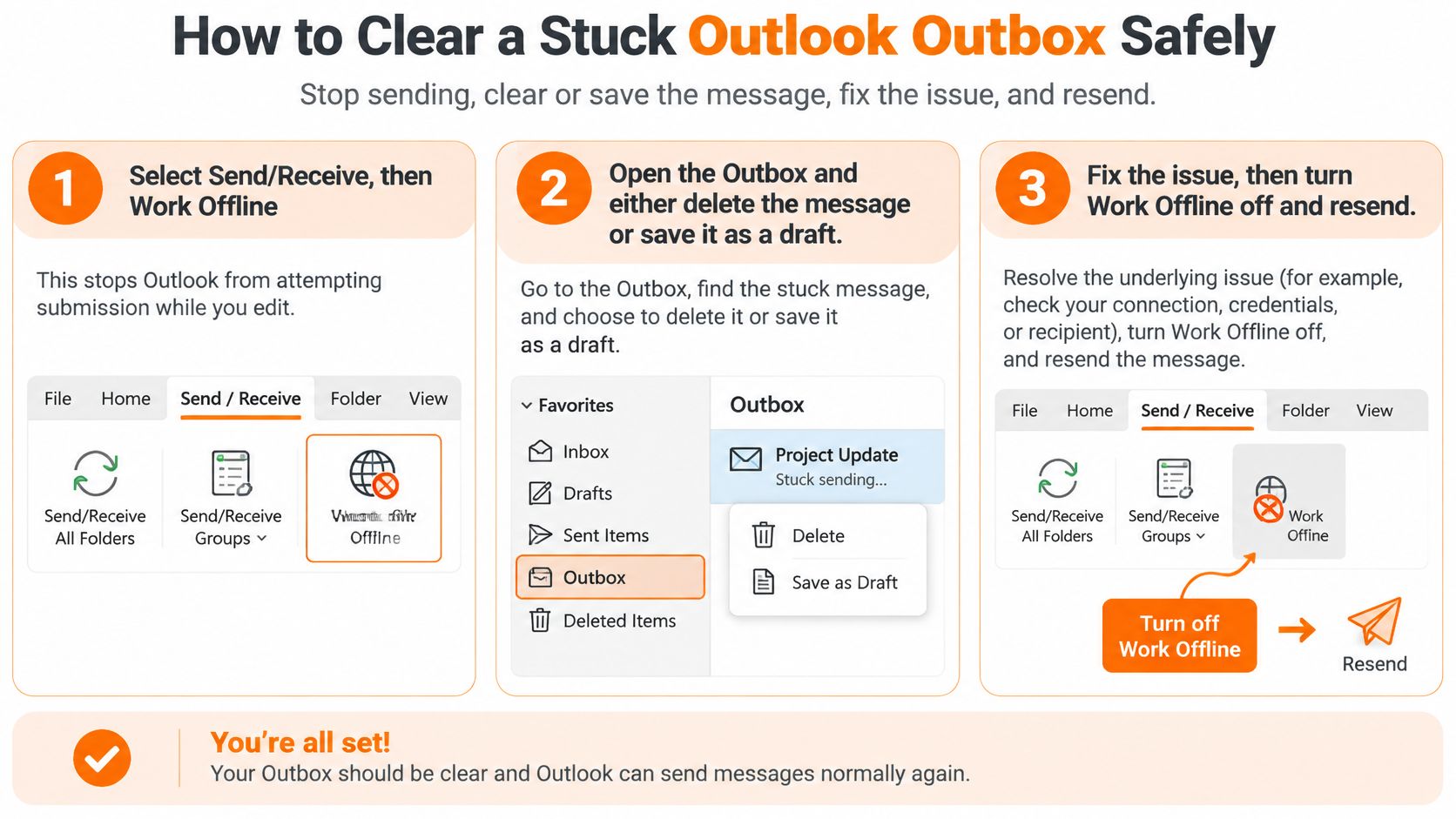
For classic Outlook on Windows, pause transmission before editing the queued item. Microsoft's stuck-Outbox instructions use Work Offline, followed by removing or moving the message, restarting Outlook when necessary, and restoring sending afterward.
Use this procedure for a message you've established hasn't already been submitted. If webmail already contains the matching Sent item, don't run it through another send cycle.
The process starts by stopping Outlook from trying to transmit while you make changes.
Pause, preserve, and correct
Select Send/Receive, then Work Offline. This pauses Outlook's submission attempts while you handle the message. Check that Outlook indicates it's working offline before proceeding.
Open Outbox and move the blocked message to Drafts. Dragging preserves the content so you can inspect or change it. Delete it only if you've deliberately decided to discard it and have saved anything you need.
Open the draft and correct the suspected cause. Remove the attachment, fix the recipient address, or make the change supported by your tests. Prepare it for sending, but don't create a separate replacement while keeping the original queued.
If Outlook says it's still transmitting, close Outlook completely. An active submission can keep the message locked against editing or deletion. Allow the application to exit before opening it again.
If Outlook won't exit, use Task Manager. Save other Outlook work first, then locate and end outlook.exe. Restart Outlook, confirm Work Offline is enabled, and repeat the move-to-Drafts operation.
Restore sending deliberately. Submit the corrected draft, turn off Work Offline, and use Send All. Then verify the result instead of pressing Send again because the folder hasn't refreshed immediately.
The common slip is attempting to delete or edit a message while Outlook remains online. Outlook can hold the item for transmission or immediately retry, leaving you fighting an active send operation.
Move the message out of active transmission before trying to fix its contents.
Check the result without rebuilding the account
A successful recovery leaves an empty Outbox and a matching message in Sent, without an extra replacement copy. If you intentionally discarded the message, there shouldn't be a new Sent item for it.
For Outlook for Mac or another desktop client, don't assume the Windows menu names apply. Use the application's offline or pause-sending control where available, preserve the content, and avoid re-submitting a message already present on the server.
If the queue freezes again, record what changed and what error appeared. Recreating an account or rebuilding local mail storage is a larger intervention, so preserve unsynchronized drafts and involve support before taking that route.
Background Restrictions That Hold Mail on Phones
A phone can load websites while its mail app is prevented from working in the background. That makes a queued message look like a mail-server problem even when the app hasn't been allowed to retry.
The BounceCheck guide to queued email identifies Gmail sync, battery restrictions, background-data permissions, and app cache as relevant Android checks. The useful diagnostic question is whether the message sends while the app stays open.
Check the platform settings before changing outgoing-server configuration.
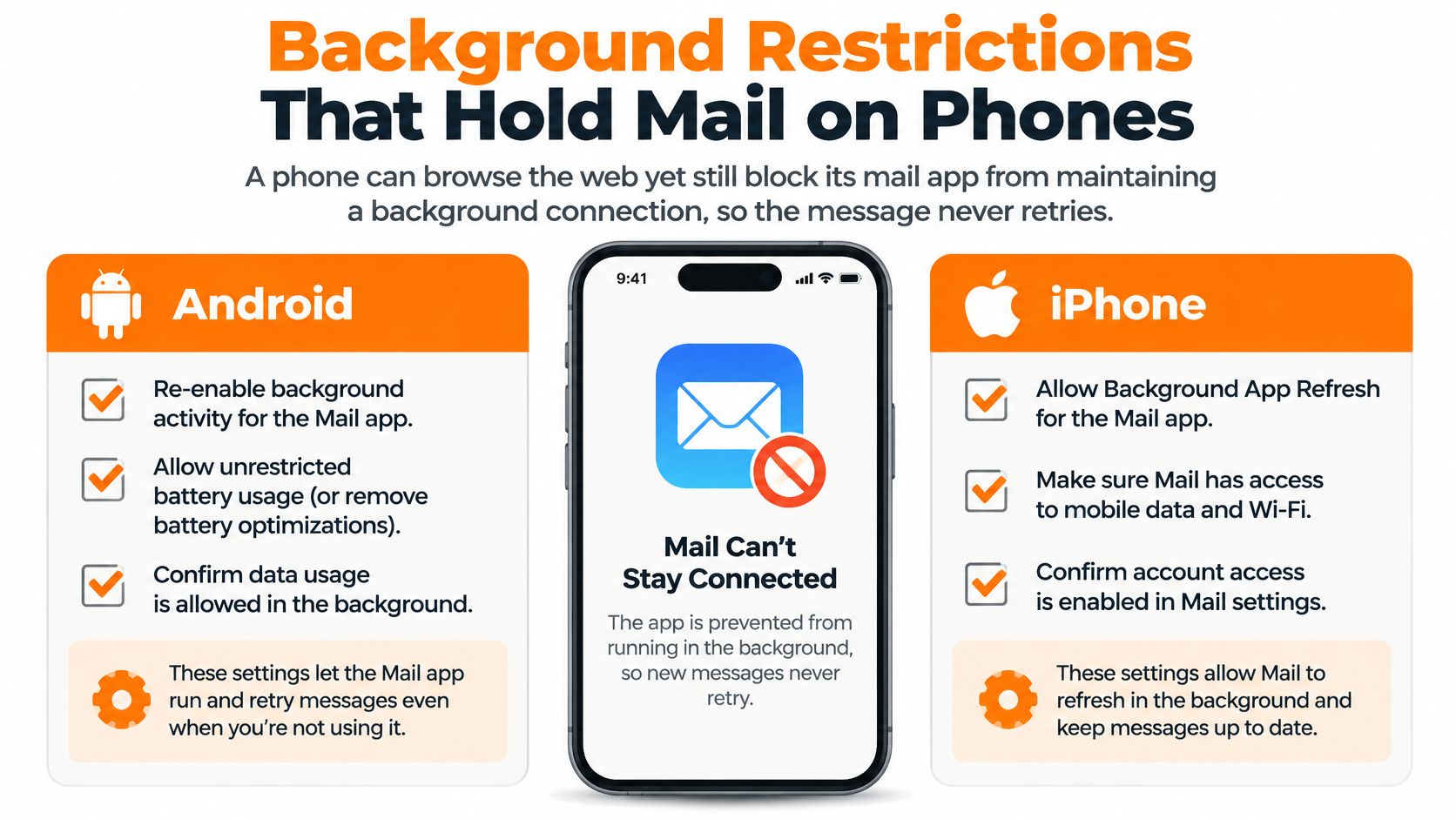
Match the checks to your device
Android
- Sync: Open the mail account's settings and confirm synchronization is enabled.
- Battery access: Check the mail app's battery settings and temporarily remove restrictions for testing. Menu names differ by manufacturer.
- Background data: Allow the app to use data when it isn't on screen.
- Cache: If the queue remains frozen, clear the app cache. Don't confuse this with clearing app storage, which is more disruptive.
iPhone
- Background settings: Check Background App Refresh where the mail app supports it, and review whether Low Power Mode is enabled. These aren't universal explanations for every mail app.
- Mobile-data access: Confirm the app is permitted to use cellular data if you're testing away from Wi-Fi.
- Account access: Open the app and address any authentication prompt rather than assuming background permissions are the only issue.
Desktop
- Sleep: Keep the computer awake during the test so the client can complete submission.
- Network controls: Ask IT to review a suspected VPN or firewall restriction. Don't disable security protections broadly to make email work.
Test foreground sending
Open the app, manually refresh, and keep it on screen. If the message remains queued, switch between Wi-Fi and mobile data, then refresh again without creating another message.
If sending works only while the app is open, investigate background permissions before replacing account settings. Leaving battery restrictions relaxed may increase power use, so retain only the changes the app needs.
A disappearing Outbox item is a reason to verify the result, not a reason to tap Send again.
Decide When to Stop Retrying and Get Help
Stop manual resending when you have evidence of submission or an active server queue. Waiting for a provider's delivery retry is different from tolerating a local app that never submits anything.
Escalate when a text-only message also fails in webmail, when the desktop queue remains frozen after a stable connection and restart, or when a bounce contains an error you can't resolve. You don't need to wait through a server's full retry period to request help with an urgent message.
Bring evidence that makes troubleshooting useful
Collect the details that let a technician separate an account problem from a device problem:
- Exact error: Copy the displayed message or bounce text, rather than paraphrasing it.
- Message details: Record when it was first queued, the recipient's domain, and attachment file size.
- Test outcomes: State whether webmail worked, whether a text-only test sent, and whether other queued messages moved.
- Device context: Include the mail application, operating system, and network used.
Avoid unrelated fixes. A DNS troubleshooting guide is relevant only when connection symptoms support that investigation; it won't correct an attachment problem or an expired sign-in.
Use a support channel you trust
You can contact our support team at Support@247techteam.com. If an issue falls outside a remote session's scope, such as hardware failure or physical damage, our technician will explain that and point you toward the appropriate next step.
247TechTeam will never make unsolicited calls demanding payment, send fake invoices, or request refund fees. Treat any such request as suspicious rather than part of fixing your mailbox.
Your next action is to confirm the message's state in webmail. If it's still stuck, contact your email provider, IT administrator, or our support team with the evidence above.
247TechTeam offers remote technical support for email configuration, connectivity, and Windows or Mac troubleshooting. If you need help identifying where your message is stuck without creating duplicate sends, visit 247TechTeam to review our support options.