What Does a Virus Do to a Computer? Signs and Fixes
Wondering what does a virus do to a computer? Learn the effects, from file damage to stolen logins, and the steps to take if you suspect infection.
A virus can corrupt or delete files, drain performance, copy passwords and personal data, and lock files for ransom. Those four effects answer what a virus does to a computer, and the last two often leave the screen looking fine.
If the machine still opens documents and loads the browser, is it safe? Most explanations stop at a broken file or a loud fan. Plenty of infections skip those signs. The code copies logins, rides along in email, or waits in a startup entry while the desktop looks ordinary. Deleting one suspicious file, or running a single scan, does not undo a password that already left the computer.
What a Virus Does to a Computer at a Glance
A virus is malicious code that attaches itself to programs or files and then does harm, which can mean corrupting data, slowing the machine, copying private information, or locking files.
Think of a sticky note someone puts on a library book. The book still has its title. The extra note travels with it, and anyone who opens the book also picks up the note. On a PC, that note is code. It can rewrite your photos, chew through processor time, mail copies of itself, or remain inactive while it reads saved logins.
| Effect | What the virus does | What you may notice |
|---|---|---|
| File damage | Overwrites, corrupts or deletes documents and images | Files that will not open, or are missing or changed |
| Resource drain | Uses CPU, memory, disk and network capacity | Slow start-up, loud fans, hot laptop, frequent crashes |
| Self-replication | Copies itself through email, shared drives and removable media | Messages you did not send, contacts reporting odd emails |
| Data theft | Copies saved passwords, session tokens and account data | Login alerts from unfamiliar locations |
| File encryption | Locks files and demands payment for the key (ransomware) | Ransom note, files with new extensions that will not open |
| Security tampering | Disables antivirus or firewall, adds startup entries | Security tools that will not start, programs launching at boot |
The rows that scare people most are the ones they can see: missing photos, a ransom note, a laptop that runs hot. The quieter rows are often worse. A computer can look normal while it copies information or sends messages you never wrote.
A clean desktop is not proof of a clean computer. The copy of your password can leave before any file looks wrong.
Infections usually stack two or three of these effects. A slow start plus a security tool that will not open is a stronger signal than either sign alone. Weigh several symptoms together instead of judging by one.
How a Virus Spreads From File to File
A cold in a shared office spreads because each person touches the next one. A virus works the same way through files. One opened program becomes the handoff to the next file, the next USB stick, and the next shared folder.
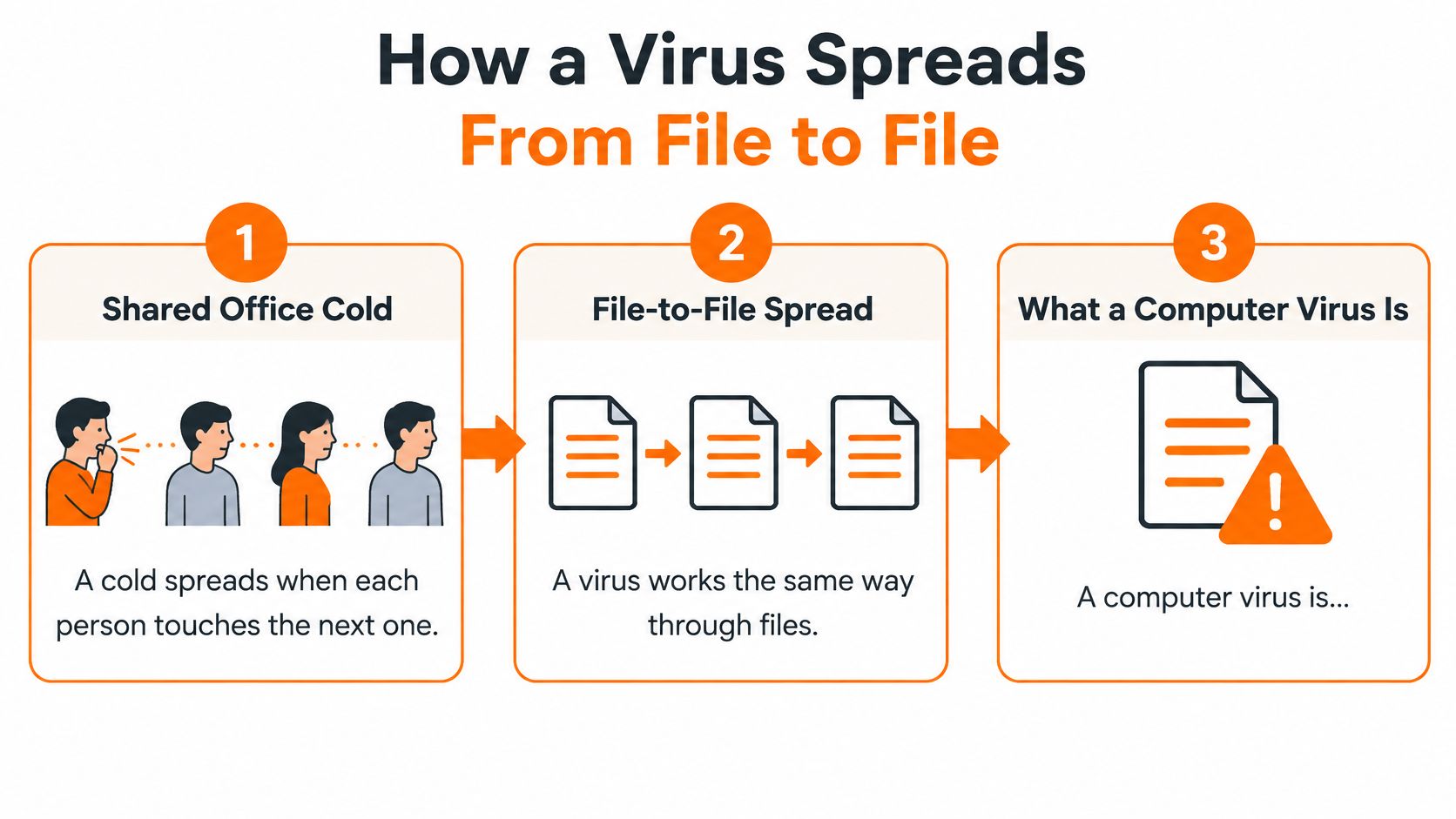
A computer virus is malicious code that reproduces by attaching copies of itself to existing executable programs. It becomes active when that infected program runs. The NIST publication on preventing and handling malware incidents describes this as code inserted into an operating system, application, or data environment so it can compromise confidentiality, integrity, or availability.
The chain usually runs in five stages.
- The code arrives inside a file or program you open, download, or run, such as an email attachment or a USB drive.
- The infected host runs, and the virus code runs with your permissions.
- It attaches copies to other executable files, documents, or boot records.
- It spreads to removable media and reachable network shares.
- Its payload runs, changing settings and installing persistence so it restarts after a reboot.
A worm can spread without attaching to a host file. A Trojan disguises itself as useful software and does not need to copy itself the classic way. A worked example of that disguise is a Trojan horse virus example. NIST groups viruses with worms, Trojan horses, malicious mobile code, and blended attacks, and notes that these incidents can cause widespread disruption and costly restoration.
Practical rule: Unexplained startup items, disabled security controls, unexpected file changes, and abnormal outbound connections are signs the chain has already started.
If you suspect infection, disconnect the computer from Wi-Fi or Ethernet before cleanup. Keep a copy of useful evidence, and scan from trusted offline or rescue media so a live infection is less likely to reinfect the drive. The short video below walks through the same file-to-file idea in plain terms.
Damage to Files, Speed and System Settings
On November 2, 1988, the Morris worm hit the early Internet. It was technically a worm, not a virus, because it could propagate without attaching to a host program. The damage pattern still teaches what a virus does to a computer when copies pile up. A NIST account of the Morris worm reports that within 24 hours it affected an estimated 6,000 of approximately 60,000 Internet-connected computers, about 10% of the network.
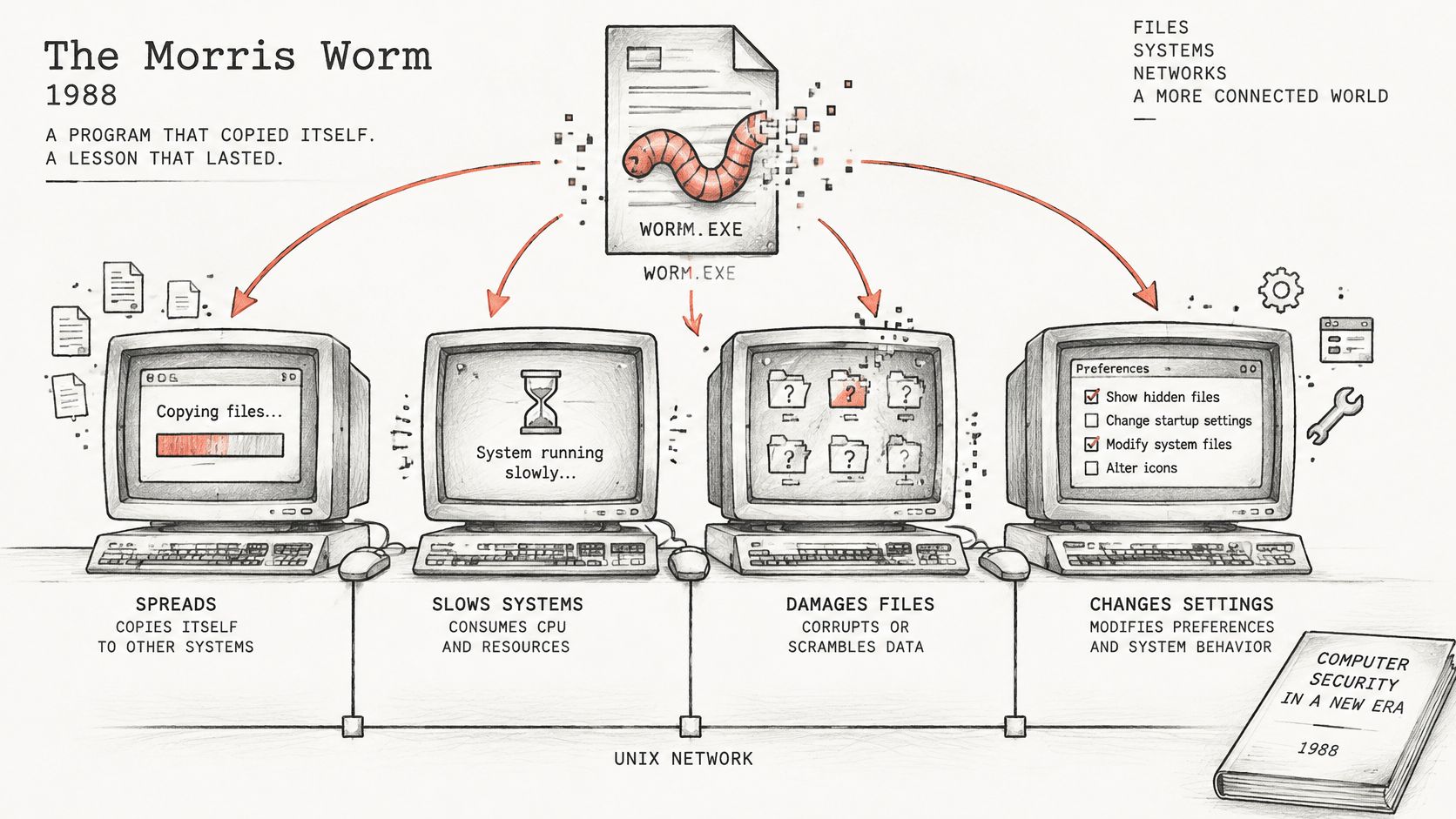
The program did not destroy files. Repeated reinfection made systems consume so much processing capacity that they became extremely slow or unusable. Military and university functions were disrupted, email was delayed for days, and some organizations disconnected systems for up to one week. Reported damage estimates began at roughly $100,000 and rose into the millions. Malware does not need to erase files to harm a computer.
File corruption and deletion
Once code is running, it can overwrite documents, rename files in bulk, or replace images with junk. You notice this when a photo opens as a broken thumbnail or a spreadsheet you saved yesterday will not open at all.
Performance drain
Copies and background tasks consume CPU, memory, disk, and network capacity. The laptop fan stays loud, start-up stretches, and ordinary apps crash. That is the Morris pattern on a home machine: the harm is exhaustion, not a deleted folder.
System settings
The same run can change configuration, turn off updates, or stop a security tool from launching. A virus that reproduces by attaching to executable programs can also alter data and disrupt normal operations, which is why a settings change belongs in the same incident as a slow PC.
Startup entries or altered settings can bring the infection back after you delete a single file. During cleanup, check what launches at boot and whether security tools still start on their own.
How Email Attachments Spread Viruses Worldwide
The ILOVEYOU outbreak began in May 2000. Messages carried an attractive subject line and a malicious attachment, and they used the channel people rarely question: mail that appears to come from someone they know.
In approximately five hours it moved across Asia, Europe, and North America and infected more than 1 million computers. A CNN retrospective on the ILOVEYOU virus describes its spread as about 15 times faster than the Melissa virus of 1999.
Once opened, the malware copied itself into critical Windows directories and modified registry settings so it ran automatically. It also damaged or overwrote files, including images and other personal data. A friendly subject line was enough to start that chain on the next computer in the address book.
The outbreak caused widespread disruption and costly cleanup across government and business networks. Productivity losses, technical cleanup, lost information, and reduced customer confidence were hard to measure precisely.
The home lesson is smaller and sharper. A virus can leave one device and reach everyone in the contact list, and your address book works like a built-in delivery route for it. An unexpected attachment from a familiar name deserves a check before it is opened, including files that look harmless. A PDF can carry a virus when the file is built to run something the moment you open it.
Stolen Logins, Ransomware and Extortion
A computer that still works is not proof that nothing was taken. People picture deleted files, pop-ups, or a slow PC. Those are only one layer of harm.
Separate three layers, because each one needs a different fix.
- Device damage: files are changed and performance drops. Cleanup and restored copies address the machine itself.
- Account compromise: browser passwords, session tokens, and email credentials are copied. The PC can keep running with no crash and no slowdown.
- Identity or financial risk: stolen details are used for fraud, new logins, or purchases. That harm shows up in accounts, not in Task Manager.
Infostealers can capture those saved passwords and tokens while the computer continues to function normally. Removing the malicious file does not undo what was already copied. Change passwords from a different device, revoke active sessions, turn on multifactor authentication, and review accounts for activity you do not recognize.
Ransomware is the louder cousin. It encrypts files and tries to stay connected long enough to reach shared drives. Some attackers skip encryption. They copy sensitive data and threaten to publish it, so the PC stays usable while the extortion starts.
Verizon's 2025 Data Breach Investigations Report found that ransomware appeared in 44% of reviewed breaches, up from 32%, while 30% of systems represented in analyzed infostealer credential logs were enterprise-licensed devices. Home users should not treat this as a large-company problem only. A work laptop on the kitchen table can be one of those devices.
The most consequential outcome may be what the malware quietly copies, not what it visibly changes.
Telling a Virus Apart and What to Do Next
A symptom does not prove malware. Slow performance, browser redirects, missing files, and Wi-Fi trouble can come from software faults, unwanted applications, phishing, or a compromised online account. Match what you see before you delete anything.
| Symptom | Likely cause | First check |
|---|---|---|
| Slow PC with loud fan | Malware using CPU or a heavy legitimate program | Task Manager for unknown processes using high CPU or memory |
| Browser redirects or new toolbars | Unwanted software or a malicious browser extension | Extensions list and default search engine setting |
| Files missing, renamed or changed | Malware, accidental deletion or a sync error | Recycle Bin, recent file history and sync logs |
| Messages sent that you did not write | Compromised email account or infected contacts | Sent folder and account security activity page |
| Unexpected login alerts | Stolen password or session token | Account activity page and list of active sessions |
| Pop-up says your PC is infected | Scareware or adware, sometimes phishing | Close the browser and do not call any number shown |
| Ransom message or locked files | Ransomware | Note the ransom message, file extensions and the time the files changed |
What to do, and why
- Disconnect the computer from Wi-Fi or Ethernet so shared drives and other devices are harder to reach. If you cannot remove it from the network, power it down. That is containment, not a cure.
- Stop banking and email on that device until it is checked. A live session can hand over a fresh token.
- Save evidence before you delete anything: screenshots of pop-ups or ransom messages, suspicious file names, and the time symptoms began.
- Scan with a reputable built-in or independent security tool, preferably from trusted offline or rescue media. A guide on how to remove malware walks through that order without rushing the delete step.
- From a clean device, change passwords, revoke active sessions, and turn on multifactor authentication. The Microsoft Digital Defense Report 2025 reported a 32% rise in identity-based attacks in the first half of 2025. The same report found encryption-stage ransomware activity grew only 7% from 2024 to 2025, after 102% growth in the prior comparison period, while large-scale data exfiltration occurred in 82% of observed ransomware incidents. A usable PC can still mean files were copied.
- Check accounts for unauthorized activity and watch for misuse of stolen details.
- If files were encrypted, restore them from offline backups you have tested. Do not pay from the infected machine, and do not reconnect it until the restore is checked.
Our Virus & Malware Assistance identifies and removes unwanted software, pop-ups, and suspicious programs. Technicians never ask for passwords or payment details during a session, and never run anything on your computer without explicit consent. We provide professional remote computer support for Windows and Mac users across the United States.
A clean scan plus changed passwords is a more complete answer than a scan alone. If symptoms persist, ransomware is involved, or work or financial data may be exposed, professional removal is a reasonable next step.
If the signs in this guide match what you are seeing, 247TechTeam can help you sort a real infection from an ordinary slowdown and remove unwanted software without asking for your passwords. Our remote support covers Windows and Mac computers across the United States, including cleanup when pop-ups or suspicious programs will not go away. Visit 247TechTeam to start with antivirus protection or book help for the computer in front of you.