My Internet Not Working? How to Find the Fault Fast
Fix it when my internet not working: test device, router and ISP in order, then know exactly when to call your provider.
It's a Tuesday evening and the page in front of you won't load. The Wi-Fi icon shows four solid bars, your phone sits on the same network showing the same blank screen, and you've already pulled the router's power cord twice because that's what everyone does first.
Four bars mean one thing. Your device joined the router's wireless network. The icon says nothing about whether the router has a working path to your provider, whether name lookups are answering, or whether the site you want is reachable at all.
Scale doesn't make your problem less annoying, but it does explain why "my internet not working" has so many causes. The International Telecommunication Union's 2024 connectivity figures put 2.6 billion people, 32% of humanity, offline in 2024, most of them facing infrastructure and affordability limits no restart can fix. In your home the fault is narrower and it sits at one specific layer. Find that layer before you touch a setting.
Match Your Symptom to the Likely Fault
The fastest way to lose an hour is to start changing settings before you know which layer failed. Home internet failures fall into a handful of recognisable patterns, and each one points at different equipment.
Household Wi-Fi trouble is close to universal. The TechSee Home Connectivity Survey, reported by the Benton Institute for Broadband & Society, found that 68% of U.S. households reported Wi-Fi problems in the previous 12 months.
| Symptom | Most likely layer | First test |
|---|---|---|
| One device has no internet, others work | Device Wi-Fi settings or network profile | Forget the network and rejoin, then restart the device |
| Every device fails, Wi-Fi icon shows connected | Router, modem or WAN link | Check the internet light on the router, then run the wired test |
| No Wi-Fi network visible | Router wireless or device range | Check the router's Wi-Fi light and stand next to the router |
| Websites fail, some apps still load | DNS | Run a name lookup for a known domain |
| Connection drops only in the evening | Congestion or Wi-Fi interference | Log drops by time of day for several evenings |
| Neighbours also offline | Provider outage or local cable or power fault | Check the provider's outage notice before restarting |
Read down the left column until something matches what you're seeing. Run only that row's first test, then work through the five-test sequence in the next section to confirm the layer.
Two rows matching at once is common, and the order matters. A single device that can't reach anything is a device problem until proven otherwise, even if your neighbour is also offline. Start with the narrower fault and widen only when the test results make you.
Write down which row matches before you open a single settings page. That one line stops you from rebooting a router that was never the problem, and it preserves the clues that a restart erases.
How to Isolate the Fault in Five Tests
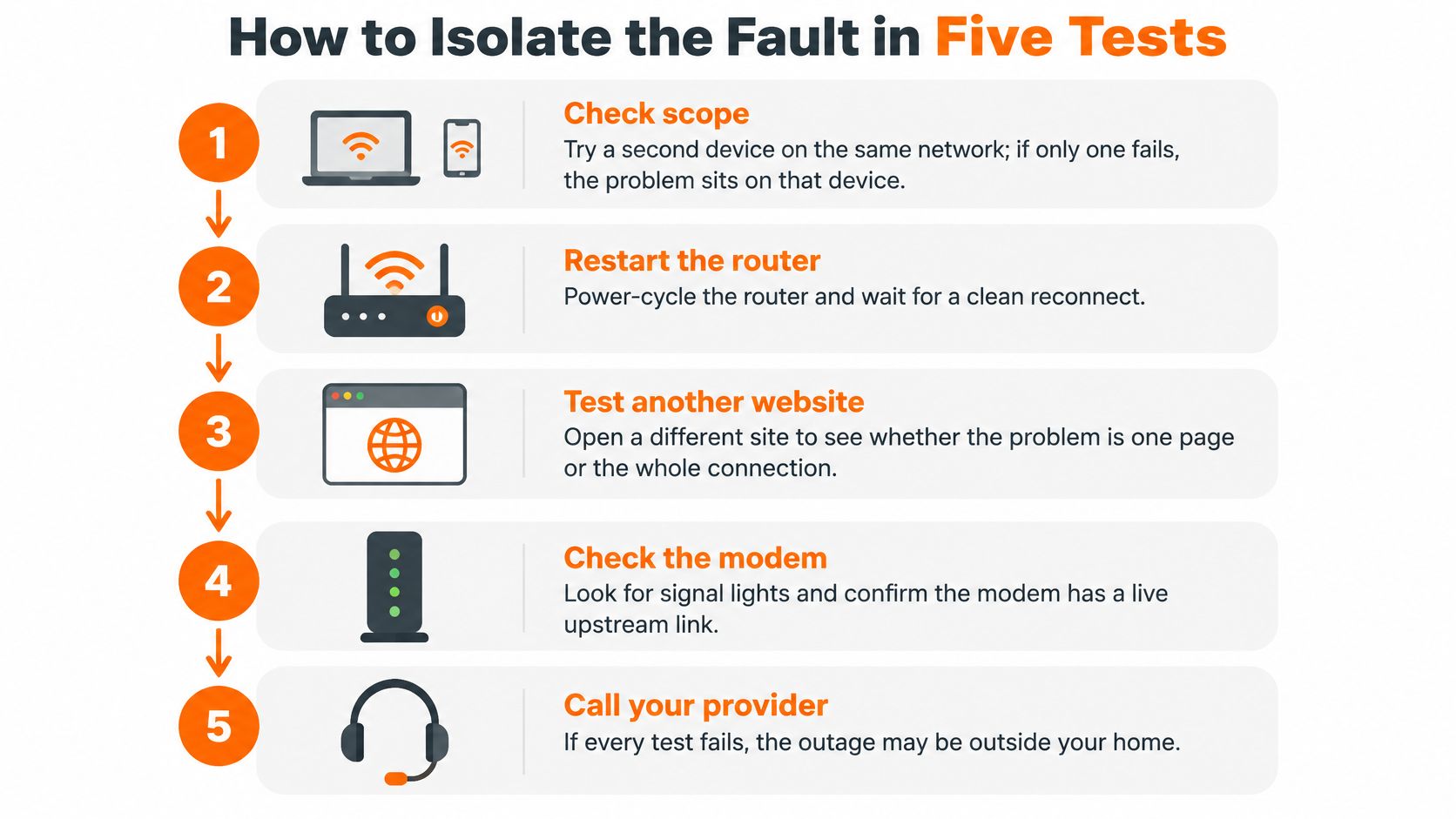
Run the tests in order and stop at the first one that fails. Work from the device outward: scope first, then the local link, the gateway, the public path, and name resolution last. Each test narrows the fault before you change any configuration. A successful ping to a public address combined with failed name resolution points squarely at DNS, while failure to reach both the router and a public address points at the local link or the router itself.
The sequence is quick on a working connection, and the order matters more than speed.
Start with scope, not settings
1. Check scope. Open the same site on a second device on your network. If the second device loads it, the fault is on the first device, so stay in its Wi-Fi settings and leave the router alone. This one test eliminates half the possibilities in under a minute.
2. Confirm the device has a real address. On Windows run ipconfig /all; on macOS or Linux run ifconfig or ip addr. A normal address issued by your router proves the Wi-Fi or Ethernet link is up. An address in the self-assigned link-local range means the device never received a lease, so you are looking at association or DHCP rather than the provider.
3. Ping your own router. The default gateway appears in the output you just read. Ping it four or five times. If it does not answer, the fault sits between your device and the router: cable, radio link, or the router itself. The common causes of a missing gateway are covered in this walkthrough of a default gateway that is not available.
4. Ping a public address. Choose a well-known public resolver address, stable enough to test against and easy to remember. If the router answers but this does not, the fault is beyond your router, at the modem, the provider, or an upstream route. Restarting your laptop again will not touch it.
5. Test name resolution last. Run nslookup or dig against a domain you know is up, such as a major search engine. A clean answer to the public ping plus a failed lookup isolates DNS, which usually means a settings change rather than an outage call.
The record that matters: one line per step, pass or fail. When you ring support, "gateway responds, public address responds, lookups time out" gets you a DNS answer immediately. "It's not working" starts the conversation at zero.
Why Wi-Fi Shows Connected but Nothing Loads
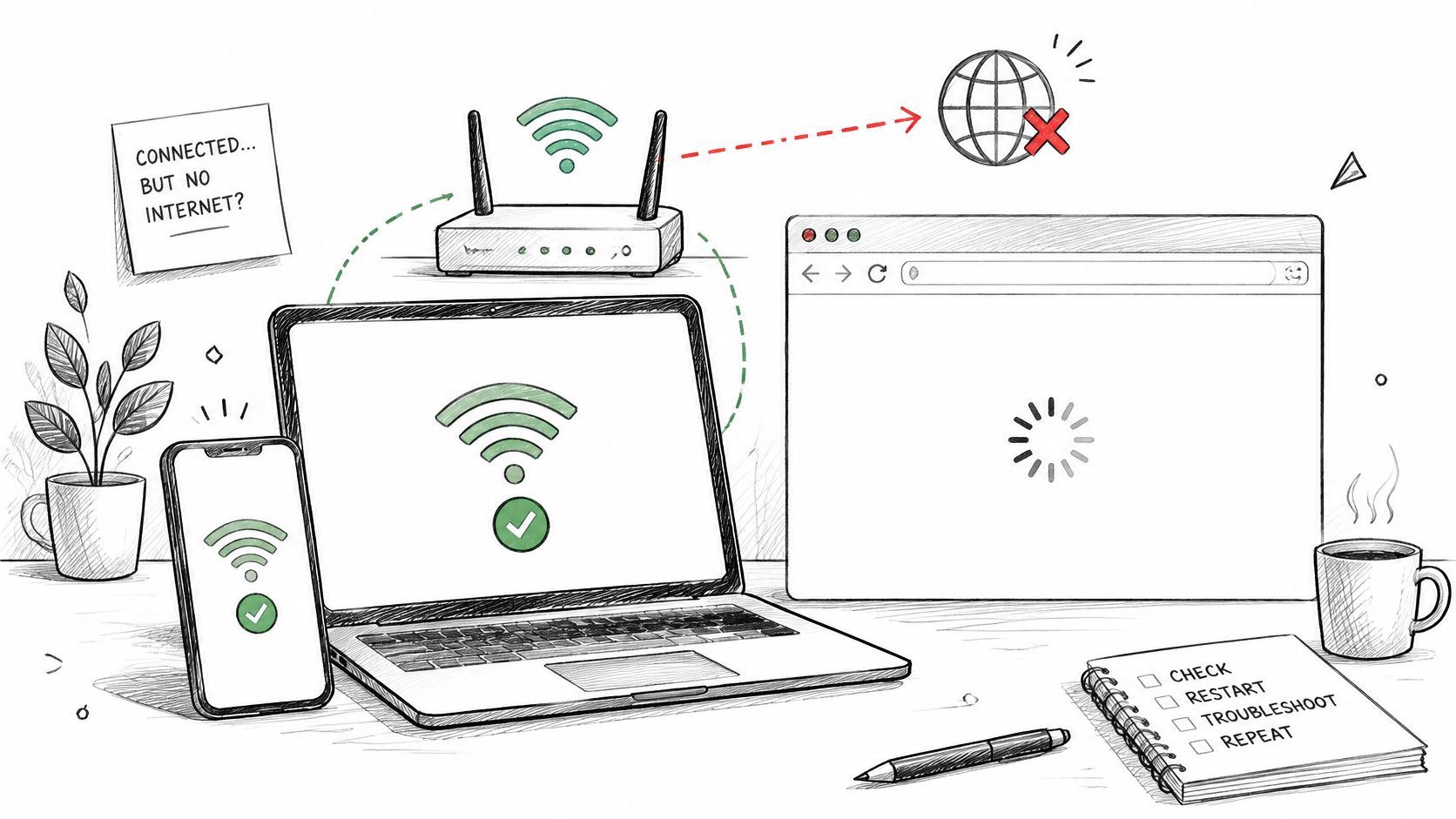
A connected Wi-Fi icon is the most misread signal in home networking. It proves your device completed a handshake with the router's access point, nothing more. The router can be sitting there with no uplink to the provider at all, happily broadcasting a network your devices join without reaching anything.
This isn't a rare edge case. A CNET survey of U.S. adults found that 86% have experienced Wi-Fi signal drops or disconnections, 19% report ongoing problems, and 78% say Wi-Fi performance affects their activities. The connected icon is doing a lot of misleading work in a lot of homes.
Read the router's two lights separately
Most routers have a light for the wireless network and a separate one for the internet or WAN link. Solid Wi-Fi with an off or blinking internet light tells you the wireless side is fine and the path to the modem or provider is down. That distinction alone decides whether you troubleshoot your router or contact your provider.
Take the wireless out of the picture
Connect one laptop to the router with an Ethernet cable and load a page. A wired laptop that works while Wi-Fi devices fail puts the fault on the wireless side, which means channel, range, interference or the radio itself. A wired laptop that also fails moves the problem upstream.
If you're stacking two routers, a router plugged into another router's LAN port, check the wide-area address the inner one received. A private address rather than a provider-assigned public one means double routing, a frequent cause of strange failures that appear after someone adds a router for better coverage.
Here's the field walkthrough of those checks in order.
Restart the modem and router once, unplugged for thirty seconds, then wait for both sets of lights to settle before retesting. One clean restart tells you something. Five in a row tells you nothing and wipes the evidence.
Measure Drops and Slowdowns Before Changing Settings
One speed test tells you almost nothing about an intermittent fault. Before you touch DNS, Wi-Fi channels or router settings, collect at least 20 to 30 ping samples to the gateway and the same number to a stable public target, plus download and upload speed, idle latency, loaded latency, jitter and packet loss, and note the clock time of each run.
The FCC's fixed broadband measurement methodology shows why a single test is inadequate. Its latency and packet-loss testing sends roughly 2,000 packets per hour at randomised intervals, and it measures UDP round-trip latency and packet loss, DNS resolution time, and throughput across three concurrent TCP connections. Your ad-hoc test should lean on the same principle: sample over time, not at one convenient moment.
Read a trace from the last hop backwards
For intermittent faults, run mtr on macOS or Linux, or WinMTR on Windows, for several minutes and record loss and latency per hop. Then read the route from the destination backwards. Loss at a single middle hop with a clean final hop usually means that router deprioritises diagnostic packets while forwarding real traffic normally, so it's harmless. Loss that continues all the way to the last hop is real.
Latency feels like lag. Packet loss feels like stalls, frozen video and dropped calls. Congestion usually pushes both up together, which is why the evening is the worst time to test and the best time to observe.
| Result pattern | What it points to | Next step |
|---|---|---|
| Repeated loss to the gateway | Local Wi-Fi interference, Ethernet fault or router overload | Test over a cable and change the Wi-Fi channel |
| Clean gateway, loss to public address | Modem, provider or upstream route | Keep the log and contact the provider |
| Clean public address, slow or failed name lookups | DNS | Switch to another resolver and retest |
| Loss only at one middle hop, clean final hop | Router deprioritizing diagnostic packets | Ignore this hop and watch the final destination |
The common mistake is swapping DNS when the defect is packet loss. Name lookups are lightweight, so high latency can make them time out and produce a symptom that looks exactly like a DNS failure. Measure first, then change one thing at a time.
If your drops cluster at the same hour every evening, the interference and channel side is covered in this guide on why Wi-Fi keeps disconnecting.
Check for a Provider Outage Before Restarting Again
Your instinct when the connection dies is to restart something. When the fault is outside your home, that instinct costs you the information you need.
Wide-area disruptions are routine rather than exceptional. Cloudflare Radar's 2024 year in review recorded 225 major internet disruptions worldwide during 2024, spanning government-directed regional and national shutdowns, damage to undersea and terrestrial cables, and power outages that interrupt service across cities, countries or whole regions. Cloudflare measures these events from traffic data, which is how scope and duration get established beyond individual customer complaints.
The four signs of an area-wide fault
- Your neighbours are down too. A quick message in a group chat settles it faster than any test on your own equipment.
- The provider's app or status page shows an incident. Check it from mobile data, not from the connection that's failing.
- The modem's internet light is off while power and sync stay steady. That pattern says the line isn't carrying traffic, not that your hardware died.
- A storm or power cut hit your street recently. Cable damage and grid faults both surface this way.
Waiting rule: if your provider confirms an outage, stop restarting. Note the time it began, and check again in 30 to 60 minutes. A confirmed outage needs restoration, not another reboot cycle.
No local restart repairs a fault outside your home. When you contact the provider, lead with the start time and the evidence from your log rather than a fresh description of the symptom. Move on to logging only when no outage is confirmed.
Keep an Outage Log to Decide Whether to Escalate
The same complaint, "my internet keeps dropping", can come from six different faults that need six different responses: a regional outage, evening congestion, an overheating modem, damaged cabling, Wi-Fi interference, or a device that sleeps and drops its connection. A written log is what separates them.
Dropouts are common enough that one bad night proves nothing. Reporting based on Cloudflare's 2025 analysis identified more than 180 internet disruptions worldwide during the year, from localised incidents to multiday national outages, with technical failures the leading cause. The same reporting cites U.S. survey evidence that 56% of households reported at least one home-internet problem in a 90-day period, including outages, Wi-Fi dead spots and slow speeds.
The columns that make the log useful
Record the date and time, which devices were affected, whether you were on Wi-Fi or a cable, how long it lasted, how long the router had been running since its last restart, any weather or power event, and any provider outage notice. Seven columns, a minute per entry.
When the log justifies a call
Two patterns do the work. Entries that repeat at the same time of day across two weeks point to congestion, and that's a provider conversation with your log attached. Drops that happen in dry weather with a warm modem point at hardware or cabling, which justifies a repair visit or a replacement unit.
While the fault continues, keep working. A phone hotspot covers essential calls and email, a small battery backup on the modem and router rides out brief power cuts without resetting your connection, and a short list of offline tasks means a dead evening doesn't become a dead day.
Decide Whether to Call Your ISP or a Technician
One rule decides it. If your tests fail upstream of the router, you call the provider. If they fail on a single device, you fix the device.
The wired test failing while the modem's internet light is off is provider territory. Call with the log, the timestamps and the five-line test record, because that's what turns a vague complaint into a ticket an engineer can act on.
The wired test passing while Wi-Fi fails everywhere is yours to solve. Move the router off the floor and out of a cabinet, change the channel, update the firmware, and replace the unit if the range problem survives all three.
When the fault is on one computer, the cause is usually settings, a stale network profile, an update that broke a driver or a security tool holding the connection. That's where our Wi-Fi and network troubleshooting service comes in, working through dropped connections, slow internet and router connectivity issues with you on the session rather than on your own.
Two things to expect from any legitimate remote session. Technicians never ask for passwords or payment details during a session and never run anything on your computer without explicit consent, so approve the connection only after the consent notice appears. And when a problem sits outside what a remote session can reach, such as a hardware failure or physical damage, the honest answer is that it does, followed by the right next step rather than an attempt to work around it.
Call the provider when the log shows a provider-side fault. Call a technician when the fault is on the device. Either way, have the timestamps and test results ready before the call starts.
If your tests land on one Windows or Mac machine rather than the line coming into your house, that's the kind of fault a remote session resolves in a single sitting. 247TechTeam's certified technicians work through network settings, connectivity problems and the software side of a connection while you watch, and the 247TechTeam antivirus and support offering pairs that help with real-time protection for the computer itself. Bring the five lines from your test record and the timestamps from your outage log, and the session opens with the diagnosis half finished.