How to Scan for Malware and Read the Results
Learn how to scan for malware on Windows and Mac, choose the right scan type, read the results, and check your PC is truly clean.
A finished scan tells you what one tool found, at one moment, with one set of definitions. That's useful information, but it isn't the end of the job. When you scan for malware, treat the result as the start of verification, check what the alert points to, and confirm nothing suspicious is still set to run, sign in, or forward your mail.
Scan Types and When to Run Each
New malware samples keep appearing in large numbers, so scanning belongs in a regular routine as well as in recovery after something breaks. The useful question is which scan answers the problem in front of you: real-time protection watches activity as it happens, while scheduled and on-demand scans check files that arrived earlier or slipped past the first check.
| Scan type | What it checks | Typical duration | Run it when |
|---|---|---|---|
| Real-time protection | Files, downloads and processes as they open | Always running | Keep it enabled at all times |
| Quick scan | Startup areas, running processes and common hiding spots | Minutes | Weekly routine check or after a suspicious download |
| Full scan | Every file on every connected drive | Longer, often an hour or more on large drives | Monthly, or after a suspected infection |
| Custom scan | One folder, USB drive or downloaded file | Seconds to a few minutes | Before opening a file from outside your computer |
| Offline or boot-time scan | Files while Windows is not running | Longer, requires a restart | Persistent threats or suspected rootkit activity |
Mac users will see the same categories inside their antivirus app, even if the labels differ slightly. If you're unsure what your software is doing behind those labels, check what antivirus software does during real-time and on-demand scanning before you change settings.
Default schedule: Keep real-time protection on, run a quick scan weekly, run a full scan monthly, and save an offline scan for threats that keep coming back.
That cadence gives you frequent checks of likely hiding spots, a deeper periodic sweep, and a stronger option when a normal scan cannot reach a file because Windows or the malware itself is in the way. Treat the scan type as the first decision in verification: quick scans answer whether anything is active now, full scans answer whether anything hid elsewhere, and offline scans answer whether something is protecting itself while Windows runs.
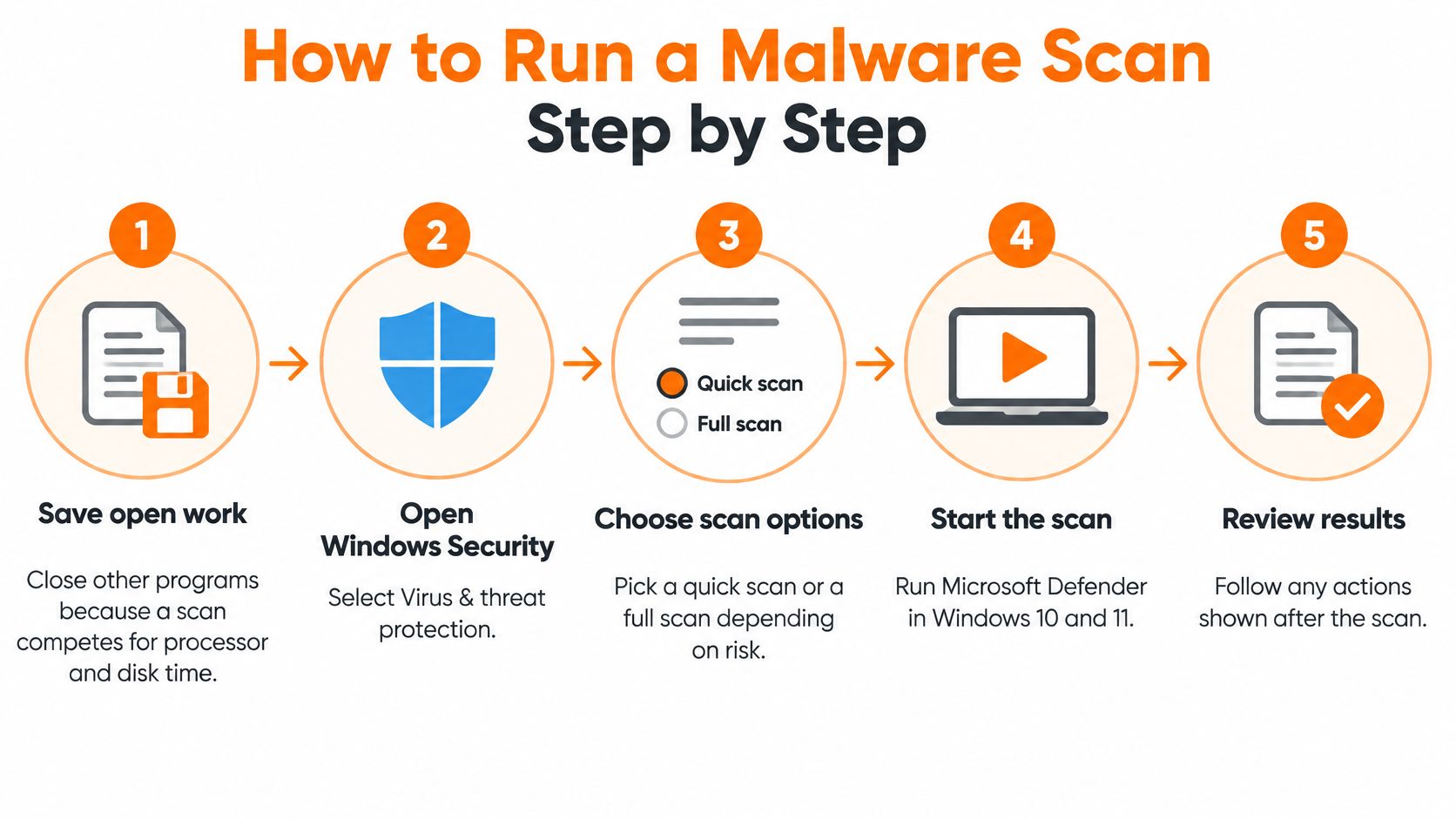
How to Run a Malware Scan Step by Step
Use Microsoft Defender first on Windows 10 and 11. It's already installed, its definitions update through Windows, and you don't need to download an unknown cleaner while you're worried about an infection.
Windows Quick and Full Scans
- Save open work and close other programs. A scan competes for processor and disk time, so closing apps makes it finish faster and reduces locked files.
- Open Windows Security, then Virus & threat protection. Select Protection updates, then Check for updates, because scanning with old definitions can miss recent threats.
- Select Quick scan and leave the computer alone until it finishes. Don't cancel it because the fan gets loud or progress looks slow.
- If a threat appears, select Start actions and follow the prompts. Write down the threat name and file path before you remove anything, since you'll need them if the same item returns.
- If suspicious activity continues, open Scan options and run a Full scan. A quick scan doesn't inspect every folder, archive, and connected drive.
- Restart when prompted, then run one more quick scan. The second result tells you whether the item stayed gone after startup programs loaded again.
A clean finish shows a no-threats message with the scan date and time in your history. Note that time. If symptoms started after it, you're dealing with a different timeline than you thought.
Windows Offline Scan
- Open Windows Security, select Virus & threat protection, then Scan options. Defender keeps scans beyond the quick option here.
- Choose Microsoft Defender Offline scan and select Scan now. Malware that hides while Windows runs can sometimes be reached only when Windows isn't running.
- Save your work first, since the PC restarts. I'd allow around 15 minutes and keep a laptop plugged in.
- After the restart, review Protection history. Note any item that couldn't be cleaned instead of immediately running the same scan again.
Mac Scans
macOS runs built-in protection in the background, so most Mac users use a dedicated antivirus app for on-demand scans.
- Open your antivirus app and confirm the last definition update date. An outdated database can miss recent threats.
- Run the quick scan and note the number of items found. Zero, one, and several findings lead to different next steps.
- Run a full scan on the internal drive and any external drives. Files on removable media are a common way for unwanted software to arrive.
- Open the scan history and save the report. You'll want it for comparison if you scan again after cleanup.
If your Mac app offers a boot-time or deep scan, run it after a restart when a threat returns. Don't stack several scanners at once. They'll fight over the same files and make the results harder to interpret.
What Scan Results Mean Before You Act
Read the label before you click. The same red banner can mean a file is already isolated, a browser add-on is unwanted, or the scanner couldn't finish the job at all.
| Result | What it usually means | Your next step |
|---|---|---|
| Quarantined | Scanner isolated the file and blocked it from running | Confirm the file name and source, then delete it unless you need it |
| Removed | Scanner deleted the threat automatically | Rescan, then check startup items and browser extensions |
| Potentially unwanted app | Adware or bundled software, usually not a virus | Uninstall it through Settings if you did not expect it |
| Action needed | Threat could not be cleaned automatically | Run an offline scan, then escalate if it returns |
| Scan failed or interrupted | Scan did not finish | Restart, update definitions and run the scan again |
An Alert Is a Signal
A detection name beginning with Trojan, Ransom, or PUA describes a suspected category, not a confirmed diagnosis. Scanners also flag legitimate tools whose abilities look dangerous. Encryption, compression, backup, password-management, and secure-deletion programs can resemble ransomware because they transform or erase files at scale.
That overlap is measurable. In a peer-reviewed ransomware study of 2,675 samples plus a 300-sample dual-use set, a standalone XGBoost classifier produced a 57.89% false-positive rate on the dual-use holdout under family-disjoint testing, according to the peer-reviewed ransomware detection study in Scientific Reports. Your antivirus isn't that research model, but the trade-off is real. Catching more unfamiliar threats usually means flagging more legitimate tools.
Before you delete or restore, check these points:
- Publisher signature: Is the file signed by the company you expect, and is that signature valid?
- File path: Is it in the program's normal folder, or in Downloads, Temp, or an oddly named AppData subfolder?
- Installation history: Did you install it, and does the date match when the problem started?
- Parent process: What launched it, your normal app, a browser, a script, or an unknown program?
- Network destinations: Is it contacting addresses you can't connect to the program's stated job?
If the same item is flagged again after removal and a restart, stop treating it as a one-off alert. Treat it as a live persistence problem.
Quarantine, Restore or Delete Flagged Files
Say your scanner quarantines a legacy accounting utility or disk tool you need for work. Restoring it because you're busy is risky, and deleting it because one engine dislikes it can break a workflow you depend on. Quarantine gives you a third option: hold the file where it can't run, then decide with evidence.
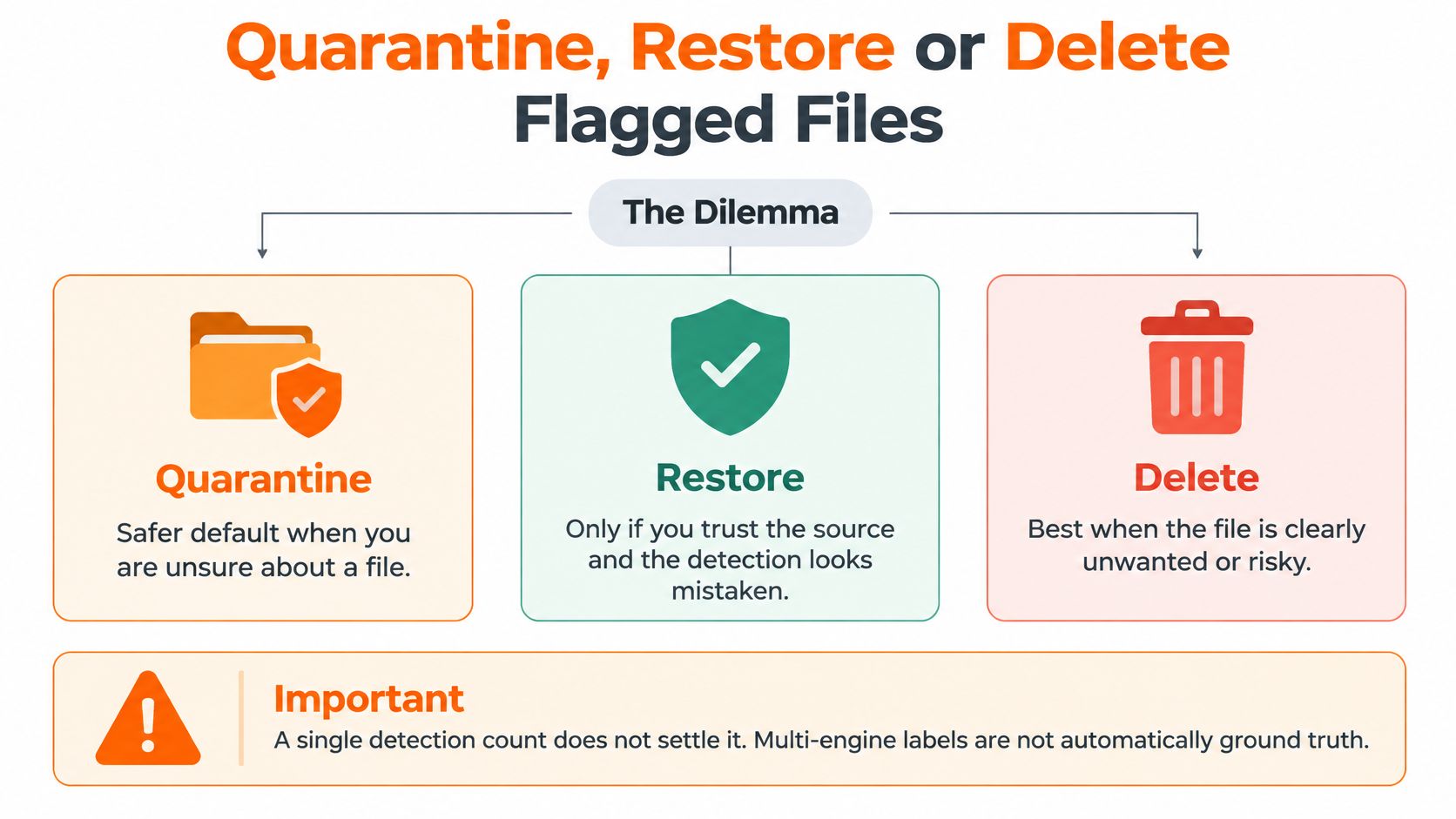
A single detection count doesn't settle the question. A 2026 VirusTotal-based evaluation reported a 2.92% false-positive rate in its analyzed sample and noted that fewer than 20 antivirus engines flagging a sample may not establish maliciousness with certainty, according to the 2026 VirusTotal-based evaluation of false positives. Treat a low engine count as a reason to keep checking.
Quarantine buys you that checking time. It isolates the flagged item so it cannot run or touch the rest of the system, and a file can sit there for days while you verify it. A postponed decision costs nothing. A hasty restore or an irreversible delete can.
Work in This Order
- Leave the file quarantined while you verify it. Quarantine is the default state until the evidence points somewhere.
- Search the file hash on a reputable reputation service. Look for corroborating detections, first-seen dates, and the original file name.
- Check whether other alerts appeared in the same scan. One isolated detection reads differently from a cluster that arrived right after a suspicious download.
- Restore only when the evidence consistently points to a false positive. If the checks disagree, the file stays where it is.
- Delete when the evidence won't clear the file. An unknown origin, alerts clustering around it, or unexplained network activity all argue against keeping it.
Before restoring, record the file name, hash, detection name, source, date, decision, and reason. That note lets you reverse the decision quickly if the file behaves badly after it comes back. For items you decide shouldn't stay, follow a structured process to remove malware and its leftover startup entries rather than deleting random folders by hand.
Why a Clean Scan Does Not Prove Safety
"Scan completed, no threats found" is an operational status, not proof the computer is safe. It means that scanner, with those definitions, didn't match anything in the places it checked. Obfuscated, scripted, injected, or sandbox-evading malware can take longer to identify, and account compromise can continue even when no malicious file remains.
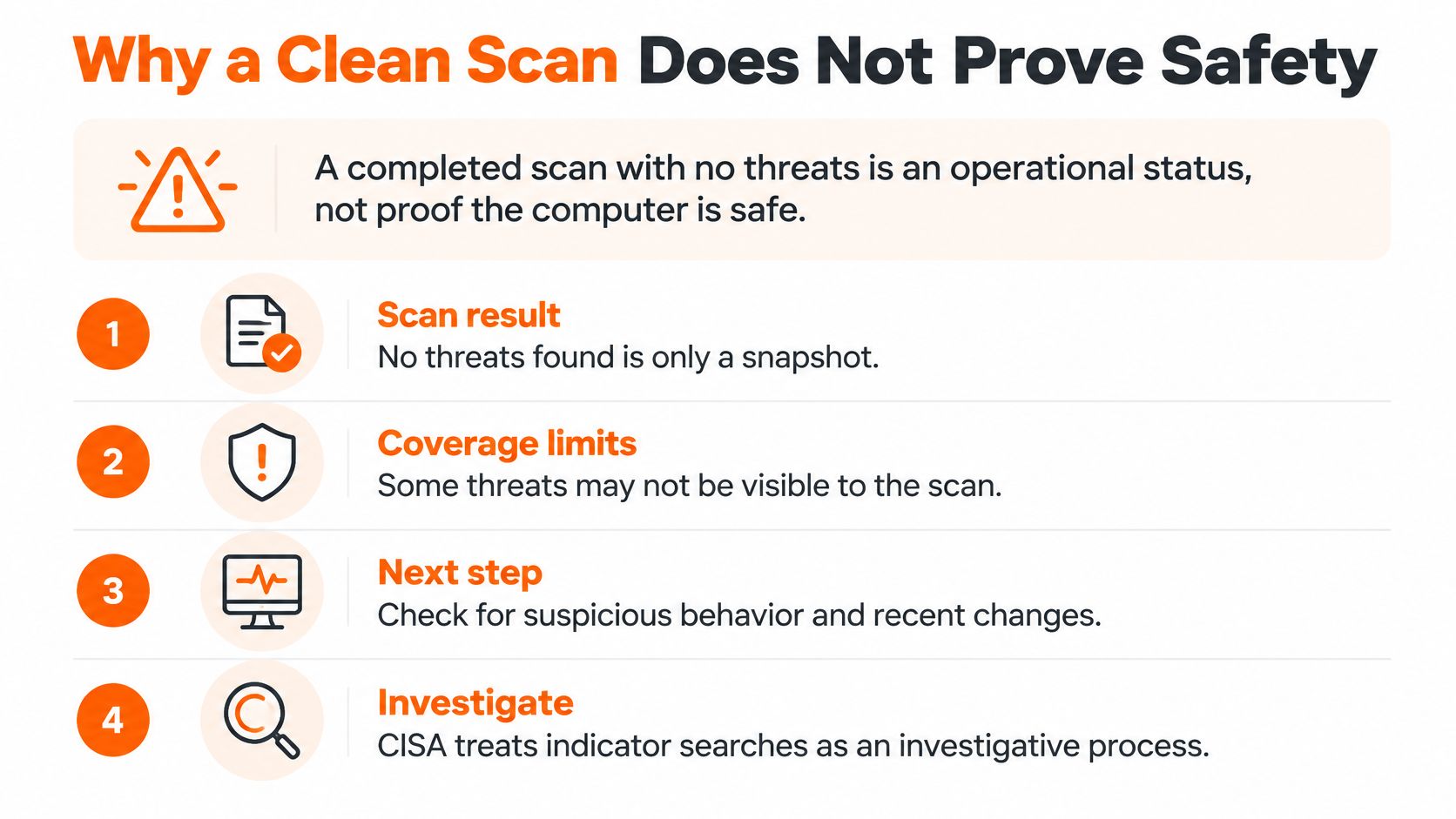
That's why CISA guidance on indicator-of-compromise searches describes the work as an investigative process requiring review of host and network artifacts and elimination of false positives. You don't need forensic tools for a home check. You do need to look beyond the green check mark, especially after opening a suspicious attachment such as a document discussed in whether a PDF can have a virus.
Ten Minute Post-Scan Checks
- Review browser extensions and homepage settings. Remove extensions you don't recognize and reset changes you didn't make.
- Check startup items and scheduled tasks. Look for unfamiliar names, blank publishers, or entries created on the day symptoms began.
- Inspect email forwarding and auto-delete rules. Attackers use hidden rules to intercept mail and conceal password reset messages.
- Review recent sign-in activity and active sessions on email and banking accounts. End sessions you don't recognize.
- Change passwords for those accounts from a device you trust. Don't type new credentials into a machine you still suspect.
- Check other devices on the same network. Shared folders, synced browsers, and reused passwords can carry a problem sideways.
- Confirm backups are intact and unchanged. Open a few files from the backup rather than trusting a successful job message.
Don't run repeated full scans without new evidence. They consume hours and usually return the same answer. If a checklist item looks wrong, files are changing, or new administrator accounts appear, move to escalation.
Ransomware and Serious Infections Need Escalation
Some findings shouldn't become a weekend cleanup project. Verizon's 2025 Data Breach Investigations Report found ransomware in 44% of breaches reviewed, up from 32% in the prior report, and in 88% of breaches at small and medium-sized businesses compared with 39% at larger organizations, according to the 2025 DBIR executive summary from Verizon.
The warning below shows the moment to stop routine scanning and start containment.
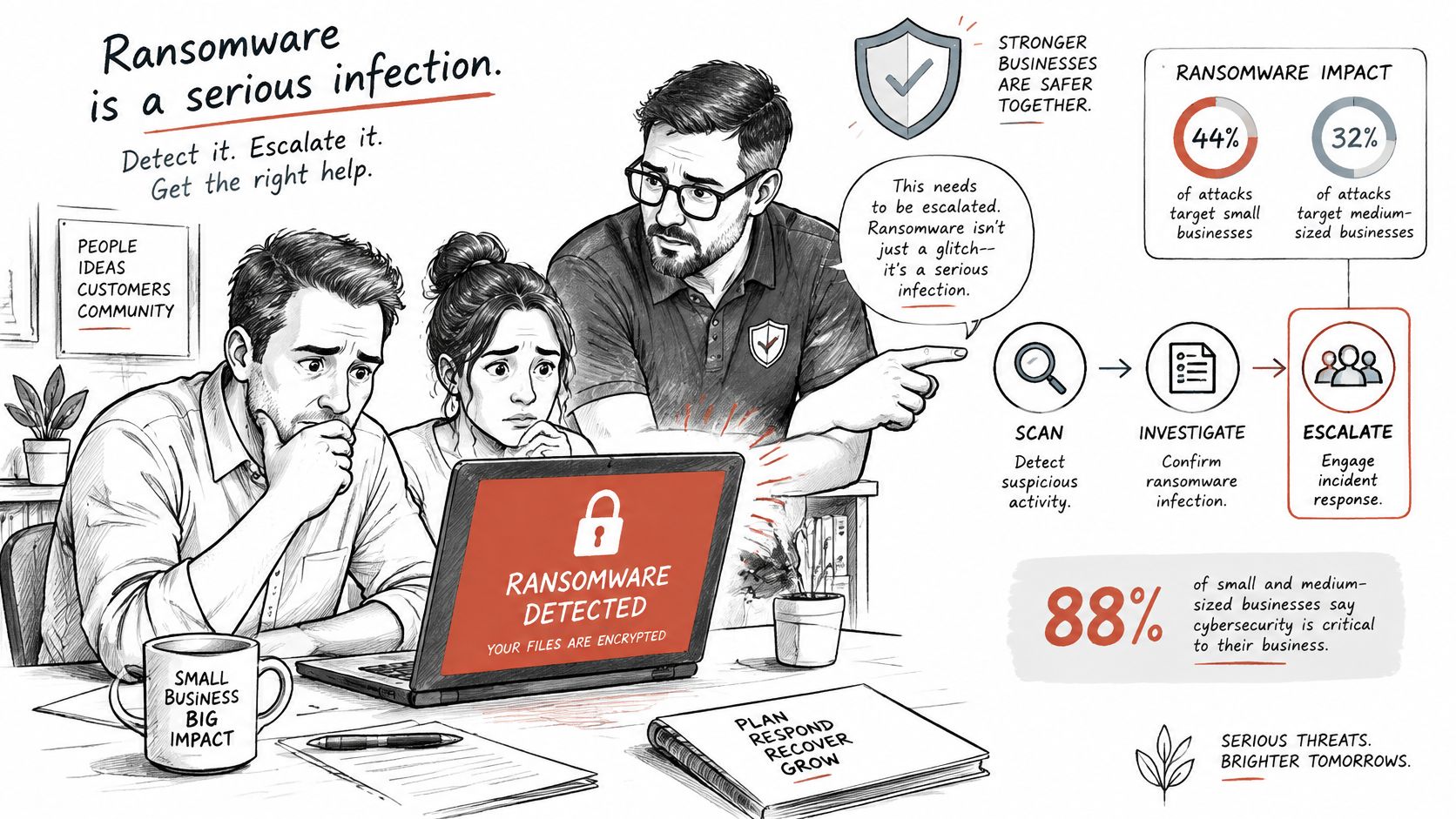
Watch for these signs:
- Files suddenly won't open or carry new, unfamiliar extensions.
- A ransom note appears on the desktop or inside folders.
- Files change rapidly without you editing them.
- Unfamiliar administrator accounts appear in user settings.
Act in This Order
- Disconnect the computer from the network. Turn off Wi-Fi and unplug any Ethernet cable.
- Don't delete files or the ransom note. Photograph the screen, including any wallet, contact, or timer details.
- Don't pay or respond to the demand. Payment doesn't guarantee recovery and can mark you for repeat targeting.
- Use a second, trusted device to change passwords for critical accounts after the computer is isolated.
- Contact a qualified technician or incident responder. Bring the photos, scan history, and approximate time symptoms started.
The short walkthrough below reinforces why isolation comes before more scanning.
Protect yourself from support scams while you're stressed. Our technicians never ask for passwords or payment details during a session, and never run anything on your computer without explicit consent. If files are being changed or a ransom note appears, stop scanning and escalate.
Confirm Your PC Is Clean and Stay Protected
Choose the right scan, run it on current definitions, then verify the result with the post-scan checks. That sequence matters more than scanning constantly. Keep real-time protection on, quick scans weekly, and full scans monthly.
Add one habit. Scan any file from outside your computer before opening it, including USB drives, email attachments, and installers from a vendor you haven't used before.
Our tools support that routine directly. Quick Scan is a fast targeted scan of the areas where threats hide most often, Scan History lets you review past scans and what was blocked, and Virus & Malware Assistance identifies and removes unwanted software, pop-ups and suspicious programs that remain after your checks.
Run a quick scan now. Then open Scan History and confirm today's result, date, and time are recorded.
If a scan keeps flagging the same item, your browser settings won't stay fixed, or you aren't confident deciding whether to restore a quarantined file, we can walk through the evidence with you and clean up what remains. Visit 247TechTeam to set up antivirus protection with Quick Scan, Scan History, and Virus & Malware Assistance, and get remote help before a suspicious file becomes a bigger account or ransomware problem.