What Is Disk Cleanup and What It Safely Deletes
What is disk cleanup? Learn which Windows files it removes, how to run it safely, and how it differs from deleting your personal files.
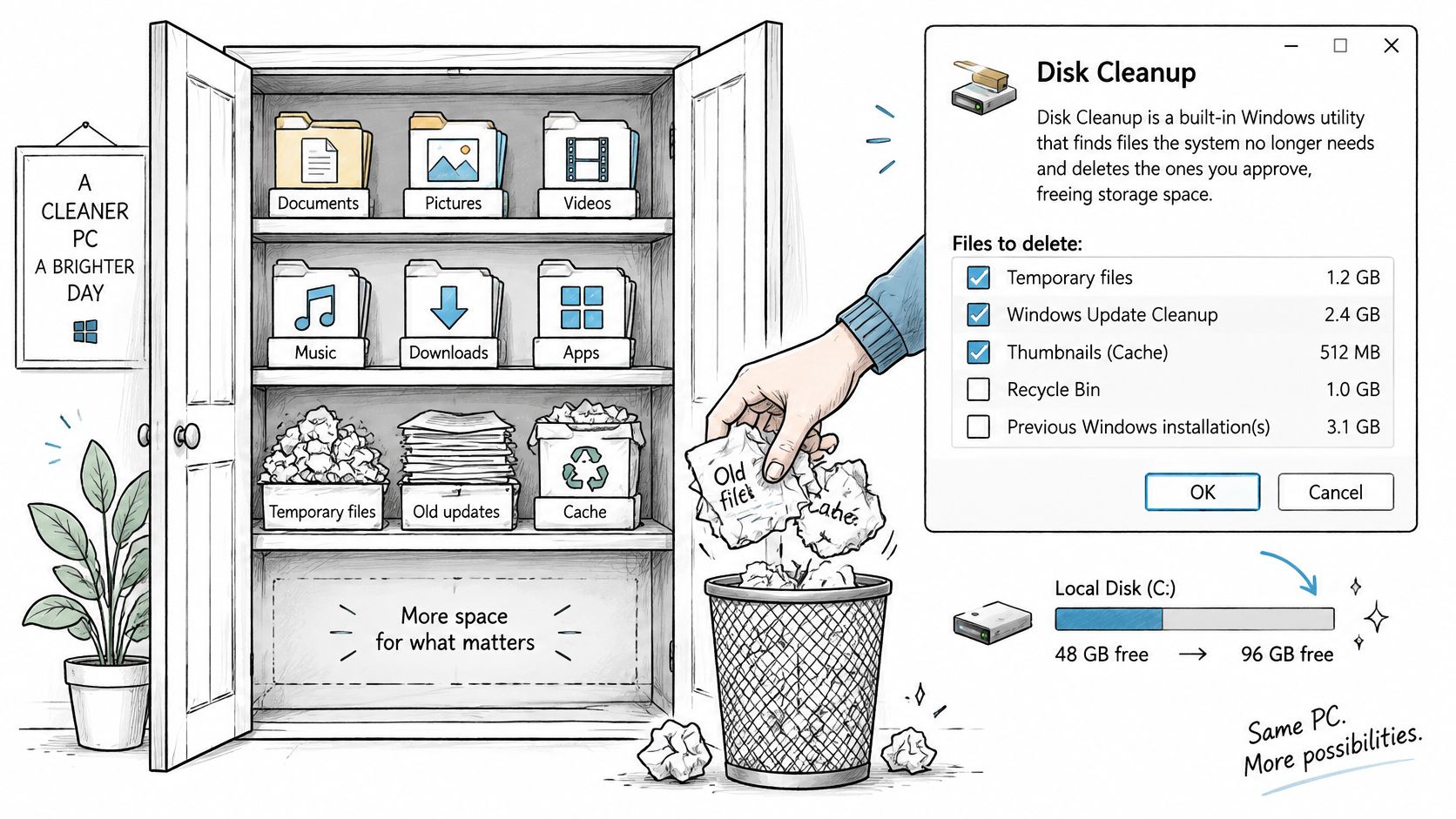
Disk Cleanup is the built-in Windows utility that finds files the system no longer needs and deletes the ones you approve, freeing storage space. It has shipped with Windows for decades and it still works the same way: it lists categories, estimates what each one holds, and waits for your click.
So why does a tool built to remove junk stop and ask permission for every box instead of sweeping the drive clean? Because the boxes are not equal. One holds a thumbnail that rebuilds itself the moment you open a folder. Another holds the only copy of a file you deleted last month. Treating those two the same is how people lose things they meant to keep.
The useful skill here isn't memorizing a list. It's sorting every category by what it costs you if you get it wrong: a slower reload, or something you can't get back.
What Disk Cleanup Is and Why Windows Includes It
Think of a closet so full the door won't shut. You could tip the whole thing into a skip, but you'd lose the passport photos along with the expired coupons. Disk Cleanup takes the other route. It sorts the clutter into labelled boxes, tells you roughly how much each box holds, and empties only the ones you tick. You stay the decision maker, and that is the entire design philosophy.
The tool is older than most of the files it deletes. It arrived with Windows 98 in 1998 and has carried through every release since, including Windows 10 and Windows 11. Wikipedia's Disk Cleanup entry traces that history and notes the program still runs under the executable name cleanmgr.exe, which is why a search for it in the Start menu works on almost any machine you sit down at.
Microsoft later built a second, quieter version of the same idea. With Windows 10 version 1803 in 2018, the company added Storage Sense to the Settings app, an automated option that runs on its own while Disk Cleanup stayed available for anyone who wants to see the list and decide. Two tools, one job, different amounts of human attention.
Here's where people go wrong. Disk Cleanup is a storage tool. It is not a speed booster, not an antivirus scanner, and not a repair utility. The same historical record frames it as a long-standing operating-system function centered on reclaiming capacity rather than a guaranteed fix for processor performance or malware protection. A temporary file, by the way, is scratch data a program writes while it works and normally deletes when it closes. Nothing mysterious: it's the working-out paper of the software world.
What you get back depends on your Windows version, your update history, how much you browse, and how long it's been since anyone tidied up. Free space is the deliverable. Nothing else is promised.
What Disk Cleanup Removes and What It Keeps
Start with the boundary, because it removes most of the fear. Disk Cleanup has no category for your Documents, Pictures or Desktop, and none for the Downloads folder. Those files stay exactly where they are. The tool only touches the named categories it shows you, plus whatever you already dropped in the Recycle Bin.
That last part deserves its own sentence. Deleting a personal file yourself doesn't destroy it, it moves it to the Recycle Bin. Tick the Recycle Bin box inside Disk Cleanup and the safety net empties, so the file is genuinely gone. That is the single most dangerous click in the whole window, and it's easy to make without thinking.
Microsoft identifies the default categories as Downloaded Program Files, Temporary Internet Files and Thumbnails, and the expanded scan adds more choices on top. Its guidance on what Windows Disk Cleanup removes sets out the two rules worth memorizing: temporary files untouched for the previous week can generally be deleted safely, and clearing Temporary Internet Files deletes cached page copies while keeping your personalized web settings.
What each category costs you
The table below is the part readers come back to. Read the last column before you open the tool, not after.
| Category | What it holds | Effect of removing it | Review before deleting |
|---|---|---|---|
| Temporary files | Scratch data created by running programs | Removed when programs exit; generally safe if unchanged for a week | No |
| Downloaded program files | Components that web pages download to run | Downloaded again if a page needs them | No |
| Temporary Internet Files | Cached copies of web pages | Pages load more slowly on the next visit; personal web settings are kept | No |
| Thumbnails | Preview images of pictures and documents | Previews regenerate the next time folders are opened | No |
| Recycle Bin | Files you already deleted | Permanent removal that cannot be undone | Yes |
| Delivery Optimization files | Update files shared with other computers | Downloaded again when needed | No |
| Windows error reports | Crash and error logs | Diagnostic history is lost | Only if you are troubleshooting |
| Previous Windows installations | Old system files kept after an upgrade | Rolling back to the earlier Windows version is no longer possible | Yes |
Notice how lopsided it is. Six of the eight cost you a slower reload or a regenerated preview. Two can cost you data. Your attention belongs on those two.
Working rule: if a category describes something Windows can rebuild, tick it. If it describes something you made, downloaded or might still want, read it twice.
Cache folders are also a favourite hiding place for unwanted software, which is why a malware scan belongs alongside cleanup rather than instead of it. Disk Cleanup deletes files by category. It has no idea what those files contain.
How to Run Disk Cleanup Step by Step
Before anything else, open File Explorer and note the free space on your system drive. You need a baseline, otherwise you can't tell whether the run achieved anything.
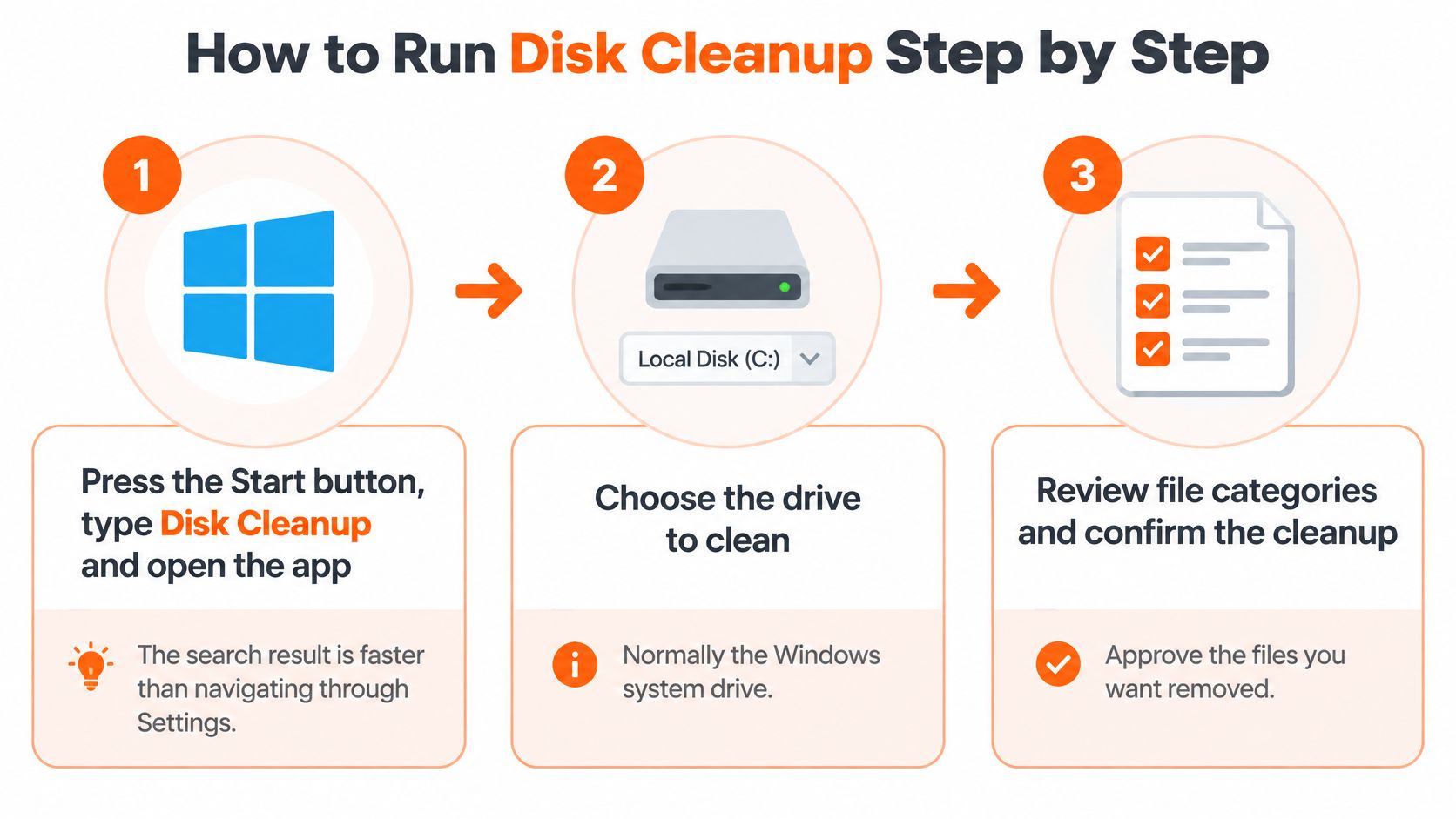
Now the six steps. Each one has a reason, and the reasons are where the mistakes hide.
- Press Start, type Disk Cleanup, open the app. The search result gets you there in seconds, where navigating Settings, System, Storage takes longer and hides the same shortcut.
- Choose the drive to clean, normally C:. Selecting the wrong volume leaves the space you needed untouched, and you'll finish the run convinced the tool doesn't work.
- Wait while it calculates recoverable space. It isn't frozen. Scanning a large drive takes a few moments, and clicking around during the scan can restart or interrupt it.
- Read each category description and tick what you want gone. Untick anything you need, especially the Recycle Bin if it might hold something you'd still like back.
- Click Clean up system files for a deeper scan, then pick the drive again. This is the higher-privilege pass that exposes previous Windows installations, driver packages and update remnants, documented on Microsoft's guide to freeing up drive space in Windows.
- Click OK, then Delete Files. Nothing is removed until you confirm, which is exactly the right moment to change your mind.
Then close the loop. Reopen File Explorer and compare the same drive you checked a minute ago. That number is your answer, and it's more honest than any vague sense that the computer "feels lighter".
The run takes a few minutes and needs no restart. Video walkthroughs help if you like watching the clicks happen:
System Files and the Rollback Trade-Off
Everyone wants the big win. The system files scan is where it lives, and it's also where the only irreversible choice sits. Name the cost first: delete your previous Windows installation and you can't go back to the earlier version. Not through Settings, not through a support call, not at all.
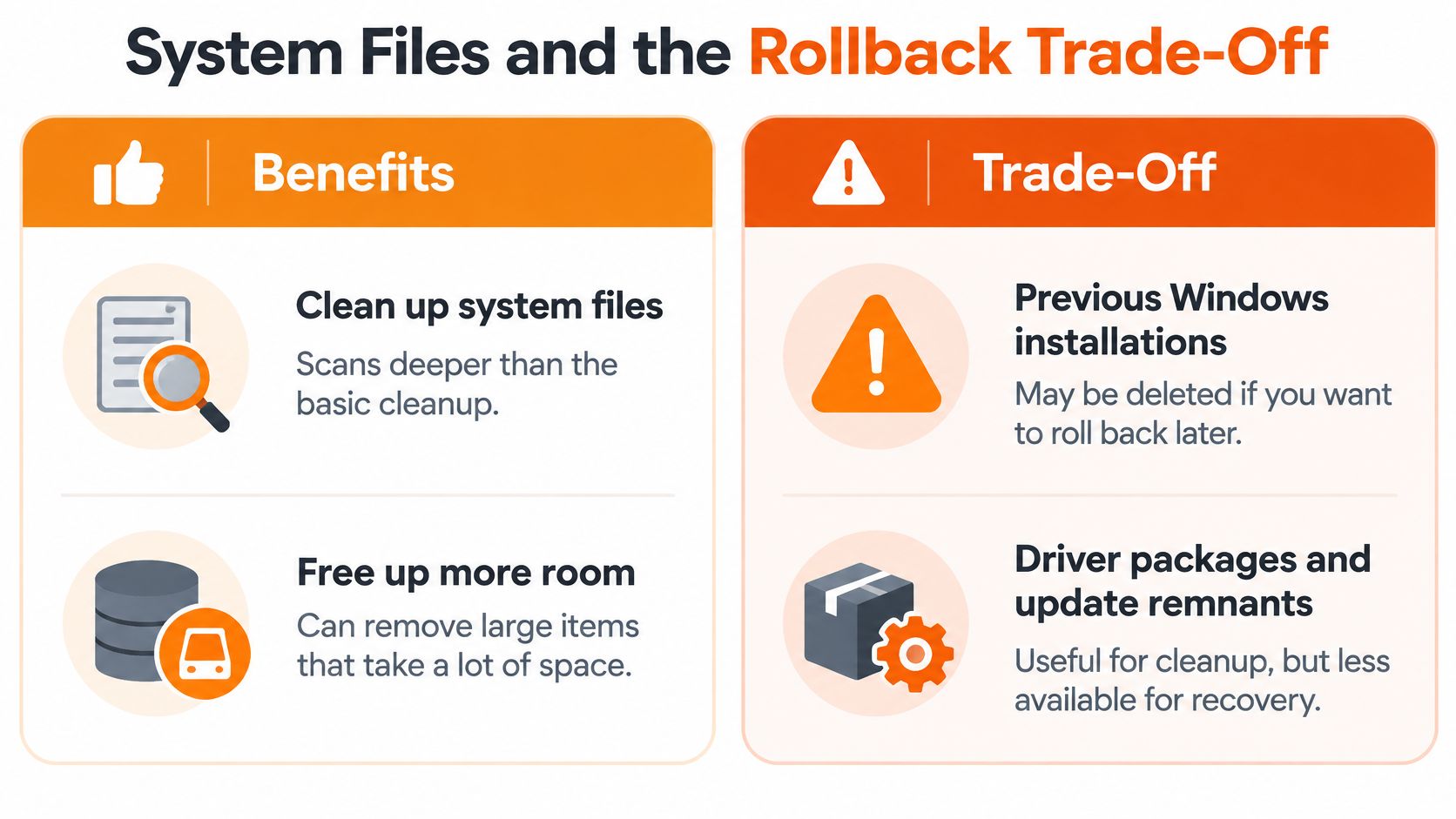
The benefits are real, which is why the option exists. A machine that recently took a feature update often carries the old installation plus leftover driver packages and update remnants, and those items can account for a substantial share of the system drive. Clearing them can be the largest single gain the tool offers.
Benefits
- A deeper scan than the basic cleanup reaches, exposing system-level items the first pass never lists.
- Large items that take up a lot of room, cleared in one run.
- Leftover installer residue and driver packages removed rather than kept indefinitely.
Trade-off
- Previous Windows installations go, and with them the "go back to the earlier version" button.
- Driver packages and update remnants become less available if you later need to troubleshoot a device.
- The deletion cannot be reversed, so it's a decision, not a tweak.
So how do you decide? Use time and stability as your two filters. If you upgraded in the past few weeks and anything feels off, windows closing slowly, a printer that stopped working, a blue screen you've never seen before, keep the previous installation. It's your undo button. Wait until the machine has run cleanly for several weeks, then revisit.
If the upgrade was months ago, the system behaves normally, and free space is tight, deleting the old installation is usually worth it. You're trading an option you'll probably never use for space you need today.
One reassurance before you click. This scan does not reach into your Downloads folder or your documents. The personal-data risk in Disk Cleanup sits in the Recycle Bin and in files you chose to delete elsewhere. System file cleanup is about Windows leftovers, not your work.
Where Disk Cleanup Fits Among Maintenance Tools
Four tools get confused with one another constantly, and the confusion is expensive. Here they are side by side.
| Tool | When it runs | What it targets | Main purpose |
|---|---|---|---|
| Disk Cleanup | Manually, when you open it | Temporary, cached and system storage files | Recovering disk space with category control |
| Storage Sense | Automatically, when space is low or on a schedule | Temporary files, Recycle Bin items, offline OneDrive content | Hands-off storage upkeep |
| Antivirus scan | Real time or on a schedule | Malware, spyware and ransomware | Security protection |
| PC optimizer | On demand or on a schedule | Startup programs, memory and disk tune-ups | Improving general performance |
Storage Sense is the automated successor to the manual job. Microsoft's Storage Sense documentation explains that it removes unnecessary temporary files and Recycle Bin items, can include offline OneDrive content in configured cases, and with default behaviour runs when the device is low on disk space. You can set its frequency and choose which categories are eligible, which turns a one-off cleanup into policy.
The choice between them is simple. Disk Cleanup for a manual review where you see every category and approve it. Storage Sense for hands-off upkeep so you stop thinking about temporary files entirely. Plenty of people should run both, with Storage Sense handling the routine while Disk Cleanup gets opened after a big update.
Now the corrections, one line each.
- It won't make your computer faster. Reclaiming space can prevent failures caused by a nearly full system volume, but the tool doesn't touch processor load, startup apps or failing hardware.
- It doesn't find malware. It deletes categories of files. It cannot tell a hijacked browser from a normal one, and it can't remove an infection.
- It doesn't fix anything broken. A crashing app or a dead Wi-Fi adapter stays exactly as it was after the run completes.
- Refilling quickly is a symptom, not a chore. Space that vanishes within days usually points to a failed update, oversized logs, a misconfigured application or malware. Diagnose it instead of running cleanup on repeat.
If you're chasing a different bottleneck, the storage side of maintenance is only one lever. Mac users dealing with pressure on memory have a separate set of steps, covered in this guide to clearing up memory on a Mac.
How Much Space Cleanup Recovers and What to Do Next
Storage pressure is common, not a personal failing. In a December 2024 survey of 1,000 U.S. adults, 23% reported running out of computer storage, according to All About Cookies in 2025. Roughly one in four adults has watched that free-space bar turn red.
Disk Cleanup won't hand you a fixed number. What comes back depends on your Windows version, update history, how much you browse, how long temporary files have accumulated, and what recovery data is sitting on the drive. Say a laptop took a large feature update two months ago and its owner browses heavily every day; that machine can return gigabytes. A lightly used desktop that gets cleaned twice a year might return very little, and that's normal rather than a sign of failure.
When to run it
- After a major Windows update. Feature updates leave older system files behind, and the system files scan is designed to find them.
- When free space gets tight enough that updates, installers or downloads start failing. That's the practical warning sign, not an arbitrary number.
- Every few months on a heavily used browser machine. Cached pages and thumbnails rebuild constantly.
What to do afterward
Record the free space before the run and compare the same drive afterward. Write down which categories you ticked, especially if you removed an old Windows installation, so future-you knows why the rollback option disappeared.
If the space comes back within days, stop cleaning and start diagnosing. Something is regenerating that data: a stalled update, a log file growing unchecked, a backup tool writing endlessly, or malware. Repeated cleanup treats the symptom and hides the cause. For the related case where the processor sits pinned while the disk churns, this explanation of a CPU stuck at 100 percent walks through what to check.
For readers who'd rather not think about it again, a cleanup utility with an automated schedule takes over the routine. Junk Cleaner in 247TechTeam's antivirus clears temporary files and system junk to free up disk space, so the manual pass becomes a twice-a-year check rather than a monthly chore. Either way, turn on Storage Sense in Settings as the backstop.
If your drive keeps filling up faster than cleanup can empty it, or a run didn't give back the space you expected, 247TechTeam can take the diagnosis off your hands. Our remote sessions cover Windows troubleshooting, slow-computer tune-ups, malware removal and security software setup, and our antivirus for Windows and Mac adds real-time scanning, ransomware defense and web protection that works alongside the cleanup you do yourself. Visit 247TechTeam to book a session or start the seven-day antivirus trial.