Wifi Connected but No Internet Access: How to Fix It
Stuck with wifi connected but no internet access? Test the device, DNS, router, and ISP in order, then apply the fix for the layer that fails.
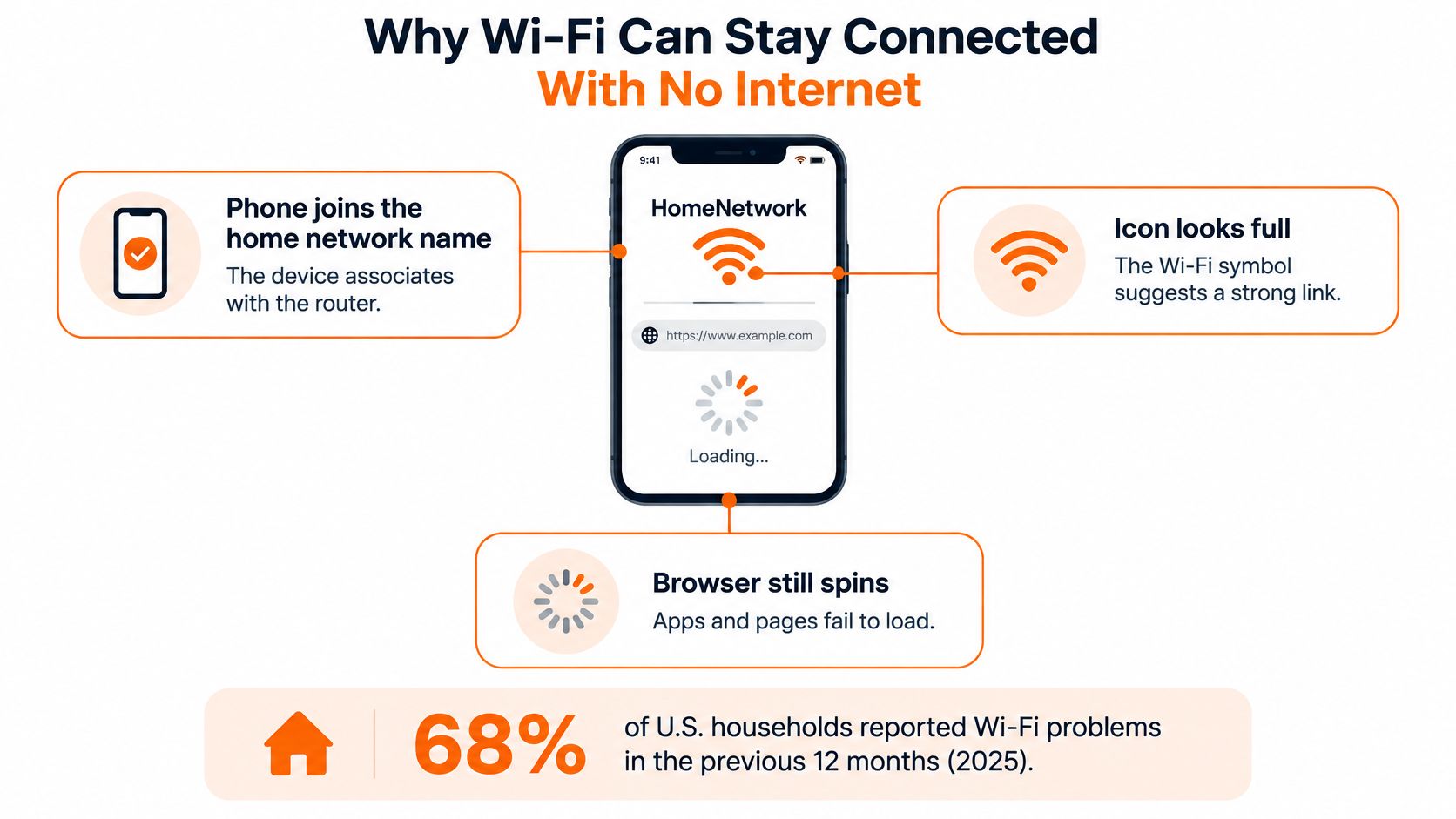
In 2025, 68% of U.S. households reported experiencing Wi-Fi problems during the previous twelve months, according to the Benton Institute for Broadband & Society's summary of TechSee's nationwide survey, cited by CircleID. That doesn't measure this exact error, but it puts a familiar kitchen scene in perspective: your phone joins the home network, the Wi-Fi icon looks full, and the browser keeps spinning.
The useful question isn't whether you're connected. It's how far your connection gets before it fails. A second device, a gateway test, and a comparison between external connectivity and name resolution can separate a bad laptop configuration from a modem or provider problem before you change anything.
Why Wi-Fi Can Stay Connected With No Internet
Say your phone connects while you're standing beside the kitchen counter. The saved network name appears, the password is accepted, and the signal indicator looks healthy. None of that tells you whether the router can reach your internet provider.
Wi-Fi association and internet access are separate services. Association means your device has joined the access point. It may have received usable local network settings, or it may still be trying to obtain them.
Internet access requires more: a working local configuration, a reachable router, an upstream connection through the modem or equivalent equipment, and functioning routing. Most everyday applications also need DNS to translate website names into destinations.
The distinction is easier to see as separate parts of the connection.
What the icon actually tells you
A full signal indicator is useful evidence about the local wireless link. It isn't a test of your modem, provider, DNS service, or the route an application chooses.
The Wi-Fi Alliance's account of Wi-Fi's development describes the technology behind that local wireless connection. Wireless interoperability doesn't guarantee that the equipment beyond the access point is delivering internet service.
Several failures can leave the icon looking normal:
- Missing network settings: The device joins but doesn't obtain a usable DHCP lease.
- Unreachable gateway: The device can't communicate with the router that should forward its traffic.
- Upstream failure: The modem or router loses its internet-facing connection.
- DNS or transport failure: Names don't resolve, or an application attempts a broken IPv6 path.
Why rebooting isn't the opening move
Restarting equipment can restore service, but it also interrupts working devices and can erase useful evidence. If your partner's laptop still browses on the same network, restarting the modem is a poor first response to your phone's problem.
Practical rule: Treat the Wi-Fi icon as a clue about the local link, not proof of a working internet connection.
Start with another device on the same network name. Then follow the tests until you find the first meaningful failure, using the result table to choose a targeted next move.
How to Isolate the Broken Network Layer
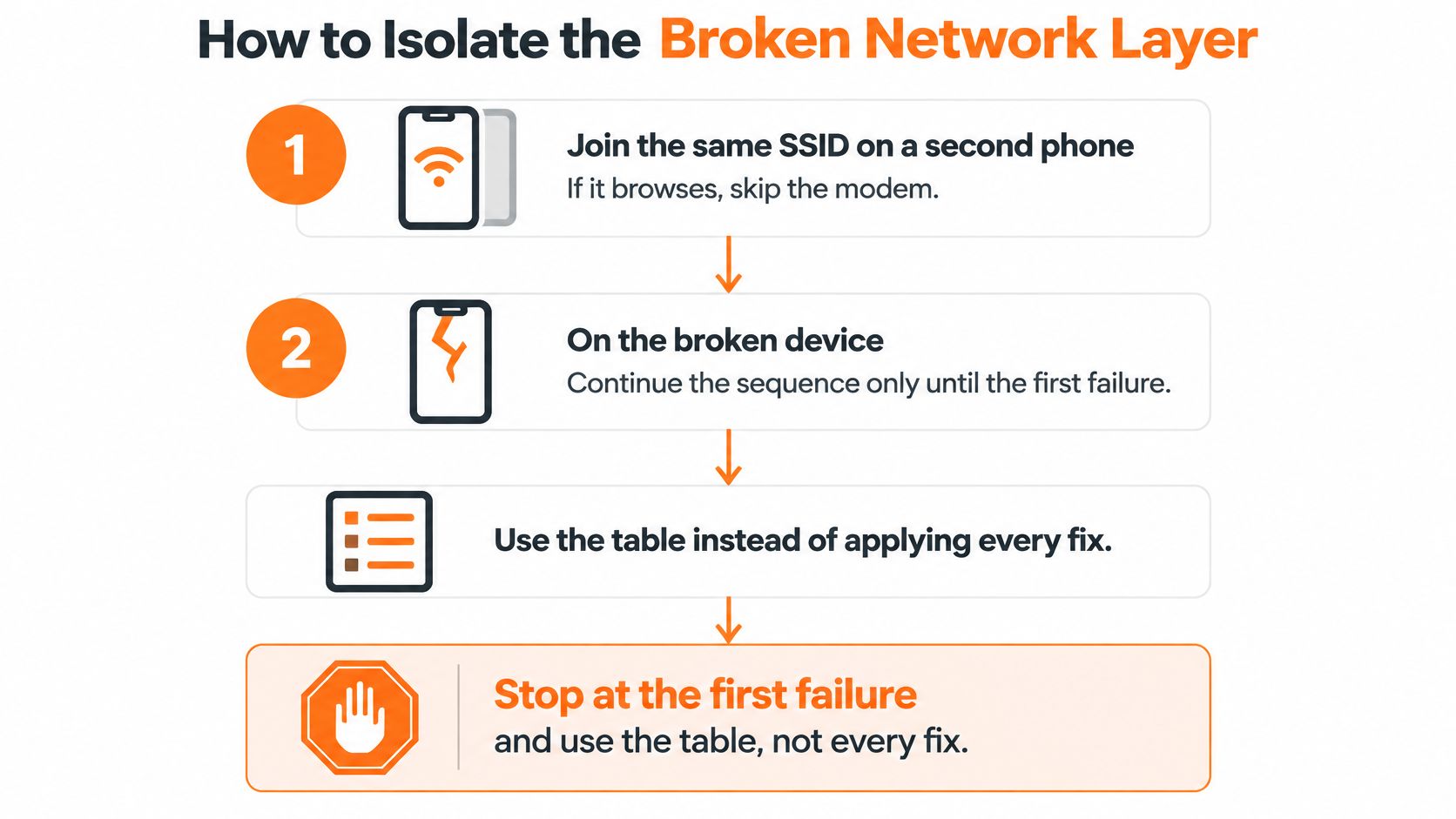
Stop at the first failure that you can verify. Don't run through every repair, change DNS, disable IPv6, and restart everything in one pass. You need to know which change helps.
Use this sequence to keep the diagnosis focused.
Run the tests in order
Try the same network on another device. Join the same SSID on a phone or laptop and load a fresh webpage. On a phone, temporarily turn off cellular data so it can't substitute a mobile connection. If it browses, leave the modem alone and investigate the affected client.
Inspect the affected device's network details. On Windows, open Settings, Network & internet, Wi-Fi, then the connected network's properties. On macOS, open System Settings, Network, Wi-Fi, Details, then inspect TCP/IP and DNS. Record the address, subnet mask, router or default gateway, and DNS servers. Don't overwrite anything yet.
Test the default gateway. Open Command Prompt on Windows or Terminal on macOS and ping the gateway shown in those details. Use the gateway assigned to the device, not an address copied from a router tutorial. Record whether replies arrive, whether packets are lost, and whether response times fluctuate sharply.
Test a known public destination. Ping a public IP destination to remove website-name resolution from the test. Failure here after gateway success shifts attention upstream, but a timeout alone isn't conclusive because some networks block ping traffic. If the public destination answers despite an earlier gateway timeout, the router may be refusing to answer pings.
Test a hostname separately. Use a DNS lookup tool and compare its result with the public-destination test. A hostname ping can provide another clue, but distinguish failure to resolve the name from failure to receive an echo reply. Don't label both outcomes DNS failure.
Compare address families when the earlier tests pass. Where supported, test the same site with IPv4 and IPv6 separately. Use an application-level request as well as ping, because loading a secure page tests more than basic reachability. Don't disable IPv6 just because one destination doesn't answer.
Find the same details on a phone
On an iPhone, open Settings, Wi-Fi, then tap the information button beside the connected network. Record IP Address, Router, and DNS. On Android, open Settings, Network & internet or Connections, select the connected Wi-Fi network, and inspect its network details or IP settings.
An automatically assigned link-local address or a blank gateway on a typical home IPv4 network suggests the device hasn't obtained usable DHCP configuration. Forget that SSID and rejoin, making sure you know the password first. If the phone doesn't offer diagnostic tools, run the reachability tests from a computer on the same network.
For a Windows gateway-specific failure, use the focused default gateway troubleshooting guide rather than jumping to an internet-wide outage diagnosis.
The video offers a visual companion to these checks.
Make a controlled repair
If all tested devices fail beyond the router, record the results, inspect the WAN cable and modem status, then power-cycle the modem before the router. Wait for the modem's service connection to stabilize before bringing the router back online.
For a single affected computer, choose the repair that matches the failed test. Renew a missing lease, rejoin a broken wireless profile, or clear a stale DNS cache only when name resolution is implicated.
Keep the address, mask, gateway, DNS servers, lease information, failure stage, packet loss, and timestamps. Those details make an intermittent problem much easier to reproduce.
What Each Failed Test and Address Family Means
The same Wi-Fi connected but no internet access message can describe several different faults. Your test result matters more than the wording of the notification.
The layered diagnosis described in Netdebug's troubleshooting analysis distinguishes missing DHCP configuration, gateway failures, DNS problems, and upstream outages. That distinction prevents a common mistake: applying a router-wide fix to a device-specific fault.
Match the observation to the next move
Test result, failed layer, and next move
| What you see | Failed layer | What it means | Next move |
|---|---|---|---|
| Other devices on the same Wi-Fi load sites | This client only | Router and ISP path are likely up | Check this device's address, DNS, VPN, and adapter |
| Address is automatically assigned link-local IPv4 | DHCP | Associated, but no usable lease from the router | Renew the lease or restart only this client, then investigate the router if every device has the same symptom |
| Cannot ping the default gateway | Local Wi-Fi, DHCP, or VLAN, unless ping is blocked | The path to the router needs verification | Forget the network, rejoin, and confirm the gateway matches the router's LAN configuration |
| Gateway answers, public destination does not | Modem, WAN, ISP, or filtering | Local network works, but upstream reachability needs investigation | Check modem lights and WAN cable, then the ISP status page |
| Public destination works, website name does not | DNS or captive portal | Routing works, but name resolution or network authorization may not | Try another resolver only after confirming valid local configuration, or complete the portal |
| IPv4 works, IPv6 to the same name fails | IPv6 path | Apps may attempt the broken address family | Test both families before making any permanent IPv6 change |
The table identifies a likely failure layer, not a verdict from a single packet. Confirm an unexpected result with another destination or an application test before replacing hardware.
A missing lease isn't a DNS problem
DHCP supplies the local settings a client normally needs to communicate beyond its own link. When that process fails, an IPv4 client may assign itself a link-local address instead.
That fallback isn't evidence of a working home network configuration. The device can remain associated with Wi-Fi while lacking the gateway information needed to reach outside destinations.
On Windows, renew the DHCP lease through the network troubleshooting tools or adapter controls. On macOS, open the Wi-Fi connection's Details, select TCP/IP, and use Renew DHCP Lease.
If renewal fails only on this computer, forget and rejoin the saved network, then inspect the adapter configuration. If multiple devices can't obtain leases, investigate the router's DHCP service rather than assigning arbitrary static addresses.
Changing DNS can't repair a missing gateway or obtain a DHCP lease.
Avoid copying another device's address. That can introduce an address conflict and leave you with a second problem that obscures the original one.
A gateway failure keeps the investigation local
The default gateway is the router your device uses to reach destinations outside its local network. If the client can't reach it, investigate the local path before blaming the ISP.
Possible causes include a broken wireless association, incorrect subnet settings, a stale network profile, or a VLAN configuration that places the client somewhere unexpected. On managed networks, the visible SSID doesn't necessarily identify the underlying network segment.
Ping needs interpretation here. Some routers ignore echo requests even while forwarding traffic correctly, so a failed gateway ping isn't absolute proof that the gateway is unreachable.
Check whether you can open the router's management interface, if you're authorized to do so. A working public connection also demonstrates that forwarding is happening, regardless of whether the router answers ping.
A working gateway narrows the upstream question
If local communication works but external connections fail across your household devices, inspect the modem's service indicator and the router's WAN status. Check the cable between separate modem and router units, including both connectors.
Don't assume every red or amber light means the same thing. Read the label or equipment documentation to distinguish an internet fault from a normal activity indicator.
Use mobile data to check the provider's outage status. If no outage is listed, a recorded failure time and a functioning local gateway give support a more useful starting point than a screenshot of full Wi-Fi bars.
A restart is reasonable at this stage. A factory reset isn't the same operation: it can erase the configuration you need to reconnect and should not be used as a routine substitute.
DNS failure and browser failure aren't interchangeable
When a public destination is reachable but a DNS lookup fails, the resolver becomes a reasonable suspect. Preserve the current DNS settings before testing an alternative.
If lookups succeed but the browser still fails, inspect the actual error. VPN routing, a proxy, TLS negotiation, a captive portal, or a browser-specific setting can stop a page without breaking DNS.
A cache flush helps when the device retains stale name-resolution information. The DNS cache-flush guide provides the operating-system-specific procedure, but flushing won't fix an unavailable resolver or broken upstream route.
Changing to a public resolver also has trade-offs. Work and school networks may require their assigned DNS service for internal resources, so don't replace managed settings without authorization.
Compare IPv4 and IPv6 before disabling either
A device can have working IPv4 and broken IPv6 at the same time. Applications may attempt IPv6, making the symptoms appear inconsistent across browsers and services.
Historical measurements in IETF RFC 6948 found roughly 1–3% IPv4 TCP connection failures in the tested baseline, while IPv6 destinations with AAAA records initially approached 25% failure. Those are historical experimental results, not estimates of today's household failure rates; their practical value is showing why separate address-family tests matter.
Compare the same hostname over both families using the available ping options and an application tool such as curl. Inspect whether DNS returns A and AAAA records, whether a connection establishes, and whether the secure application request finishes.
Test another site before concluding that your own IPv6 path is broken. A destination can have its own IPv6 fault.
If IPv4 consistently succeeds and IPv6 consistently fails, temporarily disabling IPv6 on the affected adapter can confirm the relationship. Restore it after testing and investigate router advertisements, firewall rules, path MTU handling, or the provider's IPv6 service.
A workaround that hides the failure isn't the same as repairing it.
Hotel Cafe and Guest Wi-Fi That Blocks Traffic
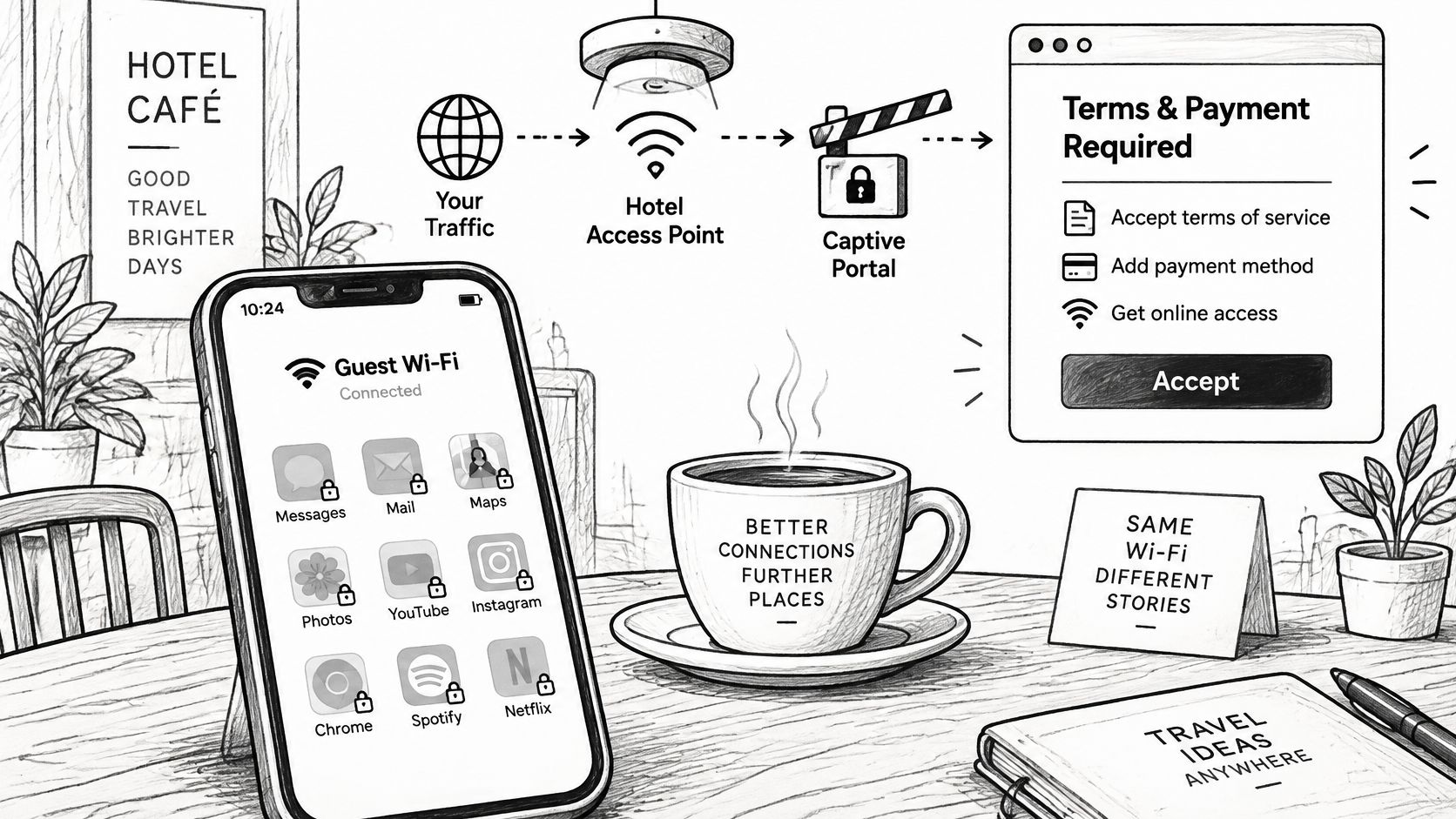
A hotel network can accept your device immediately and still block every application. The venue may require you to accept terms, enter a room credential, or complete payment before it permits normal traffic.
That restriction is a captive portal, not necessarily a broken internet connection. WiFi Lens's troubleshooting guide identifies the interaction between portals, VPN interference, and private Wi-Fi addresses that can prevent authorization from completing.
This is the kind of connection where joining successfully doesn't mean you've finished signing in.
Complete authorization in a controlled order
Disconnect the VPN completely. Check whether its kill switch continues blocking traffic after disconnection. Temporarily pause that protection only long enough to authorize the network, and don't open sensitive applications during the interruption.
If device registration is interfering, adjust private addressing for this network only. On iPhone, use the network's information screen; on Windows, inspect the random hardware address setting for that saved SSID. Rejoin after changing it so the portal can register the selected identity. Don't disable private addressing globally.
Open a plain HTTP page. A basic, non-sensitive HTTP request can allow the network to redirect you to its sign-in page. A bookmarked HTTPS application may instead produce an error because secure connections aren't designed to accept silent interception.
Complete the portal and verify normal browsing. Confirm that the page belongs to the venue before entering credentials or payment information. Restore the VPN afterward, and re-enable private addressing if the network continues to pass traffic.
Changing the private address can trigger another registration request. If restoring it breaks access, keep the exception limited to that venue's network and remove the exception when you no longer need it.
Match the guest-network symptom
Guest Wi-Fi blocks and the matching change
| Situation | Likely cause | Change to try | Put back after |
|---|---|---|---|
| Joined hotel or cafe Wi-Fi, apps fail, no login page | Captive portal not detected | Open a plain HTTP page | Nothing if the portal completed |
| VPN on and every site times out | Kill switch blocks portal redirect | Disconnect VPN fully, then load the portal | VPN after a normal site loads |
| Portal worked once, fails after reconnect | Private or random MAC looks like a new client | Disable private address for this SSID only | Re-enable if the network still passes traffic |
| HTTP test page and public-destination test both fail | Venue uplink failure or authorization filtering | Stop changing the phone and ask venue staff to verify service and registration | No device setting repairs a confirmed uplink outage |
Privacy trade-off: A stable device address can help a venue recognize an authorized client, but it also makes that device easier to recognize on that network.
Don't bypass a certificate warning to force a portal to load. A legitimate authorization process shouldn't require you to weaken certificate validation.
If the portal never appears, staff should check both your device registration and the venue's uplink. Failed ping and HTTP tests alone can't distinguish an outage from a network that's still blocking an unauthenticated client.
Decide Whether to Call the ISP or a Technician
Call the ISP when the evidence points beyond your local network. If multiple devices fail external tests, the local gateway remains reachable, and the modem still reports a service fault after a modem-then-router restart, report those results and the failure time.
In 2025, 67% of surveyed U.S. households contacted their internet provider at least once because of connectivity issues, according to Telecompetitor's report on TechSee's survey, summarized by the Benton Institute for Broadband & Society. Make that call useful by describing what works locally and what fails upstream.
Keep a single-computer problem on the device side
If other devices browse normally, renew the affected computer's lease, rejoin the network, and retest before arranging an equipment visit. Once access returns, distinguish an outage from a slow internet connection, which requires different measurements.
At 247TechTeam, our Wi-Fi & Network Troubleshooting addresses dropped Wi-Fi, slow internet, and router connectivity issues, alongside Windows and Mac support. A stubborn computer, disconnected printer, or email problem after connectivity returns can be appropriate for technician-led troubleshooting.
Approve access deliberately
Our certified technicians connect only after you enter the verified technician's session code, review the consent notice, and approve access. Remote support still requires a usable connection, potentially through an alternative network.
If the problem is failed hardware, physical damage, or another issue outside a remote session's scope, we explain that limitation and identify the next step. Software can't repair a cut cable or dead modem.
Have these notes ready:
- Second device result: Whether another device browses on the same SSID.
- Gateway result: Whether local reachability works and any observed loss.
- External versus hostname result: Whether public connectivity works while name resolution fails.
247TechTeam offers certified remote support for Wi-Fi, Windows, Mac, printer, and email problems when a usable connection is available. Visit 247TechTeam with your test results to get help isolating a stubborn device fault and determining whether the next step belongs on your computer or with your internet provider.