Slow Internet Connection: How to Measure It
Fix a slow internet connection by measuring speed, latency and loss, then checking the device, Wi-Fi, router and plan before you replace hardware.
You upgraded the plan, you have rebooted the router more times than you can count, and you know exactly where the needle lands on the speed test. The connection still lets you down in the same three places: the Tuesday call, the game at night, the upload that never finishes.
Part of the frustration is that the number insists everything is fine. Part of it is that every fix you've tried was aimed at a problem you hadn't identified yet.
A slow internet connection isn't one fault with one cure. Four readings tell you which part of the path is failing: how much data moves (throughput), how quickly the far end answers (latency), whether that response time survives a busy link (latency under load), and whether packets arrive at all (loss). Add the clock, because the same line behaves differently at 9 pm than at 10 am, and you have the fifth reading.
Measure them in a fixed order, log the numbers, and the guesswork ends. Here's the sequence, one controlled pass at a time.
When a Speed Test Still Feels Slow
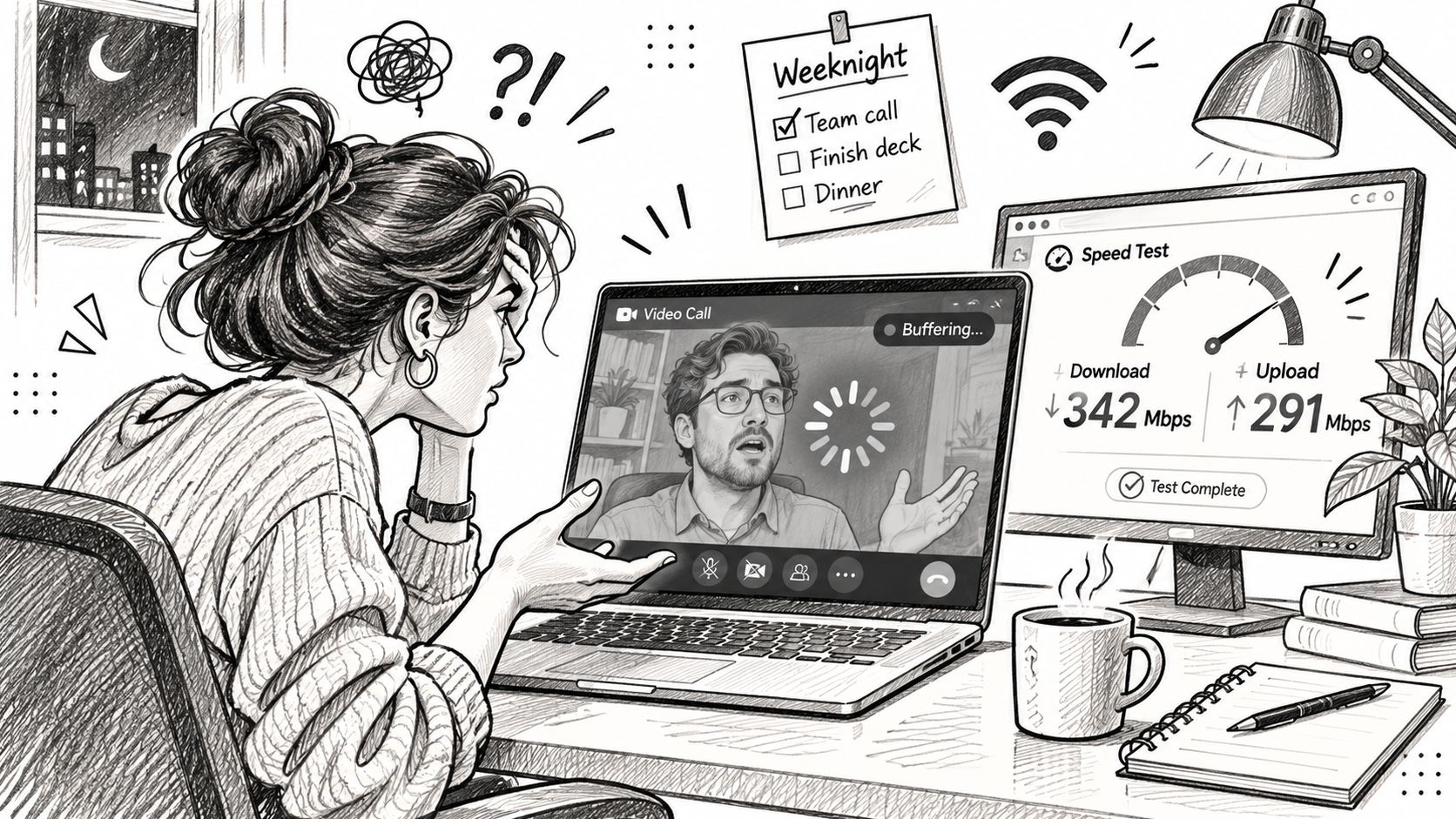
The call freezes at 8:40 on a Tuesday. Everyone keeps talking for two seconds after you've stopped hearing them, the video locks on a half-open mouth, and the network icon in the corner insists you're connected. You run a speed test on your phone and it reports a healthy triple-digit download figure, which is exactly why the problem feels impossible to pin down.
A slow internet connection is a mismatch between one activity and the path your traffic takes at that moment. It isn't a single number sitting below a threshold. The ITU's 2025 Global Connectivity Report chapter on measuring connectivity points out that average speeds can look healthy while users still get poor quality: in early 2025 average download speeds reached 92 Mbit/s on mobile networks and 118 Mbit/s on fixed networks, yet speeds in low-income economies were only 20 to 30% of those in high-income economies. Good averages and unusable calls coexist all the time.
Here's the scene most households recognise: a fast midday test, a bad evening call, and a router that gets blamed for both.
Before you touch a cable or a setting, capture five readings on the same device. The table below shows what each one governs.
The five readings and what each one affects
| Reading | How to capture it | What it affects |
|---|---|---|
| Download | Wired test to a nearby server, idle | Streaming and large downloads |
| Upload | Wired test to a nearby server, idle | Video calls and cloud backup |
| Idle latency | Ping while the house is quiet | Responsiveness of every interactive app |
| Latency under load | Ping during a heavy download and upload | Calls and online games |
| Packet loss | Repeated probes over several minutes | Choppy calls, retransmissions and lost throughput |
Write them down with the date and time, in a text file or on paper. A single score can't tell you whether a buffering stream, a frozen call and a laggy game share a cause, but five readings side by side usually can. The pairing of wired and wireless results turns those numbers into a diagnosis, and that pairing is the next move.
Isolate the Line and Read the Results
One pass, in one order, tells you more than an afternoon of reboots and cable swaps. A speed test measures a moving target: the path to whichever server it chose, the load on your link at that second, and the state of your Wi-Fi radio. The FCC's Measuring Fixed Broadband report treats download speed, upload speed, latency and packet loss as distinct consumer-relevant metrics, selects the measurement server with the lowest latency to the client, and repeats tests at different times because the measured path and server materially change the result. Copy that discipline at home.
Run the eight steps below in order and record every result with a timestamp. None of them requires new hardware, and each one rules out a specific wrong answer.
The four moves that decide most cases are pausing the heavy traffic, one clean reboot, a wired test, and a careful read of the numbers.
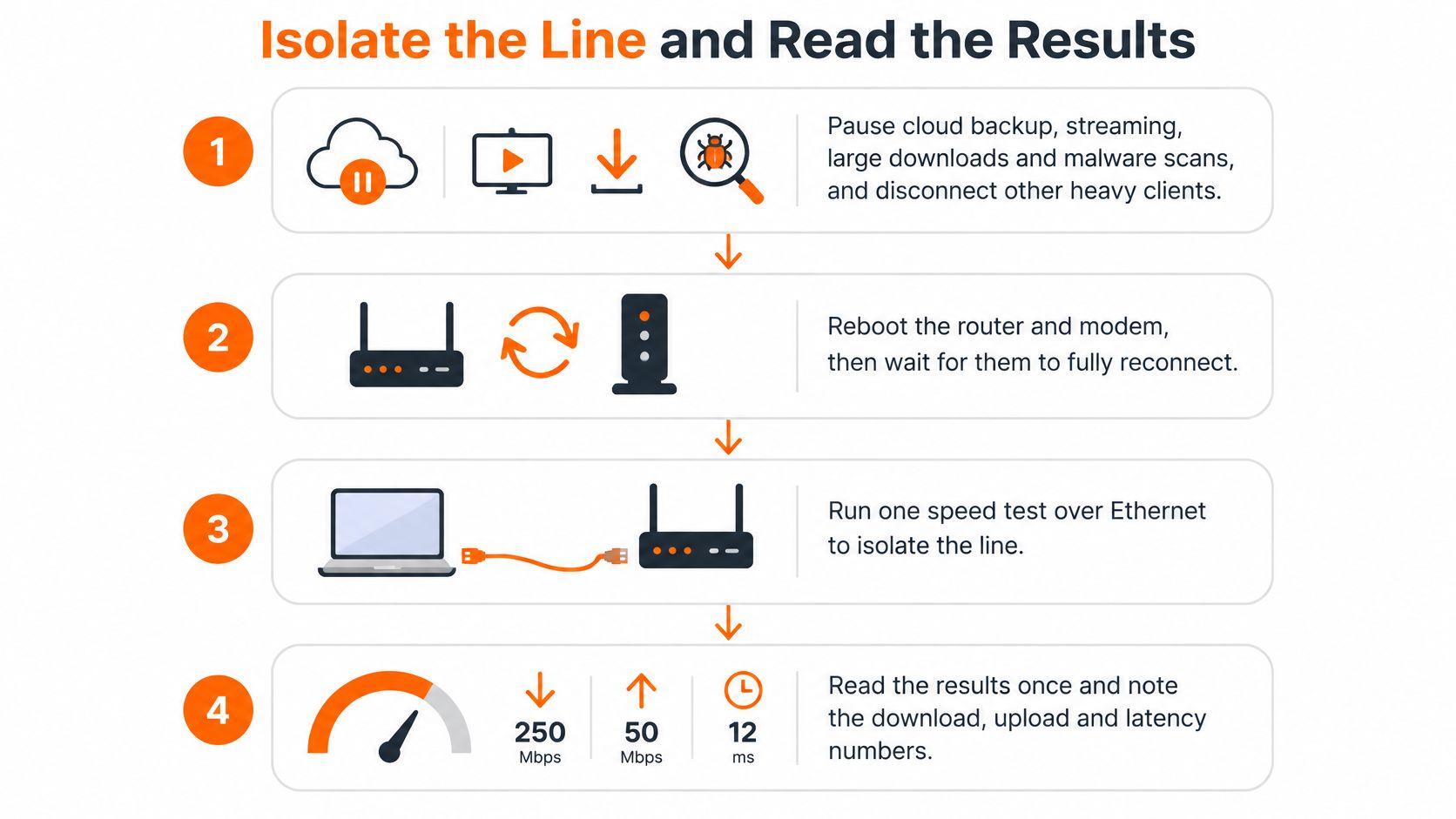
Pause everything that moves data. Cloud backup, streaming, game downloads, phone photo sync, malware scans and other people's video calls all compete for the same link. A saturated connection measures the queue, not the line, so a test taken during a backup produces a number that means nothing about your capacity. The wrong conclusion this prevents: "my line dropped to 20 Mbps" when a 40 GB backup was mid-flight.
Reboot the modem and router once, then leave them alone. Power-cycle, wait for every light to settle, and run the rest of the sequence without another reboot. Rebooting between tests wipes the state you're trying to observe and hides faults that build over days of uptime. The wrong conclusion this prevents: a reboot loop that makes a recurring line problem look intermittent.
Wire the test computer to the router and check the negotiated link rate. Plug in with a known-good cable and confirm the adapter reports a full-speed link rather than a silent fallback to a slower standard. A worn cable, a damaged port or an old 100 Mbps switch will cap everything downstream of it regardless of what you pay for. The wrong conclusion this prevents: blaming the provider for a cable that's negotiating at a fraction of the plan.
Test wired to a nearby server, then to the region the slow app uses. Save both results. Latency depends on the destination, and a nearby-server figure may not represent performance to a service hosted elsewhere. Testing against the region your video platform or game uses is the number that predicts your experience. The wrong conclusion this prevents: a clean local result treated as proof that a distant application should be fast.
Repeat on Wi-Fi at the problem spot, then within a few metres of the access point. Do it on both bands. If the near-access-point result is dramatically better, you're looking at distance, walls, attenuation or interference, not the rate on your plan. The wrong conclusion this prevents: paying for a faster tier to fix a dead zone.
Measure idle latency, then latency during a heavy download and during a heavy upload. The FCC's guide to broadband service for home consumers notes that latency is especially damaging to real-time voice, video conferencing and gaming because those applications need rapid two-way exchange, and that intermittent packet loss can stay invisible in a short test while retransmissions cut your throughput. A large jump from idle to loaded latency, with lag you can feel in a call, means queueing even when the megabits match the plan. The wrong conclusion this prevents: "the speed is right, so the line is fine."
Repeat the wired pair at a quiet hour and at a peak hour, logging packet loss separately. Treat loss as its own reading, not as a synonym for slow. Loss sustained over several minutes explains a call that breaks up while every speed score stays respectable. The wrong conclusion this prevents: labelling a transient evening congestion problem as permanent line degradation.
Escalate with the log, not with a complaint. Only after you hold timestamped wired results, modem signal or error information, and evidence from more than one server should the call go to your provider. That evidence stops support from dismissing a Wi-Fi-local fault as an access-line problem, or the reverse.
Two results in that list carry the most weight: the wired figure near your plan, and what happens to latency when the link is busy.
If you'd rather watch the wired-versus-wireless comparison once before running it, this walkthrough covers the same sequence.
Read the paired results against these patterns
Now match what you recorded. The combination, wired plus wireless, is what identifies the cause.
| Pattern | Throughput | Latency and loss | Likely cause |
|---|---|---|---|
| Ethernet and Wi-Fi both weak | Both well below the plan | Loss or high idle latency on both | Modem, ISP or upstream congestion |
| Ethernet fine, Wi-Fi weak | Wired near the plan, Wi-Fi much lower | Extra Wi-Fi jitter or loss | Distance, interference, channel or access point |
| Speed fine, apps still lag | Near the advertised rate | Loaded latency jumps, idle latency fine | Bufferbloat or a saturated uplink |
| Only one device is slow | Other devices normal | A second device tests normally | That device's VPN, backup, scan or Wi-Fi stack |
| Fine by day, poor at night | Evening tests drop | Latency or loss rises with neighbourhood load | Shared capacity or traffic management |
| A short test looks fine | Speed fine in one quick test | Loss appears only across repeats | Retransmissions, not the headline speed |
If a page stalls on first load while the throughput looks healthy, a stale DNS cache can imitate a failing connection; flushing the DNS cache takes two minutes and costs nothing before you escalate anything.
Bufferbloat is the reading people skim past
Many users stop at the download number. The loaded-latency figure is where a fast connection usually fails.
The test that matters most: ping the same address while a large upload runs. If idle latency is fine and loaded latency triples with lag you can feel, you have found the fault even though no speed test will ever report it.
The fix is queue management on the router (SQM, or a simple conferencing QoS rule), not a faster plan, and it belongs after the wired test confirms the line is delivering what you pay for. If loaded latency is bad on Ethernet toward multiple servers and at multiple times of day, the queueing is happening upstream and the log you've built is the argument to take to your provider.
Fix the Device, Wi-Fi and Router
Nothing in this section is worth doing until the wired test clears the line. If Ethernet to a nearby server still lands well below your plan, the fault sits at the modem, the provider or the upstream path, and every router setting you change at home is decoration. When Ethernet is healthy and Wi-Fi is not, the fix lives inside the house.
Change one thing at a time and rerun the near-and-far Wi-Fi pair after each change. That's how a fix gets tied to a number instead of a feeling of improvement.
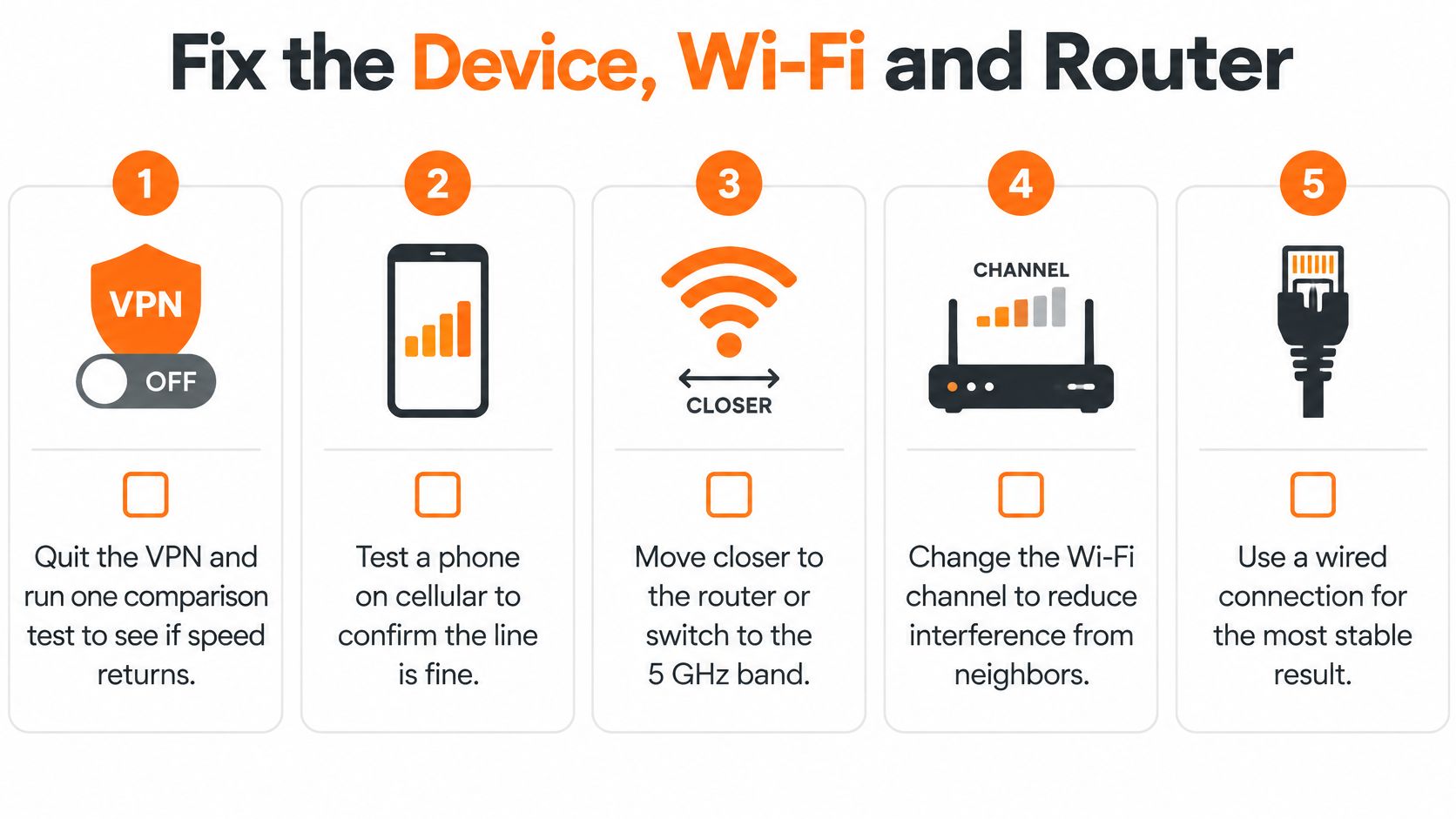
Start with the device that failed
If one laptop is slow while a phone on the same Wi-Fi is fine, the line is fine and the laptop is the subject. Quit the VPN for a single comparison test; if the result jumps, the tunnel and its routing are the cost, and you can keep the VPN off for calls and uploads. A phone on cellular that loads quickly next to a sluggish laptop points at the machine, not the router.
- Background sync and scans: pause photo backup, app updates and any security scan, then retest. These are the most common reasons one device loses its share of the link.
- Adapter driver: update the Wi-Fi driver from the laptop maker's support page after you have the wired result, so you know whether the update fixed anything.
- Older hardware: a laptop with a 2.4-GHz-only card can't use the capacity your plan delivers, no matter how close it sits to the router.
- Malware and a cluttered PC: worth checking once the network path is proven healthy, not before.
Change the band, then the channel
Put calls, meetings and gaming on 5 GHz or 6 GHz while the device is near the router. Keep 2.4 GHz for distant, low-bandwidth things: printers, sensors, a smart plug in the garage. The 2.4 GHz band travels farther and through more walls, but it shares spectrum with every neighbour's router, microwaves and cordless phones, which is why it collapses in apartments at dinner time.
On the router, move off "auto" channel and set a fixed, non-overlapping one. Auto mode typically re-scans only at reboot, so it can sit on a crowded channel for weeks. Use WPA2 or WPA3 with AES, and disable legacy 802.11b rates once every client in the house is reasonably modern. Test a few metres from the access point, in the open, not behind a television or inside a metal cabinet.
One change at a time: write the before number, change a single setting, rerun the identical test, write the after number. Two changes at once and you've learned nothing.
If devices drop off the network rather than slow down, work through the causes behind why Wi-Fi keeps disconnecting before you touch channel settings, because a drop is a different fault from a slow path.
Solve coverage with a wired access point
When the near-router test is good and the far bedroom is not, the answer is placement, not power. A daisy-chained extender repeats a weak signal on the same channel and adds a hop of latency while roughly halving throughput for every client behind it. One access point fed by Ethernet into the middle of the house does the job properly, and a mesh system with a wired backhaul is the closest equivalent when you can't run cable.
Then make the gain hold. Run backups and updates outside call hours, keep one short known-good Ethernet cable for tests, and reboot on a schedule only if you can show that speed decays over days of uptime. Note whether each fix lasted hours or weeks, because that detail decides whether you're done or still chasing a line fault.
Compare the Plan With What You Actually Do
Only after Wi-Fi is ruled out, or after the wired test misses the plan, does capacity become the question. Match what your household does at the same time to what the connection can carry.
What common household uses need
| Activity | Rough download | Rough upload | What makes it feel slow |
|---|---|---|---|
| HD video stream | 5–8 Mbps | Under 1 Mbps | Throughput or evening congestion |
| 4K video stream | About 25 Mbps | Under 3 Mbps | Sustained throughput, not ping |
| Group video call | 3–4 Mbps | 3–4 Mbps | Latency, jitter and packet loss |
| Online gaming | 3–6 Mbps | 1–3 Mbps | Latency and stability, not raw speed |
| Backup or large download | As high as the plan | As high as the plan | Saturation of the whole link |
Add the rows up for a normal evening: two streams, a call, a game and a console update running together is a bigger number than assumed, and the update alone will make everything else feel broken while it runs. Household demand has also climbed well past web browsing, which the ITU's internet traffic statistics show in two ways: global fixed-broadband traffic rose from 5.1 zettabytes in 2023 to an estimated 6 zettabytes in 2024, and average monthly mobile data use per subscription in high-income countries was 16.2 gigabytes, roughly eight times the 2 gigabytes recorded in low-income countries.
The two upgrade triggers
Buy more speed for one of two reasons, and neither is "the page took a second longer than I liked."
- You never reach the tier you already pay for. Repeated wired tests to more than one server, across several times of day, all land well below the advertised figure. That's a line or provisioning problem, and an upgrade hides it rather than fixing it.
- The tier is below your simultaneous load. The evening total from the table above exceeds what the connection delivers, every night, with nothing misconfigured.
Before either, check the billing cycle and the calendar. A data cap, late-month deprioritisation or a peak-hour policy can imitate a failing connection, so note the date and time on every slow test. Rising correctable or uncorrectable error counts in the modem log are line evidence, not a computer fault, and they belong in the same log as your speed readings.
Upgrade rule: if a wired test to a nearby server can't reach your plan during a quiet hour, more bandwidth won't help. Fix the line you're already paying for.
Why Is My Internet Slow Only at Night?
Slow at 8:45 pm, fine at 10 am. That pattern is so common people search for it in those words: "Why is my internet slow only at night?" The clock is the clue, and the cause is usually outside your walls.
The evening versus quiet-hour comparison
Run the same wired test twice on the same device: once at about 9 pm, once at about 10 am. Log latency and packet loss next to the speed figures. This pair does more diagnostic work than any single reading you've taken.
Then read the split:
- Neighbourhood capacity: cable and fixed-wireless links are shared with the street, and a share shrinks when every household streams at once.
- A busy mobile cell: a home 4G or 5G link behaves the same way when the local tower fills up.
- Rising Wi-Fi interference: neighbours' routers, microwaves and cordless phones all add noise in the evening, so a marginal Wi-Fi link degrades without any change on your line.
- Provider traffic management: some networks apply peak-hour policies that look exactly like congestion.
- Scheduled scans and sync: your own machine can schedule updates and backups for the evening, but this is the last place to look, not the first.
If latency or loss rises at 9 pm while idle capacity stays close to normal, shared load is the likely cause, and that's a conversation for your provider with your timestamps in hand. If the wired result is fine at night and only Wi-Fi collapses, the problem is local radio, and band and channel changes are what will move the number.
Decide Between the ISP, Your Fix and Remote Help
The log answers the question, so stop testing once it does. Three outcomes, three different actions.
- Wired misses the plan across several times of day and more than one server: call the provider, ask for a line check, and give them the timestamps, server locations and modem error counts instead of following another reboot script.
- Only Wi-Fi is weak: fix placement, band and channel first. A faster tier won't reach the far bedroom.
- Every other device is fine and one computer stays slow: look at startup programs, a heavy scan or backup, free disk space and unwanted software, not the plan.
If the line is down rather than slow, the steps for when your internet isn't working come first. When the remaining work is on the computer itself, our Wi-Fi and network troubleshooting covers dropped Wi-Fi, slow internet and router connectivity. A Quick Fix Session costs $49 for one remote session of up to 60 minutes on a single Windows or Mac computer, with a summary sent by email. You review the consent notice from the authorized remote-support provider and approve the connection before a technician connects, so you can watch the work as it happens. A remote session can't repair a failed modem, a cut cable or physical damage; those stay with your ISP or a local repair shop.
If your readings keep pointing at the machine rather than the line, 247TechTeam combines antivirus software for Windows and Mac with remote technicians who work through the same steps you've just run: startup load, background scans, adapter settings and the browser side of a slow connection. You get real-time protection and a person on the session, not just a scan result. Visit 247TechTeam to see the software and support options, then bring your log to the session so the first hour is spent fixing rather than measuring.