How to Stop Viruses: Updates, Antivirus and Safe Habits
Learn how to stop viruses with timely updates, antivirus protection, safer downloads and cautious link handling, plus what to do if infected.
You're halfway through a bill payment when a toolbar you never installed pops over the browser, or a text claims a parcel failed and wants you to tap a link. The usual move is to install antivirus and hope the machine settles down. That helps, but it isn't the whole job. Stolen passwords, unpatched software, and a backup drive that stays plugged in can still wreck a week. Learning how to stop viruses means confirming updates fully finished, restoring a file on purpose, and switching to a clean phone if this computer already looks sick.
The Protection Layers That Stop Most Infections
Five layers do most of the work. If one is thin, the others get asked to do a job they weren't built for.
| Protection layer | What it blocks | How often to check |
|---|---|---|
| Automatic OS and app updates | Known security holes that malware exploits | Confirm monthly, keep automatic |
| Real-time antivirus with cloud protection | Malicious files as they open or run | Always on, confirm weekly |
| Unique passwords with multifactor authentication | Stolen credentials and account takeover | Review every few months |
| Cautious download and link habits | Phishing messages and fake installers | Every time you download or click |
| Tested backups | Data loss from ransomware | Test a restore every few months |
Microsoft's 2022 Digital Defense Report recorded an estimated 921 password attacks every second from July 2021 to June 2022, a 74% increase in one year, and said Microsoft blocked 34.7 billion identity threats in that period. Nobody can spot every bad file by eye at that pace. Attackers also walk in with stolen or weak passwords, so a scanner isn't a full defense.
Real-time scanning catches suspicious files as they open. Careful browsing and email habits cut exposure before a file lands. Updates close holes attackers already know. Backups limit the loss if ransomware encrypts what you care about. Antivirus belongs in that routine, next to patching and unique passwords, not in place of them.
Practical rule: The layer most homes skip is multifactor authentication or a backup they've actually restored. A reused password with no second check, or a drive ransomware can reach, turns one missed file into a lost week.
Microsoft's 2024 Digital Defense Report found human-operated ransomware-linked encounters increased 2.75 times year over year, while the share of organizations that reached the encryption stage declined by more than threefold over the preceding two years. Attacks got more common. Earlier disruption is what kept more of them from finishing the damage.
Turn On Automatic Updates Everywhere
A pending patch doesn't protect you. Attackers use known holes fast, and a stalled update looks finished until you check the version after a restart.
- Turn on automatic system updates. On Windows 10 or 11, open Settings, then Windows Update, and leave automatic updates on. On a Mac, open System Settings, then Software Update, and do the same. Manual checks get forgotten the week you're busy.
- Restart at least once a week. Many patches sit half-installed until the machine reboots. Pick a night when you can save your work and let it finish.
- Update the browser and daily apps. Chrome, Edge, Firefox, and Safari each run their own updater, and so do Office, Zoom, and PDF tools. Turn those on. An old browser is a common way in even when Windows looks current.
- Check router firmware twice a year. Log in to the admin page from the sticker on the router or the maker's app and install what it offers. Home routers sit online all day and rarely get looked at.
- Uninstall programs you no longer use. Old toolbars, trial cleaners, and abandoned games stop getting patches and stay an easy entry. If you don't recognize it, remove it.
Confirm the patch actually landed
After the restart, open Windows Update or Software Update again and read the version number or the "you're up to date" line with today's check behind it. If it still says restart required, it isn't done. This check takes thirty seconds, and it's the difference between a patched machine and one that only looks patched.
CISA, citing Verizon's 2025 breach analysis, reported on its software update guidance that vulnerability exploitation was the initial access vector in 20% of investigated breaches, up 34% year over year, while only about 54% of those vulnerabilities were fully remediated, with a median remediation time of 32 days. Even well-resourced organizations leave known holes open for weeks, and slower patching only widens the window attackers get. Home machines don't need that kind of lag. A clean check is simple. The operating system, browser, and the two apps you use daily all show a current version, and nothing is waiting on a restart.
Run Antivirus Scans That Actually Catch Threats
Not every scan does the same job. Leave the wrong one off and a hidden program keeps running after you think you're clear.
| Scan type | When it runs | What it catches | When to use it |
|---|---|---|---|
| Real-time protection | Every file as it opens or runs | New malicious files | Always on |
| Quick scan | On demand, takes minutes | Threats in common hiding spots | After a risky download |
| Full scan | On demand or scheduled, takes longer | Whole disk, including rarely used files | Weekly or after a suspected infection |
| Offline or rescue scan | From boot media, outside the running system | Malware that hides from a live system | When symptoms persist after normal scans |
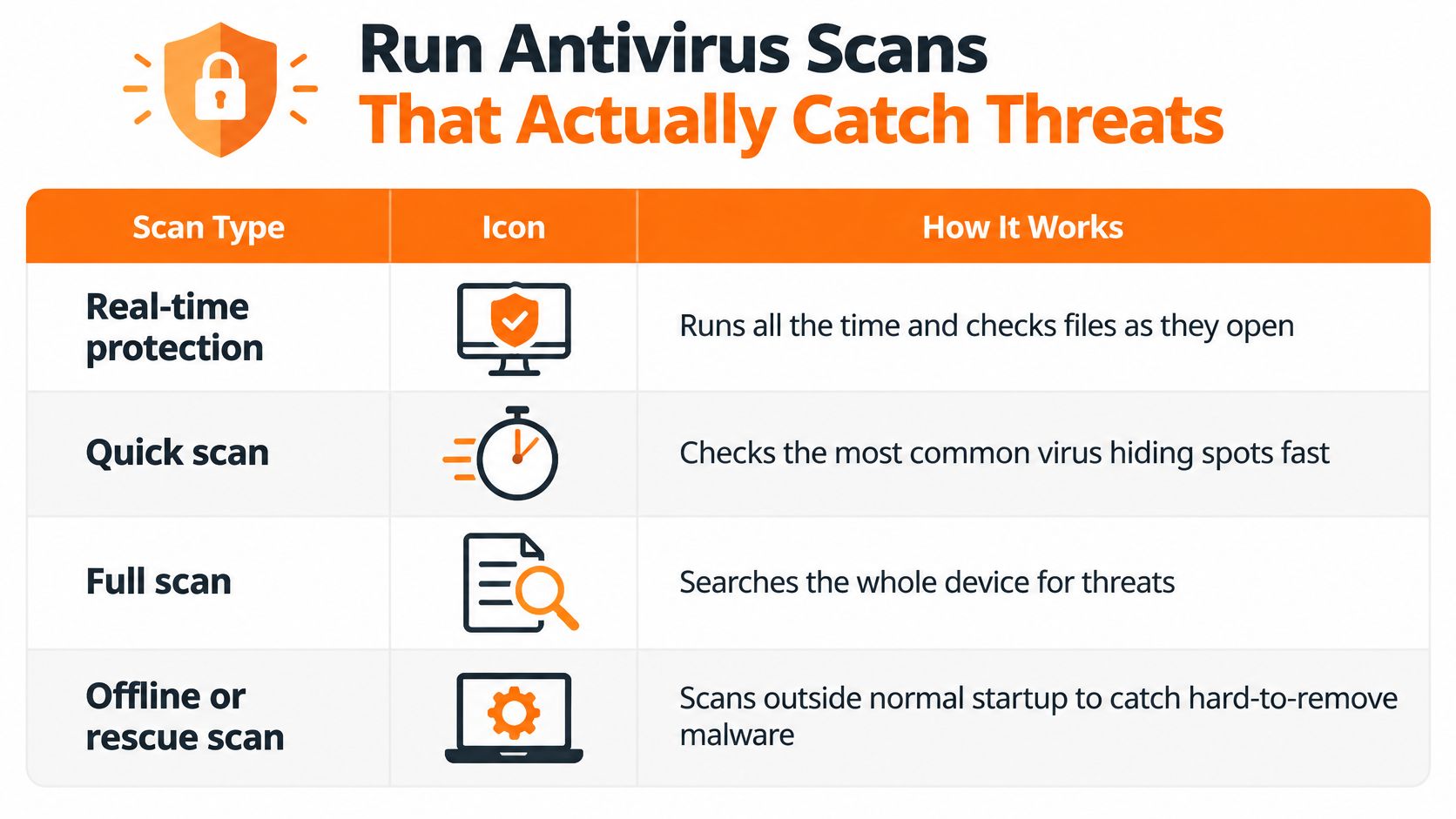
In one pass, confirm four settings. Real-time protection is on, cloud-based protection is enabled, definitions update on their own, and a full scan is on the calendar. Then open scan history and read what was blocked, quarantined, or removed. A quiet history after a risky download is useful. A history you never open isn't.
Two mistakes undo that setup. Running two real-time antivirus programs makes them fight over the same files and can leave gaps or false blocks. Turning protection off so an installer finishes faster leaves the machine unguarded while the new software runs. Pause only if the publisher says a specific file is blocked, then turn protection back on before you browse again. Mac owners sometimes skip this entirely. Whether a Mac still needs that real-time layer is covered in do Mac computers need antivirus.
Handle Downloads and Links Without Getting Burned
A text says the carrier couldn't deliver a parcel and drops a short link. You weren't expecting a package. That's the trap. Don't tap it. Open the carrier's real site or app yourself and check the tracking number there.
In 2024, the FBI recorded 193,407 phishing complaints in the United States, according to CISA's summary of the FBI Internet Crime Report on its phishing training page. Most of those messages don't look like cartoons. They look like a late invoice or a locked account.
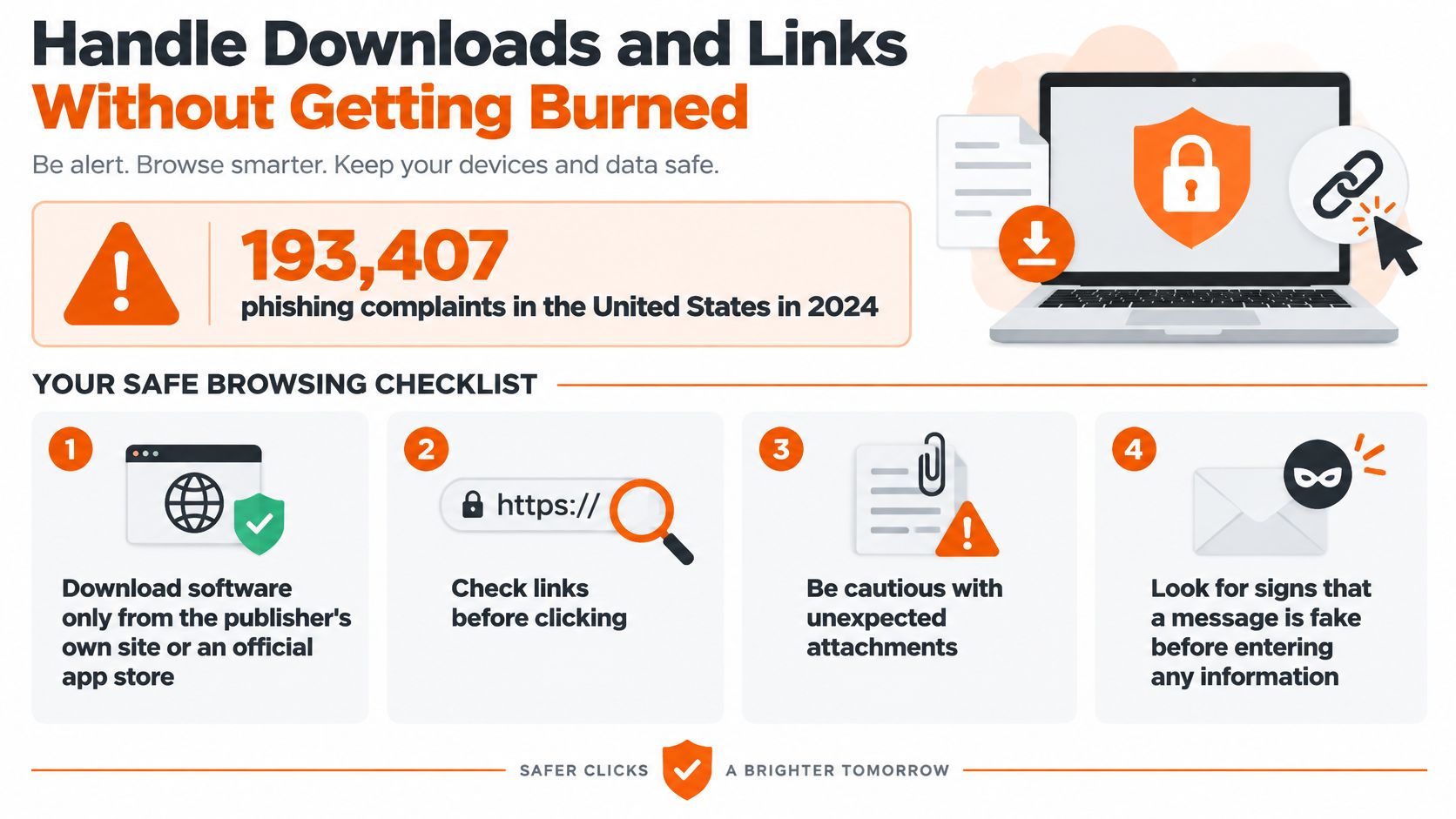
- Download from the publisher. Get software from the maker's own site or an official app store, not a "free download" button on a coupon page.
- Read the file type first. Treat
.exe,.msi,.dmg, and.pkgfiles from anyone you didn't ask as suspicious. A document shouldn't arrive as a program. - Hover before you click. The actual address appears at the bottom of the browser or in the link preview. If the name and the destination don't match, stop.
- Slow down urgent messages. Failed deliveries, overdue invoices, and account locks are the usual scripts. Verify them in the official app, not from the message.
- Refuse surprise remote access. Don't install remote-control software because a caller says your license expired. Hang up and call the company on a number you look up.
- Confirm odd attachments. If a known contact sends something you didn't expect, ask them on a different channel before you open it. A hijacked mailbox is how a trojan horse virus example reaches people who trust the sender.
Give any message one minute. Who sent it, does the link match, and would you have expected it today? If any answer is no, leave it closed.
Back Up Files So Ransomware Cannot Hold Them Hostage
Ransomware encrypts your files and asks for payment to restore access. Having a copy that the infected computer cannot reach is what protects you from that situation.
Use the 3-2-1 method. Keep at least three copies of important files, on two different storage types, with one copy offline or off-site. That might be the PC, an external drive you unplug, and a cloud folder. CISA's backup guidance for small businesses recommends verifying that systems can roll back at least seven days. A single last-night copy isn't enough if the infection sat for a week.
Set the copies so an infected PC can't rewrite them
- Pick the three copies. Two storage types, one of them offline or off-site. A drive that stays plugged in all week doesn't count as independent.
- Automate the jobs and encrypt them. A backup you remember to run only on Sundays will be stale the day you need it.
- Restrict who can write. Only the backup service should add files. An everyday login shouldn't be able to encrypt the repository.
- Restore a sample and time it. A representative set of photos or documents should come back inside the time you can live without them, and stay readable even if the PC is compromised.
A job marked "completed" isn't a recovery plan. A backup you've never restored is a hope.
The common miss is a permanently connected drive. Ransomware encrypts it along with the originals. Unplug it, or use storage the PC can't change, and test a partial restore every few months.
What to Do When a Virus Gets Through
Slowness alone isn't proof of malware. Match the symptom before you wipe the machine or ignore it.
| Symptom | Likely cause | First action |
|---|---|---|
| Unexpected pop-ups or toolbars | Adware or unwanted browser extension | Review and remove extensions, then run a full scan |
| Slow PC with high processor use | Malware, a background process, or obsolete hardware | Check Task Manager for unknown processes, then run a full scan |
| Files renamed or locked with a ransom note | Ransomware | Disconnect, stop using the device, and get help. Restore from a verified clean backup |
| Unknown logins or changed passwords | Credential theft or account takeover | Change passwords from a clean device and enable multifactor authentication |
| Browser redirects to unfamiliar sites | Hijacked browser settings or a malicious extension | Reset browser settings and review extensions |
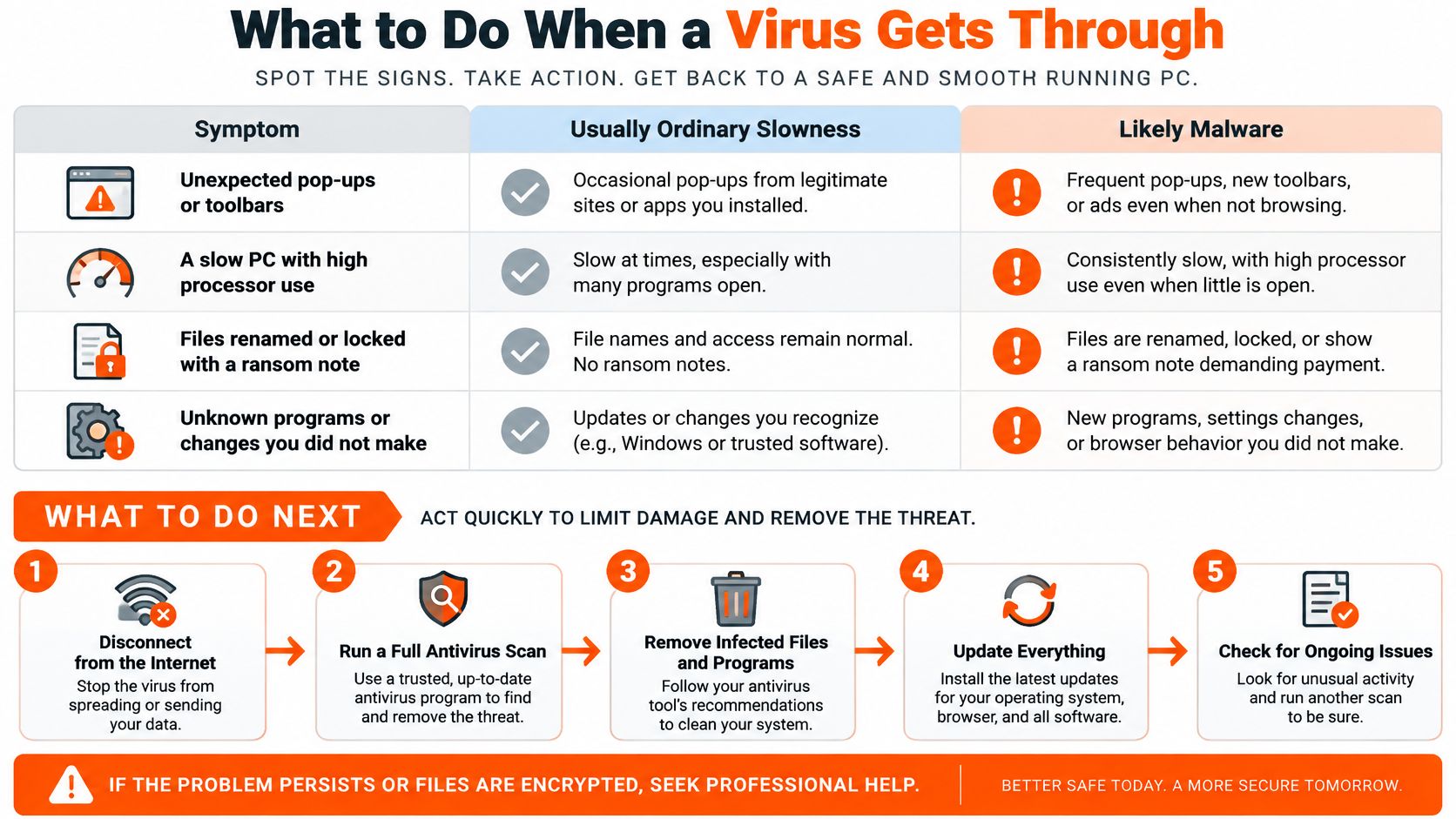
The sequence after you decide it's real
- Disconnect from Wi-Fi or the cable, and leave the PC on. Cutting the network stops it from spreading or phoning home. Powering off can wipe clues a technician needs.
- Stop typing passwords or opening the bank. Anything you enter on that device may be captured.
- Switch to a clean phone or another computer. Change important passwords there and turn on multifactor authentication. Don't do this on the suspect machine.
- Run a full scan, then an offline or rescue scan. Some malware hides from a scan that starts inside the infected system.
- Review extensions and reset the browser. A removed virus can leave a hijacked homepage behind.
- Install system updates, then decide on a restore. Put files back only from a backup you believe was clean before the symptoms started.
- If a ransom note is on screen, don't pay. Payment doesn't guarantee your files, and it funds the next attempt. Get professional help.
A clean scan doesn't prove the system is trustworthy. Removal of one file can miss a second component, and you shouldn't plug that PC back into shared drives or other home computers until you're sure. A 2025 ransomware survey found that 89% of organizations reported attacks against backup repositories, 34% of repositories were modified or deleted on average, and only 32% used immutable repositories. Detecting one file matters less than knowing the copy you'll restore wasn't touched.
If one unwanted program is found and a full scan plus a rescue scan clears it, clean and update the device. Our walkthrough on how to remove malware covers that cleanup in more detail. If scans keep finding the same threat or settings keep changing, reset the operating system or rebuild the device. If files are encrypted, restore from a backup you verified as clean. If a ransom note is up, or you can't tell whether the backup is clean, stop and get help.
When to Get Expert Help
Call for help when the infection returns after two full scans, a ransom note appears, files are encrypted and you have no verified clean backup, or you can't tell whether a restored system is trustworthy. Before the session, write down the symptoms, when they started, and which accounts you used on that device. That short list speeds the diagnosis.
Re-check updates and scan history only when something has changed, such as a restart that should have finished patches or a scan you just ran. Our Virus & Malware Assistance identifies and removes unwanted software, pop-ups, and suspicious programs, and the antivirus, which includes virus, malware, and ransomware defense plus web, privacy, and automatic updates, can be started with a 7-day free trial. This week, confirm the last restart installed updates, then read scan history once.
If you'd rather have a technician walk the scans, the cleanup, and the update check with you, 247TechTeam pairs antivirus for Windows and Mac with remote virus and malware help. You can start protection on your own schedule and see whether it fits the way you use the computer. Visit 247TechTeam to begin the 7-day free trial or to book removal help.