Printer Connected but Not Printing: How to Fix It
Printer connected but not printing? Check the queue, port, driver and spooler in order, then confirm with a test page.
You press Print. The dialog closes, the printer's status light stays a calm green, Windows says the device is ready, and the tray stays empty. So you send the job again. Then a third time. Still nothing.
That's the printer connected but not printing situation, and it's the most common printer fault I deal with, because the symptom makes it look like a single problem when it's really a stack of them. A connected status confirms exactly one thing: the link between the computer and the device exists. Everything above that link, from the queue to the driver to the port to the printer's own firmware, is still unverified.
Work through the layers below in order. Each check gets cheaper to run than the one after it, and each one rules out a whole class of cause before you spend time on the next.
Find Which Layer Is Failing First
A "Ready" label describes a link. It does not prove that the application built a valid page, that the queue is moving, that the port still points at the printer's current address, or that the spooler service is running.
The failure pattern is older than USB. Manufacturers extended the Centronics parallel interface in incompatible directions for roughly two decades before the IEEE published IEEE 1284 in March 1994, which standardized bidirectional parallel communication, defined the compatibility, nibble, byte, Enhanced Parallel Port and Extended Capability Port modes, and specified three connector types. The documented history of the Centronics dead end makes the durable point: printing needs agreement among the computer, the cable, the port mode, the driver and the printer's own protocol. IEEE 1284 was eventually displaced by USB and network printing, and each transition added another independent layer that can now fail alone.
Match the symptom to a layer
Find your row before you change a setting. The symptom usually identifies the layer faster than any diagnostic tool.
| Symptom | Likely failing layer | First check |
|---|---|---|
| Job sits in the queue, printer shows Ready | Print queue | Cancel every pending job, then send one test page |
| Status shows Paused or Offline | Printer state | Resume printing and clear Use Printer Offline |
| Queue will not clear or jobs will not delete | Print spooler | Restart the Print Spooler service |
| Blank, garbled or striped pages | Driver | Install the current driver for the exact model |
| Works from Notepad but not from one app | Application | Print from a second app and check that app's print settings |
| Network printer online but prints nothing | Port or address | Confirm the port IP matches the printer's current address |
| Stopped printing right after an update | Driver version | Roll back the driver if the option is available |
Work in the order that costs least
Queue state and printer state take seconds to inspect. The spooler takes about a minute. Driver and port checks can eat ten. Use that order because the cheap checks clear whole classes of cause before you touch settings that are harder to unwind.
Take a common pattern: the queue lists three jobs while the printer reports Ready. The printer is healthy, the first job is malformed, and every resent copy is stacked behind it. That can look like a dead connection while the link is fine.
If the printer does not appear on the network at all, the fault sits on the network path rather than in the print stack, and the same reachability checks apply as when your default gateway is not available. Resist the quick fixes that trade exposure for silence: opening the firewall broadly, turning off printer authentication, or enabling guest access may make one test page appear while leaving the device easier to reach than it should be. Confirm the path first, then change only the setting the symptom points to.
The one change rule: make a single change, retest, then decide. Fix three things at once and you learn nothing about which one mattered.
How to Clear the Queue and Restart the Spooler
The queue is where silent failures live. Microsoft's guidance on fixing printer connection and printing problems in Windows treats stuck jobs, spooler crashes, offline status and incorrect drivers as separate failure modes, and it puts queue clearance ahead of any deeper spooler repair. That ordering is correct, and it saves you from deleting a working printer configuration over a bad job.
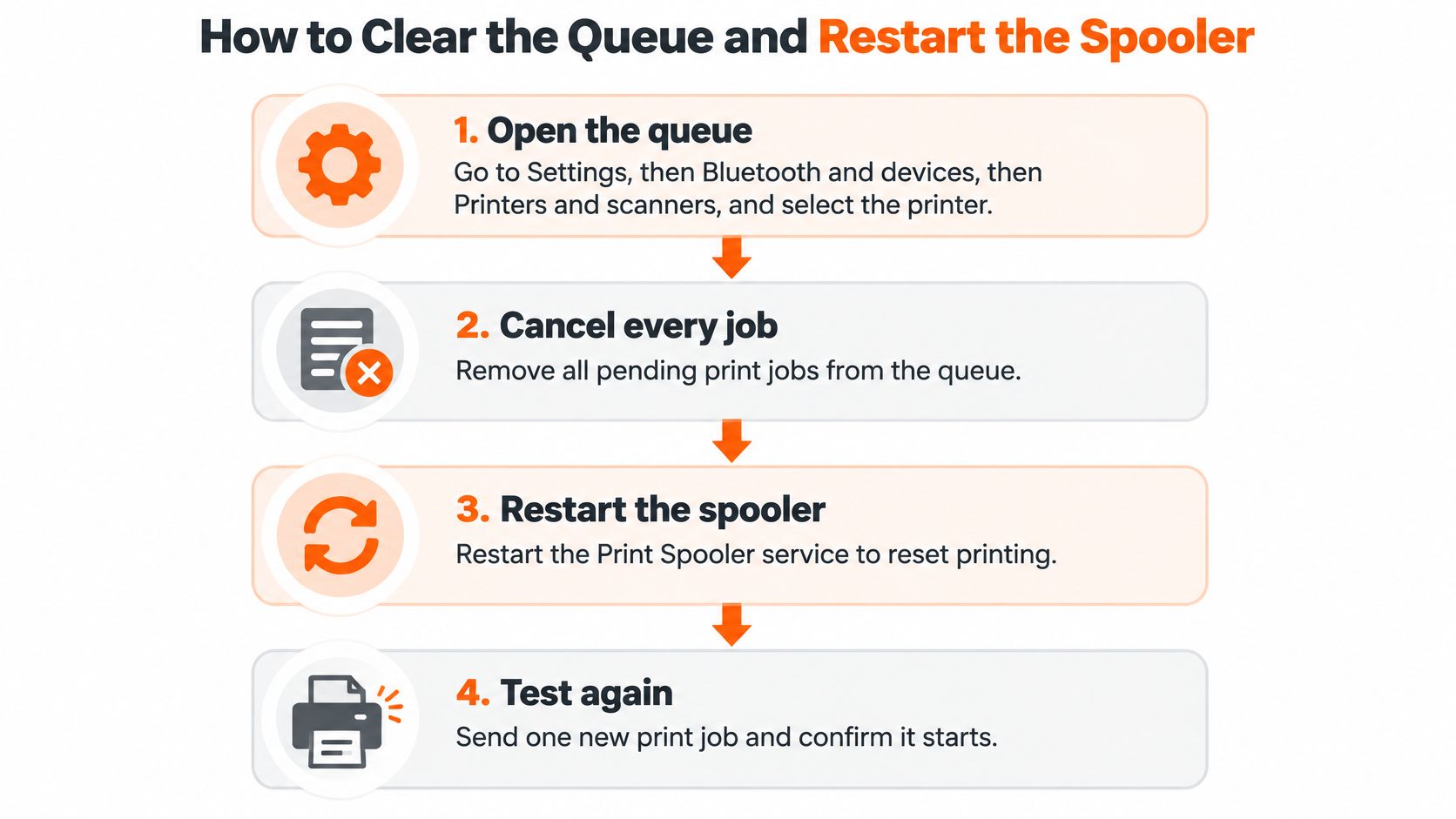
- Open the queue and look at it. In Windows, go to Settings, then Bluetooth and devices, then Printers and scanners, select the printer and open the print queue. You need to see the job states before you touch anything, because a job stuck at "Deleting" or "Error" behaves differently from one that's waiting.
- Cancel every pending job, including ones that look fine. A failed document at the head of a queue blocks everything behind it, and the blocked jobs show no error of their own. Select all and cancel.
- Clear Paused and Use Printer Offline. Both live in the Printer menu of the queue window. A paused queue accepts new jobs cheerfully and prints none of them, which is the classic way a printer connected but not printing fault disguises itself as a network problem.
- Restart the Print Spooler service. Press Windows + R, type
services.msc, find Print Spooler, and stop it. Then openC:\Windows\System32\spool\PRINTERSand delete the files inside, because stale spool files outlive a queue clear. Start the service again. - Power-cycle the printer and send one plain-text page. One line typed in Notepad, nothing else. If that prints, you've isolated the fault to transport or application rather than hardware.
The most common slip is resending the same document while it's still stuck. Two identical jobs sitting behind a malformed one make a working connection look broken. The second slip is deleting only the visible queue entry while duplicate drivers and stale ports stay installed underneath, which routes the next job to the wrong endpoint.
On a Mac the logic is identical. Open System Settings, go to Printers and Scanners, open the queue window, and remove the stuck jobs; if the queue won't clear, remove the printer and add it back.
What success looks like
An empty queue, a spooler service showing Running, and a printer status of Idle. That combination means the software path from application to spooler is clear. Anything still failing after that is a driver, port or hardware question.
How to Check the Printer, Port and Driver
A Windows test page settles the driver question in under a minute, so print one from the printer's properties dialog before you touch a single network setting. If it comes out, the driver and port are working and the fault lives in the application or the transport above them.
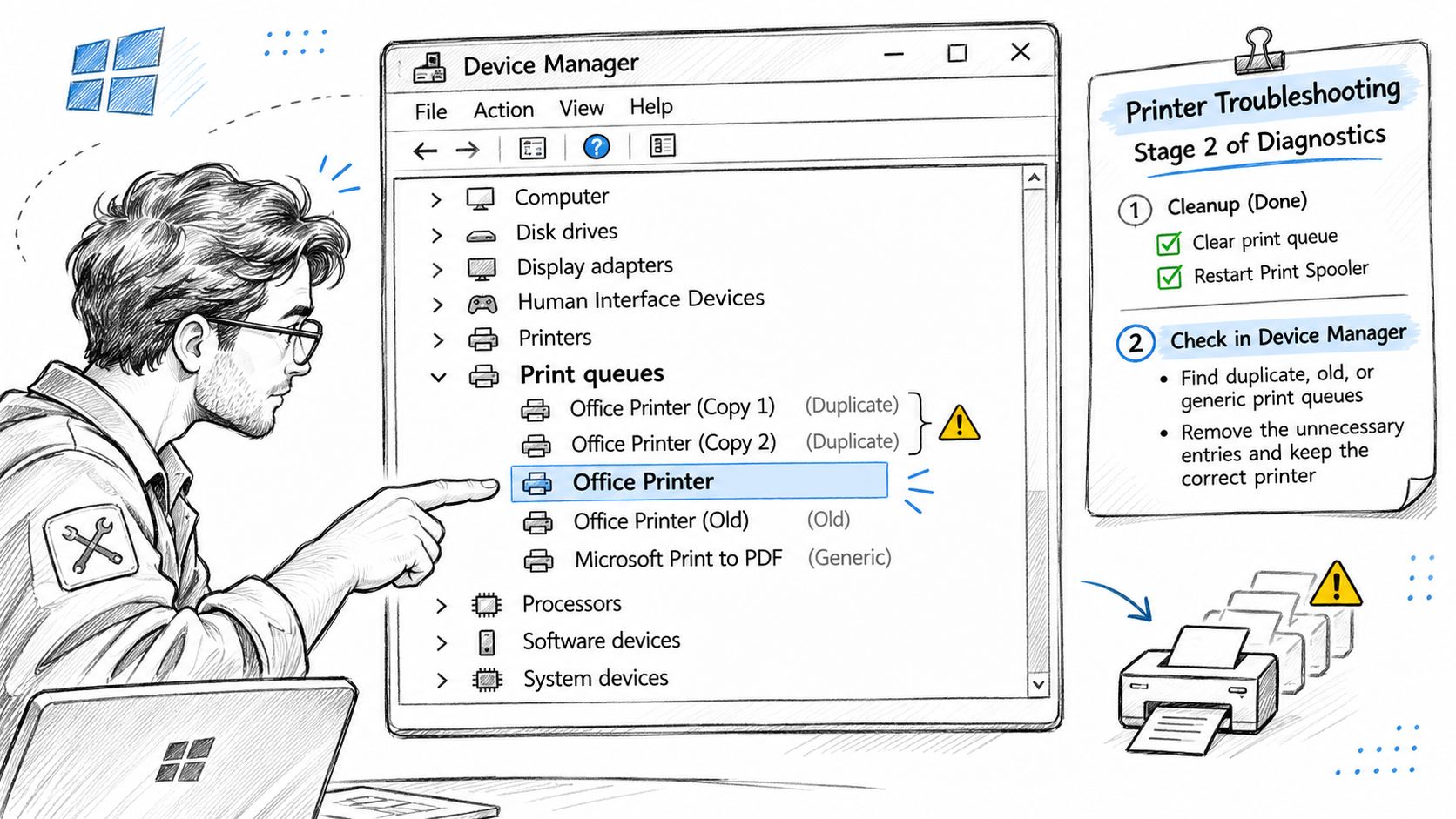
- Open Device Manager and expand Print queues. Look for duplicate entries, old models you no longer own, and generic "Universal" or "Generic / Text Only" drivers sitting alongside the correct one. Leftovers from previous installs compete for the same jobs.
- Match the driver to the exact model and your OS architecture. A 32-bit driver on a 64-bit Windows install installs, selects and then fails to render pages properly. Check Settings, System, About for the architecture before downloading anything.
- Uninstall the obsolete entries, then install the current driver from the manufacturer's site. Microsoft's guidance on fixing printer driver compatibility issues in Windows recommends removing unnecessary or obsolete drivers and installing the latest manufacturer-provided package, rather than letting Windows pick from its own list.
- Check the port in printer properties. A USB printer should point at a USB port; a TCP/IP port left over from an earlier setup is a red flag. A network printer's TCP/IP port should match the address the printer holds right now, which can differ from the address it had three router reboots ago.
- Use Roll Back Driver if the failure started right after an update. The option appears on the Driver tab in printer properties. Roll back, retest locally, and only then look at the network.
The same driver removal done once, if you would rather watch it first:
The duplicate driver trap
Installing one vendor package on top of another is how queues get ambiguous. Two packages create two queue entries, two print processors and often two ports, and Windows may route a job through the wrong combination while both entries claim to be ready. Remove first, install once, and confirm a single clean queue exists for the model.
One more distinction matters. Reachability does not prove print-path correctness. A computer can ping a printer, discover it on the network and list it as connected while the spooler keeps pushing jobs through a stale port or an incompatible driver. "Online" confirms exactly one layer of the print path, which is why a printer can look healthy and still stay silent.
A device that flips to Offline on its own is a different fault entirely, with its own diagnostic path covered in why a printer says it is offline.
If a test page prints and a document from a second app prints, stop looking at the driver. It's working.
Security Checks Before Changing Network Settings
Most troubleshooting guides reach for a network reset, a remote-printing toggle or port forwarding when a job stalls. Almost none ask whether the change makes the printer reachable from somewhere it shouldn't be. That omission matters, because the quick fix and the safe fix are frequently the same amount of work.
Firmware is the overlooked half of the problem. A 2025 global study of more than 800 IT and security decision-makers found that only 36% applied printer firmware updates promptly, according to the HP newsroom report on printer firmware update habits. At home the number is likely lower. Older printers can also lack protections that newer models ship with, including secure boot, hardware roots of trust and self-healing firmware.
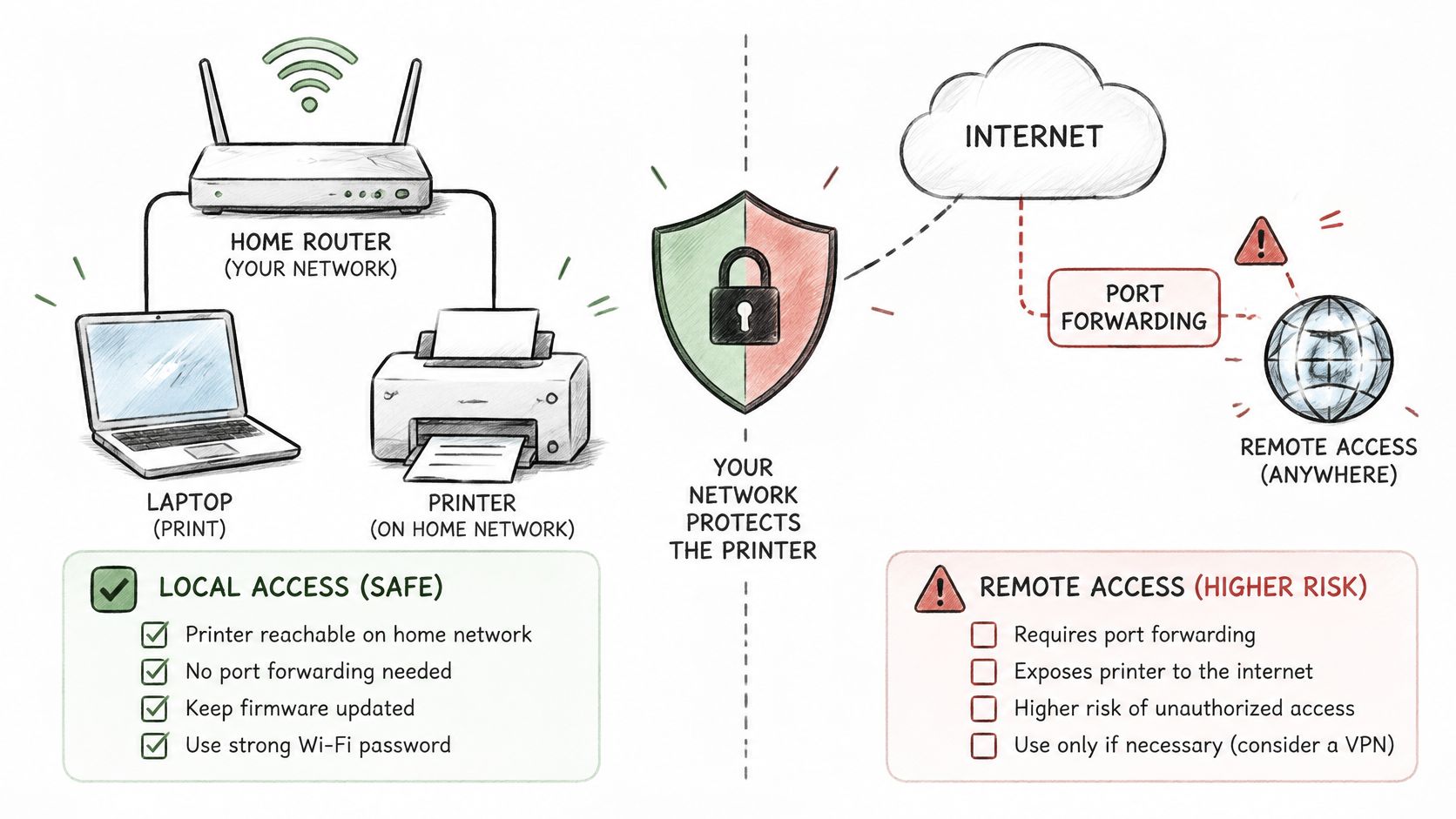
Say a small office enables a printer's remote or cloud printing option to push through a job that wouldn't arrive. The job prints. The printer now also answers on a second path, and the original fault becomes harder to find because the device responds on a route it never should have had. That's not a repair, it's a workaround with a permanent side effect.
The checks to run before any network change
- Same private network. Confirm the printer and the computer sit on the same network name, not one on the main network and one on a guest SSID.
- No port forwarding for printing. A home or small-office printer has no reason to accept connections from outside the network. If a rule exists, remove it.
- Firmware date and source. Check the firmware version in the printer's own menu or its embedded web page, and update only through the manufacturer's official page or the device menu, never a third-party mirror.
- Unknown entries. Remove printer entries you don't recognise from the computer's device list, and clear duplicate queues while you're there.
- Guest network isolation. Guest networks often block device-to-device traffic by design, which looks exactly like a broken printer.
An old device that fails for every user on every machine is a reason to escalate or replace, not a reason to widen access and hope. Availability and secure manageability are different states, and an online printer is not automatically a healthy one.
A fix that makes the printer reachable from outside your network is not a fix.
Network Printers That Show Online but Stay Silent
Seen is not printable. A network printer can appear in Windows, answer a ping and still refuse every job, because an online status only proves the device responds on the network, not that the computer's port still points at it. The fault earns its place in any troubleshooting routine: TechGuide's analysis of printer support load cites industry estimates that printer problems account for approximately 20% to 25% of office hardware-malfunction tickets, with an IDC estimate placing printer-related issues at about 23% of hardware help-desk tickets in medium and large enterprises.
Why the address moves under you
Most home routers hand out addresses by lease. A printer at one address before a reboot can return on another, while the computer's TCP/IP port still targets the old one and reports the printer as online because the queue entry never changed. Other causes look identical from the chair: a mesh node or router swap moved the printer to a different segment, a firewall blocks the printing traffic, or saved credentials to the printer's shared folder expired.
The single-device versus all-devices test settles most of this in under a minute. If every device fails, suspect the printer or the router. If only one computer fails, suspect that computer's port or driver. Everything else is guesswork until you know which side of that line you're on.
- Read the current address from the printer. Print the network configuration page from the device menu. That page is the truth; the computer's port list is a memory.
- Compare it with the configured port. Printer properties, Ports tab, look at the TCP/IP entry. Any mismatch explains the silence.
- Update the port or re-add the printer by IP. Changing the port address is faster than reinstalling. Re-adding is cleaner when the queue has drifted.
- Reserve the address in the router. A DHCP reservation ties the printer's hardware address to one IP, so it usually comes back on the same address after reboots and lease renewals.
Fix the address, not the exposure. Correcting the port or re-adding the printer keeps the device on the local path it already had, while a workaround that opens a second route to reach it trades a one-minute change for a wider footprint you didn't need.
If the printer keeps falling off the network rather than dropping once, you're dealing with Wi-Fi stability rather than printing, and the fixes for Wi-Fi that keeps disconnecting apply to a printer on the same band as much as to a laptop.
Confirm the Print Path Before You Walk Away
One pass closes this out. The queue is empty. The spooler is running. A one-page plain-text document prints. A document from a second application prints. If all four are true, the software path from application to spooler to port is sound and the fault was in the layers you've now cleared.
If the second app fails while the first succeeds, the problem is application-specific rendering, not transport. Check that app's print settings, page size and any "print to file" option it may have latched onto.
Where software stops being the answer
Hardware announces itself clearly enough once you know what to look for. Error or attention lights that won't clear, a paper jam you've already removed, an empty or expired cartridge, or a printer that won't produce its own self-test page from its control panel. No driver reinstall fixes any of those, and continuing to troubleshoot software on a device that can't print its own status page wastes an afternoon.
That's also the point where a remote session helps most. If the checks above leave you stuck, a technician works through the same sequence with you on screen: they guide the fix while you watch, confirm the result with you, and send a short summary when the session ends. Nothing runs without your explicit consent, and technicians never ask for passwords or payment details during a session. Hardware repair, data recovery and on-site visits sit outside what a remote session covers, and you'll be told so directly if that's where your fault lands.
Save the successful test page. It's the reference that tells you, next time, which layer broke and what fixed it.
When the queue clears but the printer still won't cooperate, 247TechTeam can take the same checks further in a live remote session. A certified technician works through the printer, port, driver and network layers with you on screen, confirms the result before disconnecting, and sends a short summary of what changed. Visit 247TechTeam to start a session or pick up antivirus protection for the same Windows or Mac machine.